
Term Suggestions
Terms are suggested for catalog item attributes as a result of AI-powered term detection during profiling or documentation flow.
They represent potential term matches for your data and should be accepted or rejected. This way, the platform learns from your choices and makes future suggestions more precise.
To find out more about the mechanism behind term suggestions, see Term Suggestions: Behind the Scenes.
Permissions for term suggestions
What you can do with term suggestions depends on your access level to each catalog item:
-
View pending and resolved suggestions for a catalog item on the Term Suggestions screen: Any access level to the catalog item and the suggested term.
-
View suggestions in the attribute sidebar: Full access to the catalog item.
-
Resolve pending suggestions for a catalog item: Full access to the catalog item.
If you have the MMM_admin role, you can resolve suggestions for all catalog items.
How to resolve term suggestions
To help you make an informed decision faster, each suggestion has a confidence score, which is also reflected in the color of the suggestion.
| If the confidence score and the term name are not informative enough, check the Data and Profile & DQ Insights tabs for additional context and insights. |
To accept or reject a term suggestion, select the checkmark or the X icon accordingly. Publish your changes. If you accepted the suggestion, the term is now added to your attribute.
Access term suggestions from the catalog item
To check for term suggestions on a catalog item:
-
Go to the Overview tab of your catalog item.
-
In the Attributes section, select the three dots menu.
-
Select Check for term suggestions.
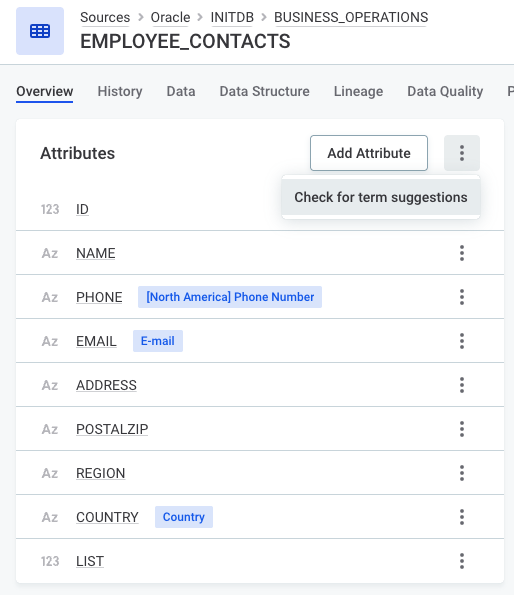
This opens the Term Suggestions screen, filtered to show results for your catalog item only. By default, the screen lists only the suggestions you can accept or reject. See View only suggestions you can approve.
View suggestions for a single attribute
To view term suggestions for a specific attribute:
-
Go to the Overview tab of your catalog item.
-
In the Attributes section, select an attribute to open its details in the sidebar.
-
Review the term suggestions displayed in the Glossary terms section of the sidebar.
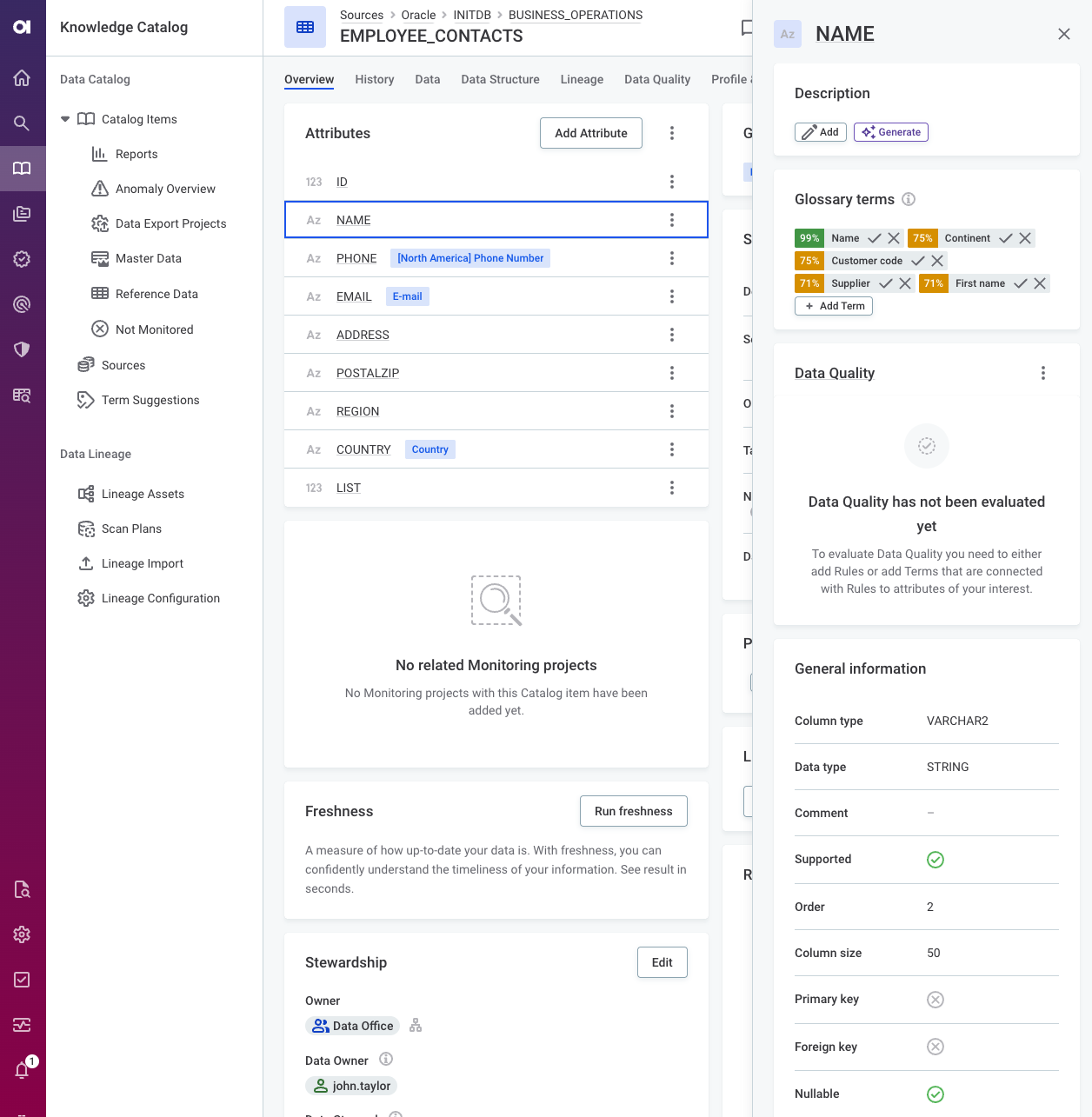
The Only suggestions I can approve switch doesn’t apply to the sidebar.
Resolve term suggestions in bulk
You can also resolve term suggestions in bulk from the Term Suggestions screen in Knowledge Catalog > Data Catalog. This way, you can manage your term suggestions more efficiently without having to inspect each attribute individually.
When resolving term suggestions from this screen, your changes are automatically published and propagated to other users. Additionally, these decisions are logged, allowing you to track which terms have been accepted or rejected and by whom.
The screen lists pending term suggestions. Each suggestion shows the following information:
-
Suggested Term: The term proposed for the attribute.
-
Confidence: The likelihood that the term matches the attribute.
-
Attribute: The attribute that the term will be applied to.
-
Location: Where the attribute is located in your sources.
To view all attributes for which a specific term was suggested, select the term in Suggested Term. In the sidebar that opens, go to the Insights section and select Show all N suggestions.
This filters the results on the Term Suggestions tab by the selected term:
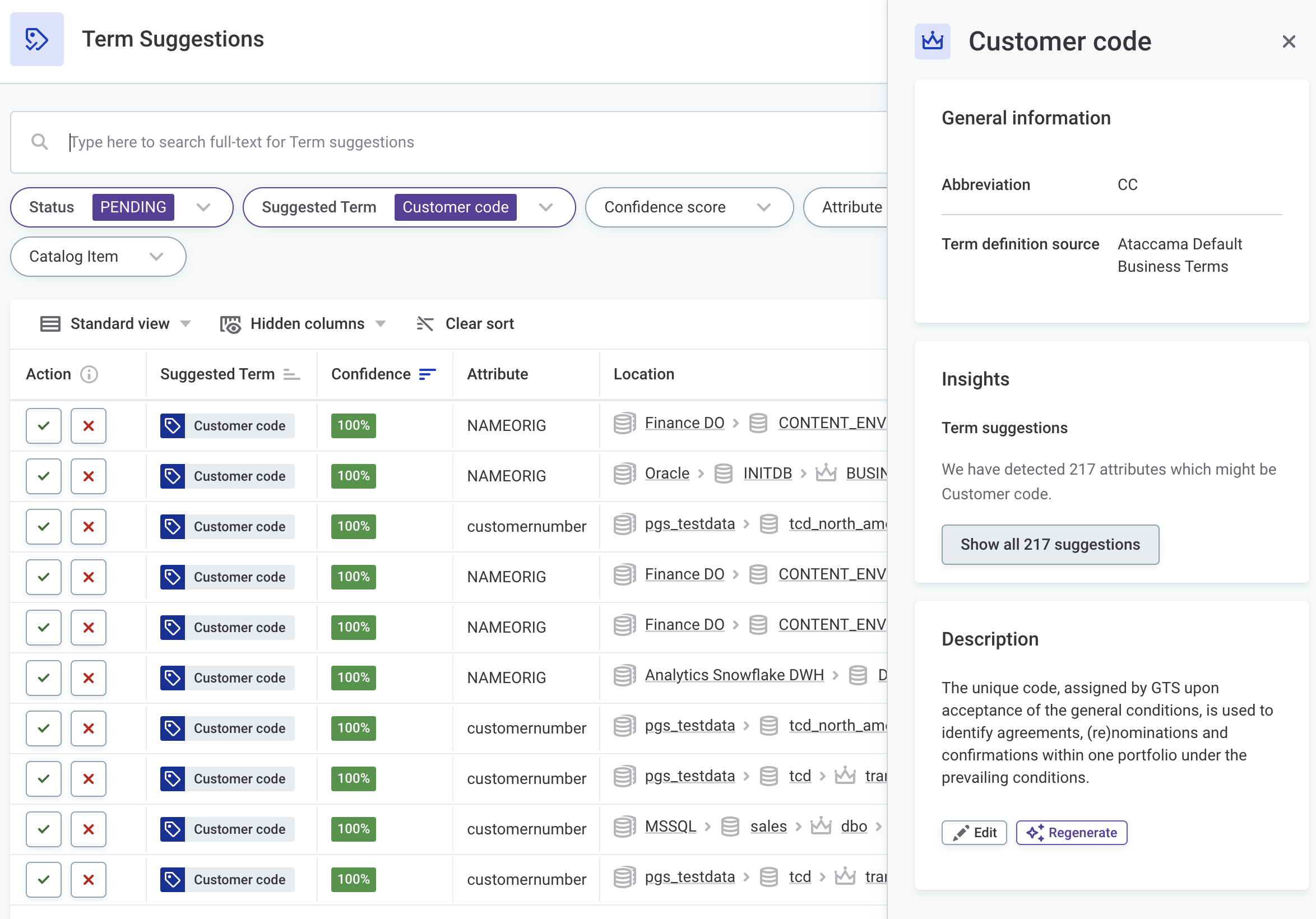
Use the options in the Action column to accept or reject the term suggestion depending on what makes sense for your data. Resolved term suggestions are labeled as Accepted or Rejected.
| To explore each suggestion further, select it from the list. This displays the term suggestion details, including a definition of the suggested term, an explanation of the confidence level, and further information about the attribute, including its profiling results. |
View only suggestions you can approve
By default, you see only the suggestions you have permission to accept or reject. This is controlled by the Only suggestions I can approve switch.
To see all pending suggestions, turn the switch off. Suggestions you can’t resolve are then shown with the checkmark and X icons grayed out in the Action column. Hover over them to see why you can’t resolve the suggestion.
If you have the MMM_admin role, you always see all pending suggestions, regardless of the switch.
Track resolved suggestions
By default, the Status filter shows only pending term suggestions.
Once you accept or reject a suggestion, your decision is displayed until you refresh the screen or load more attributes.
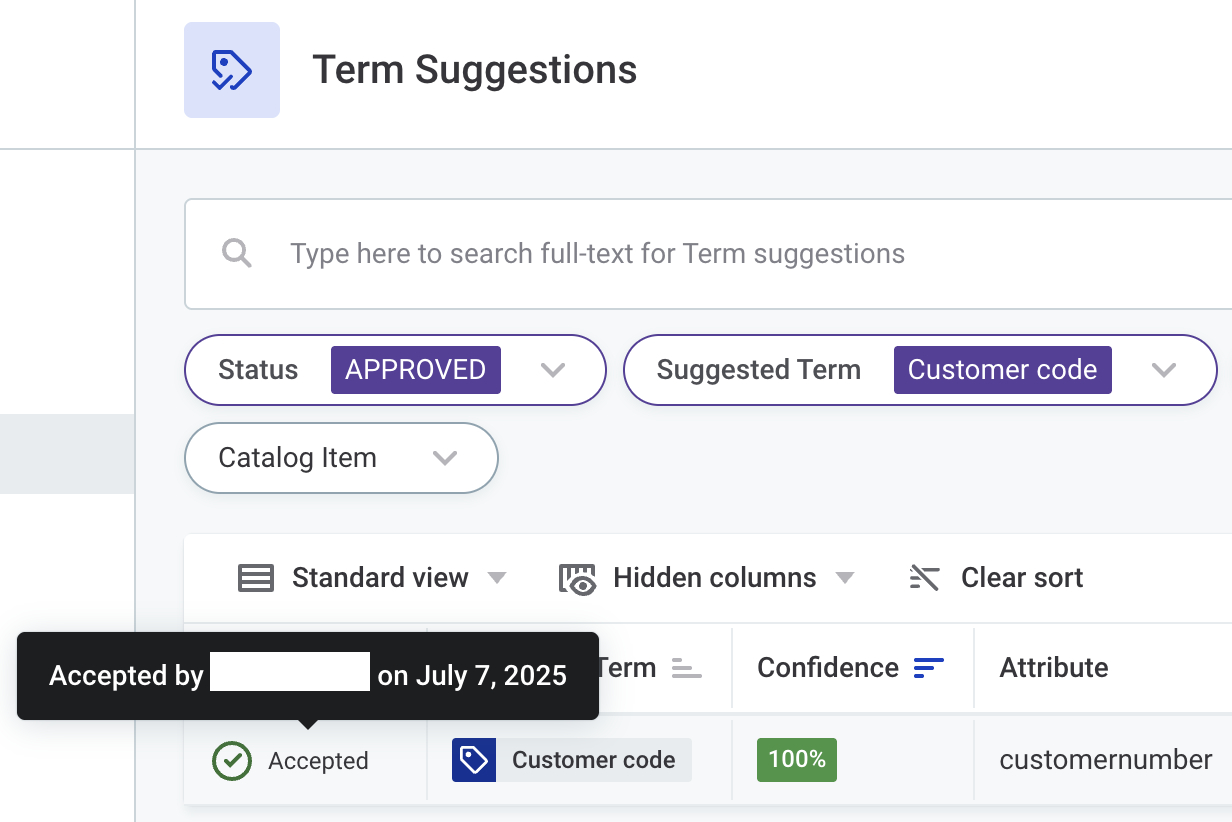
To view resolved term suggestions, change the Status filter to Approved and/or Rejected. To see when the decision was made and by whom, hover over the Action column for that term suggestion.
Revert resolved suggestions
As all decisions made on the Term Suggestions screen are automatically published, you might need to revert some decisions.
To do so, directly access the attribute in a catalog item and manually remove or add the term.
For more detailed instructions, see Terms > Add Term to Asset.
| Changes made to terms outside of the Term Suggestions screen are not published automatically. Make sure to publish your changes when manually editing added terms to make them available to all users. |
Next steps
-
Learn how term suggestion works: Discover how AI-powered term suggestions are generated and how user input contributes to better results.
-
Add detection rules: Add rules to relevant terms so they’re applied automatically to your data during term detection.
-
Map DQ rules to terms: Automatically validate your data against relevant terms by linking them to DQ rules.
Was this page useful?