
Export Invalid Records
You can configure monitoring projects to automatically export records that fail validation rules to a table. Invalid records are exported with each DQ evaluation, ensuring you always have current results for analysis and remediation. The export contains one row for each rule that a record fails.
Why export invalid records?
Exporting invalid records is useful for sharing results with data owners or stakeholders without access to Ataccama ONE, or for integrating with external remediation workflows.
Invalid record exports vs. samples
- Invalid record exports
-
All invalid records exported to an external table, up to the configured record limit. Useful for comprehensive analysis, sharing, and remediation.
- Invalid record samples
-
A limited sample of invalid data available from the monitoring project Configuration & Results tab. Useful for quick investigation within Ataccama ONE. See Invalid results samples.
Supported sources
Invalid records can be exported from the following sources, provided pushdown processing is enabled:
-
BigQuery
-
Databricks
-
IOMETE
-
Snowflake (requires Legacy pushdown to be turned off on the connection, see Differences between Legacy pushdown settings).
Set up export of invalid records
To configure automatic export:
-
Open your monitoring project.
-
On the Configuration & Results tab, select the three dots menu for the catalog item and then Add pushdown invalid record export.
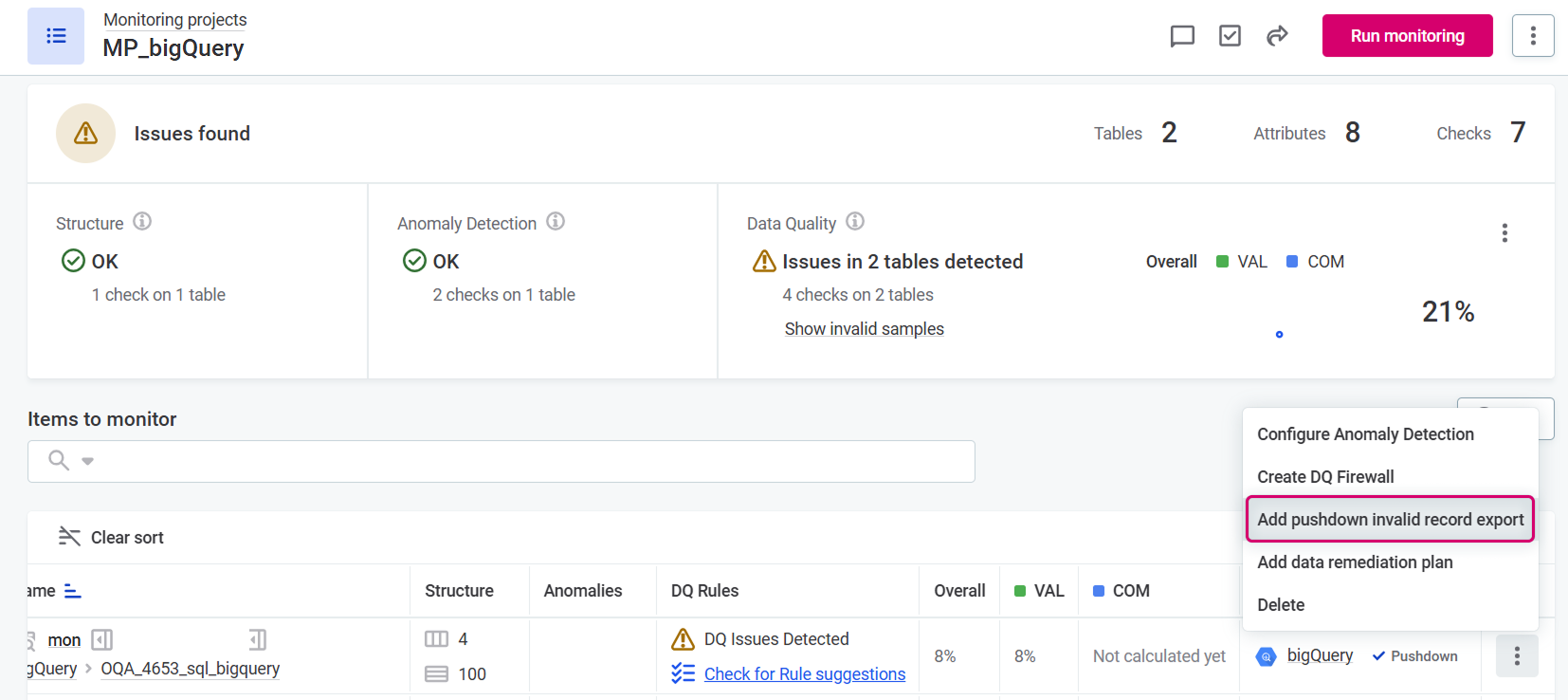
-
Publish the changes.
The next time you run DQ evaluation, invalid records will be exported to your specified table.
Export settings
Configure the following settings in the Invalid records export settings dialog:
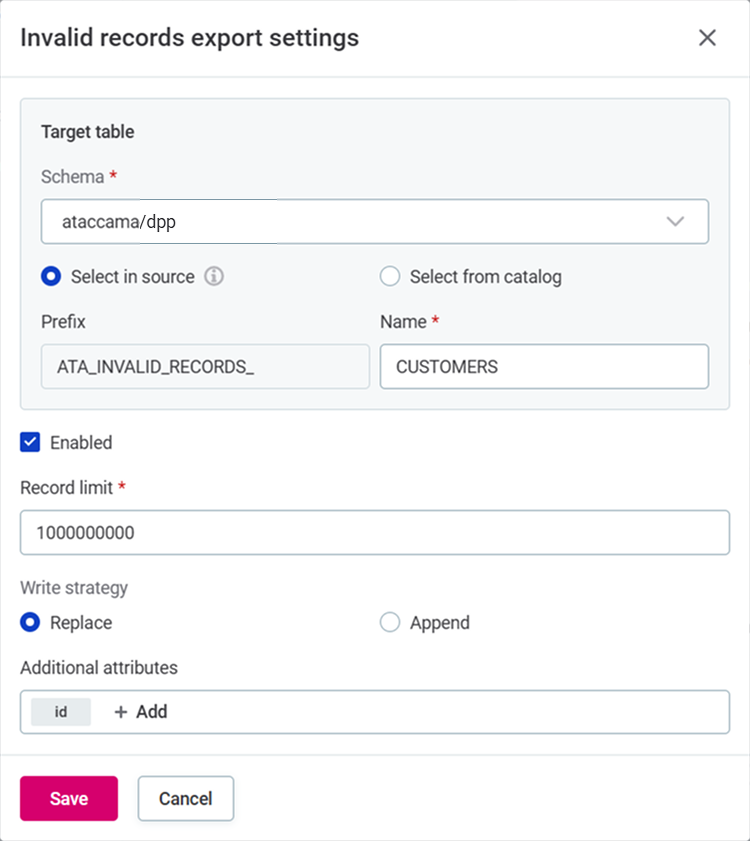
Target table
Specify where invalid records should be exported.
| Ensure your database role has the required permissions. For details, see BigQuery permissions, Databricks permissions, or Snowflake permissions. |
-
Schema: Select the schema where you want to export the table.
-
Select in source: Create a new table or use an existing table in your database.
-
Name: Enter the table name. If the table does not exist, it will be created automatically with the required structure.
There can be a maximum of one export setting per monitoring project catalog item. -
Prefix: The prefix is fixed as
ATA_INVALID_RECORDS_for easy identification of export tables.
-
-
Select from catalog: Select an existing catalog item as the export destination.
The catalog item name must start with
ATA_INVALID_RECORDSand must have all required columns. To create such a catalog item, first create a table with these specifications in your database, and then import the table to the catalog. For the required columns and the order they must be created in, see Export table structure.
Record limit
Set the maximum number of records to export for each catalog item in a DQ evaluation.
To be sure that your exports are complete, set the limit comfortably above the number of invalid records you expect. If the limit is reached, the DQ evaluation completes successfully and the export contains records up to the limit.
| If you consistently see a high number of invalid records, this might indicate misconfigured DQ rules or monitoring settings that require adjustment. Review your rules logic to make sure it is correct. |
Write strategy
Choose how new export results interact with existing data:
-
Replace: Adds the invalid records from the latest DQ evaluation and removes those exported by previous runs of the same export configuration. Records exported from other catalog items or by other monitoring projects are kept, even when they are stored in the same table.
-
Append: Appends new invalid records while keeping the previous ones.
For the exact conditions under which records are removed, see Replace.
Additional attributes
By default, the export includes only the first input attribute of each rule.
You can add the following as additional attributes:
-
Remaining rule inputs: For rules with multiple inputs, you need to add the remaining input attributes yourself.
If any input attribute of a multi-input rule is missing from the additional attributes, the export fails with the error Raw column for '<attribute_name>' not present in select. -
User-selected attributes: You can select additional attributes to provide context for investigating DQ issues. For example, if an email address fails validation, adding the country code helps you identify whether all issues originate from the same country.
Additional attributes appear in a single column in the export table as a JSON object serialized to text.
View exported records
After DQ evaluation completes, all invalid records are written to your specified table.
To view the exported records:
-
In the monitoring project, go to the Export tab.
-
Select the link to your export table.
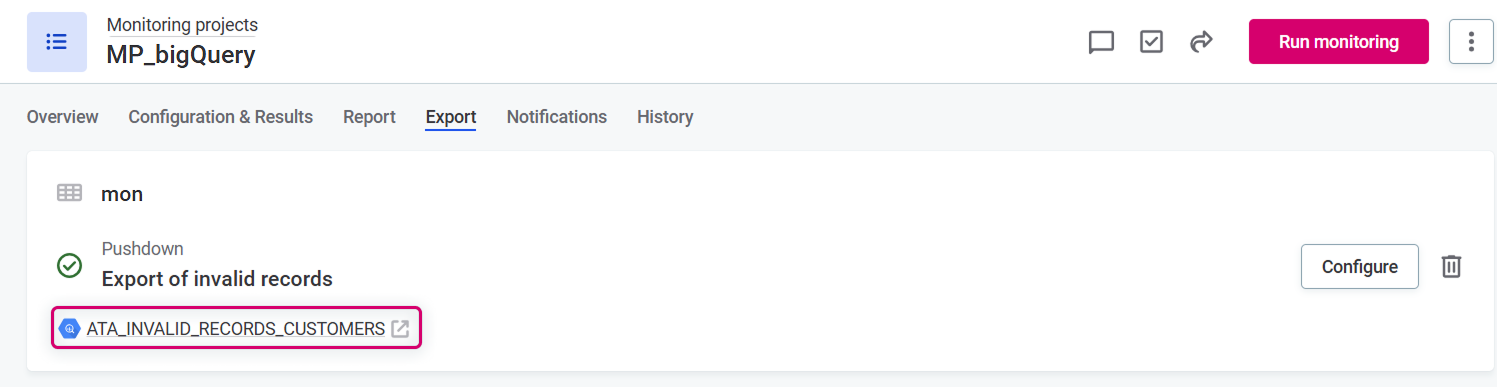
This opens the table in your database interface where you can view, query, and download the data.

|
For IOMETE sources, a direct link to the export table is not available.
The Export tab instead displays the full table name in the format |
Manage export settings
On the monitoring project Export tab, you can:
-
Modify the export configuration: Select Configure to update settings. Changes take effect after you publish and run the next evaluation.
-
Disable the export: Select Configure and in the settings dialog, uncheck Enable to temporarily stop exporting without removing the configuration.
-
Delete the export settings: Select the Delete icon to remove the configuration.
Deleting the export configuration does not delete the export table or its data from your database.
Export invalid records: Deep dive
To learn more about the technical details of how exports work, what data is included, and how records are stored and retained, see Export Invalid Records: Deep Dive.
Was this page useful?