
HashiCorp Vault Integration
Integrate ONE with HashiCorp Vault to retrieve secrets when connecting to data sources.
Create new HashiCorp Vault integration
-
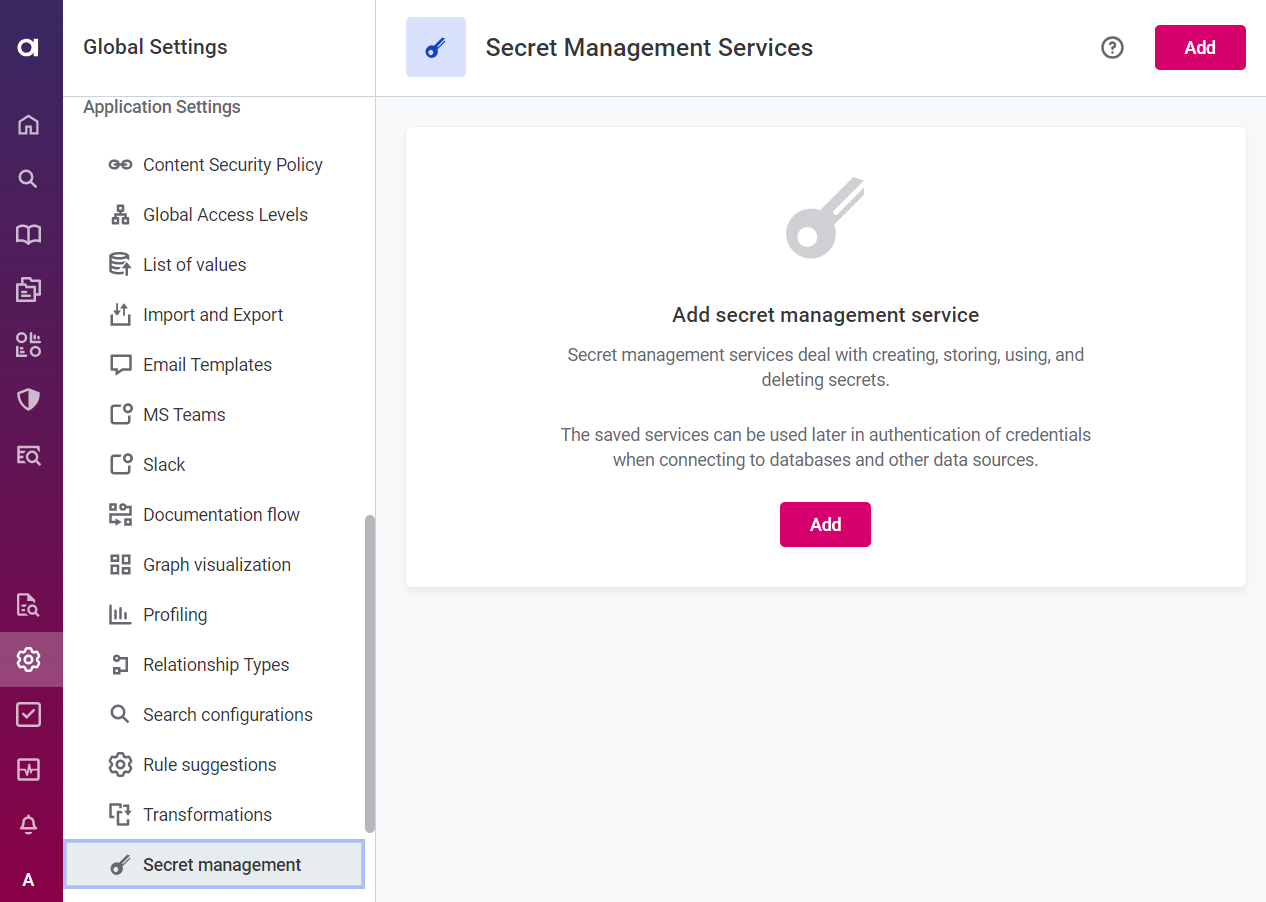
Go to Global Settings > Application Settings > Secret Management.
-
Select Add.
-
Provide the following information:
-
General
-
Provider: The key vault or secret manager you are connecting to. Select HashiCorp Vault.
-
Name: A unique name for this service.
-
Json enabled (Recommended): Select this option to allow ONE to work with values nested in JSON objects in HashiCorp.
-
URL: The complete URL of the HashiCorp Vault.
-
Namespace: The name of your namespace in HashiCorp. This can be seen in the HashiCorp URL after you select your vault from the list of vaults in Secrets Engine.
-
-
Authentication method: Select from the options provided.
-
Google Service Account Key credential
-
Role: The name of the role configured in the HashiCorp Vault. If you do not know this, obtain it using the API according to the official HashiCorp documentation.
-
Service key: Upload your service key. This is a JSON file obtained via Service Accounts in the Google Cloud Console.
-
-
Google Compute Engine credential
This option can only be used when Ataccama DPEs are deployed on Google servers. .. Role: The name of the role configured in the HashiCorp Vault. If you do not know this, obtain it using the API according to the official HashiCorp documentation. -
Hashicorp JWT credentials
-
Role: The name of the role configured in the HashiCorp Vault. If you do not know this, obtain it using the API according to the official HashiCorp documentation.
-
JWT: Signed JWT Token. There are some steps required in HashiCorp to obtain this. Multiple methods are available. For a step-by-step guide of one available method, static keys, see the HashiCorp article Vault JWT auth with static keys.
These steps will require admin access to the vault UI or CLI.
-
-
-
Select Test to test the connection. If the connection is successful, select Save. Otherwise, verify that your configuration is correct.
Usage examples
Example using username and password
-
In Data Catalog > Sources > [your source] > Add Connection, select Add Credentials.
-
Select Credential type from the options provided:
-
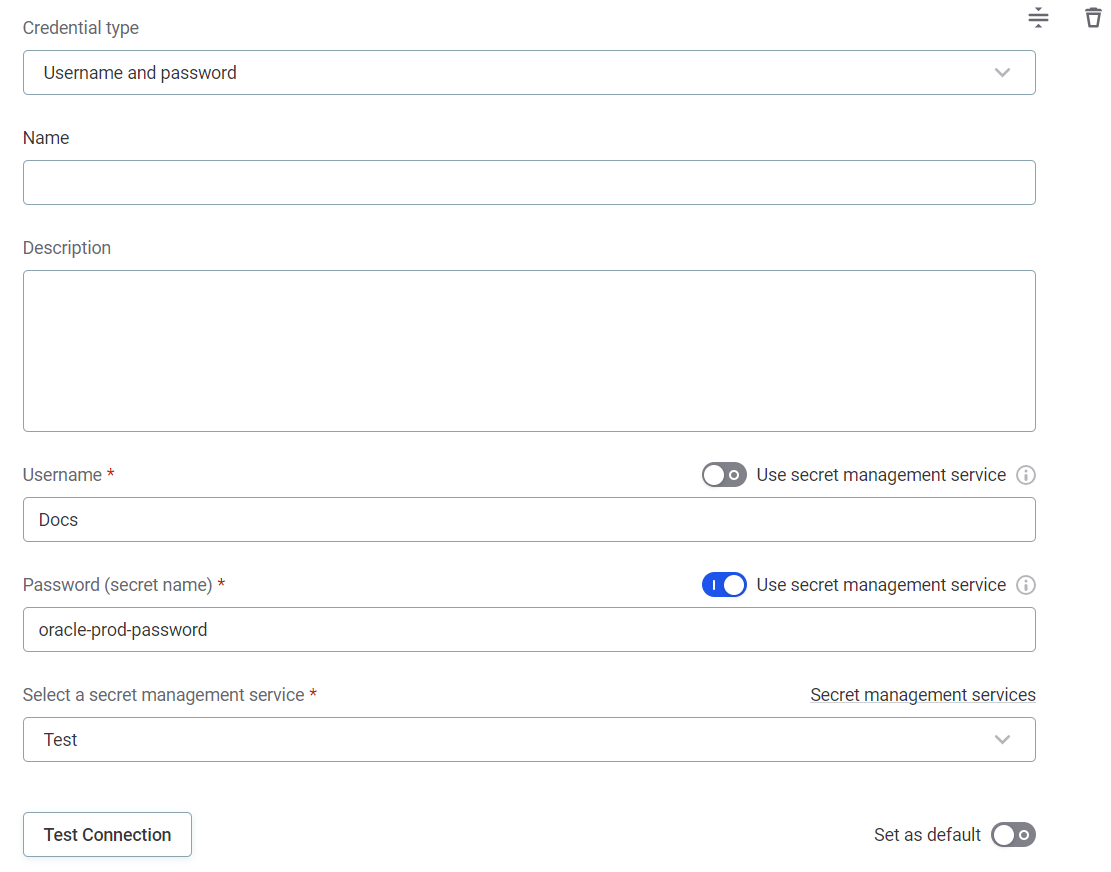
Username and password:
-
Name: A unique name for this set of credentials.
-
Description (Optional): A description for this service.
-
Select a secret management service: Select the HashiCorp Vault you configured.
-
Username:
-
Select the Use secret management service option.
You can enable Use secret management service to retrieve the username, but it is not necessary as usernames can generally be shared and entered manually. -
Username (secret name): Enter the name under which the username is stored in your key vault. The format depends on whether you selected Json enabled when configuring the HashiCorp Vault in Secret Management Services:
-
Json enabled is selected: Enter the secret path only.
In the following example, Username (secret name) is
example_path/secret_name. -
Json enabled is not selected: Enter the secret path with the key appended using a colon.
In the following example, Username (secret name) is
example_path/secret_name:snowflake-usernameorexample_path/secret_name:$.snowflake-username.
-
-
Username Json path: The JSON path to the username in your HashiCorp Vault.
This field is only relevant if you selected Json enabled when configuring the HashiCorp Vault in Secret Management Services. In the following example, Username Json path is
$.snowflake-username.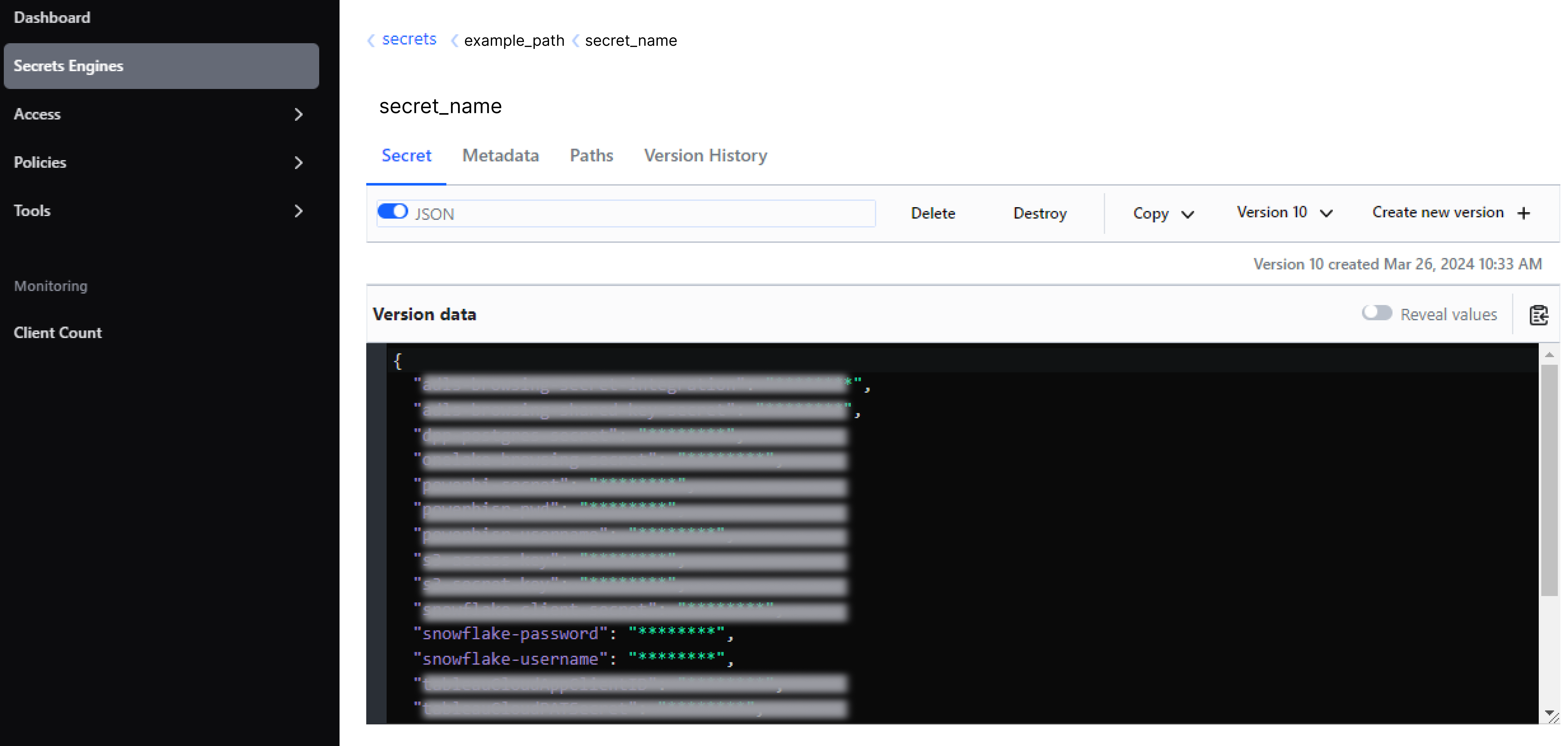
-
-
Password:
-
Select the Use secret management service option.
-
Password (secret name): Enter the name under which the password is stored in your key vault. The format depends on whether Json enabled was selected when configuring the HashiCorp Vault in Secret Management Services:
-
Json enabled is selected: Enter the secret path only.
In the following example, Password (secret name) is
example_path/secret_name. -
Json enabled is not selected: Enter the secret path with the key appended using a colon.
In the following example, Password (secret name) is
example_path/secret_name:snowflake-passwordorexample_path/secret_name:$.snowflake-password.
-
-
Password Json path: The JSON path to the password in your HashiCorp Vault.
This field is only relevant if you selected Json enabled when configuring the HashiCorp Vault in Secret Management Services. In the following example, Password Json path is
$.snowflake-password.
-
-
-
-
Select Test to test the connection. If the connection is successful, select Save. Otherwise, verify that your configuration is correct.
Was this page useful?