
Add Detection Rules to Terms
Once you have created your detection rule, map the rule to appropriate terms so that it is applied to your data during term detection.
Terms and rules are mapped from the Settings tab of a term.
Add detection rule to term
To add a detection rule to a term:
-
Go to Business Glossary.
-
Select Terms.
-
For the required term, select the Settings tab.
-
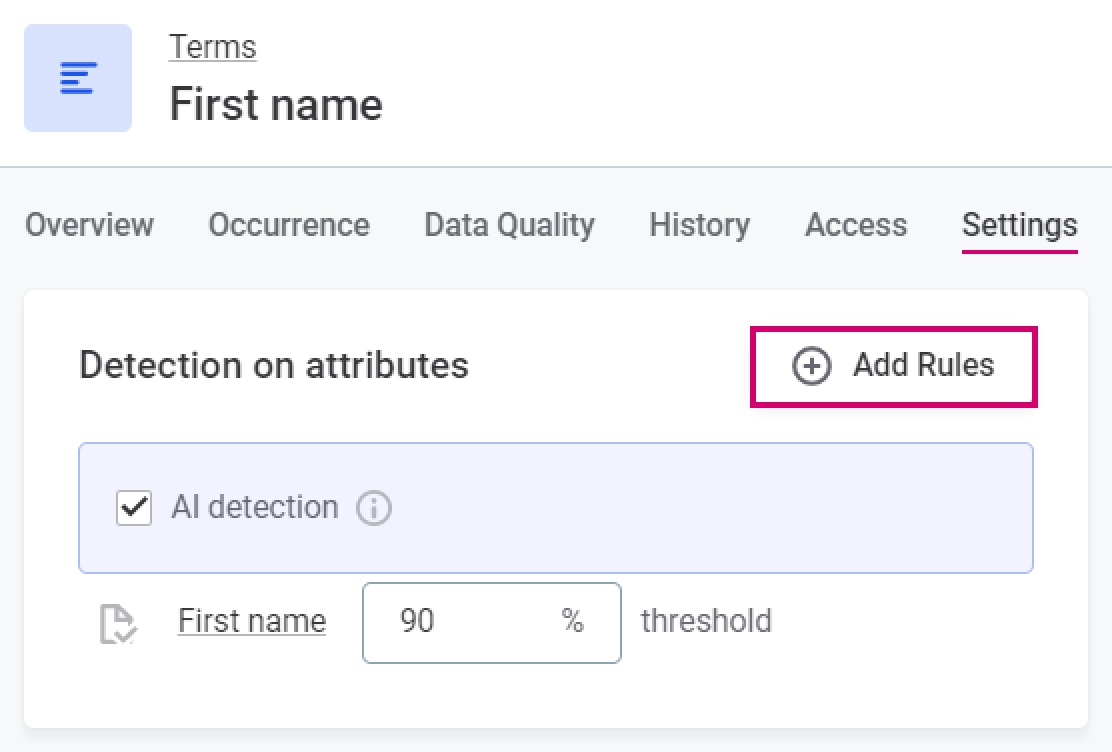
In Detection on attributes, select Add Rules.
-
Select your detection rule from the list available.
-
Repeat as necessary to add additional rules.
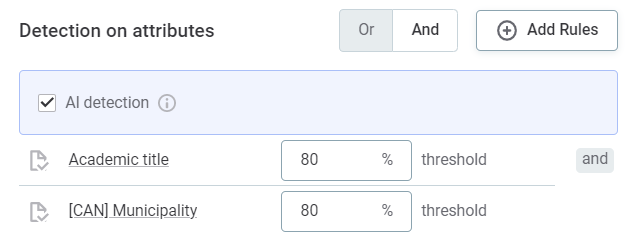
If multiple detection rules have been added you can select the required operator:
-
OR - The term is added to the attribute if at least one of the rules have been satisfied.
-
AND - The term is added to the attribute if all the rules have been satisfied.
-
-
Define the threshold. This is the percentage of attribute values which need to fulfill the rule conditions in order for the term to be applied.
Null values are ignored when calculating the percentage of attribute values which fulfil rule conditions.
For example, you have 100 records for an attribute and a threshold of 80%, and 50 of those records contain null values. The percentage which is considered when deciding if the term should be applied to the attribute is the percentage of the 50 non-null records which satisfy the rule conditions, not the percentage of all records.
This behavior is not reflected in the Test Rule feature.
| Although enabled from the same section, AI term detection and detection rules work independently. Detection rules are not AI-powered. |
Remove detection rule
To remove a detection rule:
-
Go to Business Glossary.
-
Select Terms.
-
For the required term, select the Settings tab.
-
In Detection on attributes, select the delete icon next to the rule.

Edit rule implementation
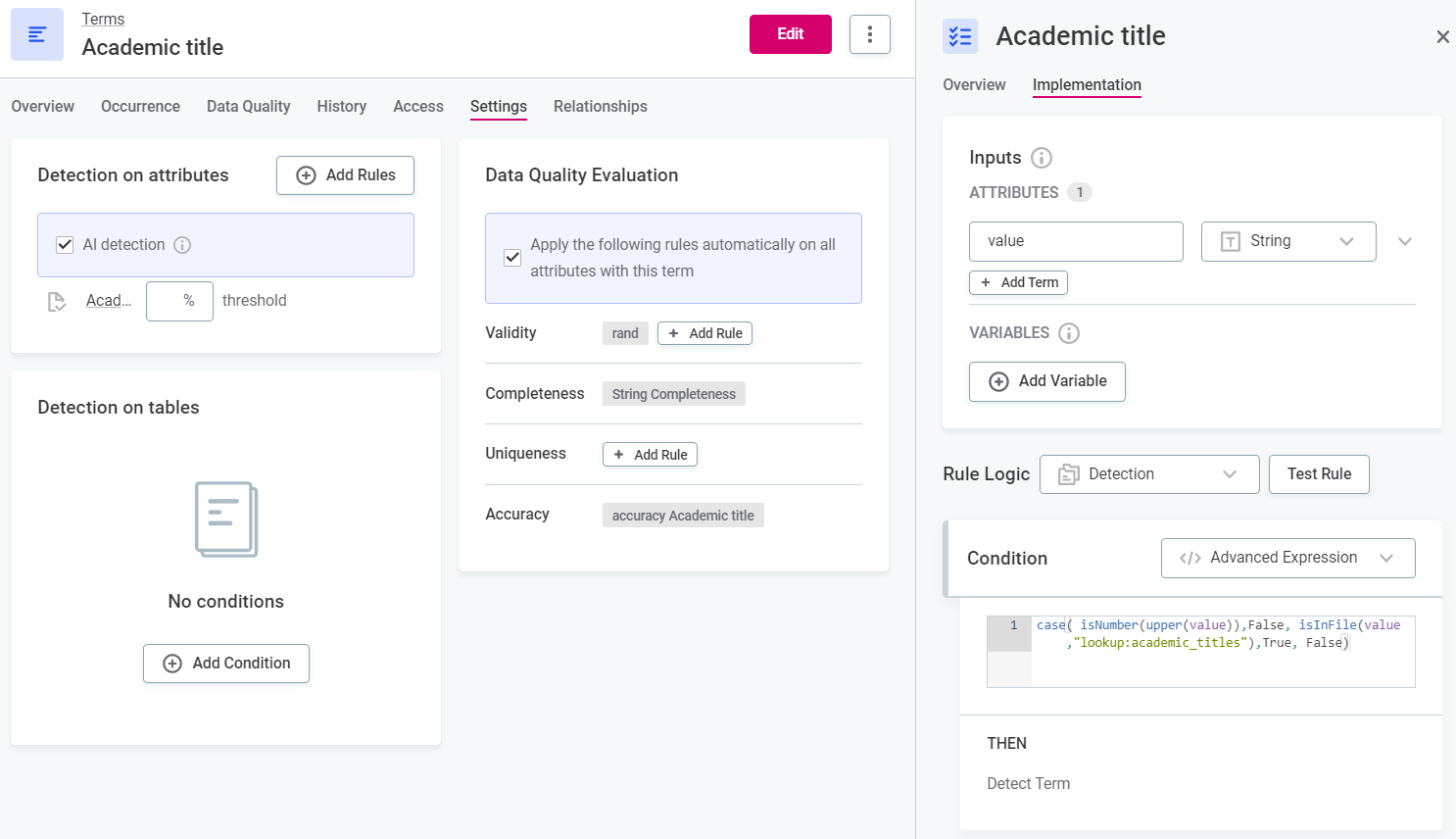
It is also possible to view and edit the configuration of the detection rule from the term Settings tab:
-
Click the rule name to open the rule details in the sidebar.
-
Change the configuration on the Implementation tab.
Add detection to catalog items
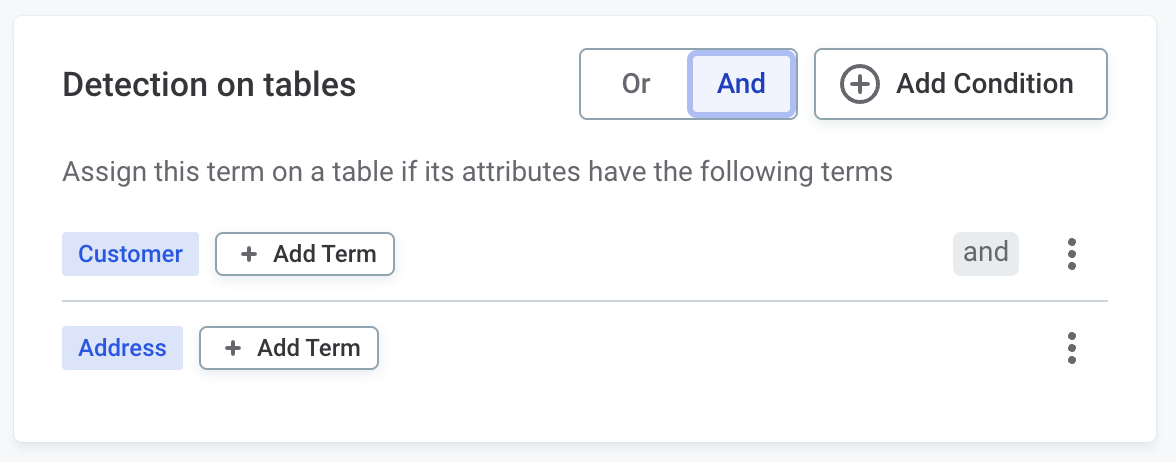
In the Detection on tables section, you can also define rules that automatically assign the term to a catalog item based on the terms of its attributes.
For example, a rule can assign the Customer Data term to every catalog item whose attributes have the Customer and Address terms.
These rules are evaluated each time a term is assigned to one of the catalog item’s attributes.
What you can do:
-
Add conditions and terms within each condition that must be present in catalog item attributes.
-
Choose logic between terms within a condition:
-
AND: All terms in the condition must be matched.
-
OR: At least one term must be matched.
-
-
Switch logic between conditions using the or/and toggle.
-
Remove terms or conditions.
Access required for automatic assignment
Detection rules assign a term only if at least one user in your environment has access to both the term and the catalog item.
Any access level counts, including access through a group, stewardship, or a parent asset such as the source.
Users with the MMM_admin identity provider role aren’t taken into account.
See Where access comes from.
For example, a term shared only with the Sales EMEA group isn’t assigned to catalog items shared only with the Sales APAC group, if no user has access to both. If a user later gets access to both, the term is assigned the next time detection runs on the catalog item, not when the access changes.
The access requirement applies to detection rules in Detection on attributes and to rules in Detection on tables. Terms you add manually and term suggestions aren’t affected.
To turn off the access requirement, set ataccama.one.metadata.processing.termAssignmentPermissionCheck.enabled to false in the Metadata Management Module (MMM) configuration.
See Term detection.
When a term isn’t assigned automatically
If a term isn’t assigned although your data meets the rule conditions, find out who has access to the term and to the catalog item before you change the rule. To see who an asset is shared with, open its Overview tab and select Share.
To confirm whether a specific user has access to both, a user with the MMM_admin identity provider role can run the Explain permissions report as that user on the term and on the catalog item.
Was this page useful?