
Profiling Results Retention
Every profiling run on a catalog item produces a profiling result, and by default, these results are stored indefinitely. With profiling results retention, you limit stored results to a number of runs or days.
Use retention to keep the amount of stored data under control, or to comply with company policies on how long data can be kept.
How profiling results retention works
Full and sample profiling results are counted separately
The retention limit counts profiling results separately by profiling type and by partition:
-
Full profiling: Results of Full profile & DQ evaluation and of custom full profiling configurations are counted together.
-
Sample profiling: Results of Sample profile & DQ evaluation and of custom sample profiling configurations are counted together.
-
Partitions: In a partitioned catalog item, results of each partition are counted separately for each profiling type.
For example, with the limit set to 10 runs, the catalog item keeps its 10 most recent full profiling results, whether they come from Full profile & DQ evaluation or from a custom full profiling configuration. It also keeps its 10 most recent sample profiling results. If the catalog item has no partitions, that is up to 20 stored results.
This is the same grouping that the profiling trend charts show and that anomaly detection uses.
The most recent result is always kept
The most recent result of each profiling type is never removed, regardless of the retention policy. This result is used by the current profiling view of the catalog item, by term suggestions, and by the checks that identify obsolete catalog items in documentation flows.
Retention by runs or by days
Choose between Days and Runs:
-
Runs: The number of most recent results of each profiling type that are kept.
-
Days: The number of days for which results are kept. Counted in UTC and including the current day. For example, with 50 days, results from the current day and the previous 49 days are kept.
In both cases, the most recent result of each profiling type is kept, and the value must be at least 1.
How global and catalog item limits combine
You can set retention on two levels:
-
Global default: Applies to all catalog items. See Set retention for all catalog items.
-
Per catalog item: Applies to one catalog item. Use it, for example, for a frequently profiled catalog item whose history should stay short. See Set retention for a single catalog item.
When both limits are set, the stricter one wins:
-
If both use Runs or both use Days, the lower value applies.
-
If one uses Runs and the other Days, both are enforced.
For example, with a global default of 50 runs and a per-item limit of 30 days, the catalog item keeps at most 50 results of each profiling type, and none older than 30 days.
When the retention policy is checked
The retention policy is checked, and results over the limit are removed, in the following cases:
-
After each profiling run of a catalog item.
-
On a regular schedule, by default once every 24 hours. The schedule is controlled by the
plugin.profiling.ataccama.one.retention-check.intervalproperty. See Profiling plugin. -
After a retention policy is published. Publishing the global default starts a background job named Profiling retention enforcement, which you can follow in the processing center. Publishing finishes immediately, and results are removed as the job runs. On a large catalog, the job stops after 10 minutes and its status changes to Cancelled. The scheduled check then removes the remaining results.
What is removed
When a profiling result is removed, it is permanently deleted together with:
-
All its versions.
-
The results and statistics of its attributes.
-
Its anomaly detection results.
Deletions of profiling results are recorded in the audit log.
| Deleted results are not archived and cannot be restored. To keep a copy of a result, export it before it is removed. |
Set retention for all catalog items
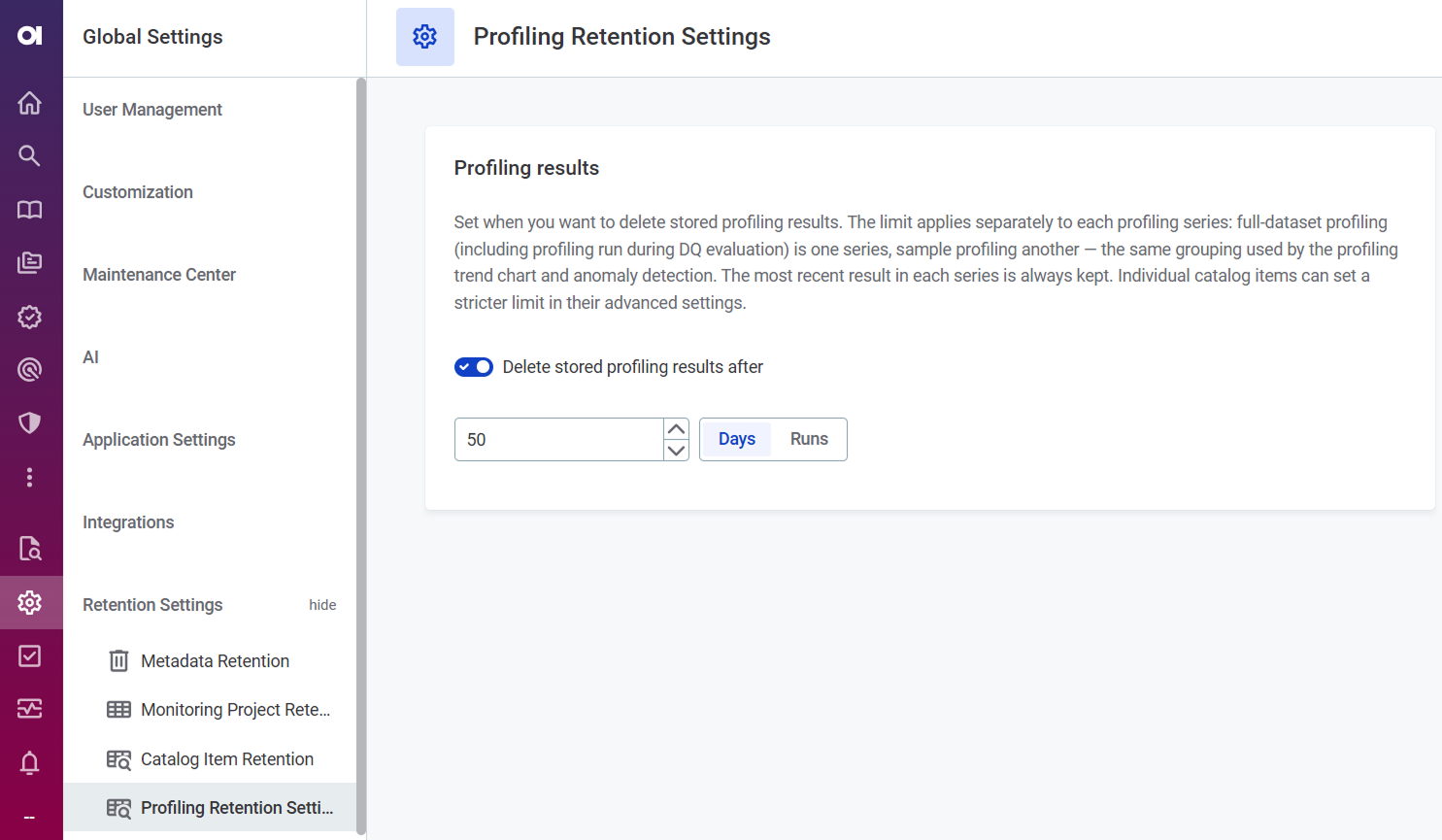
By default, the global retention policy is turned off. To configure it, you need the ONE Administrator role.
To set the global default:
-
Go to Global settings > Retention settings > Profiling retention settings.
-
Select Delete stored profiling results after.
-
Choose between Days and Runs. See Retention by runs or by days.
-
Enter the number.
If anomaly detection matters for your catalog items, keep at least 16 results of each profiling type. See How retention settings affect anomaly detection.
-
Existing results over the new limit are then removed in the background, which can take some time on a large catalog. See When the retention policy is checked.
Set retention for a single catalog item
Setting a retention limit on a catalog item requires Editing access to that catalog item.
To set a retention limit on a single catalog item:
-
Open the catalog item.
-
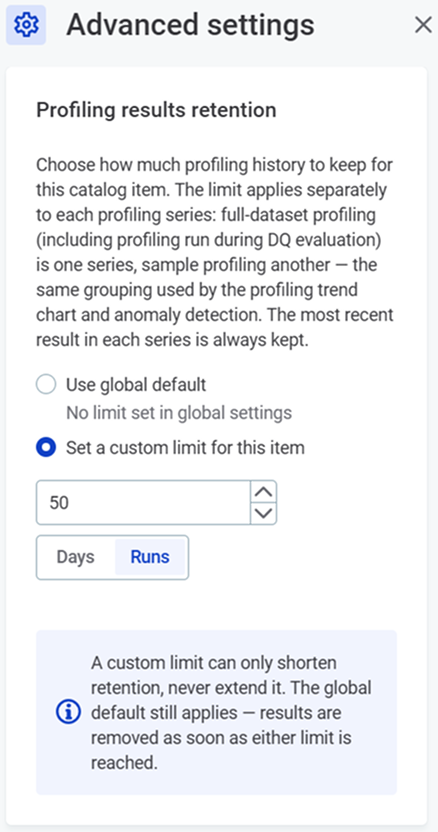
In the three-dot menu, select Advanced settings.
-
In Profiling results retention, select Set a custom limit for this item.
The Use global default option shows the current global policy, for example, Delete after 50 runs or No limit set in global settings. If it shows Global setting could not be loaded, you might not have permission to view the global retention policy, but the global default still applies to the catalog item.
-
Choose between Days and Runs. See Retention by runs or by days.
-
Enter the number.
If anomaly detection matters for this catalog item, keep at least 16 results of each profiling type. See How retention settings affect anomaly detection.
-
Select Save.
-
The limit is applied to the existing profiling results of the catalog item.
To return to the global default, select Use global default, save, and publish the changes.
How retention settings affect anomaly detection
Anomaly detection compares each new profiling result with the previous results of the same profiling type. The retention limit decides how many previous results are available, which affects anomaly detection as follows:
-
Fewer than 6 results: Anomaly detection does not run on the catalog item.
-
6 to 15 results: Anomaly detection runs, but it is less sensitive and flags fewer anomalies.
-
16 or more results: Anomaly detection runs as usual. It uses at most the 100 most recent results, so keeping more than 100 does not affect it.
If anomaly detection matters for a catalog item, keep at least 16 results of each profiling type you use. The time-dependent model with a configured periodicity needs even more results. See Required number of profiles.
How retention settings affect profiling history
After results are removed, the catalog item shows only the retained results:
-
The Profile & DQ insights tab shows the most recent result, as before.
-
The trend charts and the list of previous profiling runs include only the retained results.
-
Comparison with previous results is limited to the retained results.
See also
-
Data Quality Results Retention: Retention of data quality results of catalog items and monitoring projects.
-
Metadata Retention: Retention of jobs and other internal metadata.
-
Profiling plugin: Properties of the scheduled retention check.
-
Anomaly Detection in Catalog Items: How many profiling results anomaly detection needs.
Was this page useful?