
ServiceNow Integration
Connect Ataccama ONE to ServiceNow to create ServiceNow tickets, such as incidents or problems, from monitoring project notifications. ServiceNow then works as a notification channel alongside email, Slack, and Microsoft Teams.
ONE tracks the tickets it creates and shows their number, state, and a link to them directly in the monitoring project.
Before you start
To set up the ServiceNow integration, you need the following:
-
The ONE Administrator, Data Owner, or Data Steward governance role. See Permissions.
-
The URL of your ServiceNow instance.
-
Credentials for your ServiceNow instance. The credentials required depend on the authentication type you choose.
-
(Optional) The base URL of ONE set in the Metadata Management Module (MMM) configuration, so that tickets can link to the monitoring project. See
ataccama.one.base.urlin Monitoring projects. In Ataccama Cloud environments, contact Ataccama Support.
Your ServiceNow instance must meet the following requirements:
-
The ServiceNow user that ONE uses to create and update tickets has read and write access to the table that receives the tickets (for example,
incident). -
The same user has read access to the tables ONE uses to build the field mapping:
sys_db_object,sys_dictionary,sys_choice,sys_user_group, andsys_user. -
For API key authentication, the REST API access policy of your instance allows API key authentication for the Table API.
To set up ServiceNow notifications in a monitoring project, you need Editing access to the project.
Add a ServiceNow connection
The instance URL cannot be changed after the connection is created. To connect to a different ServiceNow instance, create a new connection.
|
Basic authentication ties the connection to one person’s credentials: if their password changes or their account is deactivated, the connection breaks. It also does not work for ServiceNow users with multi-factor authentication (MFA) turned on. For production use, choose OAuth 2.0 with a dedicated service account instead. |
To add a ServiceNow connection:
-
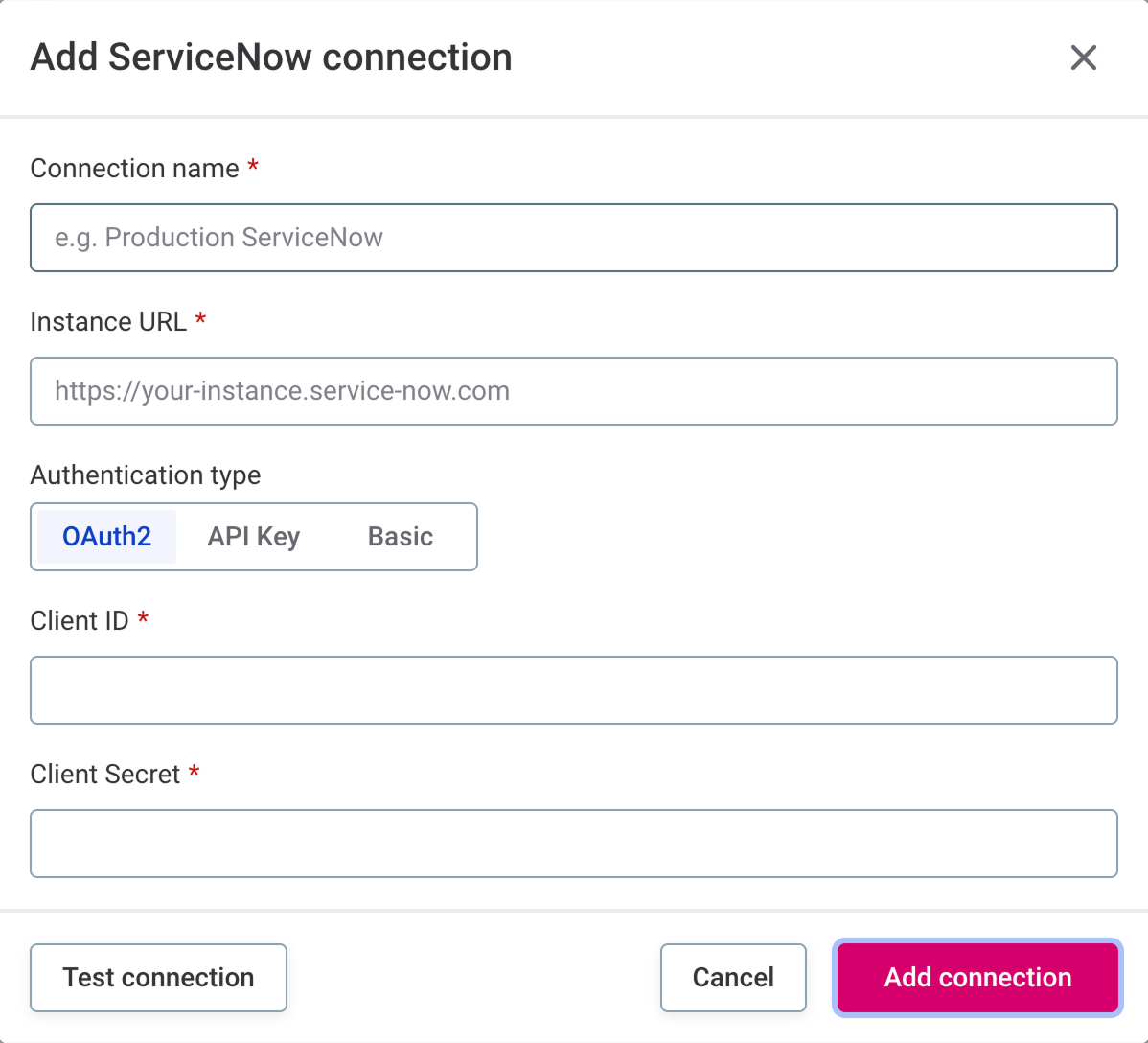
Go to Global Settings > Integrations > ServiceNow Connections and select Add connection.
-
Enter a Connection name that identifies the instance for your users.
-
Enter the Instance URL of your ServiceNow instance.
-
Select an Authentication type and provide the required credentials:
-
OAuth2 (recommended): Enter the Client ID and Client Secret. Obtain these from System OAuth > Application Registry in your ServiceNow instance. ONE obtains the access token automatically.
-
API Key: Enter your API Key.
-
Basic: Enter your Username and Password.
-
-
Select Test connection to verify the credentials.
ONE sends a single read request to the instance. If the test fails, the error is shown in the dialog. Typical causes are rejected credentials (HTTP 401 or 403), a mistyped URL, a hibernating developer instance, a network timeout, or single sign-on (SSO) intercepting the API call.
-
Select Add connection.
The connection is shown in the ServiceNow connections list. Select its name to open the connection details, where you can test the connection again and manage its entry points.
Edit or delete a connection
To change a connection’s details or delete it, select the three-dot menu next to the connection, then select Edit or Instant delete.
Deleting a connection also deletes its entry points. A connection cannot be deleted while one of its entry points is used by a monitoring project notification. Remove the ServiceNow channel from those notifications first.
Add an entry point
An entry point defines how ONE creates tickets in ServiceNow: which ServiceNow table to write to and how monitoring project data maps to the fields of that table. Each entry point belongs to one connection and can serve any number of notifications.
To add an entry point:
-
Go to Global Settings > Integrations > ServiceNow Connections.
-
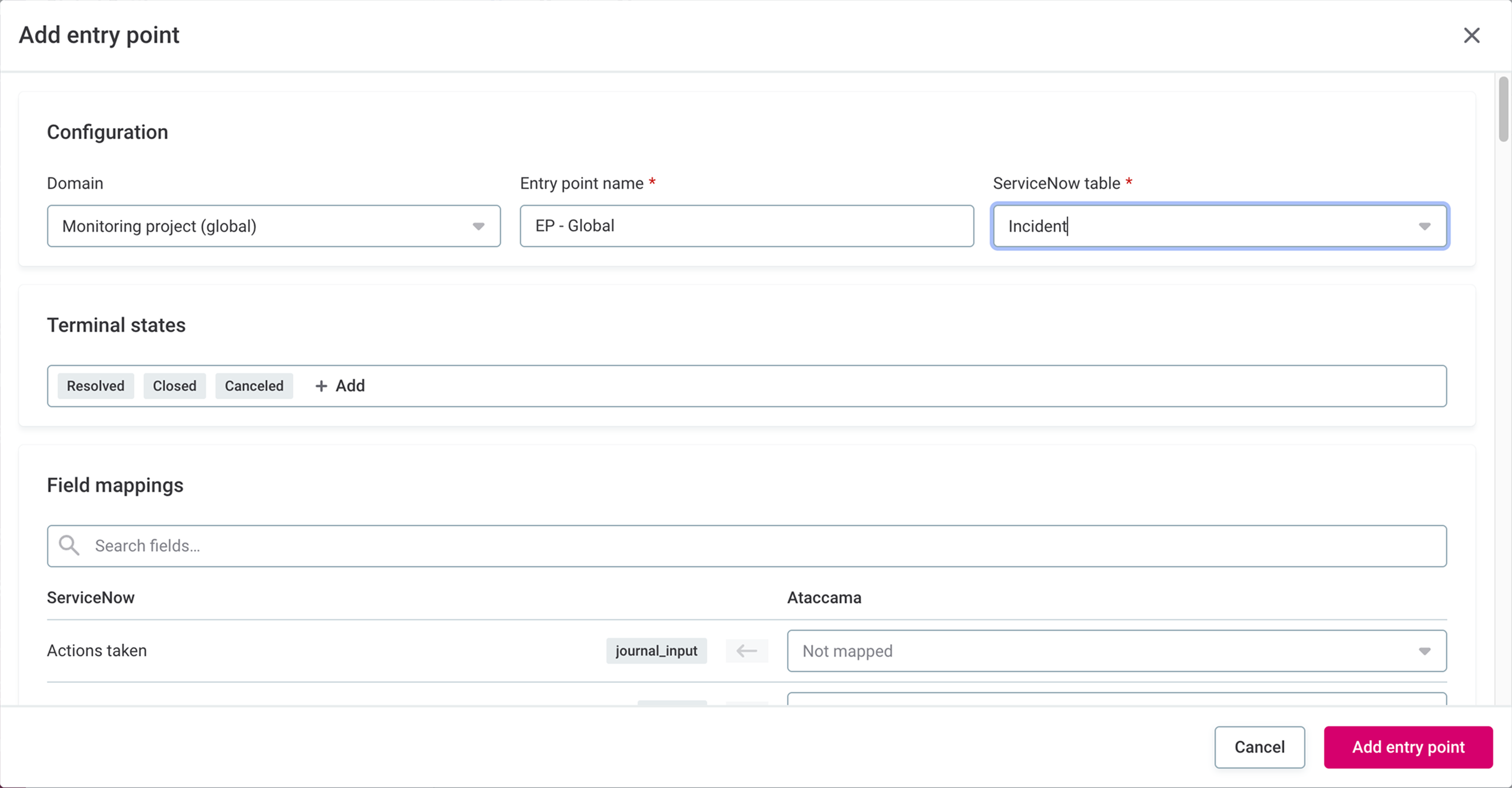
Under your ServiceNow connection, select Add entry point.
-
In Configuration, provide the following:
-
Domain: The type of monitoring project notification the entry point is used for. Each domain offers different ONE fields for mapping. See Fields available for mapping. A notification can only use an entry point of its own domain.
-
Monitoring project (global): Select for general notifications, which concern the run as a whole, for example, when a new version of the results is available.
-
Monitoring project (report): Select for specific notifications, which are triggered by a data quality threshold on a rule or catalog item on the Report tab.
-
-
Entry point name: A name for the entry point, for example,
Production incidents. -
ServiceNow table: The table that receives the tickets, for example, Incident, Problem, or Change Request. Tables built on the ServiceNow
tasktable are listed.
-
-
In Terminal states, review the preselected states, for example, Resolved, Closed, and Canceled for incidents. To add another state of the table, select Add. The section appears after you select the ServiceNow table, and the states come from your ServiceNow instance.
ONE treats a ticket in a terminal state as finished even though it is still active in ServiceNow, for example, an incident in the Resolved state. Tickets that are inactive in ServiceNow are always treated as finished. When the current ticket is finished, the next matching run creates a new ticket instead of updating it.
Administrators can change the recommended states in the MMM configuration. See ServiceNow integration.
-
In Field mappings, define what populates each ServiceNow field. Fields you do not map keep their ServiceNow defaults, so map every mandatory field that has no default, otherwise ServiceNow rejects the ticket. Dates and times are sent in UTC.
The ServiceNow column lists the fields of the table. To map a field, find it using the search, then in the Ataccama column, select one of the following:
-
A ONE field: The ServiceNow field takes its value from the monitoring project run, for example, Project name or Overall result. If the value is empty for a given run, the field is left out of the ticket. For a link back to the monitoring project, select Source URL. For the full list, see Fields available for mapping.
-
Fixed value: The ServiceNow field takes the same value every time, for example, a priority or an assignment group. For reference fields such as Assignment group or Caller, search for and select the ServiceNow record instead of typing a value.
-
-
Select Add entry point.
The entry point is listed with its target table under the connection.
The Correlation ID and Correlation display fields cannot be mapped. ONE uses them to link the ServiceNow ticket to the notification that created it. See How ServiceNow tickets are created and updated.
When you save the entry point, ONE checks only the structure of the mapping, not whether ServiceNow accepts the mapped values. If ServiceNow rejects a value, the error is shown on the ServiceNow alerts tab of the monitoring project after the run.
Fields available for mapping
| ONE field | Domain | Description |
|---|---|---|
Project name, Project id |
Both |
Monitoring project name and ID. |
Processing id |
Both |
ID of the monitoring project run. |
Started at, Finished at, Job duration |
Both |
When the run started and finished, and how long it took to complete. |
Triggered at |
Both |
When the notification was sent. |
Source URL |
Both |
Link to the monitoring project in ONE. The field is left out if the base URL of ONE is not set in the MMM configuration. See Monitoring projects. |
Overall result, DQ result, Anomaly result |
Both |
Result of the run, including data quality and anomaly detection results. |
Failed job ids |
Both |
Comma-separated IDs of failed jobs. |
Structure result, Structure check-invalid attributes |
Monitoring project (global) |
Result of the structure check and the attributes that failed it. |
Catalog item id, Catalog item name |
Monitoring project (report) |
The catalog item of the data quality rule the notification is set on. |
Rule id, Rule name |
Monitoring project (report) |
The data quality rule the notification is set on. |
Section id, Section name |
Monitoring project (report) |
The report section the notification is set on.
Notifications set on the whole report use the section name |
Measured DQ value, Threshold min, Threshold max |
Monitoring project (report) |
The data quality result as a percentage and the thresholds configured on the notification. |
Edit or delete an entry point
To change an entry point’s details or delete it, select the three-dot menu next to the entry point, then select Edit or Instant delete.
The Domain cannot be changed. If you change the ServiceNow table, review Terminal states and Field mappings again, because both depend on the table.
Saving the entry point does not change any tickets in ServiceNow. Changes apply from the next run, which updates the open ticket using the new mapping. Fields you removed from the mapping keep their previous values in that ticket.
An entry point cannot be deleted while it is used by a monitoring project notification. Remove the ServiceNow channel from those notifications first.
Send monitoring project notifications to ServiceNow
Both general and specific monitoring project notifications can create ServiceNow tickets. For details about the two notification types, see notifications in monitoring projects.
General notifications
-
Create or open a general notification and select its events. See General notifications.
-
Select Add channel, then Service Now.
-
Enter a Name for the alert.
The name is shown on the ServiceNow alerts tab and is written to the Correlation display field of the ServiceNow ticket.
-
Select the Entry point.
Only entry points with the Monitoring project (global) domain are available. If the list is empty, first add an entry point with this domain.
-
(Optional) To assign the tickets created by this notification to a different group than the one mapped in the entry point, select an Assignment group.
-
Select Save, then publish the monitoring project.
The first run that finishes with one of the selected events creates a ServiceNow ticket.
Specific notifications
-
Create or open a specific notification and set its threshold. See Specific notifications.
-
Turn on ServiceNow in the notification sidebar.
-
Enter a Name for the alert.
The name is shown on the ServiceNow alerts tab and is written to the Correlation display field of the ServiceNow ticket.
-
Select the Entry point.
Only entry points with the Monitoring project (report) domain are available. If the list is empty, first add an entry point with this domain.
-
(Optional) To assign the tickets created by this notification to a different group than the one mapped in the entry point, select an Assignment group.
-
Select Save and publish.
A ticket is created or updated each time the measured data quality falls within the configured threshold.
Turning off ServiceNow stops the notification from creating tickets but keeps the ServiceNow settings, including the entry point. While these settings exist, the entry point cannot be deleted.
Track ServiceNow tickets
For each notification sent to ServiceNow, ONE keeps a ServiceNow alert that shows the ticket number and state, a link to the ServiceNow ticket, and the result of the last request.
Where to find ServiceNow alerts
-
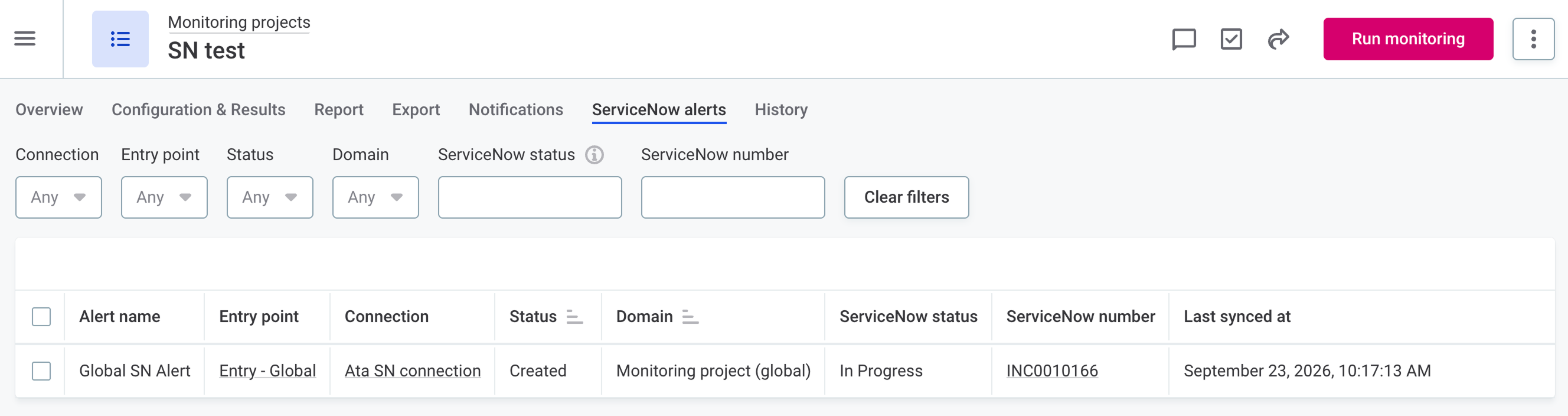
In a monitoring project: Open the ServiceNow alerts tab. The tab is available once the published project contains a ServiceNow channel.
-
For all monitoring projects: Go to Global Settings > Integrations > ServiceNow Alert Items.
What the alerts show
Each row corresponds to one ServiceNow channel and shows:
-
Alert name, Entry point, Connection, and Domain: The channel and the entry point it uses.
-
Status: The result of the last attempt to create or update the ticket:
-
Created: A new ServiceNow ticket was created.
-
Updated: The existing open ticket was updated.
-
Error: ServiceNow rejected the request or could not be reached. Hover over the status to see the error message.
-
Pending: The request is being sent. If the status stays Pending, the request was interrupted, for example, by a server restart. In that case, use Resend.
-
-
ServiceNow status: The state of the ticket in ServiceNow, as of the last time ONE read it.
-
ServiceNow number: The ticket number, linked to the ticket in ServiceNow.
-
Last synced at: When ONE last read the ticket.
Select a row to open the alert details, which include the request ONE sent and the fields of the ServiceNow ticket as last read.
Update ticket states and resend failed requests
ONE does not sync tickets with ServiceNow automatically. The ServiceNow status shown in ONE is updated only when the notification is triggered again by a monitoring project run, or when you refresh the alert.
To bring an alert up to date or retry a failed request, use one of the following actions:
-
Refresh: Use it to see the current state of the ticket in ServiceNow. Select one or more rows and then Refresh, or select Refresh in the alert details.
Alerts without a ServiceNow ticket are skipped. If the ticket no longer exists in ServiceNow, its ServiceNow status changes to
DELETED. -
Resend: Use it to send the last request to ServiceNow again, for example, after you fix a connectivity or permission problem that caused an Error. Select Resend in the Status column of an alert with the Error status, or in the alert details.
Resend sends the request exactly as it was sent before. Changes to the entry point mapping or to the assignment group are not included, and they apply from the next time the notification is triggered.
How ServiceNow tickets are created and updated
Each notification with a ServiceNow channel has at most one open ticket in ServiceNow. ONE recognizes the ticket by its Correlation ID. This ID is set when ONE creates the ticket and is the same for all tickets of a notification.
Each time the notification is triggered, ONE looks for the newest ticket with that Correlation ID in the target table and then does one of the following:
-
Updates the ticket if it is still open.
-
Creates a new ticket with that Correlation ID if no ticket is found, or if the ticket is finished, that is, inactive in ServiceNow or in one of the entry point’s terminal states.
Creating a new ticket does not change earlier tickets of the notification. Different notifications in the same project have separate tickets.
ONE does not close or delete tickets
ONE never closes, reopens, or deletes tickets. Tickets are closed in ServiceNow, by ServiceNow users or workflows.
Deleting a connection, entry point, notification, or monitoring project in ONE does not change tickets in ServiceNow. Removing the ServiceNow channel from a notification, or deleting the notification or the project, deletes only the alert in ONE.
How changes in ServiceNow affect ONE
-
If a ticket is deleted in ServiceNow, the next time the notification is triggered, ONE creates a new ticket.
-
If the Correlation ID of a ticket is changed or cleared in ServiceNow, ONE can no longer find the ticket and creates a new one the next time the notification is triggered.
Permissions
By default, governance roles have the following access to ServiceNow connections, entry points, and alerts:
-
ONE Administrator, Data Owner, Data Steward: Full access. They can create, edit, and delete connections and entry points, test connections, and refresh and resend alerts.
-
ONE Operator, Data Consumer: View metadata access. They can view connections, entry points, and alerts.
Anyone with access to a monitoring project can see its ServiceNow alerts tab.
Permissions for loading ServiceNow tables and fields
When you create an entry point, ONE loads tables, fields, and their values from ServiceNow. This requires the Integrations operations on ServiceNow connections, which are part of Full access by default. Users without them get an error in the entry point dialog.
To check which operations a user has on a connection, select Explain permissions in the three-dot menu of the connection. See Explain permissions.
If you create a custom access level for ServiceNow connections, include all Integrations operations. See Configure access levels on entities.
Limitations
The ServiceNow integration has the following limitations:
-
ServiceNow tickets can be created only from monitoring project notifications.
-
ServiceNow channels are not included when a monitoring project is exported using Import and Export.
-
In tickets created by specific notifications, Source URL links to the monitoring project, not to the report.
-
Ticket states are not synchronized from ServiceNow automatically, and failed requests are not retried. Use Refresh and Resend instead.
-
ONE keeps no history of ServiceNow alerts. The ServiceNow alerts tab shows the current state of each alert and is not available for previous runs or historical versions of the project.
Troubleshooting the ServiceNow integration
The entry point dialog cannot load ServiceNow tables
The Add entry point dialog shows Could not load ServiceNow metadata, and no tables are available in ServiceNow table.
The message continues with the reason:
-
Cannot resolve ServiceNow host: ONE cannot reach the instance. Check the instance URL of the connection and your network setup. If the URL is wrong, create a new connection with the correct URL.
-
Unexpected response content type 'text/html': The instance URL does not lead to the ServiceNow API. This happens when a developer instance is hibernating, when the URL is wrong, or when SSO intercepts API calls. For developer instances, wake the instance up in the ServiceNow developer portal.
-
Authentication failed (HTTP 401) or Access forbidden (HTTP 403): ServiceNow rejected the credentials, or the ServiceNow user lacks read access to the system tables listed in Before you start. Select Test connection on the connection to check the credentials.
An alert shows Error after the run
An alert on the ServiceNow alerts tab has the Error status, and the ticket was not created or updated.
This happens when ServiceNow rejected the request or could not be reached. To see the exact reason, hover over the Error status or open the alert details. Typical reasons are:
-
Expired or insufficient credentials (HTTP 401 or 403).
-
A mapped value that ServiceNow rejected, such as a missing mandatory field or an unknown choice value.
Fix the cause in ServiceNow or in the entry point, then select Resend.
A mapped field is empty in the ticket
A field you mapped in the entry point is empty in the ServiceNow ticket.
This happens in the following cases:
-
The ServiceNow user that ONE uses is not allowed to write to the field, so ServiceNow leaves it empty. Grant the user write access to the field in ServiceNow.
-
The field is mapped to Source URL, but the base URL of ONE is not set in the MMM configuration. Set the base URL as described in Before you start.
A new ticket is created on every run
Each time the notification is triggered, ONE creates a new ServiceNow ticket instead of updating the existing one.
This happens when ONE cannot find an open ticket for the notification, because the Correlation ID of the existing ticket was changed or cleared, or the ticket is inactive or in one of the entry point’s terminal states.
Check the Correlation ID of the existing ticket in ServiceNow, and check the Terminal states of the entry point. If the ticket reaches a terminal state too early, for example, right after it is created, remove that state from the entry point’s terminal states.
Was this page useful?