
Materialized Computed Content
Some values shown in Ataccama ONE, such as the issue counts and observability status on the data observability dashboard, are computed content: they are calculated from your metadata each time they are read rather than stored. In large environments, recalculating these values every time someone opens the dashboard can be slow. Materialized computed content solves this by calculating selected computed content on a schedule and storing the results, so the dashboard loads the stored values instead of recalculating them on each request.
This page explains how materialization works, how to see when the displayed values were last refreshed, how to refresh them on demand, and how administrators manage materialization schedules.
About materialized computed content
By default, computed content is calculated live, that is, each time it is read. For a predefined set of computed content, materialization changes this:
-
The values are calculated on a schedule and stored, or materialized.
-
When you open a screen that uses these values, ONE serves the stored values instead of recalculating them, which is significantly faster.
-
The screen shows when the values were last refreshed, so you always know how recent the displayed numbers are.
-
You can refresh the values on demand instead of waiting for the next scheduled run.
Materialization covers the computed content behind the data observability dashboard, such as issue counts, observability status, and monitoring results, together with related term statistics for sources and connections. The full list is available on the Materialization configuration page (see Manage materialization schedules).
Only computed content with an enabled materialization schedule is materialized. Computed content without a schedule, or with a disabled schedule, is calculated live.
How materialization works
Each computed content node is materialized on its own schedule. By default, all schedules run once a day at night (UTC), a few minutes apart.
Between two runs, screens read the stored values, which is fast and gives all users the same numbers. Changes in your data therefore appear on the dashboard after the next scheduled run or after a manual refresh, not immediately.
If a materialization job fails, the affected values are calculated live until the next successful run. You never see missing data, only slower loading.
Check when the dashboard was last refreshed
The data observability dashboard shows the Last refreshed time at the top of the page, next to the refresh icon. The time refers to the stored values shown on the dashboard. If the dashboard combines values from several computed content nodes, the Last refreshed time is the oldest of their refresh times, so it is never more recent than the data behind any number on the page.
Both scheduled runs and manual refreshes update the Last refreshed time.
If no Last refreshed time is shown, no stored values are available yet, for example, because materialization has not run yet or all schedules are disabled. In that case, the dashboard shows live values.
Refresh the dashboard on demand
If your data has changed and you don’t want to wait for the next scheduled run, refresh the dashboard yourself. Anyone who can view the data observability dashboard can refresh it.
-
Select Data Observability Dashboard in the left navigation menu.
-
Select the refresh icon next to the Last refreshed time.
The refresh runs in the background, so you can keep working while it completes. While it runs, the dashboard shows Refreshing… with the number of jobs still running, and the refresh icon is unavailable. Each computed content node is refreshed by a separate job. When all jobs finish, the Refresh complete dialog opens.
-
Select Reload page.
The dashboard reloads with the updated values and a new Last refreshed time. If you select Cancel instead, the dashboard keeps showing the previous values until you reload the page.
A manual refresh does not change the schedule. The next scheduled run happens as planned.
Manage materialization schedules
Materialization schedules are managed by administrators in Global Settings > Metadata Model and in Processing Center. Schedules are created automatically for the materialized computed content. You cannot create or delete them, but you can enable or disable them and change when they run.
Check whether computed content is materialized
When you open a materialized computed content node in Global Settings > Metadata Model, the Computed Content tab shows the Materialized computed content card. The card tells you whether materialization is Enabled or Disabled for this computed content and links to this page. Computed content without a materialization schedule has no card.
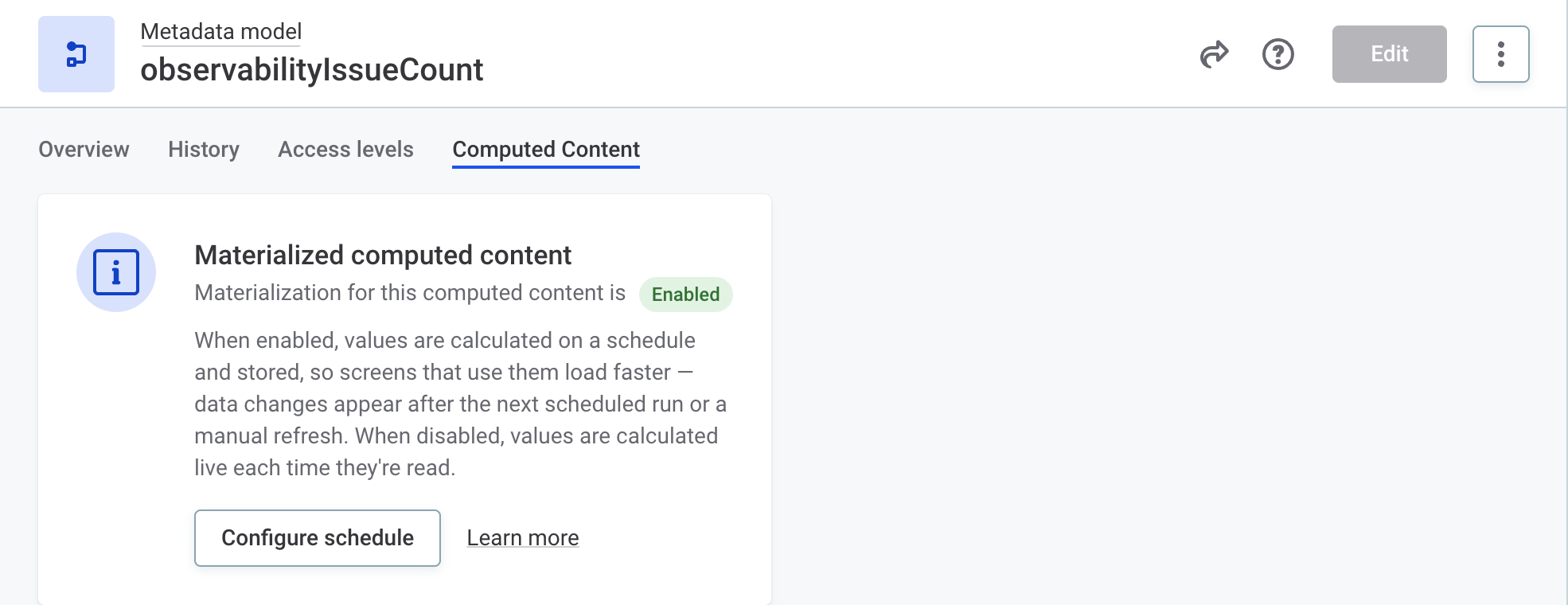
To open the schedule, select Configure schedule.
Enable or disable a schedule
-
Open the schedule of the computed content, for example, by selecting Configure schedule on its Computed Content tab.
The schedule is named after the computed content, for example, Materialize observabilityIssueCount. It shows the cron expression, time zone, next run, and last job.
-
Select Edit.
-
Change Enabled as needed and save your changes.
When you disable a schedule, the affected values are calculated live again from the next read. When you enable it, the stored values are served again after the next scheduled run or manual refresh. You can also change the Cron expression and Time zone to run the materialization at a different time.
See all materialization schedules
All materialization schedules are listed on the Materialization configuration page, with the computed content node each schedule belongs to and whether it is enabled. To open the page, select Materialization configuration in the breadcrumbs of any materialization schedule.
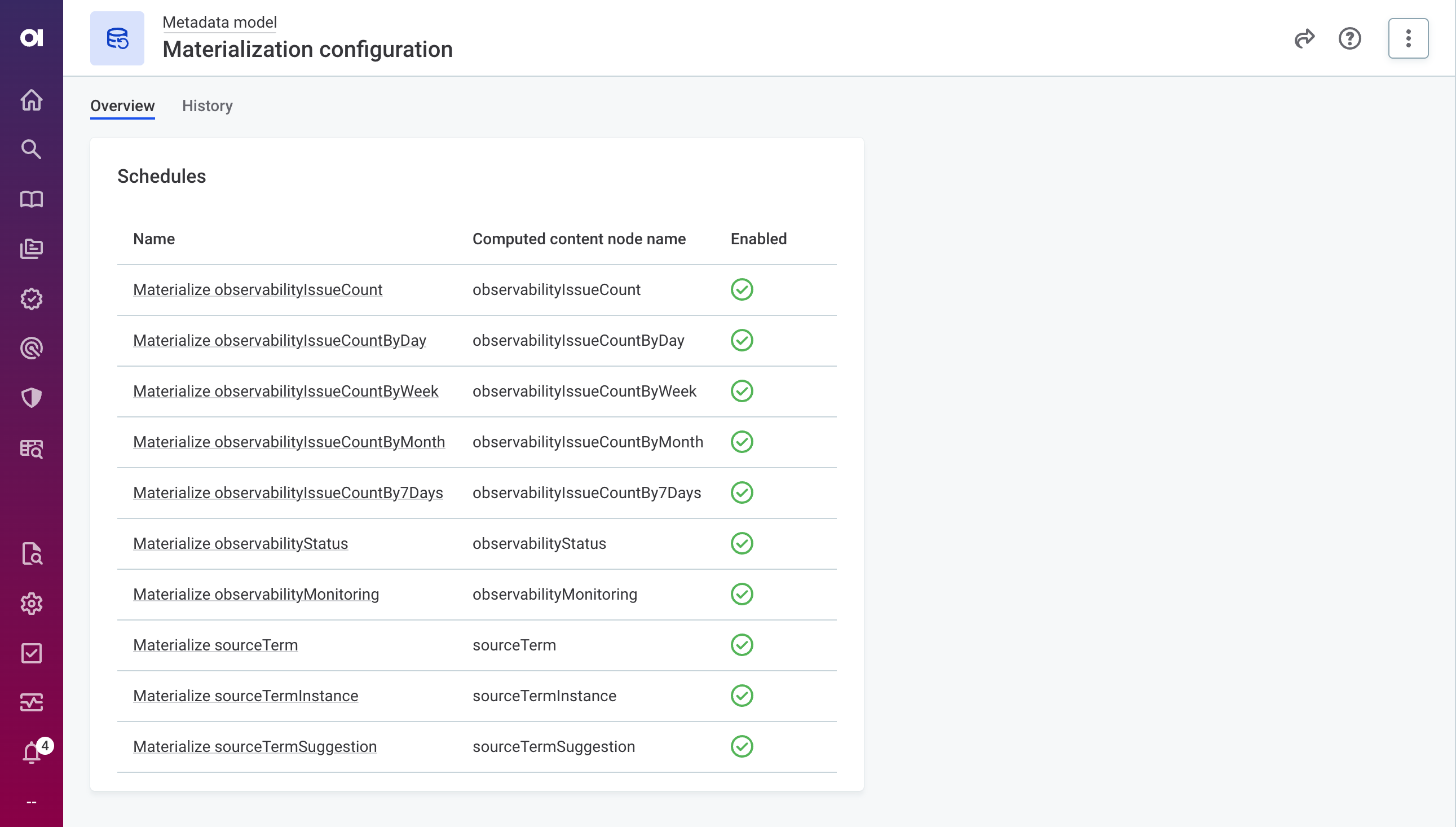
Materialization schedules also appear in Processing Center > Scheduled Jobs, together with all other scheduled jobs in ONE.
Monitor materialization jobs
Both scheduled runs and manual refreshes run as jobs. To see them, go to Processing Center > Base Jobs > Materialization Jobs.
Each job is named after the computed content it materializes. The Execution type column shows whether the job was started by a schedule (AUTOMATIC) or by a manual refresh (MANUAL). For details about working with jobs, see Processing Center.
Was this page useful?