
SAP OData Connection
Create a source
To connect to SAP OData:
-
Navigate to Data Catalog > Sources.
-
Select Create.
-
Provide the following:
-
Name: The source name.
-
Description: A description of the source.
-
Deployment (Optional): Choose the deployment type.
You can add new values if needed. See Lists of Values. -
Stewardship: The source owner and roles. For more information, see Stewardship.
-
| Alternatively, add a connection to an existing data source. See Connect to a Source. |
Add a connection
-
Select Add Connection.
-
In Select connection type, choose Others > SAP OData.
-
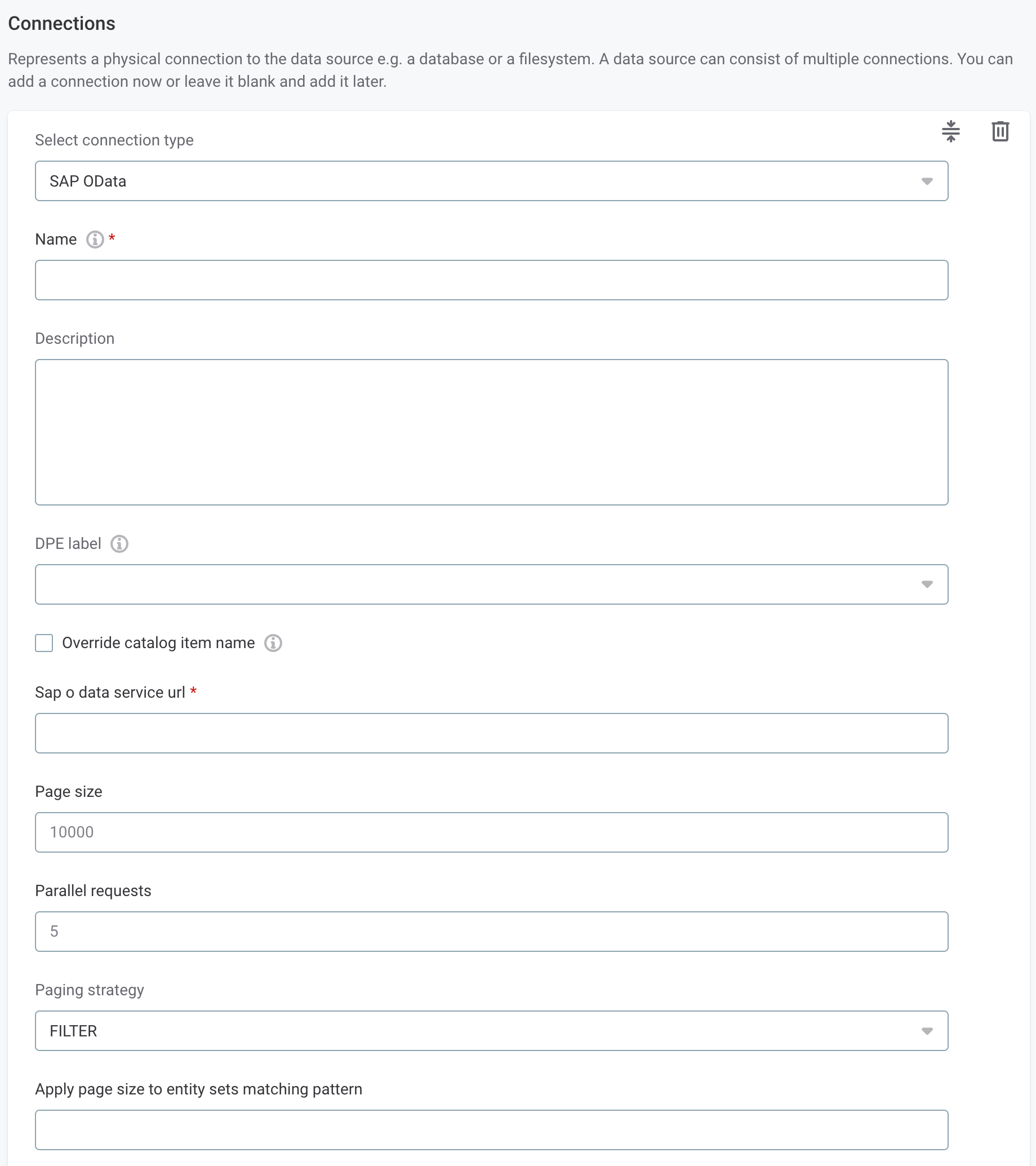
Provide the following:
-
Name: A meaningful name for your connection. This is used to indicate the location of catalog items.
-
Description (Optional): A short description of the connection.
-
Dpe label (Optional): Assign the processing of a data source to a particular data processing engine (DPE) by entering the DPE label assigned to the engine. For more information, see DPM and DPE Configuration in DPM Admin Console.
-
Override catalog item name: Select this option if you want metadata imports to overwrite the names of existing catalog items with the latest names from the data source.
If the option is not selected, catalog item names you set in ONE are preserved when metadata is reimported. See Edit catalog item metadata.
-
SAP OData service URL: The URL of the SAP OData gateway, for example
https://s4h2023.sapdemo.com:44303/sap/opu/odata. -
Page size (Optional): The number of items per page when paging through an entity set. Set to
0to skip paging, for example when it is not supported or you don’t want to use it. Default value:10000.You can limit which catalog items this setting applies to using either Apply page size to entity sets matching pattern or Catalog item settings.
-
Parallel requests (Optional): The number of requests to run in parallel against an entity set. Default value:
5. -
Paging strategy (Optional): Determines how additional pages are loaded if paging is used. The following options are available:
-
FILTER(Default): Filters on a key beyond the last seen value. -
SKIP: Uses the OData$skipoffset.
-
-
Apply page size to entity sets matching pattern (Optional): A glob pattern that restricts where the connection-level Page size applies. Leave empty to apply the page size to every entity set.
In the glob syntax, an asterisk (
*) matches any characters and a question mark (?) matches a single character. The pattern must match the full entity-set name (anchored) and is case-sensitive. For example,*Partner*applies toA_BusinessPartnerand any other entity set whose name containsPartner.
-
-
In Additional settings, select Enable exporting and loading of data if you want to export data from this connection and use it in ONE Data or outside of ONE.
If you want to export data to this source, you also need to configure write credentials. See Connection credentials.
Consider the security and privacy risks of allowing the export of data to other locations.
Add credentials
Different sets of credentials can be used for different tasks. One set of credentials must be set as default for each connection.
To determine whether you need to configure more than a single set of credentials, see Connection credentials.
-
Select Add Credentials.
-
Choose an authentication method and proceed with the corresponding step:
Username and password credentials
-
Select Username and password credentials and provide the following:
-
Name (Optional): A name for this set of credentials.
-
Description (Optional): A description for this set of credentials.
-
Username: The username for SAP OData.
-
Password: The password for the specified user.
To store these credentials in a secret management service instead, select the service you want to use. Enable Use secret management service for both username and password and provide the names under which they are stored in your selected secret management service. For more information, see Secret Management Services.
-
-
If you want to use this set of credentials by default when connecting to the data source, select Set as default.
See also Connection credentials.
-
Proceed with Test the connection.
OAuth credentials
-
Select SAP OData OAuth credentials and provide the following:
-
Name (Optional): A name for this set of credentials.
-
Description (Optional): A description for this set of credentials.
-
Token endpoint: The URL of the OAuth token endpoint, for example
https://s4h2023.sapdemo.com:44303/sap/bc/sec/oauth2/token.The URL is passed as provided. If your SAP service requires a client number, append it as a query parameter, for example
?sap-client=100. -
Scope: The OAuth scope, for example
ZAPI_COUNTRY_SRV_0001. Required by the SAP token endpoint. -
Client ID: The OAuth client identifier.
-
Client secret: The OAuth client secret.
To store these credentials in a secret management service instead, select the service you want to use. Enable Use secret management service for both client ID and client secret and provide the names under which they are stored in your selected secret management service. For more information, see Secret Management Services.
-
-
If you want to use this set of credentials by default when connecting to the data source, select Set as default.
See also Connection credentials.
-
Proceed with Test the connection.
Test the connection
To test and verify whether the data source connection has been correctly configured, select Test Connection.
If the connection is successful, continue with the following step. Otherwise, verify that your configuration is correct and that the data source is running.
Save and publish
Once you have configured your connection, save and publish your changes. If you provided all the required information, the connection is now available for other users in the application.
In case your configuration is missing required fields, you can view a list of detected errors instead. Review your configuration and resolve the issues before continuing.
Catalog item settings
You can override connection-level settings for individual catalog items (entity sets). All catalog-item fields are optional.
If not configured, connection configuration is applied instead, or the connector defaults (if the setting isn’t configured on the connection).
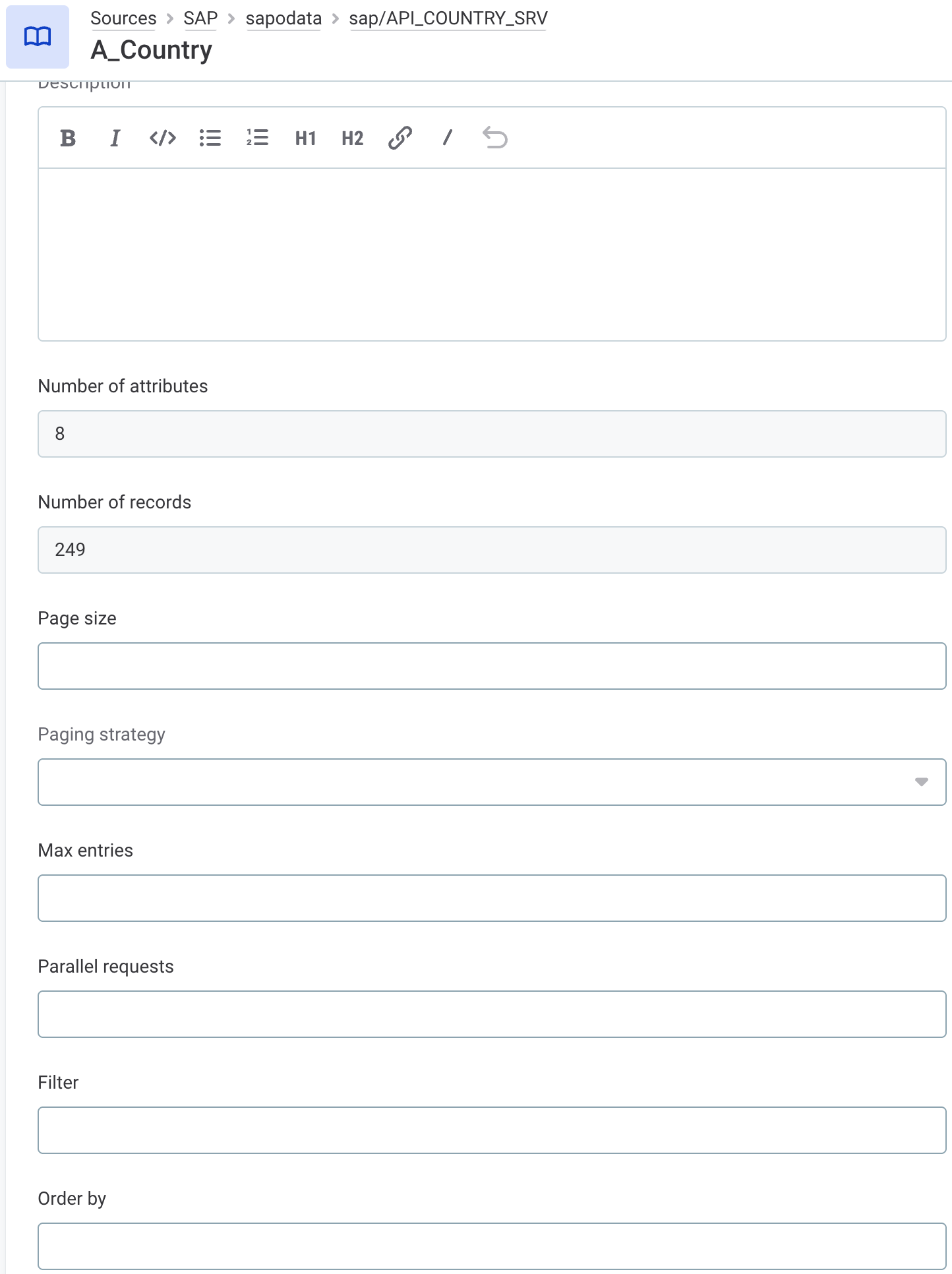
To configure catalog item settings, in Data Catalog > Catalog Items, open the catalog item you want to modify and in the three dots menu select Edit.
-
Page size: The number of items per page when paging through this entity set. Set to
0to skip paging and return all results on a single page.When set (including
0), the connection’s Apply page size to entity sets matching pattern glob is ignored for this entity set. -
Paging strategy: Determines how additional pages are loaded if paging is used. The following options are available:
-
FILTER(Default): Filters on a key beyond the last seen value. -
SKIP: Uses the OData$skipoffset.If not set, the connection setting is applied instead (if configured) or the connector default (
FILTER).
-
-
Max entries: The maximum number of rows read from this entity set. Leave empty or set to
0for an unlimited number of rows. -
Parallel requests (Optional): The number of requests to run in parallel against this entity set. Default value:
5.Set to
0to use the connector default. -
Filter: An OData filter expression, for example
BusinessPartner eq 'John Doe'. -
Order by: How to sort records, defined as a comma-separated list of properties, each optionally followed by
ascordescfor ascending or descending order, for exampleBusinessPartner asc, CreationDate desc.
Next steps
You can now browse and profile assets from your SAP OData connection.
In Data Catalog > Sources, find and open the source you just configured. Switch to the Connections tab and select Document. Alternatively, opt for Import or Discover documentation flow.
Or, to import or profile only some assets, select Browse on the Connections tab. Choose the assets you want to analyze and then the appropriate profiling option.
Was this page useful?