
Fix Validation Issues Automatically
In the Metadata Management Module (MMM), Application validations validators verify that published metadata is consistent, for example, that every reference points to an existing node. Each node that fails a validation is reported as a validation issue.
Orphaned metadata nodes are a common cause of these issues. You can fix them automatically from the results of a validation run, either in the web application or through the GraphQL API.
How orphaned nodes cause validation issues
An orphaned metadata node is a node whose parent or referenced node no longer exists. You can come across orphaned nodes in two ways:
-
A validation run reports them as validation issues.
-
A metadata import fails with the error Validation issues found. Fix them and try to import again. At the end of an import, MMM validates all published nodes of the imported node types, so an orphaned node of such a type fails the import even if it belongs to another data source.
Which validation issues can be fixed automatically
You can fix orphaned nodes automatically only if they are reported by Application validations validators.
In the run detail, these validators are listed as application_validation_<entity>, one for each entity type.
The fix deletes the reported orphaned nodes, but their previous versions stay available in the node history.
The following validation issues can be fixed automatically. The label in parentheses is what the Validation issue column shows in the web application.
-
REFERENCED_OBJECT_DOES_NOT_EXIST(Reference does not exist): A reference points to a node that no longer exists, for example, anattributeProfilereferencing a deletedattribute. -
ARRAY_REFERENCED_OBJECT_DOES_NOT_EXIST: An element of an array reference points to a node that no longer exists. -
PARENT_DOES_NOT_EXIST(Parent entity does not exist): The parent of the node no longer exists.
Any other issue needs a manual fix (see Resolve errors), and its node is never deleted. This includes:
-
References whose target still exists, such as
REFERENCED_OBJECT_IS_NEW_DRAFT(the referenced node is an unpublished draft) orREFERENCED_OBJECT_IS_OF_INVALID_TYPE. Deleting these nodes would destroy usable data. -
Violations of other constraints, such as required properties or uniqueness.
-
Errors from other validator groups, such as System tables validators or Node tables validators (see Validation options).
Each issue shows whether it can be fixed automatically:
-
In the Fix action column:
-
Delete entity: The issue can be fixed automatically.
-
Manual fix required: The issue must be fixed manually.
-
-
In the GraphQL API, the
canAutoFixfield istruefor issues that can be fixed automatically andfalsefor all others.
Before you start
To fix validation issues, you need the MMM_admin identity provider role.
You can fix issues only from a finished validation run that is not older than seven days and is the most recent run for its Validation filter. This includes scheduled runs, which use all validators, so they supersede only earlier All validators runs (see Validation options). To use runs older than seven days, increase the limit in the MMM configuration (see Configuration properties for fixing validation issues).
A failed metadata import does not create a validation run, so its issues are not listed on the Validations screen until you start one.
Fix validation issues in the web application
Fixing an issue deletes the affected node from the published metadata. Its previous versions stay available in the node history.
To fix the issues:
-
Go to Global Settings > Validations.
The list of runs shows the Number of issues each run found and how many of them are already fixed (Issues fixed). Runs with issues that are not fixed yet are highlighted.
-
If there is no run you can use (see Before you start), select the arrow next to Run all validations, choose Application validations validators, and wait until the run finishes. See Run validations.
-
Select the most recent run with reported issues.
-
Select Fix validation issues.
If the action is unavailable, either a newer run with the same Validation filter exists, or the run is older than the configured limit (see Configuration properties for fixing validation issues). Hover over the action to see what to do: open the latest run, or start a new validation run.
The Fix validation issues screen opens and lists all issues the run found. Each row shows the affected node by its Entity type and Entity name, together with the current Status of the issue (see Issue statuses).
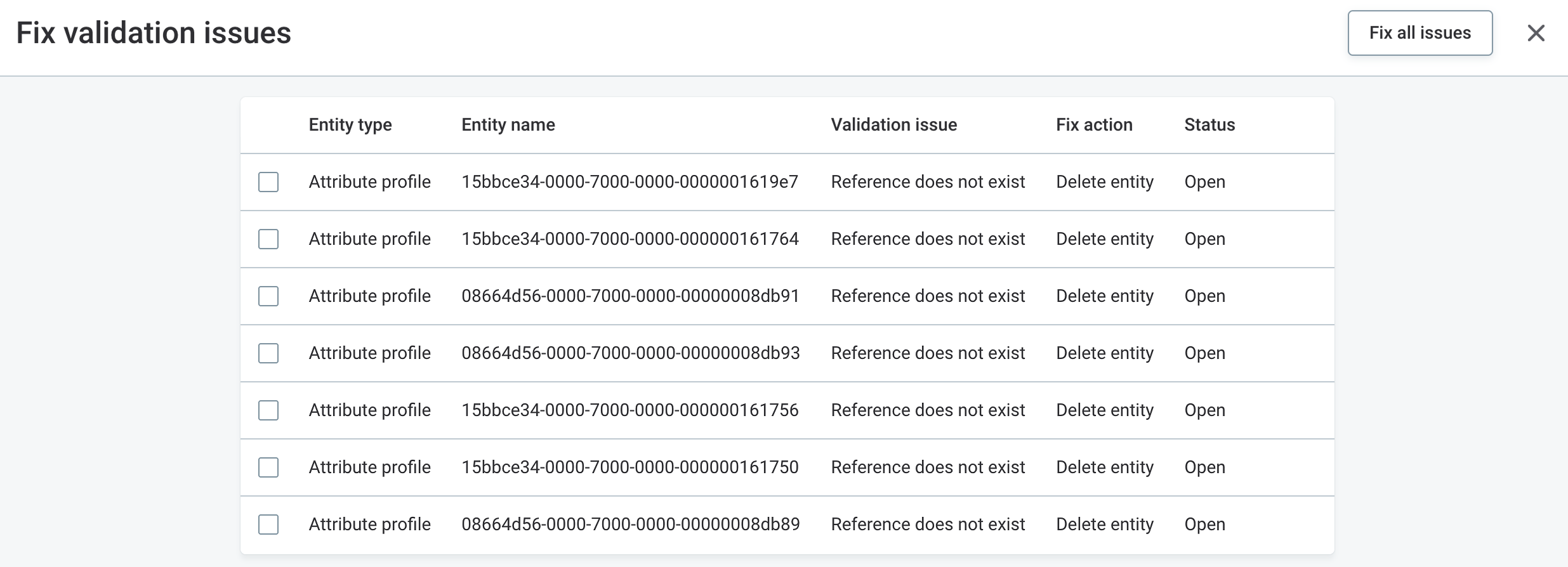
To open the affected node in the side panel, select its row. If nothing opens, the entity type of the node is no longer part of the metadata model, for example, after an upgrade. Such issues cannot be fixed from this run, and the fix reports them as Fix failed. Start a new validation run instead, which no longer reports these issues.
-
Select Fix all issues, or select only specific issues and then Fix selected issues.
Issues that require a manual fix cannot be selected. Issues that were already fixed stay in the list with the status Fixed and cannot be selected again.
-
Confirm your choice.
-
Check the result.
Each issue shows its new status. If some issues could not be fixed, the banner Some issues could not be fixed appears, and the affected rows have a View error option that shows the reason. When all issues are fixed, the message All issues were fixed appears.
Issue statuses
Each issue shows one of four statuses in the web application.
The Validation Run Info card on the run detail shows how many issues are in each status, together with the total (Issues found).
You can find more details using the GraphQL API: the status of a mutation result and the resolution stored on the reported error also say why an issue was closed or skipped.
| Status in the web application | Mutation result status |
Stored resolution |
Meaning |
|---|---|---|---|
Open |
- |
|
No fix has been attempted yet. |
Open |
|
|
The issue cannot be fixed automatically. Resolve it manually as described in Resolve errors. |
Fixed |
|
|
The node was deleted. |
Fixed |
|
|
The issue was resolved after the validation run, for example, the reference was repaired. Nothing was changed. |
Fixed |
|
|
The node was deleted after the validation run, or the run reports no automatically fixable issue for the requested node. Nothing was changed. In the second case, which can occur only when fixing selected issues through the API, the result |
Blocked |
|
|
Other nodes still reference this node, so it was left in place. See Resolve blocked issues. |
Fix failed |
|
|
The fix attempt failed. Select View error in the row to see the reason. You can retry the fix after resolving the cause. |
- |
|
- |
Dry run only: the node would be deleted. Nothing is stored. |
Issues with the status Fixed are closed and cannot be selected again. Blocked and Fix failed issues show the reason under View error and can be fixed again once the cause is resolved.
Resolve blocked issues
The most common reason a node is not deleted is that other nodes still reference it. Removing it would break these references, so the fix leaves both the node and the nodes that reference it in place. In this case, the issue gets the status Blocked.
Select View error in the row to see the blocking nodes with their type, name, ID, and the property through which they reference the node (up to five, with a count of the rest).
To resolve a blocked issue:
-
For each blocking node listed in the error, delete the node or update its reference to point to an existing node. If a blocking node has no screen in the web application, use the GraphQL API (see Fix all issues of a run).
-
Publish your changes.
-
Return to the same validation run and fix the issue again.
You do not need to start a new validation run. Issues that were already fixed are skipped and only the outstanding ones are processed.
Fix validation issues using the GraphQL API
Use the GraphQL API to preview the fix with a dry run before anything is deleted, to see why each issue was closed or skipped, or to automate the cleanup. For the required permissions, see Before you start. To learn more about using GraphQL in Ataccama ONE, see ONE API.
Check whether a run can be fixed
First, query the run to see whether its issues can still be fixed and how many issues are in each status:
query {
  _systemValidationRun(runId: "<RUN_ID>") {
    errorsCount
    openIssuesCount
    resolutionCounts {
      total
      fixed
      blocked
      failed
      open
    }
    latestOfKind
    autoFixAvailable
  }
}
Replace <RUN_ID> with the id of the validation run (see Query validation runs).
The response contains the following fields:
-
errorsCount: The number of errors the run recorded. Fixing issues doesn’t change this number. It can be higher than the number of listed issues (resolutionCounts.total), because each validation in a run, for example,application_validation_attributeProfile, lists only a limited number of its errors as issues. -
openIssuesCount: The number of issues that are still outstanding, that is,blocked,failed, oropen. -
resolutionCounts: The number of issues in each status displayed in the web application (see Issue statuses):-
fixed,blocked,failed: The issues with the status Fixed, Blocked, or Fix failed. -
open: The issues with the status Open, that is, issues that are not fixed yet, whether or not they can be fixed automatically. -
total: The sum offixed,blocked,failed, andopen, that is, the number of issues listed for the run.
-
-
latestOfKind:truewhen this is the most recent run for its Validation filter. -
autoFixAvailable:truewhen the issues of this run can be fixed, that is, the run is the most recent run for its Validation filter and not older than the configured limit.
Then, list the issues of the run:
query {
  _systemValidationErrors(runId: "<RUN_ID>", open: true, size: 100) {
    totalCount
    edges {
      node {
        record
        canAutoFix
        fixAction
        resolution
        resolutionMessage
        resolvedAt
        resolvedBy
        constraintViolation {
          type
          gid
          code
        }
      }
    }
  }
}
The open argument filters the issues: true returns only outstanding issues, false returns only closed ones, and omitting the argument returns all issues of the run.
Each issue in the response contains the following fields:
-
canAutoFix:truewhen the issue can be fixed automatically. -
fixAction:DELETE_NODEfor issues fixed by deleting the node,MANUALfor all other issues. -
resolution: The outcome of the last fix attempt, ornullif no fix has been attempted yet (see Issue statuses). -
resolutionMessage: The reason the issue could not be fixed, for example, the nodes that still reference it. -
resolvedAt,resolvedBy: When the last fix attempt ran and who started it. -
constraintViolation: The violated constraint. Itstypeandgidvalues identify the node. You pass these values to the mutation when fixing selected issues (see Fix selected issues).
Preview the fix with a dry run
A dry run reports which nodes the fix would delete and which it would skip but does not change anything. Use it to check the outcome before applying fixes, especially on a run with many issues.
To start a dry run, call the _fixValidationIssues mutation with dryRun: true:
mutation {
  _fixValidationIssues(runId: "<RUN_ID>", dryRun: true) {
    wouldFixCount
    skippedCount
    failedCount
    results {
      nodeId
      nodeType
      status
      message
    }
  }
}
The response tells you, for each node, what applying the fix would do:
-
Nodes that would be deleted have the status
WOULD_FIX. -
Nodes that would be left in place have one of the skipped statuses, with a
messageexplaining why, for example, because other nodes still reference them (see Issue statuses).
A dry run takes about the same time to complete as applying the fix, because both go through the same steps.
When reading the results, keep in mind:
-
If nobody changes the metadata between the dry run and applying the fix, the fix deletes exactly the nodes reported as
WOULD_FIX. -
Like the fix itself, a dry run processes at most
limitissues per call. IfhasMoreistrue, it covers only part of the run. -
A dry run never saves the deletions, so it cannot detect errors that occur only at that point. As a result, nodes reported as
WOULD_FIXmight not be deleted when you apply the fix.
Fix all issues of a run
To fix all issues of a run that can be fixed automatically, call the mutation with dryRun: false:
mutation {
  _fixValidationIssues(runId: "<RUN_ID>", dryRun: false) {
    totalIssuesFound
    alreadySettledFound
    notAutoFixableFound
    fixedCount
    skippedCount
    failedCount
    hasMore
    results {
      nodeId
      nodeType
      nodePath
      constraintCode
      status
      message
    }
  }
}
The mutation accepts the following arguments:
| Argument | Required | Description |
|---|---|---|
|
Yes |
The ID of the validation run. |
|
Yes |
If |
|
No |
The issues to fix, as a list of If omitted, all automatically fixable issues of the run are processed. An empty list fixes nothing. |
|
No |
The maximum number of issues processed in one call. Default value: Maximum value: |
|
No |
The number of nodes deleted in one transaction. Default value: Maximum value: |
The result contains the following fields:
-
totalIssuesFound: The number of issues of the run that were read in this call, including issues closed by an earlier fix. -
alreadySettledFound: The number of these issues that an earlier fix already closed. These are not processed again. -
notAutoFixableFound: The number of outstanding issues that require a manual fix. -
fixedCount,wouldFixCount,skippedCount,failedCount: The number of processed nodes with the corresponding outcome. -
hasMore:trueif the run holds more fixable issues thanlimitallowed to process. Call the mutation again with the samerunIdto continue. Issues that were already closed are skipped.A call reads at most the first 10,001 issues of a run, including the ones that are already closed or require a manual fix. If a run lists more issues than that, fix what the run offers, then start a new validation run to reach the rest.
-
results: One entry per processed node with itsstatusand, where applicable, amessageexplaining the outcome (see Issue statuses). A skipped node is not an error: the node was left unchanged for the reason shown in its status.If the status is
SKIPPED_STILL_REFERENCED, themessagenames the nodes that still reference the node. Delete these referencing nodes or update their references to point to an existing node, and publish the changes. To delete nodes through the API, see Delete entities and Publish entities. Then call the mutation again with the samerunId.
Fix selected issues
To fix only specific issues, pass them in items:
mutation {
  _fixValidationIssues(
    runId: "<RUN_ID>"
    dryRun: false
    items: [
      { nodeType: "attributeProfile", gid: "<NODE_ID>" }
      { nodeType: "table", gid: "<NODE_ID>" }
    ]
  ) {
    fixedCount
    skippedCount
    failedCount
    results {
      nodeId
      status
      message
    }
  }
}
Replace <NODE_ID> with the constraintViolation.gid value of the issue and nodeType with its constraintViolation.type value.
The result contains one entry in results for each requested item.
Mutation error codes
The mutation is refused with one of the following error codes:
-
NOT_ADMIN: You do not have theMMM_adminidentity provider role (see Before you start). -
VALIDATION_RUN_NOT_FOUND: The run does not exist. -
VALIDATION_RUN_SUPERSEDED: A newer run with the same Validation filter exists. Fix the issues of the newest run instead. -
VALIDATION_RUN_TOO_OLD: The run is older than the configured limit. Start a new validation run. -
VALIDATION_FIX_NOT_AVAILABLE: Fixing is not available in the current application mode, because the metadata model is not loaded. Switch to MD Model Mode or Application Mode and try again. See Application Modes.
Configuration properties for fixing validation issues
Two properties in the MMM configuration control the fix:
-
ataccama.one.system.validation.autofix.max-run-age: How old a run can be for its issues to still be fixable. -
ataccama.one.system.validation.autofix.verify-before-delete: Whether each node selected for deletion is rechecked against the current data right before it is deleted.
For default values and details, see System validations.
Was this page useful?