
Azure Key Vault Integration
Integrate ONE with Azure Key Vault to retrieve secrets when connecting to data sources.
| This page includes references to Azure AD, which you might also know as Microsoft Entra ID. |
Create new Azure Key Vault integration
-
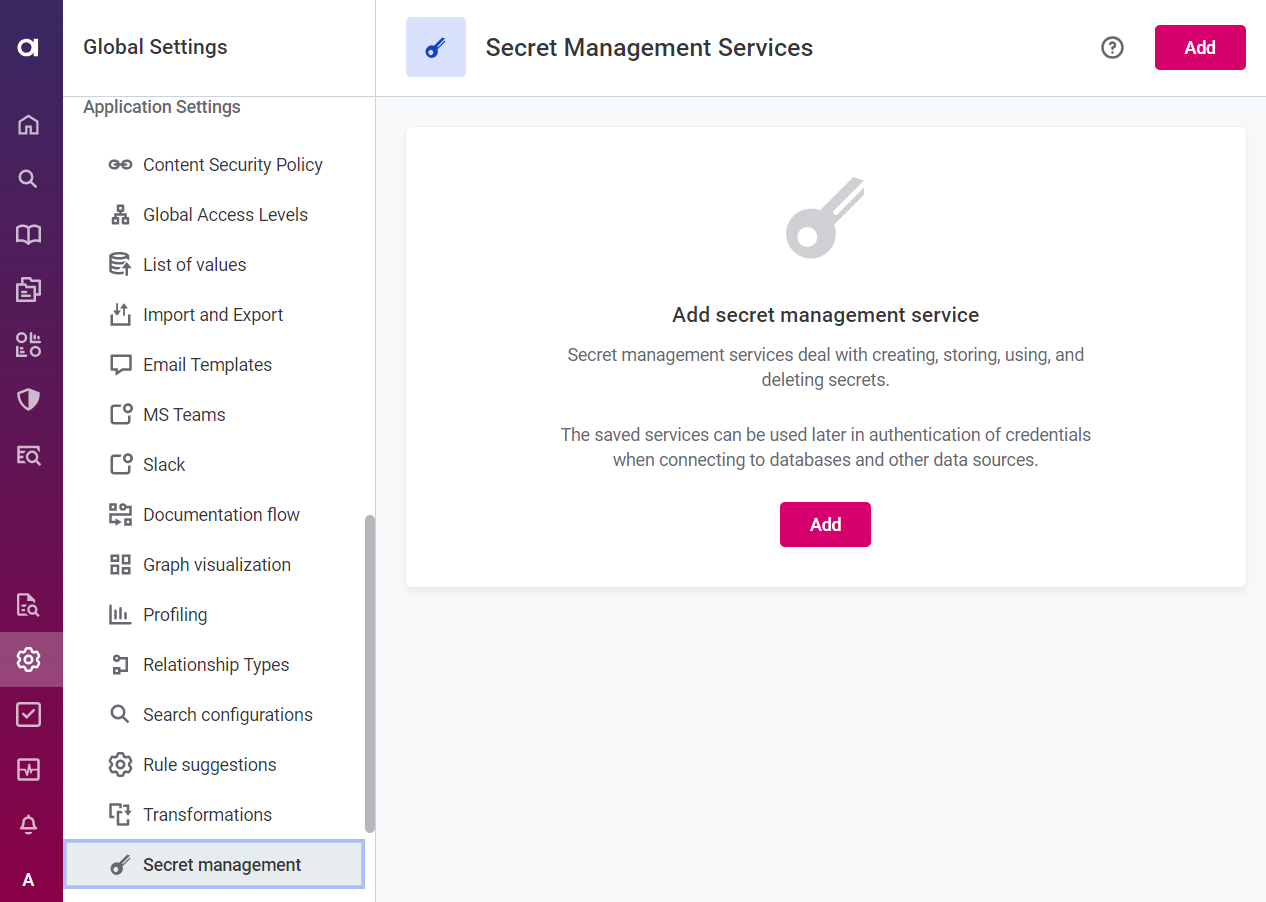
Go to Global Settings > Application Settings > Secret Management.
-
Select Add.
-
Provide the following information:
-
General
-
Provider: The key vault or secret manager you are connecting to. Select Azure Key Vault.
-
Name: A unique name for this service.
-
URL: The complete URL of the Azure Key Vault.
-
Description (Optional): A description for this service.
-
-
Authentication method: Select from the options provided.
-
Azure AD Client Credential
-
Tenant ID: The unique identifier of the Azure AD instance within your Azure subscription (string). Also known as 'directory' ID. This takes the following form (GUID):
ab12c456-789d-01ef-gg22-3h44i5jkl67m. -
Client ID: The unique identifier of the application created in Azure AD (string). Also known as Application ID. This takes the following form (GUID):
cd12e456-789f-01gh-ii22-3j44k5lmn67o. -
Client secret: The client secret for Azure Key Vault (string).
-
-
Azure AD Managed Identity:
-
Client ID (Optional): The authentication key string associated with the selected managed identity.
If you want to use Azure AD Managed Identity, the Data Processing Engine (DPE) must be installed in your Azure cloud subscription on a virtual machine (VM) instance, with a Managed Role assigned in the Microsoft Azure Portal. See Hybrid Deployment.
Azure AD Workload Identity is not supported for Azure Key Vault integration.
If you have multiple DPEs running, you might need to specify additional constraints. See Constraints Configuration.
-
-
-
-
Select Test to test the connection.
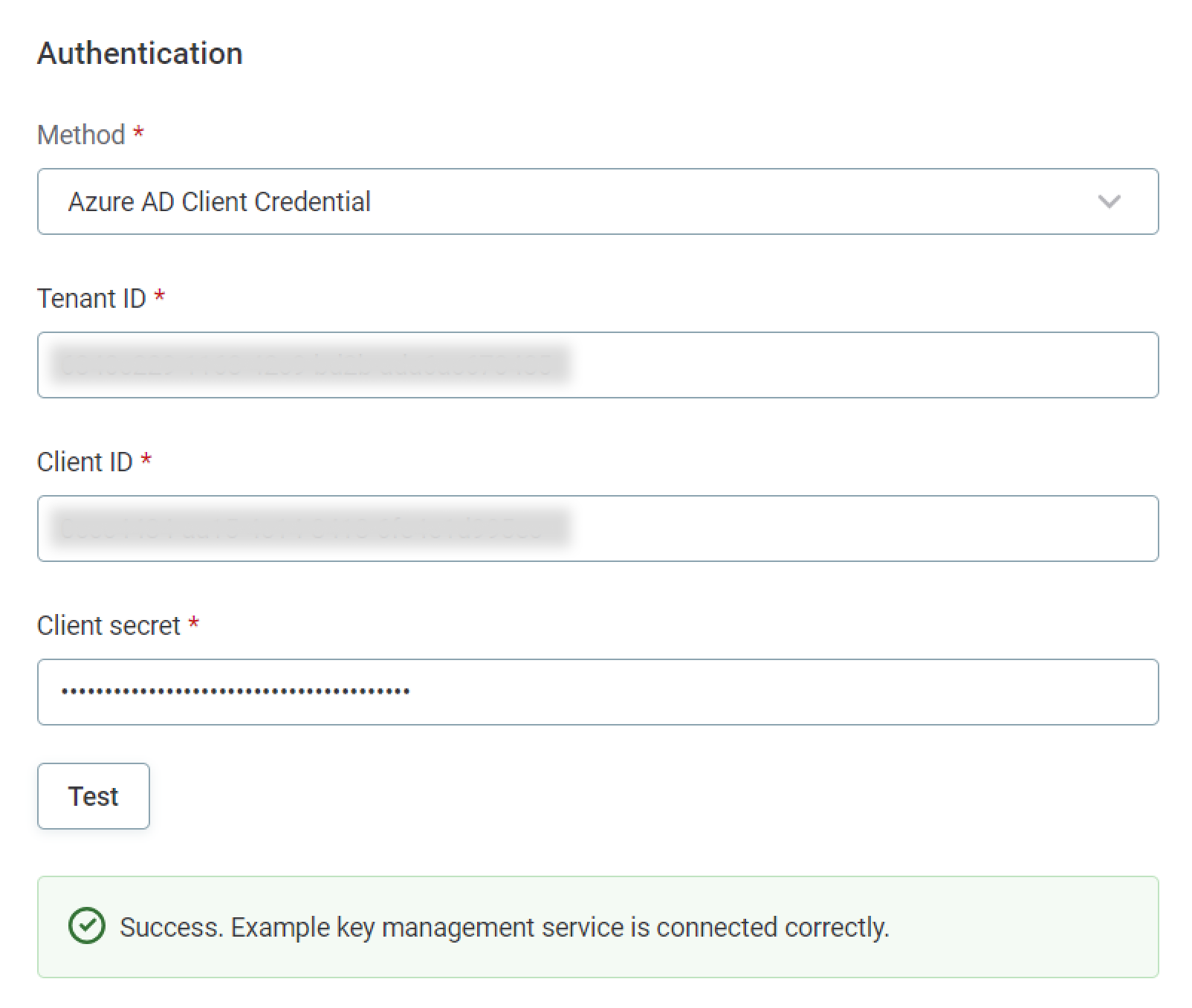
If the connection is successful, select Save. Otherwise, verify that your configuration is correct.
Usage examples
Example using username and password
-
In Data Catalog > Sources > [your source] > Add Connection, select Add Credentials.
-
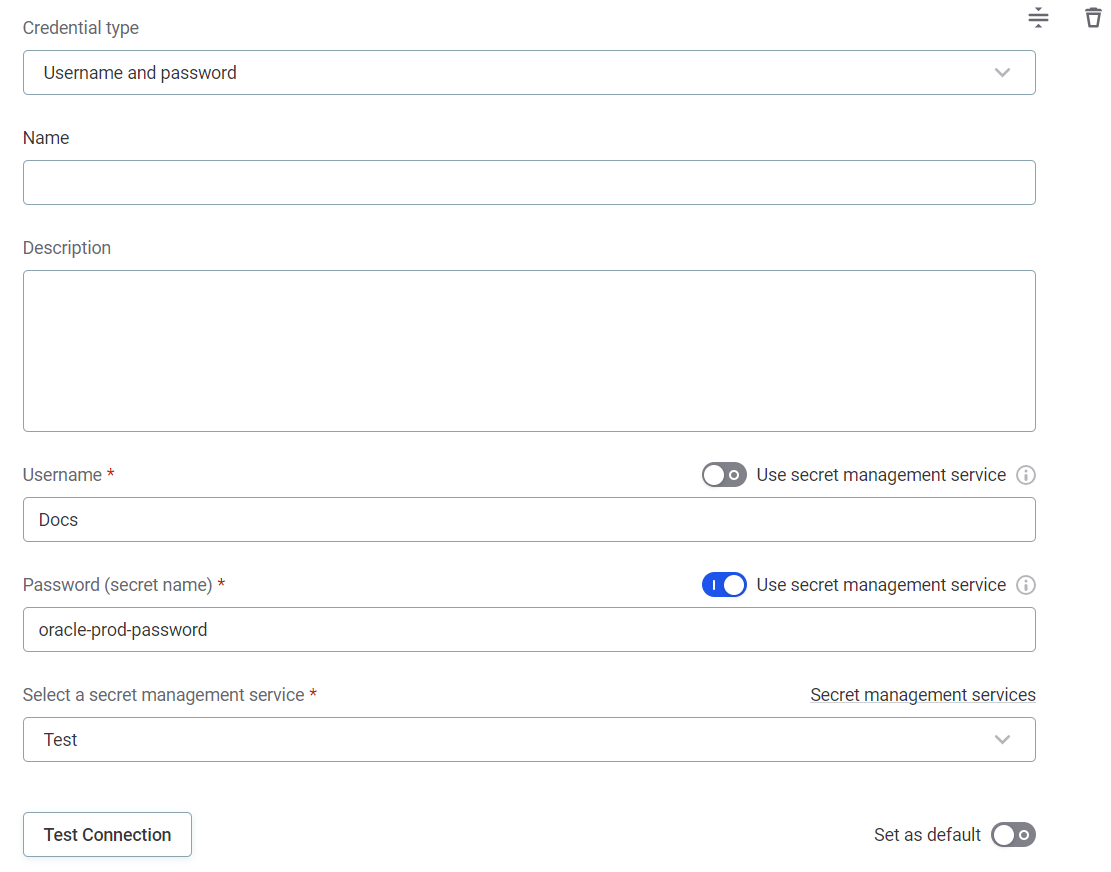
Select Credential type from the options provided:
-
Username and password
-
Name: A unique name for this set of credentials.
-
Description (Optional): A description for this service.
-
Select a secret management service: Select the Azure Key Vault you configured.
-
Username
-
Select the Use secret management service option.
You can enable Use secret management service to retrieve the username, but it is not necessary as usernames can generally be shared and entered manually. -
Username (secret name): Enter the name under which the password is stored in your key vault.
-
-
Password
-
Select the Use secret management service option.
-
Password (secret name): Enter the name under which the password is stored in your key vault. For example,
oracle-prod-password.Essentially, the secret name is the name the password is stored under in your key vault or secret manager. 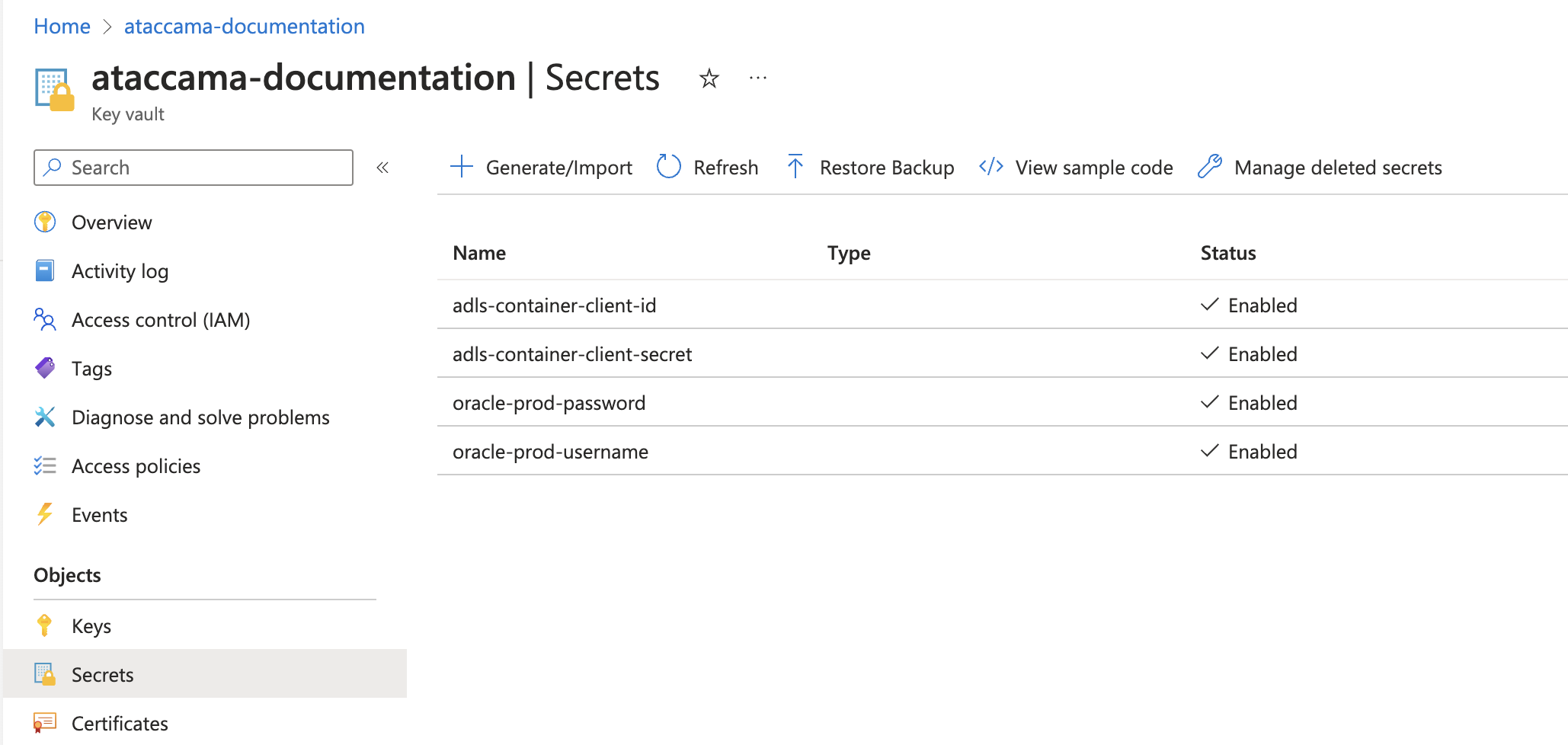
-
-
-
-
Select Test to test the connection. If the connection is successful, select Save. Otherwise, verify that your configuration is correct.
Example using Azure AD Client Credential
-
In Data Catalog > Sources > [your source] > Add Connection, select Add Credentials.
-
Select Credential type from the options provided:
-
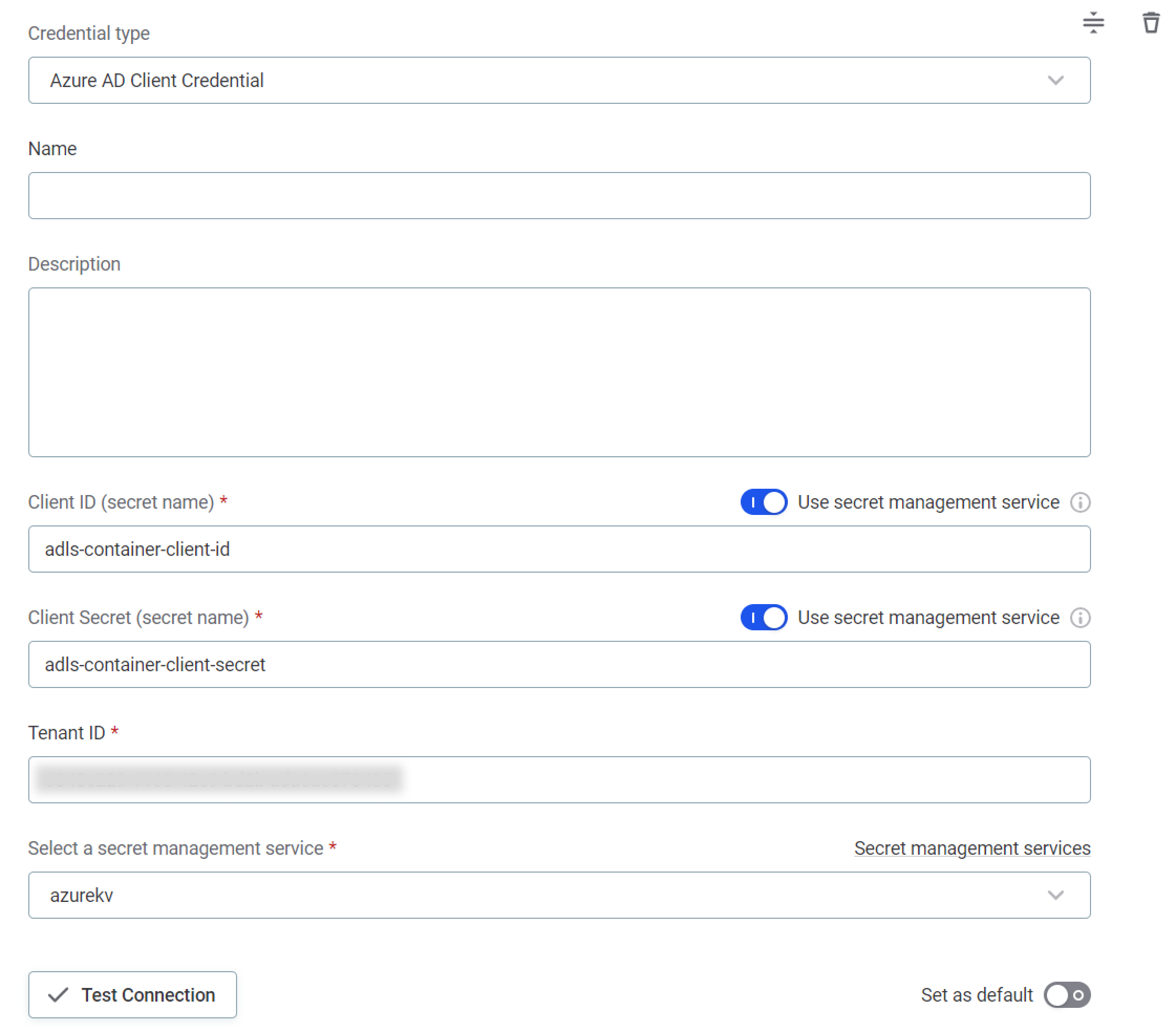
Azure AD Client Credential
-
Name: A unique name for this set of credentials.
-
Description (Optional): A description for this service.
-
Select a secret management service: Using the dropdown options, select the secret management service in which the required secrets are contained.
-
Client ID:
-
Select the Use secret management service option.
-
Client ID (secret name): Enter the name under which the Client ID is stored in your key vault. For example,
adls-container-client-id.The secret name is the name the respective Client ID, Client Secret, and other parameters, are stored under in your key vault or secret manager.
-
-
Client secret:
-
Select the Use secret management service option.
-
Client Secret (secret name): Enter the name under which the Client Secret is stored in your key vault. For example,
adls-container-client-secret.
-
-
Tenant ID: The unique identifier of the Azure AD instance within your Azure subscription (string). Also called its 'directory' ID.
-
-
-
Select Test to test the connection. If the connection is successful, select Save. Otherwise, verify that your configuration is correct.
Was this page useful?