
Azure Synapse Analytics Connection
This article describes how to connect to Azure Synapse Analytics.
Create a source
First, create a new data source.
-
Navigate to Data Catalog > Sources.
-
Select Create.
-
Provide the following:
-
Name: The source name.
-
Description: A description of the source.
-
Deployment (Optional): Choose the deployment type.
You can add new values if needed. See Lists of Values.
-
Stewardship: The source owner and roles. For more information, see Stewardship.
-
| Alternatively, add a connection to an existing data source. See Connect to a Source. |
Add a connection
-
Select Add Connection.
-
In Select connection type, choose Relational Database > Azure Synapse Analytics.
-
Provide the following:
-
Name: A meaningful name for your connection. This is used to indicate the location of catalog items.
-
Description (Optional): A short description of the connection.
-
Dpe label (Optional): Assign the processing of a data source to a particular data processing engine (DPE) by entering the DPE label assigned to the engine. For more information, see DPM and DPE Configuration in DPM Admin Console.
-
Override catalog item name: Select this option if you want metadata imports to overwrite the names of existing catalog items with the latest names from the data source.
If the option is not selected, catalog item names you set in ONE are preserved when metadata is reimported. See Edit catalog item metadata.
-
JDBC: A JDBC connection string pointing to the IP address or the URL where the data source can be reached. For a list of supported sources and JDBC drivers, see Supported Data Sources.
You can add a property to this connection string to authenticate with Azure AD Service Principle. See Azure AD Service Principal via connection string.
-
-
In the Pushdown processing section, optionally enable pushdown processing to run profiling and DQ evaluation directly in Azure Synapse. See Pushdown processing.
-
In Additional settings:
-
Select Enable exporting and loading of data if you want to export data from this connection and use it in ONE Data or outside of ONE.
If you want to export data to this source, you also need to configure write credentials. See Connection credentials.
Consider the security and privacy risks of allowing the export of data to other locations.
-
Pushdown processing
Pushdown processing lets you run profiling and DQ evaluation directly in Azure Synapse instead of on Ataccama Data Processing Engines (DPEs). To learn how pushdown works and when to use it, see SQL Pushdown Processing and SQL Pushdown for DQ Evaluation.
Prerequisites
If you are using pushdown for DQ evaluation, a dedicated schema is required in your Synapse database, where Ataccama stores the processing functions and caches lookup keys. Once you create the schema, point the connection to it and run a script that adds the functions.
Skip this section if you are only using pushdown for profiling.
-
Create a new schema in the Synapse database you’re connecting to. Use this schema only for Ataccama processing data, not for data storage. Don’t reuse an existing schema.
-
Make sure the credentials you label as Operational on the connection can create, read, write, and delete tables in this schema. See Credentials.
-
Have a database management tool (for example, DBeaver) connected to the Synapse database with a user that can create functions in the schema. You need it to run the script that ONE generates for you.
Enable pushdown profiling
Pushdown profiling is enabled on the connection level, either when adding a connection (see Add a connection) or when editing an existing one:
-
In the Pushdown processing section of the connection settings, enable Profile data using pushdown processing.
-
Choose whether you want to run term detection when pushdown processing is enabled, or disable term detection.
Term detection jobs can’t run in pushdown. See Term detection in pushdown.
Enable pushdown for DQ evaluation
-
In the Pushdown processing section of the connection settings, enable Profile data using pushdown processing and Evaluate Data Quality using pushdown processing.
You can’t enable pushdown for DQ evaluation without first enabling pushdown profiling.
-
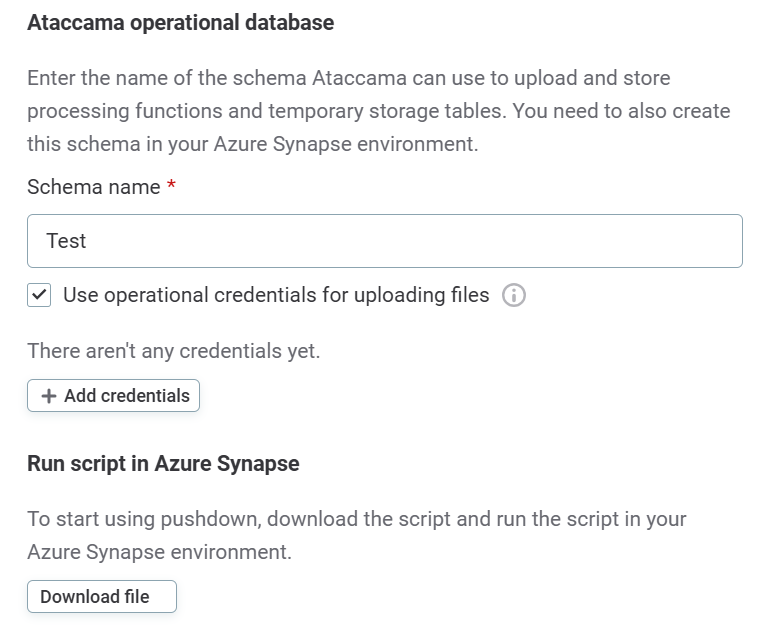
In Ataccama operational database, in Schema name, enter the name of the schema you created in Synapse. See Prerequisites.
-
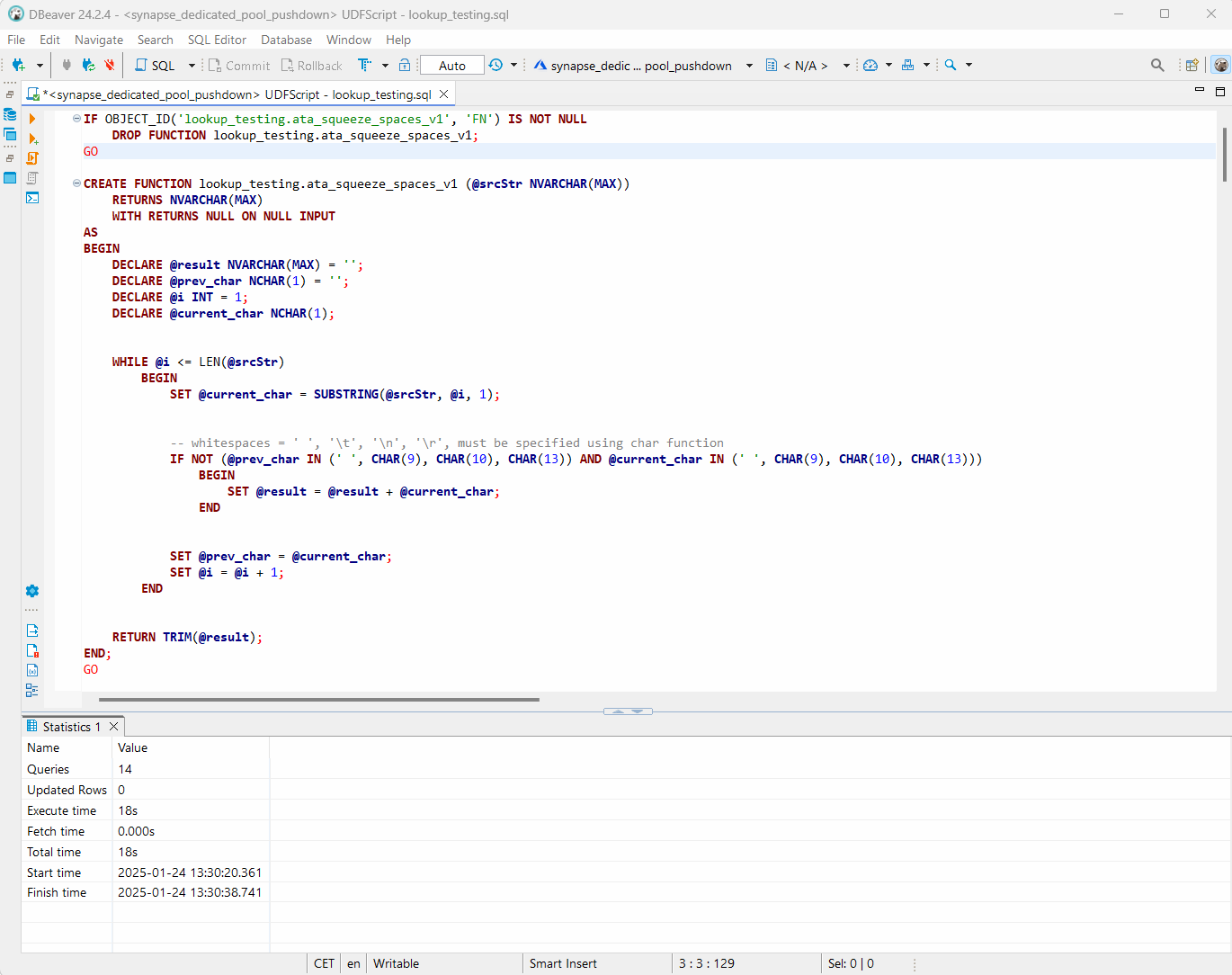
Select Download file, and run the downloaded script in your database management tool. The script creates the functions Ataccama needs in the schema.
Limitations of Azure Synapse pushdown
-
Some functions are not supported in pushdown for DQ evaluation. See Supported functions by data source.
-
For general pushdown limitations, see Limitations of pushdown processing.
If DQ evaluation in pushdown fails with a read timeout error, see Azure Synapse read timed out when running DQ evaluation with pushdown.
Add credentials
Different sets of credentials can be used for different tasks. One set of credentials must be set as default for each connection.
If you are using pushdown processing on Azure Synapse, you can have a dedicated set of credentials for pushdown operations.
To determine whether you need to configure more than a single set of credentials, see Connection credentials.
-
Select Add Credentials.
-
Choose an authentication method and proceed with the corresponding step:
-
Username and password: Basic authentication using your username and a password.
-
Azure AD Service Principal via Service Principal Certificate authentication
-
| These sections include references to Azure AD, which you might also know as Microsoft Entra ID. |
Username and password
-
Select Username and password.
-
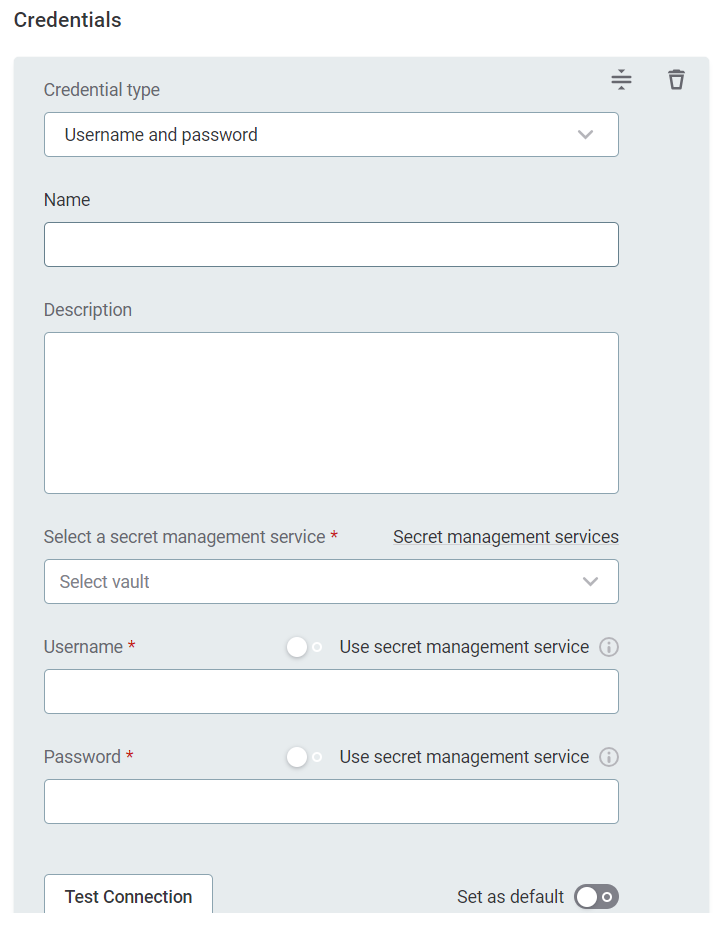
Provide the following:
-
Name (Optional): A name for this set of credentials.
-
Description (Optional): A description for this set of credentials.
-
Select a secret management service (optional): If you want to use a secret management service to provide values for the following fields, specify which secret management service should be used. After you select the service, you can enable the Use secret management service toggle and provide instead the names the values are stored under in your key vault. For more information, see Secret Management Service.
-
Username: The username for the data source. Alternatively, enable Use secret management service and provide the name this value is stored under in your selected secret management service.
-
Password: The password for the data source. Alternatively, enable Use secret management service and provide the name this value is stored under in your selected secret management service.
-
-
If you want to use this set of credentials by default when connecting to the data source, select Set as default.
See also Connection credentials.
-
Proceed with Test the connection.
Azure AD Service Principal via connection string
| This method is supported only for version 10.2 and newer of SQL Server JDBC driver. For older versions, see Azure AD Service Principal via driver properties. |
-
In the connection details, add the property
authentication=ActiveDirectoryServicePrincipalto the JDBC connection string. For examplejdbc:sqlserver://at…33;database=database-name;encrypt=true;trustServerCertificate=false;hostNameInCertificate=*.database.windows.net;authentication=ActiveDirectoryServicePrincipal. -
In Credentials, select Username and password and provide the following:
-
Username: Your
client_id -
Password: Your
client_secret
-
-
If you want to use this set of credentials by default when connecting to the data source, select Set as default.
See also Connection credentials.
-
Proceed with Test the connection.
Azure AD Service Principal via driver properties
| This method can be used for older JDBC drivers which can’t authenticate via the connection string. |
-
Select Integrated credentials and provide the following:
-
Name (Optional): A name for this set of credentials.
-
Description (Optional): A description for this set of credentials.
-
-
If you want to use this set of credentials by default when connecting to the data source, select Set as default.
See also Connection credentials.
-
Use Add Driver property to add the following driver properties:
Driver property name Driver property type Encrypted Value Content authenticationValue
False
ActiveDirectoryServicePrincipaln/a
AADSecurePrincipalIdValue
False
<service principal client ID (UUID format)>n/a
AADSecurePrincipalSecretValue
False
<service principal client secret>n/a
When adding these properties in the application, the following format is used:
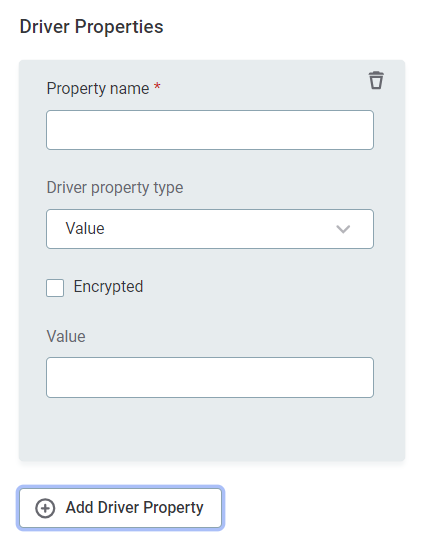
In the case of the first property above you enter:
-
Driver property name: authentication
-
Driver property type: value
-
Encrypted: false
-
Value: ActiveDirectoryServicePrincipal
Repeat this process for each of the properties in the code block. Always select Encrypted for client secrets and other sensitive information.
-
-
Proceed with Test the connection.
Azure AD Workload Identity
This authentication method is for hybrid DPE deployments running on Kubernetes (AKS, EKS, GKE, or self-managed clusters).
When using Workload Identity, you do not need to configure Azure Key Vault in Secret Management Services. Authentication is handled automatically through the workload identity configured in your DPE deployment. For DPE setup instructions, see Azure AD Workload Identity for Hybrid DPE on AKS.
-
In the connection details, add
authentication=ActiveDirectoryDefaultto the JDBC connection string.Examplejdbc:sqlserver://<synapse-workspace-name>.sql.azuresynapse.net:1433;database=<database-name>;encrypt=true;trustServerCertificate=false;hostNameInCertificate=*.sql.azuresynapse.net;loginTimeout=30;authentication=ActiveDirectoryDefault -
In Credentials, select Integrated credentials and provide the following:
-
Name (Optional): A name for this set of credentials.
-
Description (Optional): A description for this set of credentials.
-
-
If you want to use this set of credentials by default when connecting to the data source, select Set as default. See also Connection credentials.
No additional configuration is required.
-
Proceed with Test the connection.
Azure AD Service Principal via Service Principal Certificate authentication
-
In Credentials, select Username and password and provide the following:
-
Username: Your
client_id -
Password: Enter a value at random, this is not used in the connection.
-
-
If you want to use this set of credentials by default when connecting to the data source, select Set as default.
See also Connection credentials.
-
Use Add Driver property to add the following driver properties:
-
Driver property name:
authentication, Driver property type:Value, Encrypted:false, Value:ActiveDirectoryServicePrincipalCertificate. -
Driver property name:
clientCertificate, Driver property type:File, Encrypted: True, Content: upload your.crtfile. -
Driver property name:
clientKey, Driver property type:File, Encrypted: True, Content: upload your.keyfile. -
(Optional) Driver property name:
clientKeyPassword, Driver property type:Value, Encrypted:true, Value:<password>.
-
-
Proceed with Test the connection.
Test the connection
To test and verify whether the data source connection has been correctly configured, select Test Connection.
If the connection is successful, continue with the following step. Otherwise, verify that your configuration is correct and that the data source is running.
Save and publish
Once you have configured your connection, save and publish your changes. If you provided all the required information, the connection is now available for other users in the application.
In case your configuration is missing required fields, you can view a list of detected errors instead. Review your configuration and resolve the issues before continuing.
Next steps
You can now browse and profile assets from your connection.
In Data Catalog > Sources, find and open the source you just configured. Switch to the Connections tab and select Document. Alternatively, opt for Import or Discover documentation flow.
Or, to import or profile only some assets, select Browse on the Connections tab. Choose the assets you want to analyze and then the appropriate profiling option.
Was this page useful?