
AWS Secrets Manager Integration
Integrate ONE with AWS Secrets Manager to retrieve secrets when connecting to data sources.
Create new AWS Secrets Manager integration
-
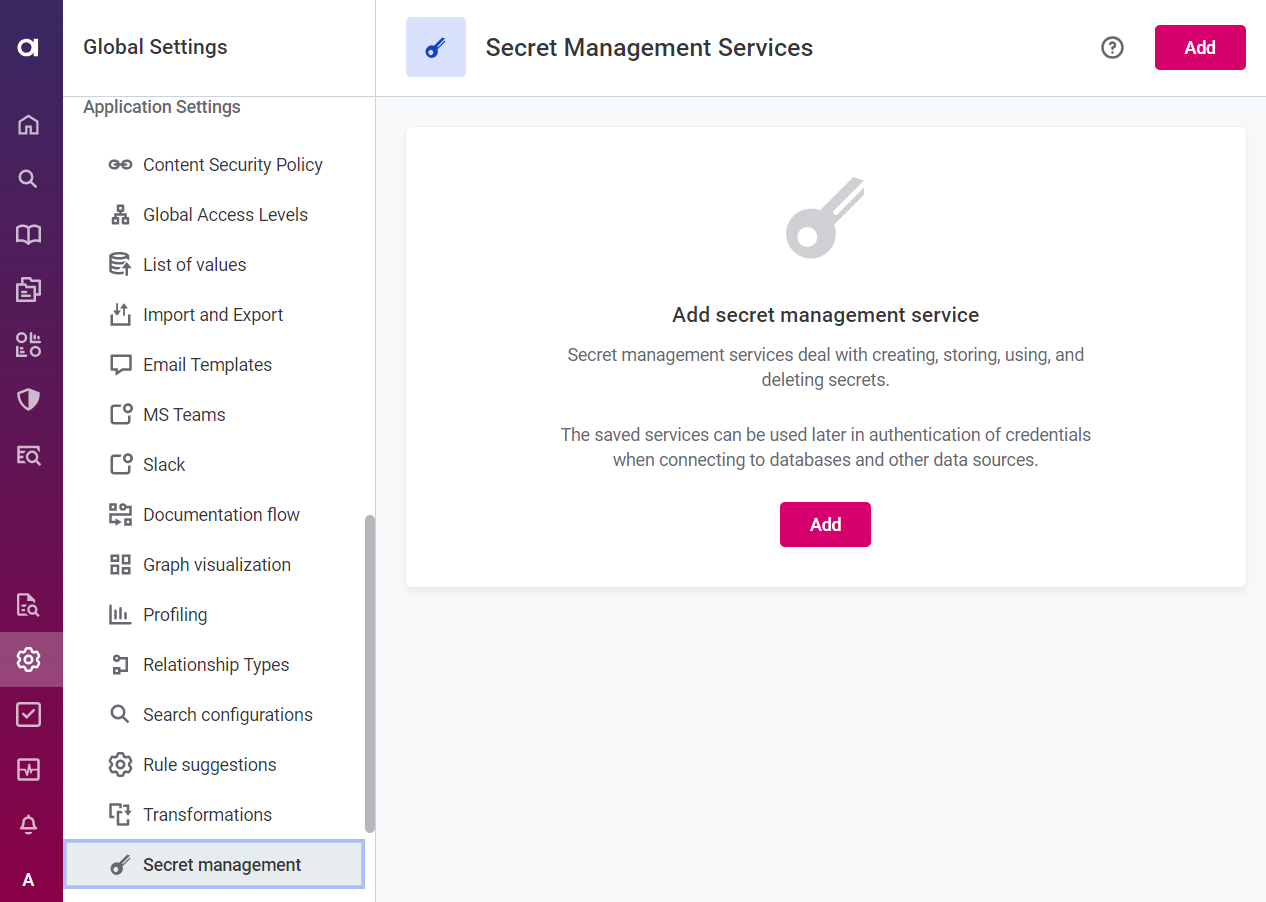
Go to Global Settings > Application Settings > Secret Management.
-
Select Add.
-
Provide the following information:
-
General
-
Provider: The key vault or secret manager you are connecting to. Select AWS Secrets Manager.
-
Name: A unique name for this service.
-
Description (Optional): A description for this service.
-
Endpoint: The complete URL of the AWS Secrets Management Service. For more information, see the AWS Secrets Manager endpoints and quotas documentation.
For example, for the
us-east-2region, the endpoint is:secretsmanager.us-east-2.amazonaws.com. -
AWS Secret Name: The secret name as defined in AWS Secrets Manager. Secrets in AWS are stored as key/value pairs. For example:
dev-test-credentials.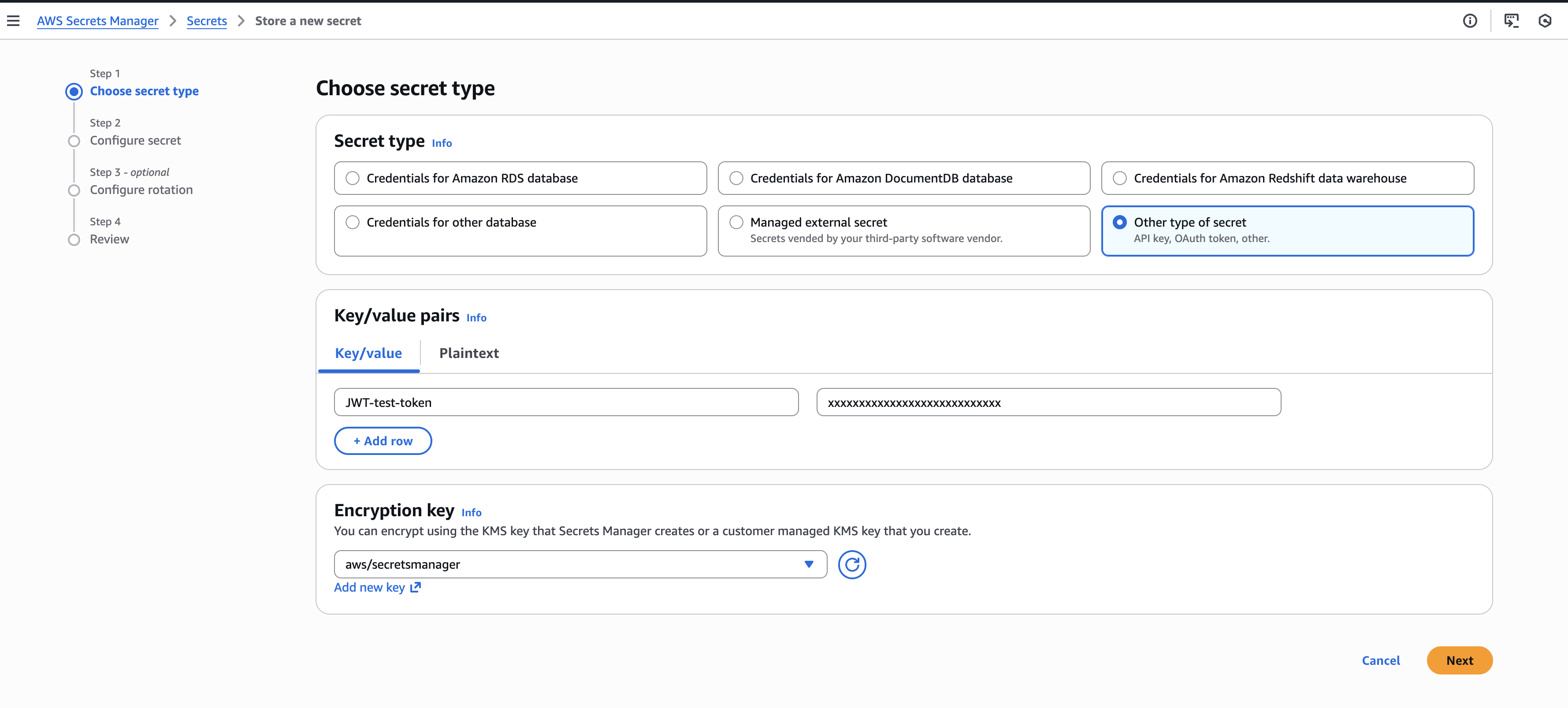
-
AWS Region: The AWS region where the secret is stored. Select the region that matches your AWS Secrets Manager configuration.
-
-
Authentication method: Select AWS Access Key Credentials.
To use access key credentials, the connecting user requires the following permissions in AWS:
-
secretsmanager:GetSecretValue: Allows getting all secret values from the secret name. -
secretsmanager:DescribeSecret: Allows describing the secret name. -
secretsmanager:ListSecrets: Allows listing all secret names.
Example IAM policy
{ "Version": "2012-10-17", "Statement": [ { "Sid": "ReadSpecificSecret", "Effect": "Allow", "Action": [ "secretsmanager:GetSecretValue", "secretsmanager:DescribeSecret" ], "Resource": [ "arn:aws:secretsmanager:eu-central-1:550762553500:secret:di-test-credentials-cw1JVS" ] }, { "Sid": "ListSpecificSecret", "Effect": "Allow", "Action": [ "secretsmanager:ListSecrets" ], "Resource": [ "*" ] } ] }-
Name: A unique name for the credentials.
-
Description (Optional): A description for this service.
-
Access Key: The AWS access key ID.
-
Secret Key: The AWS secret access key.
-
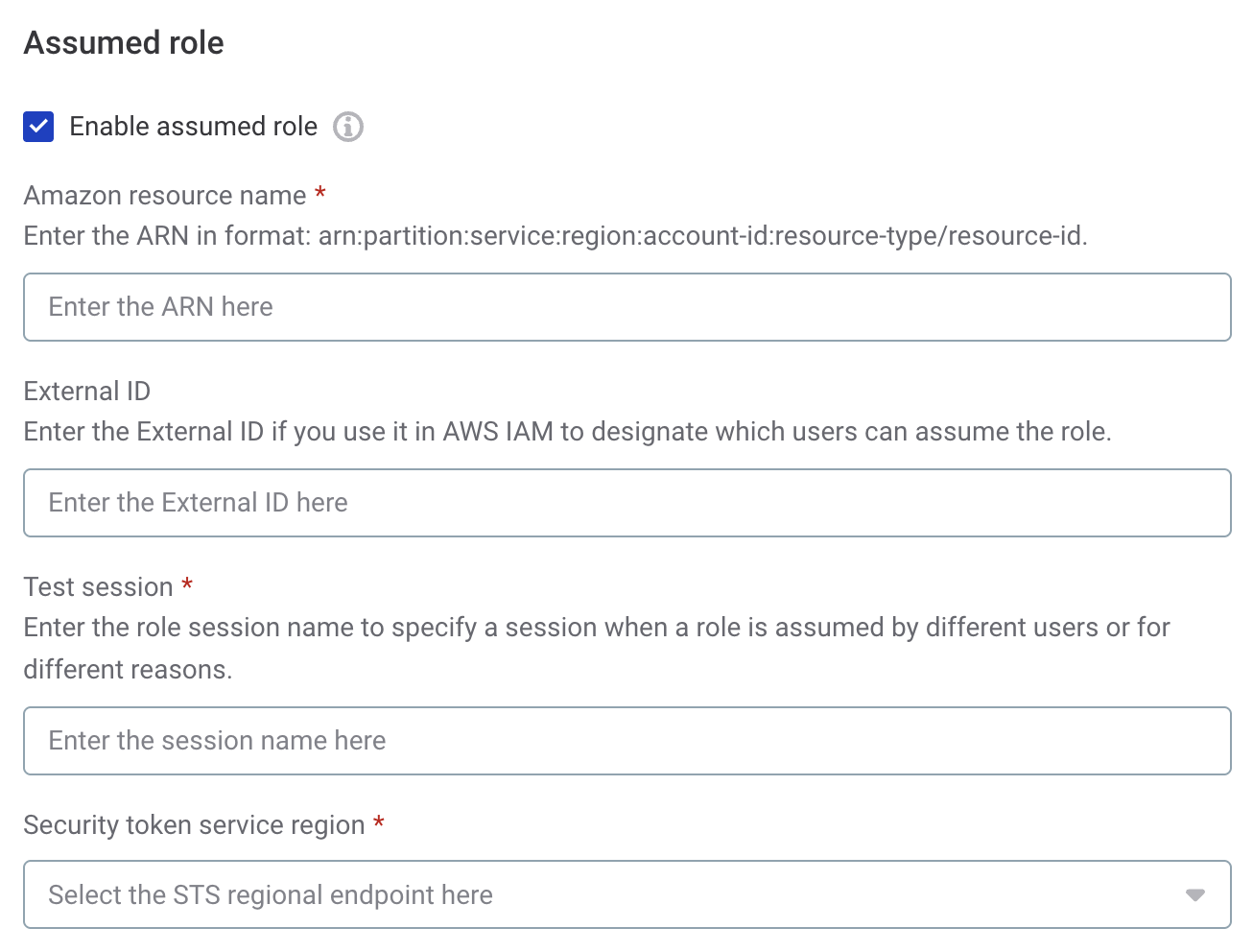
Enable assumed role (Optional): Turned off by default. Select this option if you need to assume an IAM role to access secrets.
-
Access Key with Assumed Role
Use this method when you need to assume an IAM role to access secrets, for example, in cross-account setups.
To use access key credentials with assumed role, the assumed role must have the following permissions in AWS:
-
secretsmanager:GetSecretValue: Allows getting all secret values from the secret name. -
secretsmanager:DescribeSecret: Allows describing the secret name. -
secretsmanager:ListSecrets: Allows listing all secret names.
Provide the following:
-
Amazon Resource Name (ARN): The ARN of the IAM role you want to assume. For example:
arn:aws:iam::123456789123:role/myAwesomeRole. -
External ID: If the role’s trust relationship in AWS uses an external ID for cross-account access, enter it here. For example:
prod-eu.This field is required if using a cross-account S3 connection setup. -
Session Name: A name for the session to identify the connection in AWS logs. The value must consist of uppercase and lowercase alphanumeric characters with no spaces. You can also include any of the following characters:
_,=,,,.,@,-.You can provide a default value, such as
Ataccama_One. -
STS Region: The AWS region in which you want to use the STS service. For example:
eu-central-1orus-east-1.
-
-
-
-
-
Select Test to test the connection.
If the connection is successful, select Save. Otherwise, verify that your configuration is correct.
Usage examples
Example using username and password
-
In Data Catalog > Sources > [your source] > Add Connection, select Add Credentials.
-
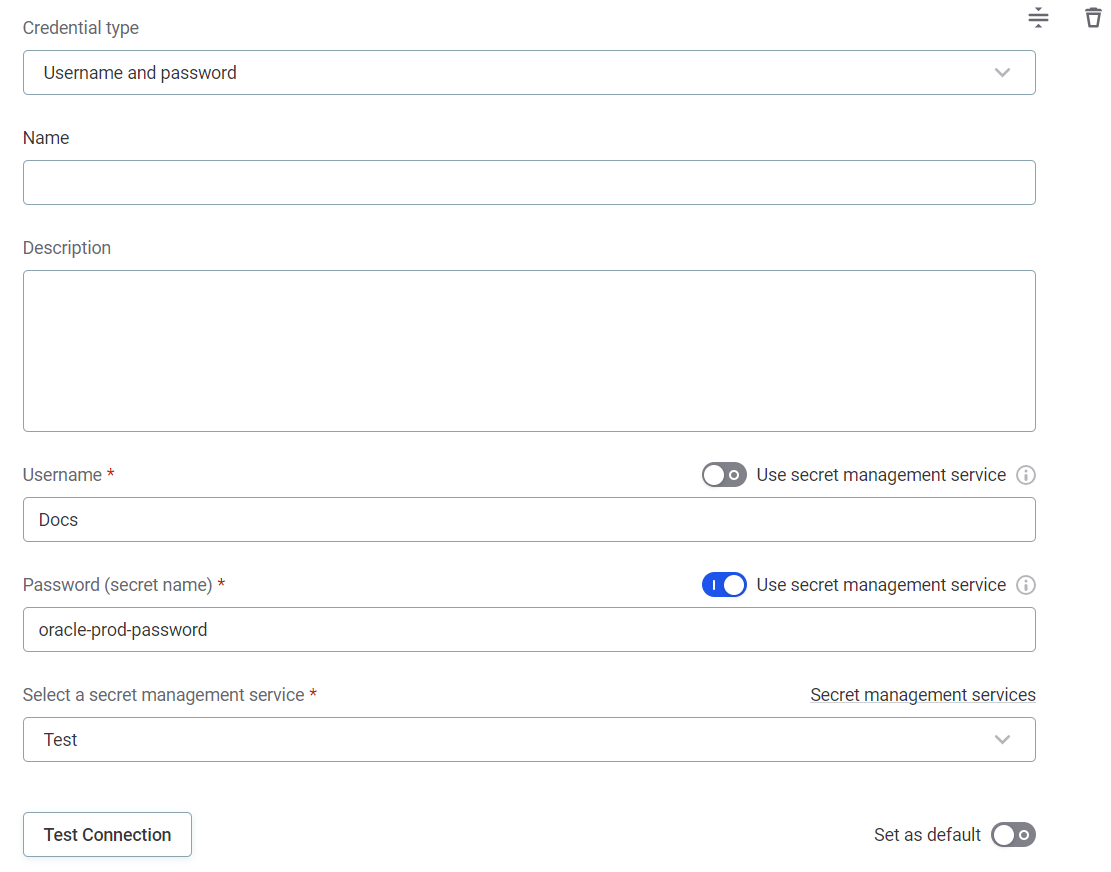
Select Credential type from the options provided:
-
Username and password
-
Name: A unique name for this set of credentials.
-
Description (Optional): A description for this service.
-
Select a secret management service: Select the AWS Secrets Manager you configured.
-
Username
-
Select the Use secret management service option.
You can enable Use secret management service to retrieve the username, but it is not necessary as usernames can generally be shared and entered manually. -
Username (secret name): Enter the key name under which the username is stored in your AWS secret’s key/value pairs.
-
-
Password
-
Select the Use secret management service option.
-
Password (secret name): Enter the key name under which the password is stored in your AWS secret’s key/value pairs.
The secret name refers to the key in the key/value pair stored within the AWS secret you specified when configuring the integration.
-
-
-
-
Select Test to test the connection. If the connection is successful, select Save. Otherwise, verify that your configuration is correct.
Was this page useful?