
Export Reference Data Tables
Export reference data to a CSV file for use in other systems, for analysis, or as a backup. You can export the published data or your drafts, and the whole table, the current view, or selected records only.
For automated exports to file storage, use a transformation plan.
Export to a CSV file
You can export any table whose records you have permission to view.
-
Go to Reference data > Tables.
-
Select the table you want to export.
-
On the Data tab, prepare the data you want to export:
-
Set Record state to Published to export the published data, or to Drafts to export your working copy, including unpublished changes.
-
(Optional) Filter and sort the table, or select specific records.
The export takes the table as you see it, so apply any filters before you start. If you select records, only the selected records are exported, and the filters still apply to them. See Filter records.
-
-
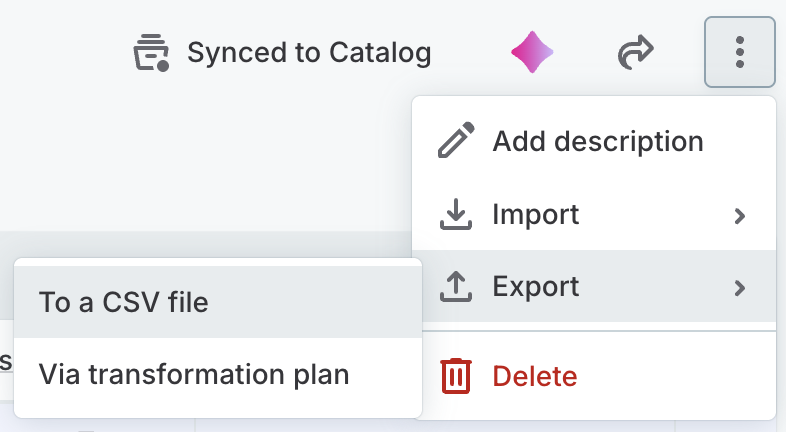
In the three-dot menu, select Export > To a CSV file.
-
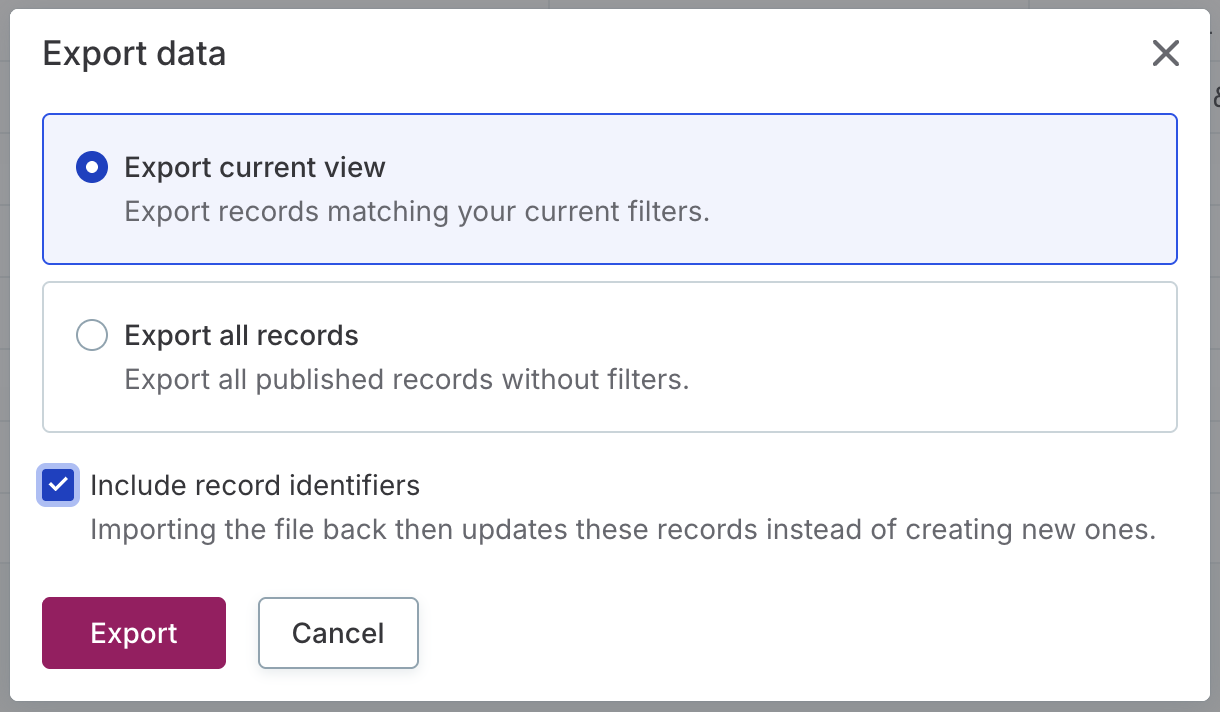
Select the export scope: Export current view exports the table as you prepared it, and Export all records exports all published records regardless of filters and selection. See Export scopes.
-
(Optional) If exporting the current view on tables without effective dates, select Include record identifiers to add the record identifier as the first column of the file, named
ata_rdm_record_id. Importing the file back then updates these records instead of creating new ones.On tables with effective dates, you can export all versions of each record instead. See Export tables with effective dates.
-
Select Export.
The file is saved to your default download location.
It is UTF-8 encoded and named after the table, the export scope, and the time of the export, for example my_table_filtered_2026-10-15_08-30-00.csv.
Export scopes
Both scopes export all attributes, including the attributes hidden in the table. The first row of the file holds the attribute names.
| Scope | What is included | Available on |
|---|---|---|
Export current view |
Records that match your current filters, in the sort order of the table. On tables with effective dates, the effective date settings of your view apply as well. |
Drafts and Published data. |
Export all records |
All published records, without filters. This scope always exports published data, even when you start the export from Drafts. |
Drafts, Published, and In review data, unless the table has no published data. |
Export tables with effective dates
On tables with effective dates, you can select the following options instead of record identifiers:
| Option | What it does | Available with |
|---|---|---|
Export all versions (including expired and future) |
Exports every version of each record as a separate row. |
Export all records. |
Export all versions of each record, not only the effective one |
Exports every version of each record as a separate row. If cleared, only the version that is effective today is exported for each record. |
Export current view on the Drafts data. Not available when records are selected, because the selection determines which versions are exported. |
The group identifier column ata_rdm_ed_group_id is always added to the file.
For details about versions, see Use Effective Dates.
Export to file storage (automated)
For automated exports to file storage locations like Amazon S3, use transformation plans with the File export step. This approach enables scheduled exports that always use the latest published version of your reference data.
To export this way, you need Editing access or higher on transformation plans and transformation steps. See Transformation plan access for import and export.
Next steps
-
Import the file back: Import from file to update or add records from an exported file.
-
Publish your drafts: Publish changes to make them part of the published data.
Was this page useful?