
Manage Permissions for DQ Assets
This page explains the specifics of managing permissions and sharing for data quality assets: DQ monitors, catalog items, and DQ dashboards.
For general information about permission management and sharing, see:
Understand permissions for DQ assets
DQ monitor permissions
Each catalog item has one default (primary) DQ monitor and can have multiple secondary monitors. The permissions for DQ monitors work as follows:
-
The primary DQ monitor is tied to the catalog item. It has the same permissions as the catalog item and is always shared together with it. When you share a catalog item (either separately or as a part of the source), the primary DQ monitor is shared together with it.
-
Secondary DQ monitors have independent permissions and are shared separately from the catalog item and other monitors.
When to use independent monitor permissions
The option to set independent privacy settings for each DQ monitor is useful when you need to:
-
Create a private DQ monitor. In this case, create a new DQ monitor and share it with the required permissions.
-
Share a catalog item while keeping some monitors private. In this case, share the catalog item together with its primary monitor.
Access levels for DQ monitors
DQ monitors follow the standard access levels for assets, with one exception:
Users with View metadata access can see the results of profiling and anomaly detection, except for potentially sensitive data:
-
Numerical Statistics widget (contains minimum, mean, maximum value, sum of all values, variance, and standard deviation)
-
Quantiles widget
-
Top 20 and last 20 results in the Frequency Analysis widget.
Access levels for DQ dashboards
Currently, to access a DQ dashboard, you need at least View metadata access to all catalog items in the dashboard. This access allows you to:
-
Open and explore the full DQ dashboard.
-
See the information in the Overall quality and Last run columns on the list of DQ dashboards.
Share primary DQ monitor
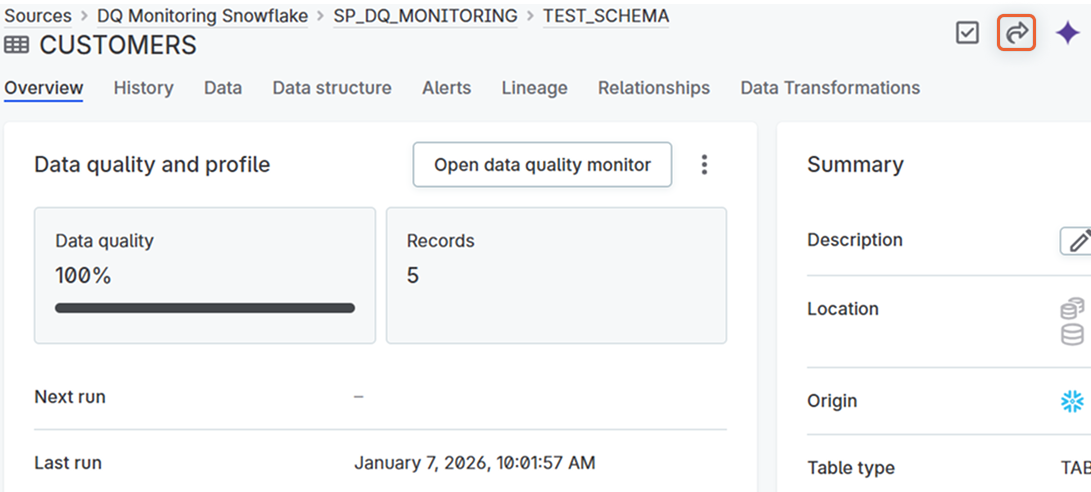
To share a primary DQ monitor, share its associated catalog item. The primary monitor is always shared with the catalog item.
Share secondary DQ monitor
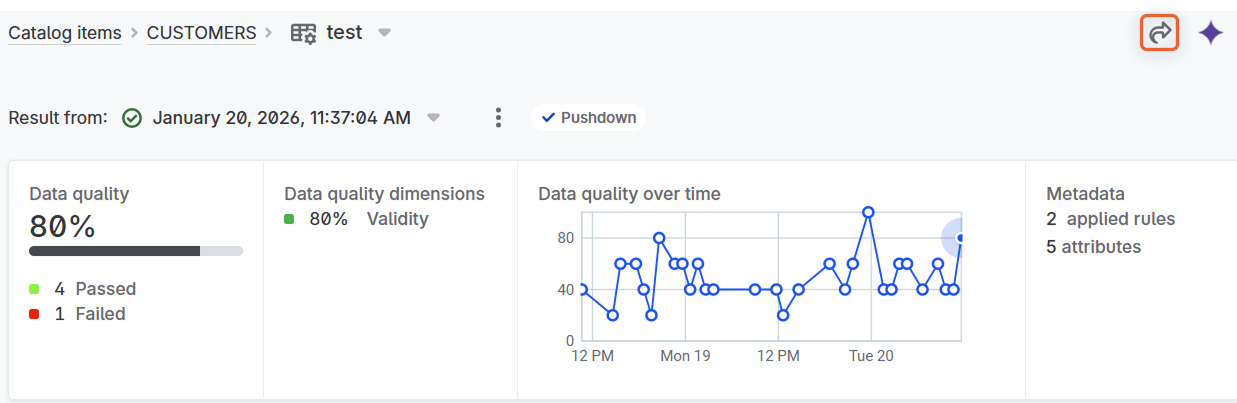
To share a secondary DQ monitor:
-
Open the monitor you want to share.
-
Select the Share icon.
-
Search for users or groups with whom you want to share access and add all that apply.
-
Expand the list of access levels next to the group or user name and select the required access level.
-
Make sure the users you are sharing the monitor with have at least the View metadata access to the catalog item. Otherwise, they won’t be able to see the monitor.
To do this, open the list of users who have access to the catalog item and give them the required permissions.
-
Select Done to save changes.
Share DQ dashboards
To share a DQ dashboard:
-
Select the dashboard you want to share from the list on the Data quality > Dashboards screen.
-
Select the Share icon.
-
Search for users or groups with whom you want to share access and add all that apply.
-
Expand the list of access levels next to the group or user name and select the required access level.
-
Select Done to save changes.
Was this page useful?