
Export Invalid Records
You can configure DQ monitors to automatically export records that fail validation rules to a table. Each time you run a DQ evaluation, the export updates with the latest results, ensuring you always have current invalid records for analysis and remediation.
Why export invalid records
Exporting invalid records is useful for sharing results with data owners or stakeholders without access to Ataccama ONE, or for integrating with external remediation workflows.
Invalid record exports vs. samples
- Invalid record exports
-
Every invalid record, up to the record limit you set, written to an external table. Useful for comprehensive analysis, sharing, and remediation.
- Invalid record samples
-
A limited sample of invalid data, useful for quick investigation within ONE. Select Download invalid sample on the DQ monitor Records tab to download the sample directly, or Show Invalid Samples on a rule sidebar to view it first and download it from there. Available only when Collect invalid samples is selected. If you don’t see the download options, invalid sample downloads aren’t allowed in your organization. If you need to download samples, ask your application admin.
If the catalog item’s connection uses the Strict (no data leaves Edge) compliance mode, invalid record samples aren’t collected, but you can still export invalid records to your own storage. See Compliance mode.
Set up export of invalid records
To configure automatic export:
-
Open your DQ monitor.
-
Select Configure monitor, then Invalid records.
-
Select Export invalid records.
-
Configure the export settings.
-
Publish the changes.
The next time you run DQ evaluation, invalid records are exported to your specified table.
Export settings
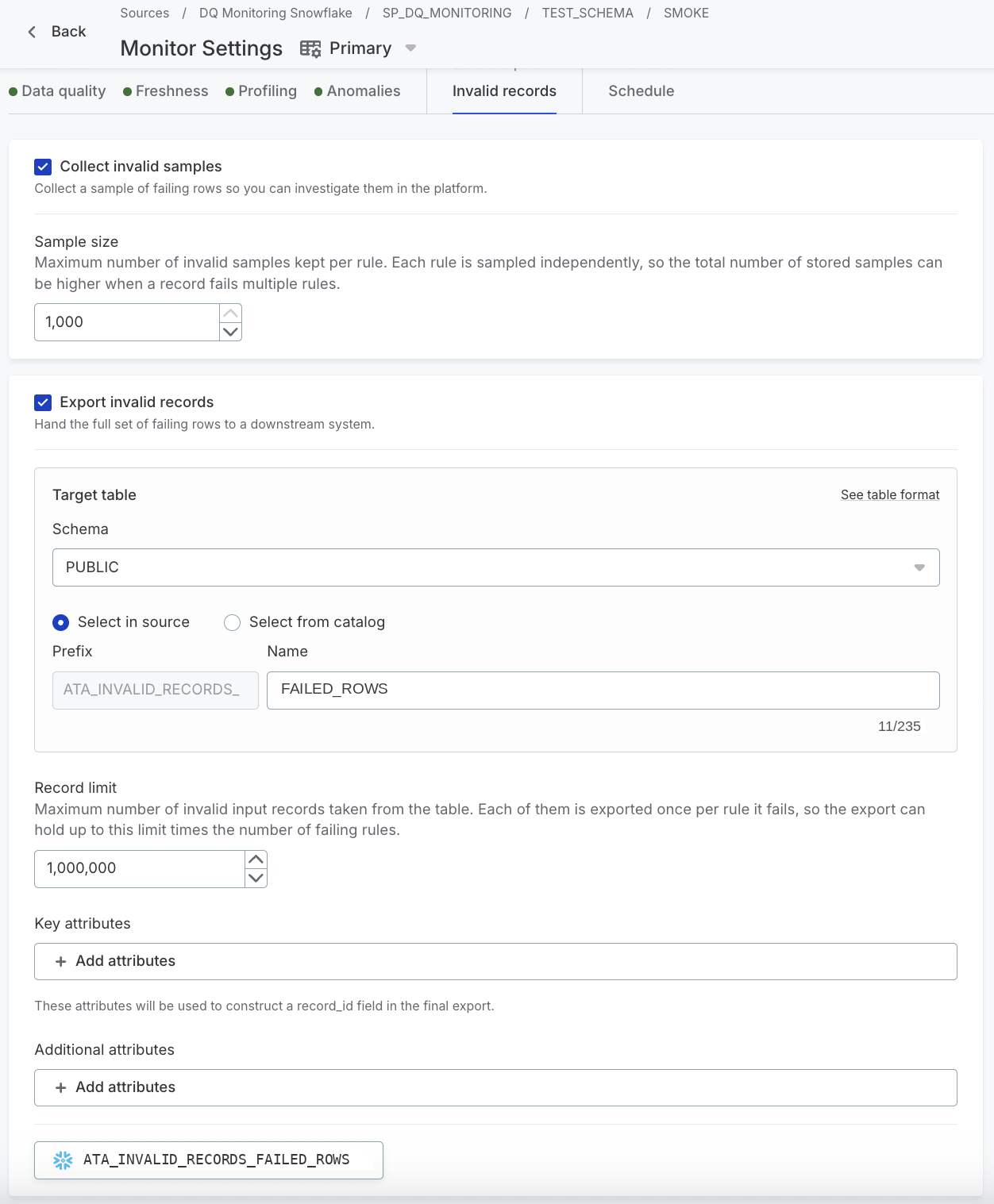
Export destination
The export destination depends on your processing type.
-
Non-pushdown DQ evaluation: Select the S3 connection and bucket where invalid records should be exported:
-
Source: Select the S3 connection to use as the export destination.
-
Bucket: Select the bucket within the chosen S3 connection.
-
-
Pushdown DQ evaluation (Snowflake and Databricks): Select a table where invalid records are exported:
Make sure your role has the required permissions. See Required permissions for the export table for details.
-
Schema: Select the schema where you want to export the table.
-
Select in source: Create a new table or use an existing table in your data source.
-
Name: Enter the table name. If the table does not exist, it is created automatically with the required structure.
-
Prefix: The prefix is fixed as
ATA_INVALID_RECORDS_for easy identification of export tables.
-
-
Select from catalog: Select an existing catalog item as the export destination.
The catalog item name must start with
ATA_INVALID_RECORDS_and must have all required columns. To create such a catalog item, first create the table in your data source, and then import the table to catalog. The table has to match the export structure exactly, including the column order and the column names. See Create the pushdown export table yourself.
-
Record limit
Set the maximum number of invalid records exported from the catalog item being evaluated. Each record is exported once for every rule it fails, and each of those counts toward the limit.
The default is 1,000,000.
Key attributes
If you need to identify which source record each exported row belongs to, for example when joining export data with other datasets, select one or more attributes to construct a record_id field in the export.
The record_id has the same format for pushdown and non-pushdown DQ evaluation: the key attribute values, comma-separated, without attribute names, for example 1, or 1,5 for a composite key.
In pushdown DQ evaluation, values are written the way your data source converts them to text, so dates and timestamps can look different from the non-pushdown export.
If a key attribute has no value in a record, its place in the record_id is left empty, for example 1,.
If no key attributes are selected, the record_id is empty.
Additional attributes
You can select additional attributes to provide context for investigating DQ issues. For example, if an email address fails validation, adding the country code helps you identify whether all issues originate from the same country.
When you select multiple attributes, they appear in a single additional_attributes column as key:value pairs (for example, customer_id:1,age:29).
View exported records
After DQ evaluation completes, select All invalid records on the DQ monitor Records tab. The option is available only when export is configured.
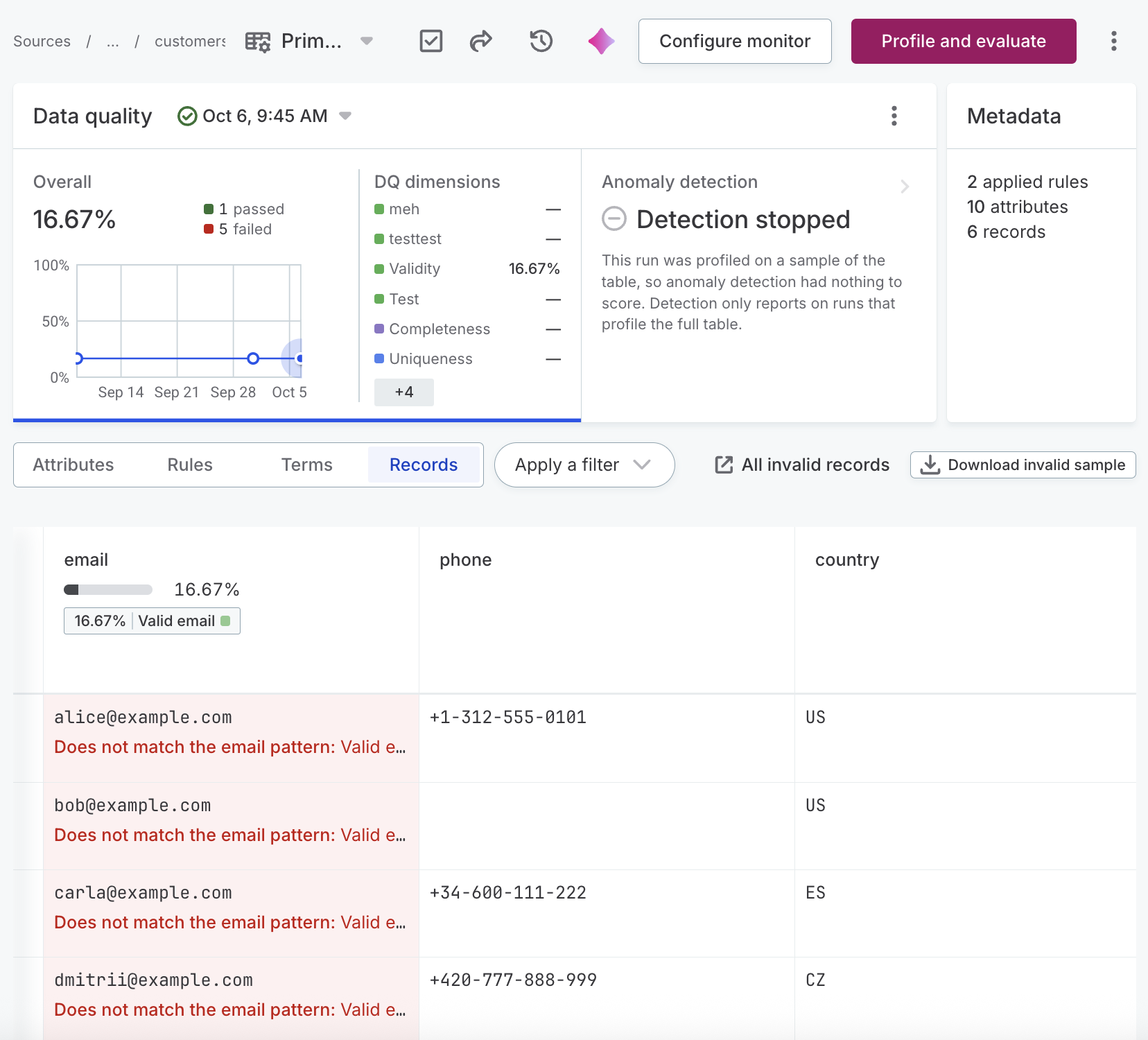
What happens next depends on your processing type:
-
Non-pushdown DQ evaluation: Copies the S3 URI of the exported file to your clipboard, in the form
s3://<bucket>/export/dq_export_<id>_<timestamp>.csv. Use the URI to retrieve the file from your S3 bucket. -
Pushdown DQ evaluation on Snowflake: Opens the export table in Snowflake, where you can view, query, and download the data.
-
Pushdown DQ evaluation on Databricks: Stays disabled, and reports that the export for this run is not available. The records are still written to the export table, so open the table in Databricks to view them.
The adjacent Download invalid sample option returns a sample rather than the full export. See Invalid record exports vs. samples.
Manage export configuration
You can modify or pause your export configuration at any time.
To change where or how records are exported, edit the fields under Export invalid records and publish the monitor. The new settings apply from the next DQ evaluation.
To stop exporting without losing the configuration, clear Export invalid records. The section is then marked Paused and keeps its settings, so you can resume by selecting it again.
Pausing does not delete the export table or its data from your data source or S3 storage.
Required permissions for the export table
Every evaluation creates the export table if it does not exist, inserts the new records, and deletes the records from earlier runs.
Your role needs the permissions for all three, including CREATE TABLE even once the table exists, because that statement runs every time.
The grants on the table itself are only needed when the export table already exists in the target schema. If ONE creates the table, the role that created it becomes its owner and already has those permissions.
GRANT USAGE ON DATABASE <database_name> TO ROLE <role_name>;
GRANT USAGE ON SCHEMA <database_name>.<schema_name> TO ROLE <role_name>;
GRANT CREATE TABLE ON SCHEMA <database_name>.<schema_name> TO ROLE <role_name>;
GRANT INSERT, DELETE ON TABLE <database_name>.<schema_name>.<table_name> TO ROLE <role_name>;
Grant SELECT on the table as well if users need to query the exported records directly in Snowflake.
GRANT USE CATALOG ON CATALOG <catalog> TO `<principal>`;
GRANT USE SCHEMA ON SCHEMA <catalog>.<schema> TO `<principal>`;
GRANT CREATE TABLE ON SCHEMA <catalog>.<schema> TO `<principal>`;
GRANT MODIFY, SELECT ON TABLE <catalog>.<schema>.<table> TO `<principal>`;
On Databricks, MODIFY covers both the insert and the delete, and has to be granted together with SELECT.
See also
-
Export Invalid Records: Deep Dive: How exports work, what data is included, and how records are stored and retained.
Was this page useful?