
Pattern Parser Step
Extract structured data from unstructured text attributes using pattern recognition.
|
This step is available for standalone plans, embedded plans, and transformation catalog items. |
The Pattern Parser step parses unstructured or formatted text into separate attributes using AI-powered pattern generation. Use this step when you need to extract parts from addresses, product codes, log entries, or other formatted text.
Extracted text is saved as a string in new attributes. To convert them to other data types, use the Transform Data step after parsing.
How pattern parsing works
Pattern parsing involves three key concepts:
- Segments
-
Named elements that make up a pattern. Each segment represents a distinct part of your data (for example, country code, area code, number). You can define up to 6 segments.
- Patterns
-
Combinations of segments that describe valid data formats. A pattern specifies which segments appear and in what order. For example,
{CountryCode}{AreaCode}{Number}or{AreaCode}{Number}. - Constraints
-
Rules that control which patterns are valid. Constraints include minimum and maximum segment counts, required segments, and segment dependencies.
Configuration
The Pattern Parser step uses a three-step wizard to configure parsing patterns. Before you start the wizard, select the Attribute to parse.
To open the wizard, select Start setup.
|
This step uses AI to analyze your examples and automatically generate segments and patterns. AI assistance is strongly recommended for optimal configuration. If AI features are turned off in your organization, you can still configure the step manually, but you will need to define all segments, detection methods, and constraints yourself without AI suggestions. |
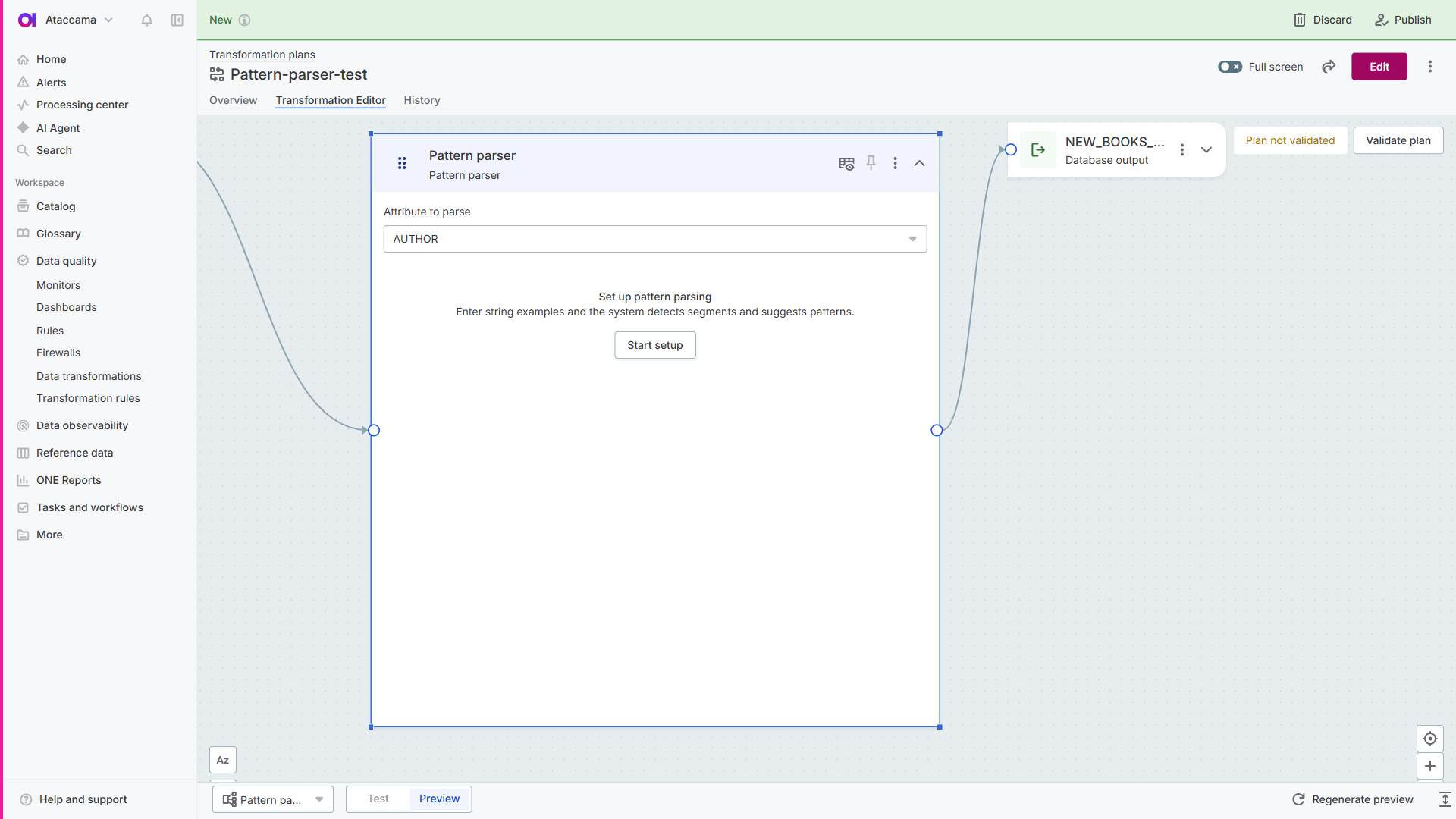
Step 1: String examples
Provide example values and describe what they represent.
- Examples (required)
-
Enter multiple example values from your attribute, one per line. More examples help the AI understand variations in your data format. For example, if your data sometimes includes a ZIP code and sometimes doesn’t, include examples of both scenarios to ensure all variations are recognized.
- String description (optional)
-
Describe what the text represents and what parts you want to extract. Be specific about formats and structure. For example: "Product code followed by a 4-digit year."
The AI analyzes your examples and description to generate initial parsing segments.
Select Identify segments to continue.
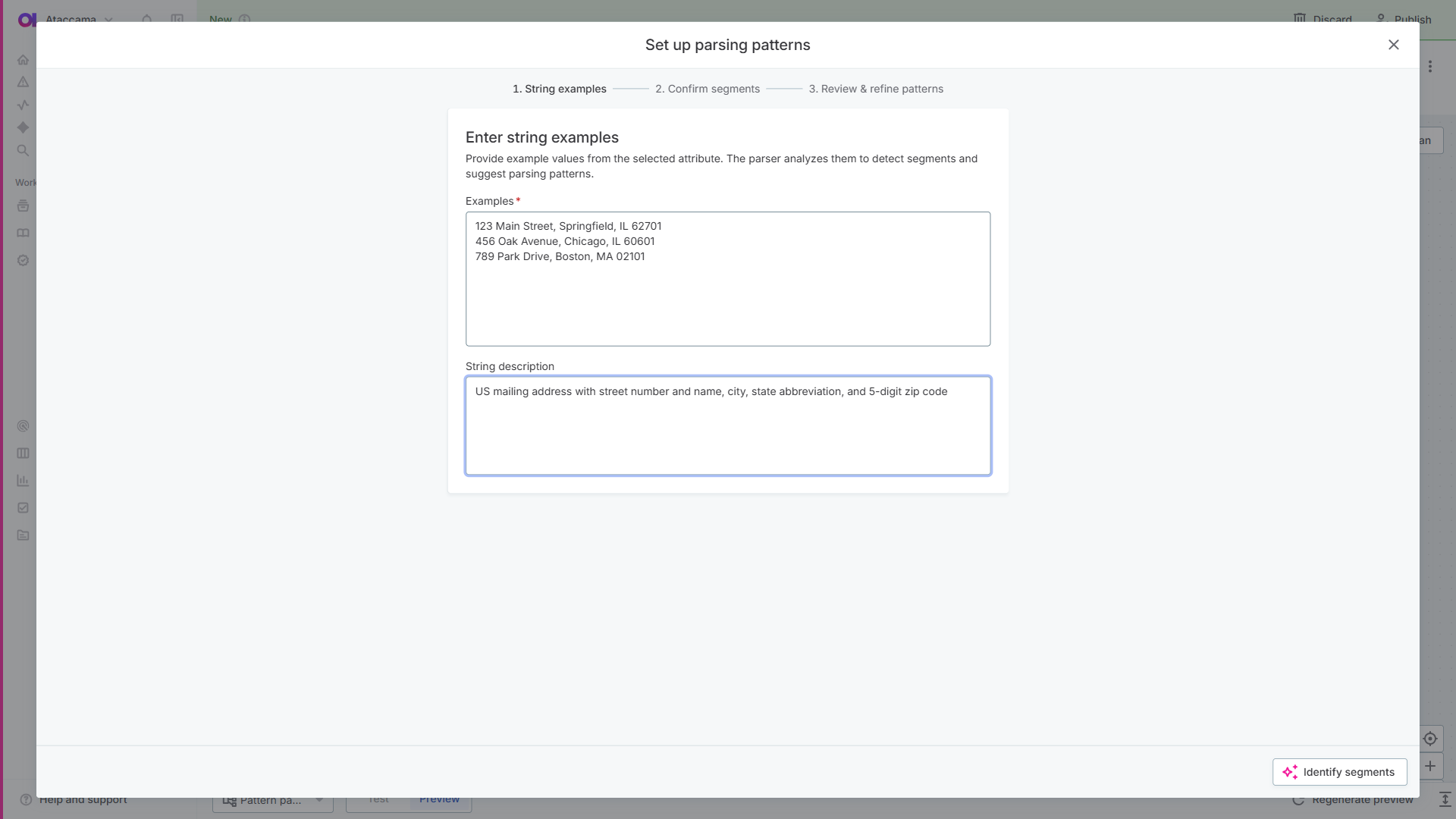
Step 2: Confirm segments
Review and adjust the AI-generated segments. Each segment represents a part of the text to extract.
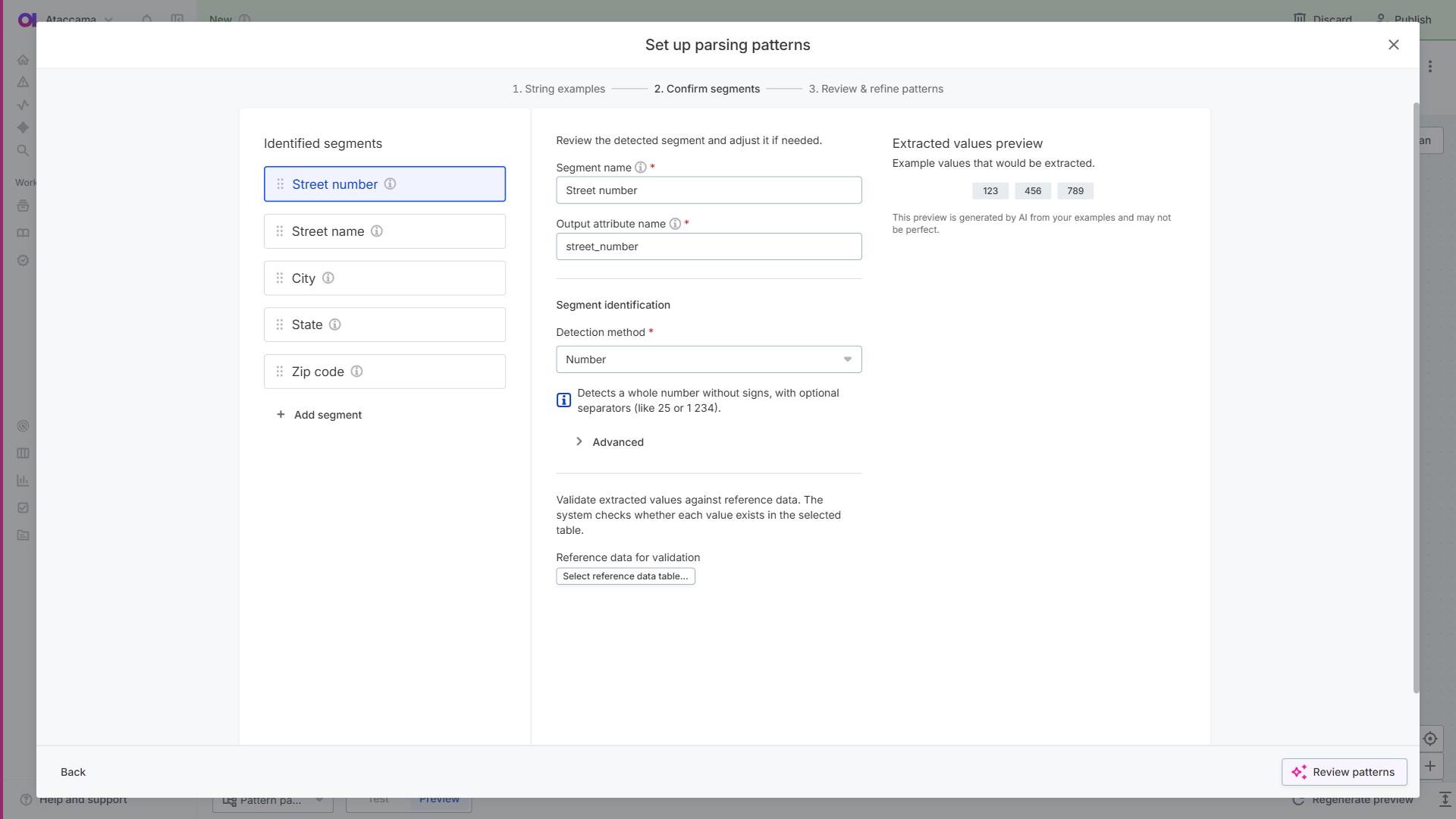
Segment management
The Identified segments section displays all detected segments as a reorderable list.
-
Drag to reorder: Use the drag handle icon to reorder segments.
-
Delete segment: Remove segments as needed.
-
Add segment: Select Add segment to manually add a new segment to the configuration.
Configuring each segment
Select a segment to expand its configuration panel. Each segment has the following required fields:
- Segment name (required)
-
The internal identifier for the segment (for example, street_number, zip_code).
- Output attribute name (required)
-
The name of the output attribute that will contain the extracted value for this segment.
Segment identification
- Detection method (required)
-
Specifies the type of data the segment matches. Each detection method includes a helper description explaining its behavior.
Available segment types
Pattern Parser supports multiple segment types for matching different kinds of data:
| Detection Method | Description | Example matches |
|---|---|---|
Single letter |
Single alphabetic character |
A, x, M |
Single word |
Single word without spaces |
Main, Street, Springfield |
Multiple words |
Multiple words with spaces |
Main Street, New York City |
Spaced-out word |
Word with interlaced characters or separators |
A-B-C, 1.2.3 |
Alphanumeric word |
Alphanumeric word (letters and numbers) |
ABC123, Order2024 |
Single digit |
Single numeric digit |
0, 5, 9 |
Number |
Any numeric value with optional separators |
123, 45.67, 1 234 |
Whole number (±) |
Whole number that can include a plus or minus sign, with optional separators |
+7, -12, 25, 1 234, 0 |
Decimal number |
Decimal number |
3.14, 99.99, 0.001 |
Roman numeral |
Roman numeral |
I, IV, XII, MCMXC |
Any text (*) |
Any sequence of characters |
Variable content |
Exact text match |
Exact string match |
ERROR, USD, APPROVED |
Custom pattern (regexp) |
Regular expression pattern |
Custom patterns like |
Advanced options
For certain segment types (Number, Whole number), additional fields are available under the Advanced section:
- Minimum digits
-
Minimum number of digits required in the segment.
- Maximum digits
-
Maximum number of digits allowed in the segment.
- Allow digit grouping with a separator
-
Permits using separators between digit groups (for example, 1 234 instead of 1234).
Step 3: Review and refine patterns
Review and configure pattern constraints, then refine the generated patterns.
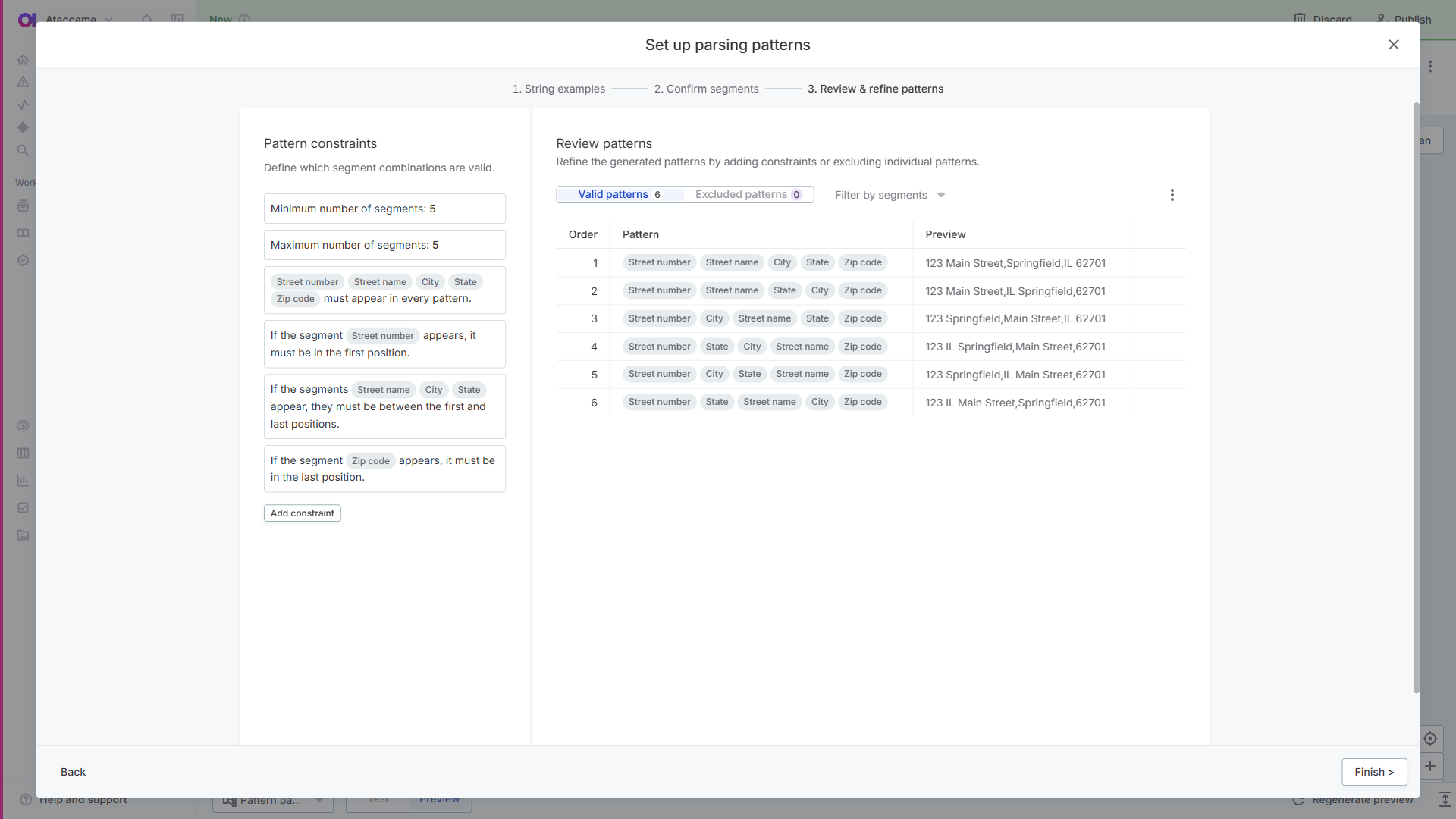
Pattern constraints
Define rules that control which segment combinations are valid.
Pattern constraints define rules for how segments can appear in valid patterns. For example, if the segment ZIP code appears, it must be in the last position.
The wizard supports the following constraint types:
Position constraints
-
Always required: Segment must appear in every pattern.
-
Minimum number of segments: Set the minimum segment count for valid patterns.
-
Maximum number of segments: Set the maximum segment count for valid patterns.
Position in pattern
These constraints apply only when the segment appears in a pattern:
-
First position: Segment must be in the first position.
-
Last position: Segment must be in the last position.
-
Between first and last: Segment must appear between the first and last positions.
Dependency
-
Require if present: If one segment appears, other specified segments must also appear.
-
Make other segments optional: If one segment appears, other specified segments become optional.
Review patterns
The pattern review section displays counts for Valid patterns and Excluded patterns. Use Filter by segments to filter the pattern list.
After generation, patterns are organized into three categories:
- Valid patterns
-
Patterns that should match input data. Records matching these patterns are parsed successfully.
- Excluded patterns
-
Patterns you’ve manually excluded. Use this to remove patterns that are technically valid but shouldn’t match your data.
- Invalid patterns
-
Patterns that don’t meet your constraints. These patterns are not used for matching but can be viewed using the three dots menu.
Use the three dots menu to:
-
Reorder manually: Change the order of patterns.
-
View invalid patterns: View patterns that failed constraints.
Pattern list
The pattern table shows the Order, Pattern segments, Preview values, and an Exclude option for each pattern. The top pattern is applied first during matching.
You can exclude individual patterns using Exclude next to each pattern. Excluded patterns will not be used for matching but remain visible in the Excluded patterns category.
Select Finish to complete the wizard.
Result: Parsing patterns
After completing the wizard, the Parsing patterns section displays all configured patterns in priority order. Each pattern shows its segment combination, and patterns are applied in order from top to bottom during data processing.
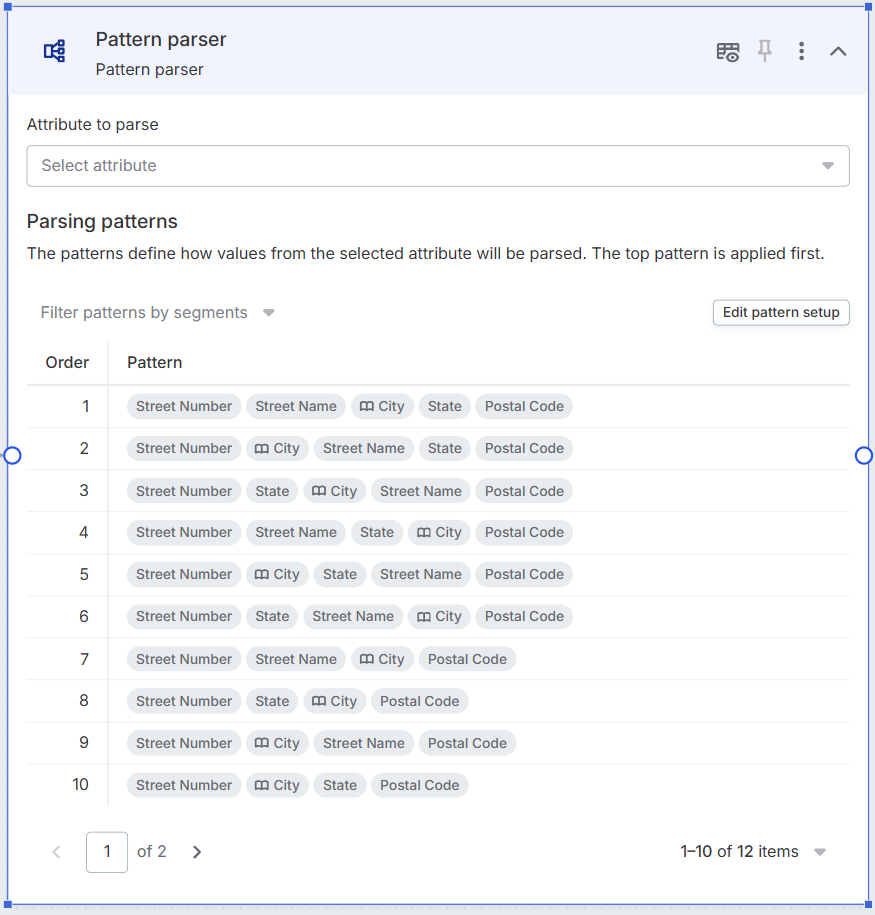
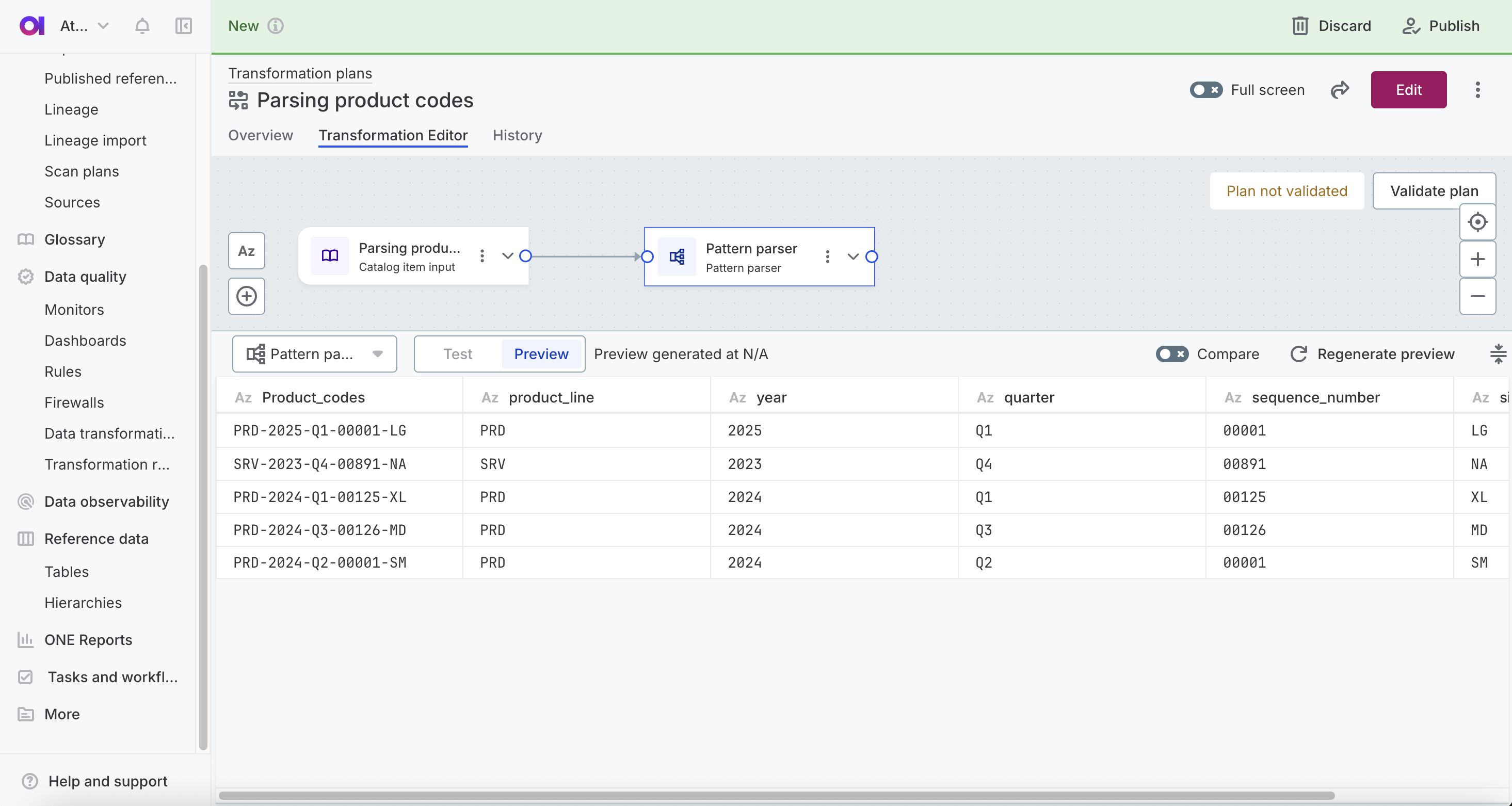
Use Edit pattern setup to reopen the wizard and modify your configuration, or Regenerate preview to test the patterns with sample data from your dataset.
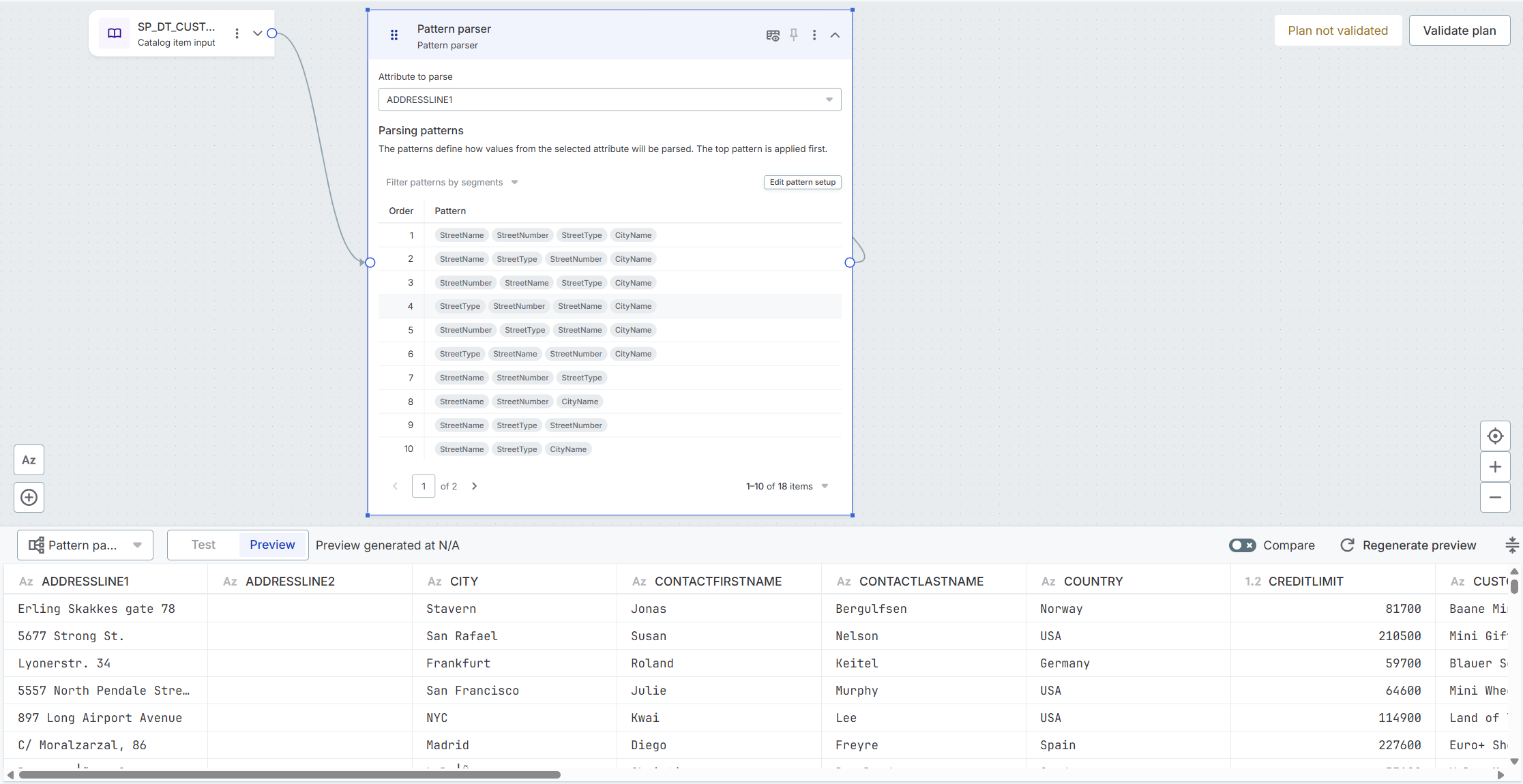
The parsed values are available as output attributes for use in subsequent plan steps or the final output.
|
The step automatically creates an attribute to store the name of the pattern that successfully parsed each record.
This attribute is named The separator matches the input attribute name (underscore if the input uses underscores, space if the input uses spaces). This attribute is created automatically in the background and is not directly visible in the step configuration. |
Example 1: Parsing product codes
This example shows extracting structured information from product SKUs.
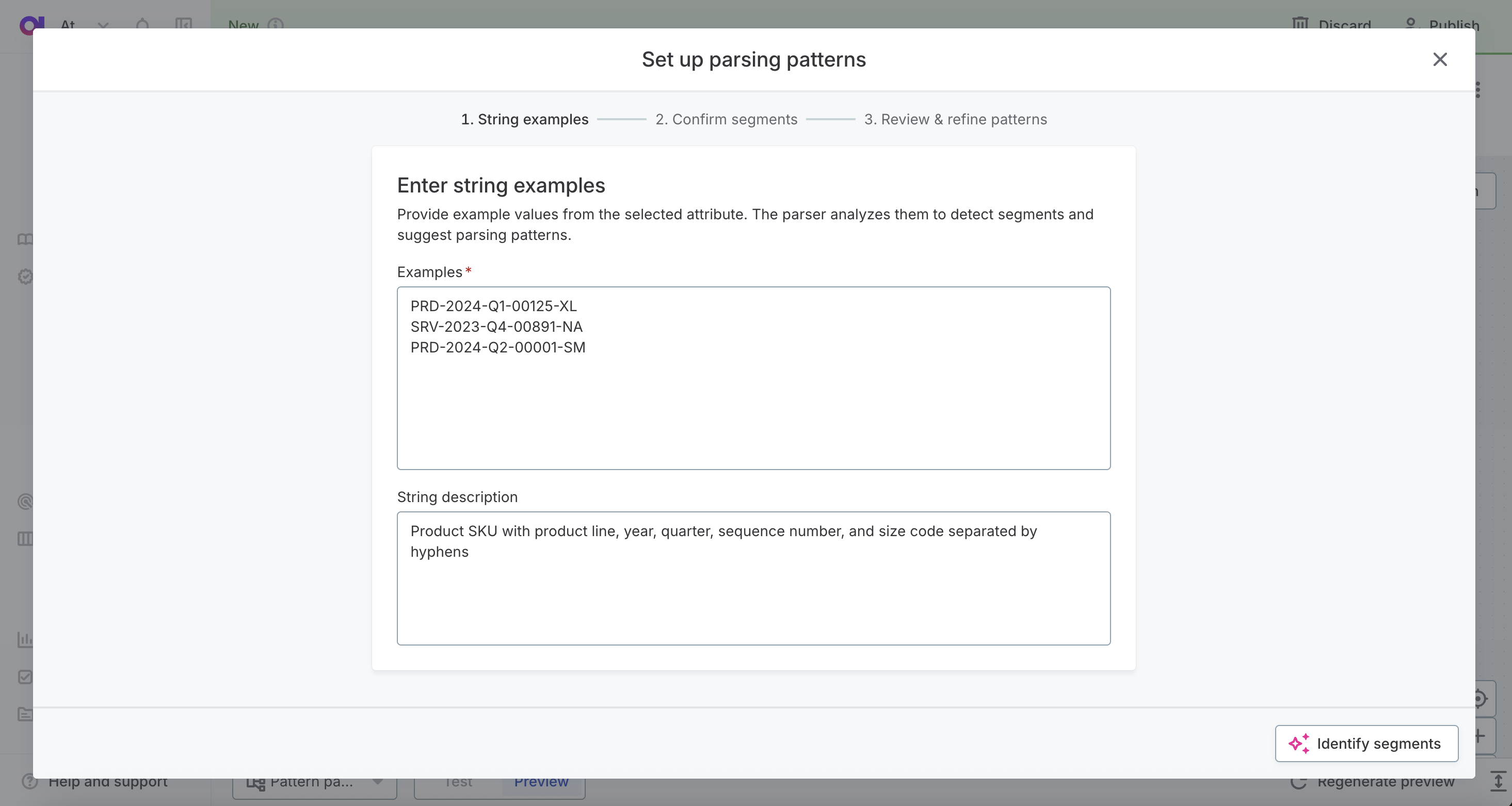
Step 1: String examples
Enter examples:
PRD-2024-Q1-00125-XL
SRV-2023-Q4-00891-NA
PRD-2024-Q2-00001-SM
String description:
Product SKU with product line, year, quarter, sequence number, and size code separated by hyphens
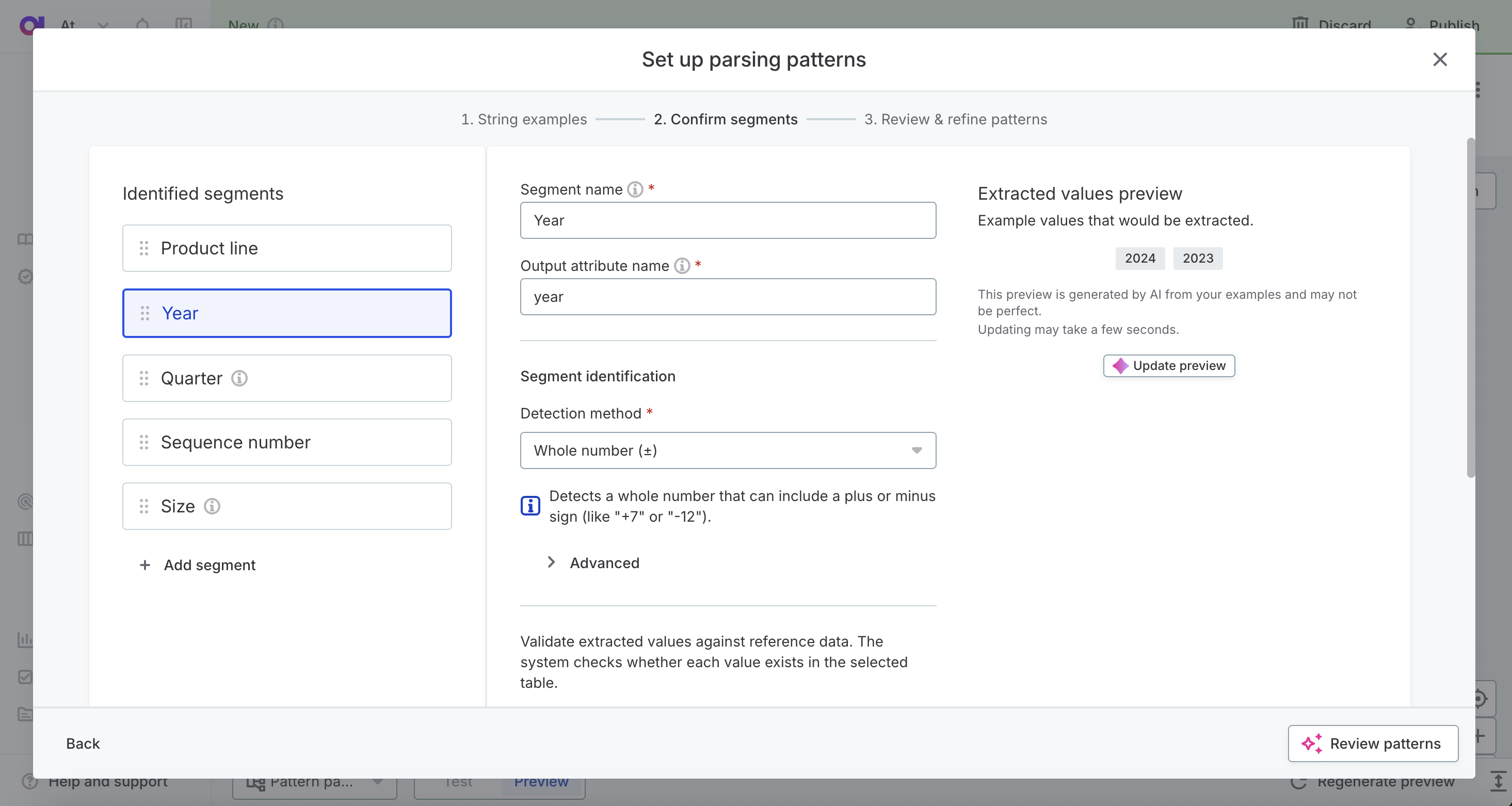
Step 2: Confirm segments
The AI generates segments:
-
Product line (detection method: Exact text match)
-
Year (detection method: Whole number (±))
-
Quarter (detection method: Custom pattern (regexp), pattern:
Q[1-4]) -
Sequence number (detection method: Whole number (±))
-
Size (detection method: Exact text match)
Review and configure each segment according to your needs.
Step 3: Review patterns
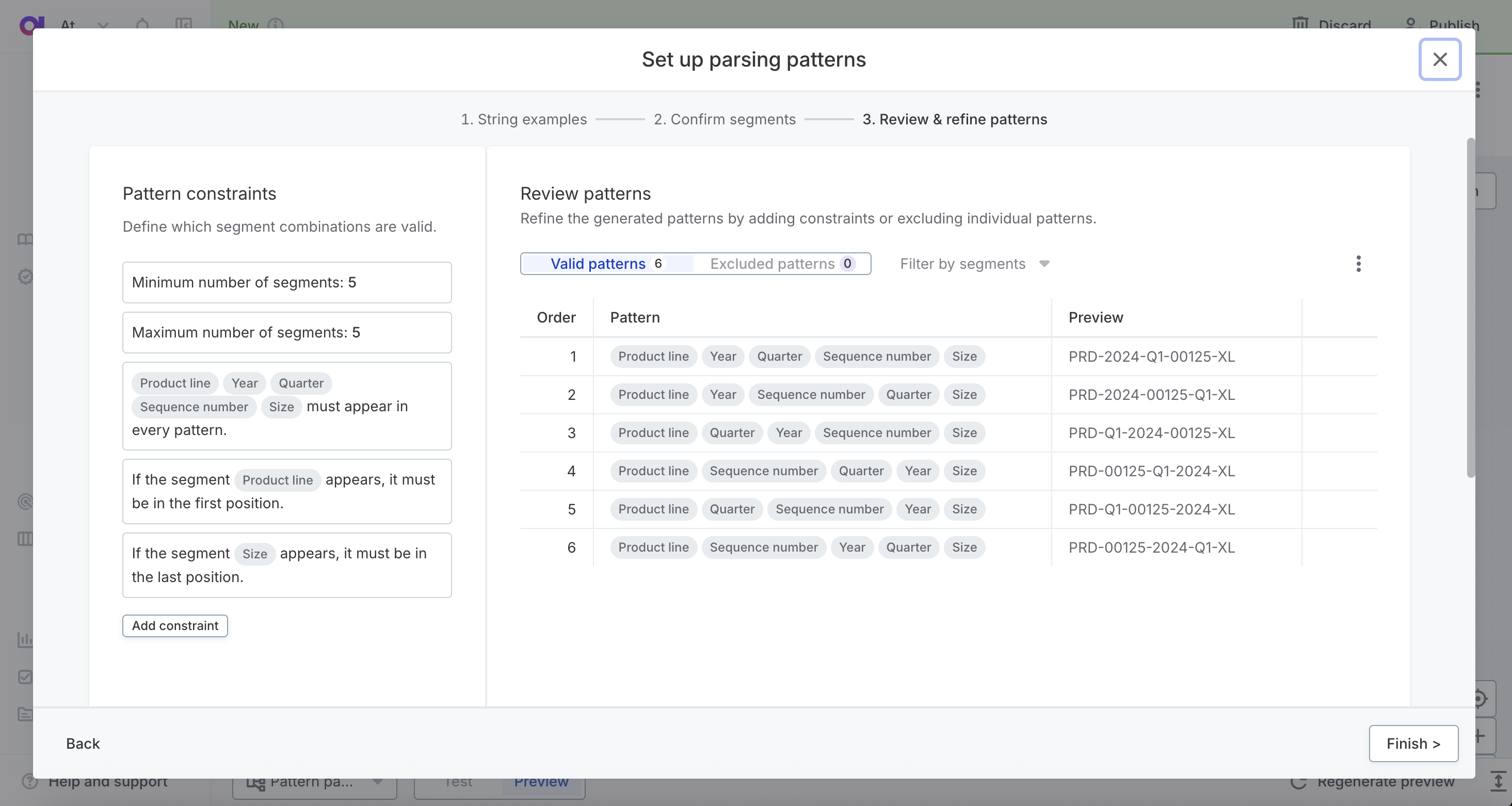
Configure constraints:
-
Set Minimum number of segments: 5
-
Set Maximum number of segments: 5
-
Mark Product line, Year, Quarter, Sequence number, and Size as must appear in every pattern
-
Set Product line to First position
-
Set Size to Last position
The pattern review displays all valid patterns.
Example 2: Parsing US addresses
This example shows parsing a US address into its segments.
Step 1: String examples
Enter examples (one per line):
123 Main Street, Springfield, IL 62701
456 Oak Avenue, Chicago, IL 60601
789 Park Drive, Boston, MA 02101
String description:
US mailing address with street number and name, city, state abbreviation, and 5-digit zip code
Step 2: Confirm segments
The AI generates segments for each address part. Review and adjust:
-
street_number (detection method: Whole number (±))
-
street_name (detection method: Multiple words)
-
city (detection method: Multiple words)
-
state (detection method: Exact text match)
-
zip_code (detection method: Whole number (±))
Best practices for pattern parsing
- Provide multiple examples
-
Include several examples showing variations in your data format. More examples help the AI generate better segments.
- Write clear descriptions
-
Explain what each part of the text represents. Be specific about formats (for example, "5-digit zip code" not just "zip code").
- Choose specific detection methods
-
Use Whole number (±) for integers rather than Number. Use Exact text match for known fixed values rather than broad patterns like Any text (*).
- Test with various inputs
-
After configuration, verify the parser works with different input variations.
- Start simple
-
Begin with basic segments and constraints, then add complexity as needed.
- Use pattern names for debugging
-
Enable the pattern name output attribute to understand which patterns are matching your data.
Troubleshooting
No patterns generated
-
Check that minimum segment count doesn’t exceed available segments.
-
Verify constraints aren’t too restrictive.
-
Ensure segments match your sample data.
Limitations of the Pattern Parser step
-
Maximum of 6 segments per configuration.
-
Works best with consistent, predictable text formats.
-
Highly variable or irregular text may be difficult to parse reliably.
-
Complex nested structures may require multiple parsing steps.
-
All output attributes are string type and require type conversion in subsequent steps.
See also
-
Transform Data Step - For converting parsed attributes to other data types
-
Test Expressions - For testing transformation logic
Was this page useful?