
Data Quality Dashboard Templates
Data quality dashboard templates define the layout and visualizations used to display data quality results. One dashboard is designated as the active data quality dashboard template, and its layout is applied to all data quality dashboards.
Templates are managed in Global settings > DQ settings > DQ dashboard templates.
How templates are built
Data quality dashboard templates are built using the same tools and principles as dashboards in ONE Reports: visualizations, collections, and dashboard layouts. However, templates are created and managed in Global settings > DQ settings > DQ dashboard templates, not in ONE Reports.
For more information about these features, see:
-
Create a Dashboard - Learn how to build dashboards.
-
Build a Visualization - Learn how to build visualizations.
-
Manage Visualizations and Collections - Learn how to manage visualizations and collections.
Default template contents
By default, Ataccama ONE includes a pre-configured data quality dashboard template with the following visualizations:
- Quality over time
-
A line graph visualization showing how data quality metrics have changed over time. This helps identify trends and potential areas for improvement in your data quality processes.
- Passed and failed records
-
Detailed tables displaying passed and failed records for each catalog item and for each rule. These tables provide granular insights into which specific records are meeting or failing quality checks.
The catalog item view helps identify which data assets have quality issues. The rule view helps pinpoint which specific quality rules are causing the most failures.
- Lowest scoring rules
-
A bar graph visualization highlighting up to 10 rules with the lowest pass rates. This helps quickly identify the most problematic quality rules that may need attention.
| The default template automatically updates as Ataccama releases improvements. If you want to ensure data quality dashboards display a consistent layout, duplicate the default template in its current state and set the duplicate as the active template. See Duplicate or delete templates. |
Customize a template
The default Ataccama-provided template cannot be edited directly. To customize it, duplicate the default template and edit the copy. See Duplicate or delete templates.
To edit a custom template using ONE Reports concepts:
-
Go to Global settings > DQ settings > DQ dashboard templates.
To access Global settings, select the Ataccama logo. -
Open the template you want to edit and make your changes to the layout and visualizations.
| Changes to the active data quality dashboard template affect all data quality dashboards across the platform. Test your changes carefully before saving. |
Set a different dashboard as the template
If you want to use a different dashboard as the template:
-
Go to Global settings > DQ settings > DQ dashboard templates.
To access Global settings, select the Ataccama logo. -
On the dashboard you want to use as the active template, in the three dots menu select Set as DQ dashboard template.
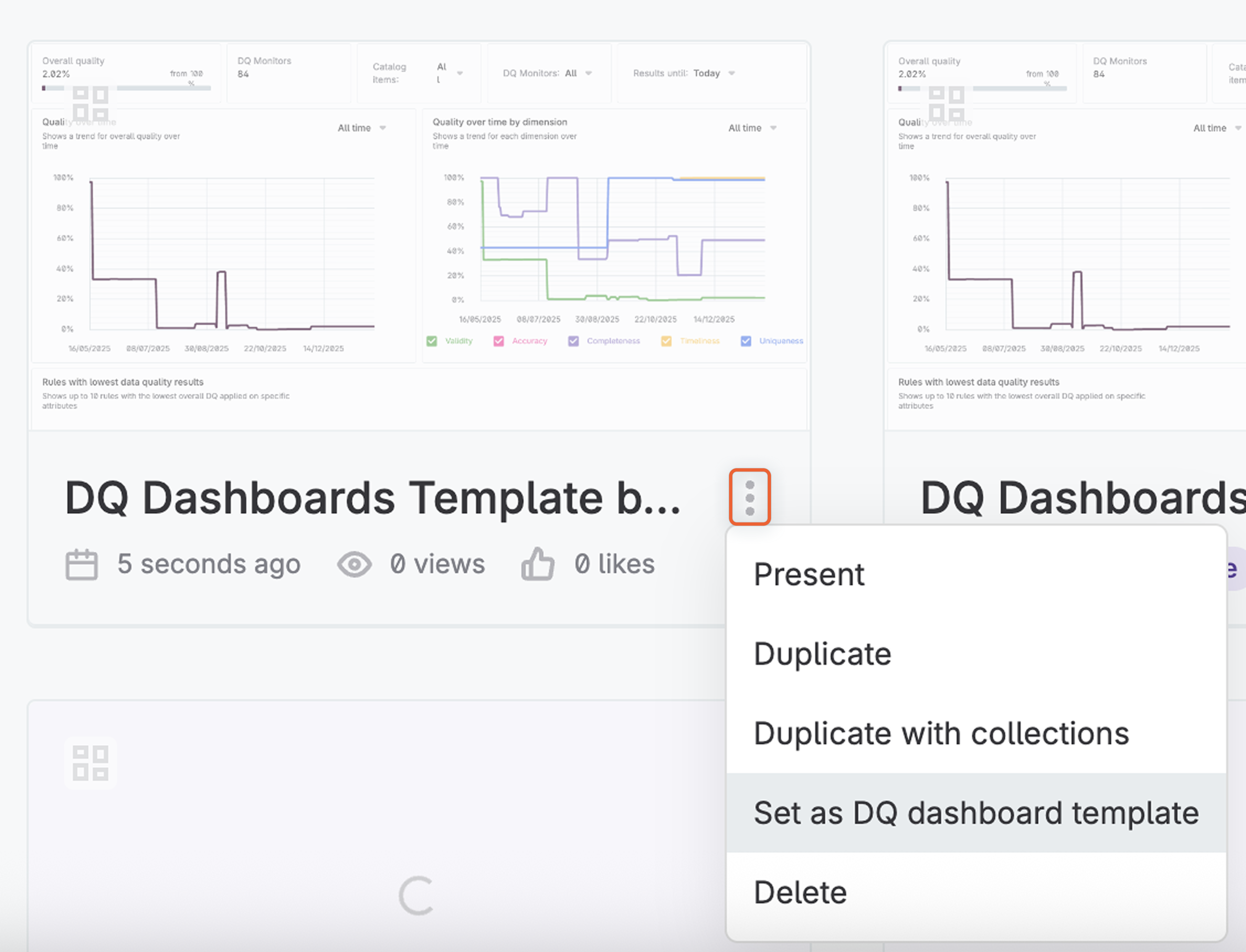
The previous template loses its designation and the new dashboard becomes the active template.
| When you change the template, all data quality dashboards immediately switch to the new layout. Ensure the new template includes the visualizations your team relies on. |
Duplicate or delete templates
You can duplicate or delete dashboard templates from the three dots menu:
-
Go to Global settings > DQ settings > DQ dashboard templates.
-
On the relevant dashboard, in the three dots menu select Duplicate or Delete.
When you duplicate a template, a copy is created that you can customize and set as the active template.
| You cannot delete the default template. |
You can also view and edit the visualizations included in your templates. Switch to the Visualizations tab to see all visualizations used across your dashboard templates and edit them directly from there.
Create or import a template
You can create a new dashboard template from scratch or import an existing one.
To create a new template:
-
Go to Global settings > DQ settings > DQ dashboard templates.
-
Select Create and configure the layout and visualizations for your dashboard template.
To import a template:
-
Go to Global settings > DQ settings > DQ dashboard templates.
-
From the Create dropdown, select Import and upload an existing dashboard template file.
When you import a template, its underlying collections and visualizations are included automatically.
| Use import and export to move templates between environments. For example, you can create and test a template in a development environment, export it, and then import it into your production environment. |
Export a template
To export a template for use in another environment:
-
Go to Global settings > DQ settings > DQ dashboard templates.
-
On the dashboard you want to export, use the three dots menu and select Export.
The template is downloaded as a file that you can import into another ONE environment. The export includes the template’s underlying collections and their visualizations.
| Import and export is designed for moving templates between environments (for example, from development to production). You cannot export dashboards from ONE Reports and import them as data quality dashboard templates. |
Permissions
Templates in Global settings > DQ settings > DQ dashboard templates are managed by the environment admin.
Other users can see templates listed in DQ dashboard templates but cannot open or interact with them unless the environment admin has shared the template with them. When sharing, the environment admin can grant view or edit access.
Default template
The default Ataccama-provided template cannot be edited or deleted by anyone in your organization. To customize it, duplicate the default template and edit the copy.
Custom templates
The environment admin has full control over custom templates, including creating, editing, deleting, duplicating, and sharing templates, and setting the active template.
Users with whom the environment admin has shared a custom template can interact with it based on their access:
-
View access: Can view the template but cannot make changes.
-
Edit access: Can edit the template.
Was this page useful?