
Set Up Azure Active Directory SSO
This article describes how to integrate Azure Active Directory (AAD) with Ataccama ONE Agentic Data Trust Platform using SAML 2.0 federation.
How sign-in works
When AD SSO is configured, Ataccama acts as the SAML Service Provider (SP), and Azure AD acts as the Identity Provider (IdP). On sign-in, you are redirected to Azure AD for authentication (using your corporate AD credentials), and Azure AD returns a signed SAML assertion to Ataccama.
On first sign-in, Ataccama creates your user account automatically from the assertion attributes (username, email, first name, last name); on subsequent sign-ins, your profile attributes are refreshed from Azure AD.
|
Configure a separate identity provider for each Ataccama environment (for example, DEV, TEST, PROD). Each environment has its own realm and redirect URI, so the configuration cannot be shared across environments. |
Prerequisites
-
Access to the Azure AD portal with permissions to manage enterprise applications.
-
Environment admin access to the Ataccama Cloud Portal.
-
You have created the necessary AD security groups associated with your Azure AD enterprise application, with the appropriate users assigned.
Setup overview
Complete the following steps in order. Some values are generated in one step and reused in another, so keep both the Azure portal and the Cloud Portal open throughout.
-
Get the redirect URI from Cloud Portal to use as the Azure AD Identifier and Reply URL.
-
Configure Azure Active Directory: Create the enterprise application, set up SAML SSO, define the attribute and group claims, and assign users.
-
Complete the Cloud Portal configuration: Enter the SAML metadata, map user attributes, and, optionally, import groups.
Get the redirect URI from Cloud Portal
-
In the Ataccama Cloud Portal, go to <your environment> > Settings.
-
Under Identity Provider (SSO), select Add.
-
In the Add Identity Provider dialog, switch to the SAML tab.
-
Note the Redirect URI shown. The URI is auto-generated for your environment realm and is read-only.
Example:
https://<your-domain>.ataccama.one/auth/realms/<tenant-name>/broker/saml/endpoint.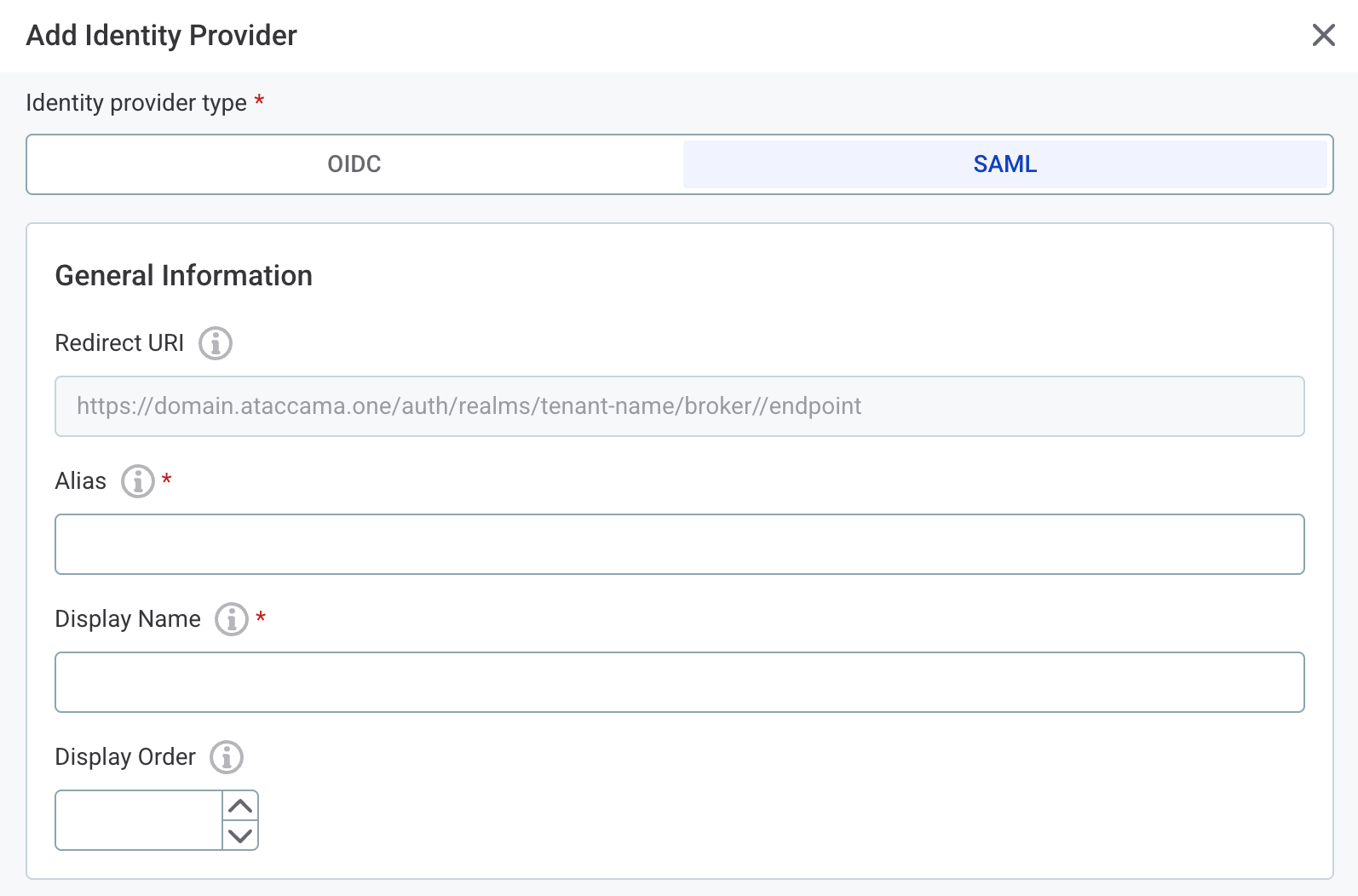
|
Keep this dialog open. You return to it in Complete the Cloud Portal configuration. |
Configure Azure Active Directory
Follow the Microsoft Azure documentation to complete these steps:
-
Create an enterprise application. When prompted to choose an application, select Create your own application > Integrate any other application you don’t find in the gallery (Non-gallery).
-
Enable SAML single sign-on on your application. When configuring Basic SAML Configuration, set the following:
-
Identifier (Entity ID): The redirect URI from Cloud Portal.
-
Reply URL (ACS URL): The redirect URI from Cloud Portal.
-
Sign-on URL: Leave blank.
-
Relay State: Leave blank.
-
-
Configure attribute claims in the SAML token. The following claims must be present; add any that are missing.
-
schemas.xmlsoap.org/ws/2005/05/identity/claims/name:user.userprincipalname -
schemas.xmlsoap.org/ws/2005/05/identity/claims/emailaddress:user.mail -
schemas.xmlsoap.org/ws/2005/05/identity/claims/givenname:user.givenname -
schemas.xmlsoap.org/ws/2005/05/identity/claims/surname:user.surname
-
-
Configure group claims if you want to use group-based role mapping in ONE. After you choose which groups to include (for example, Groups assigned to the application), leave the default claim name. Azure AD emits the claim as
schemas.microsoft.com/ws/2008/06/identity/claims/groups. -
Assign users and groups to your enterprise application that should have access to ONE.
After you configure Azure AD, copy the App Federation Metadata URL (recommended for autocompleting SAML settings) and complete the Cloud Portal configuration. Alternatively, you can use the Azure AD Identifier and Login URL values, which have to be entered manually.
Complete the Cloud Portal configuration
Return to the Add Identity Provider dialog in the Cloud Portal and fill in the following.
General information
-
Alias: A short unique identifier (for example,
aad-saml). -
Display Name: The label shown on the login screen (for example,
Login with Azure AD). -
Display Order: Optional. Sets the order of this provider when multiple identity providers are configured.
SAML settings
-
Use discovery endpoint: Select this and paste the App Federation Metadata URL to automatically fill in the following fields.
-
Identity Provider Entity ID: The Azure AD Identifier (for example,
https://sts.windows.net/<tenant-id>/). -
Single Sign-On Service URL: The Login URL from Azure AD.
-
Single Logout Service URL: Optional.
-
Name ID Policy Format:
Email. -
Want Assertions Signed: Enabled (recommended).
-
Validate Signature: Enabled (recommended).
You can leave all other SAML settings as default.
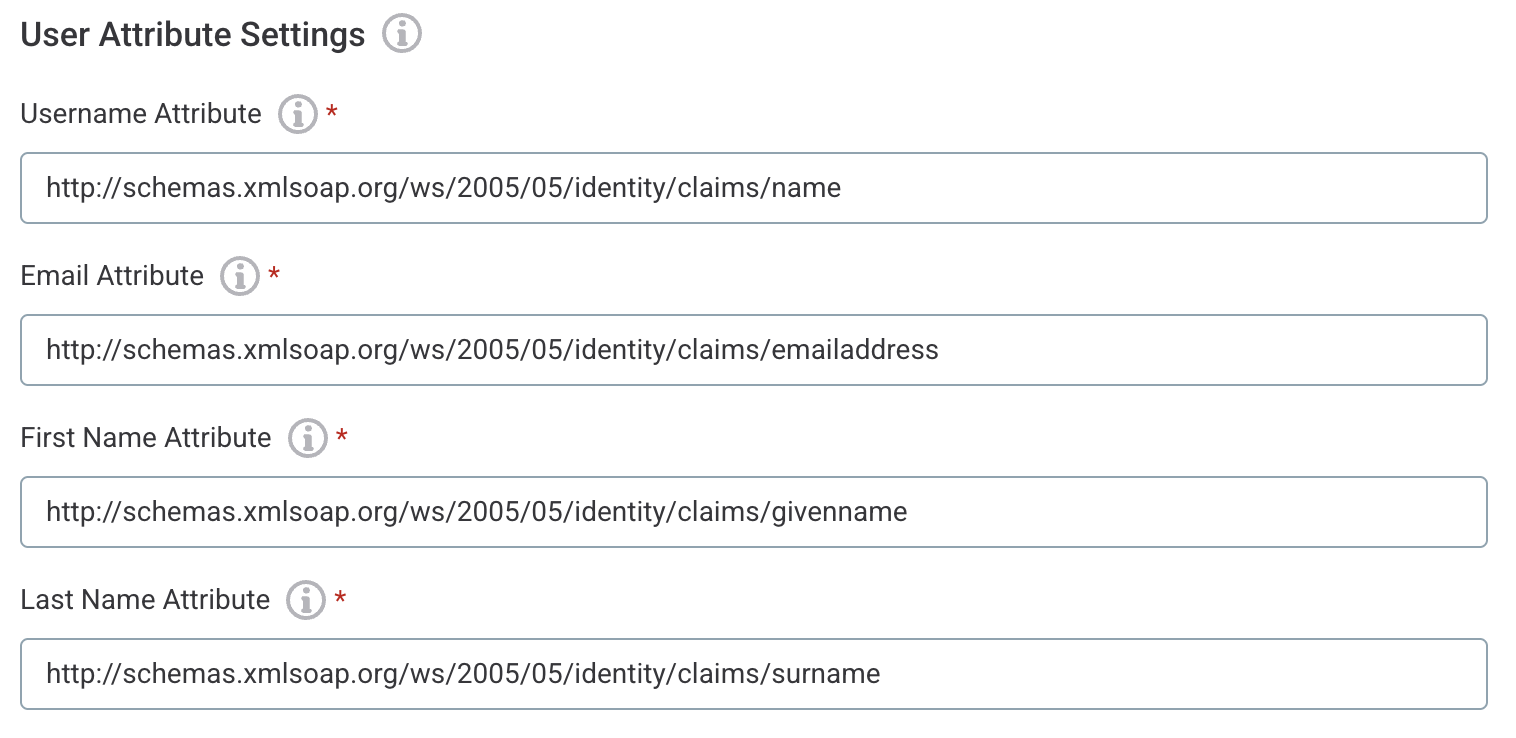
User attribute settings
These values must exactly match the claim names sent in the SAML assertion.
-
Username Attribute:
http://schemas.xmlsoap.org/ws/2005/05/identity/claims/name -
Email Attribute:
http://schemas.xmlsoap.org/ws/2005/05/identity/claims/emailaddress -
First Name Attribute:
http://schemas.xmlsoap.org/ws/2005/05/identity/claims/givenname -
Last Name Attribute:
http://schemas.xmlsoap.org/ws/2005/05/identity/claims/surname
Group import (optional)
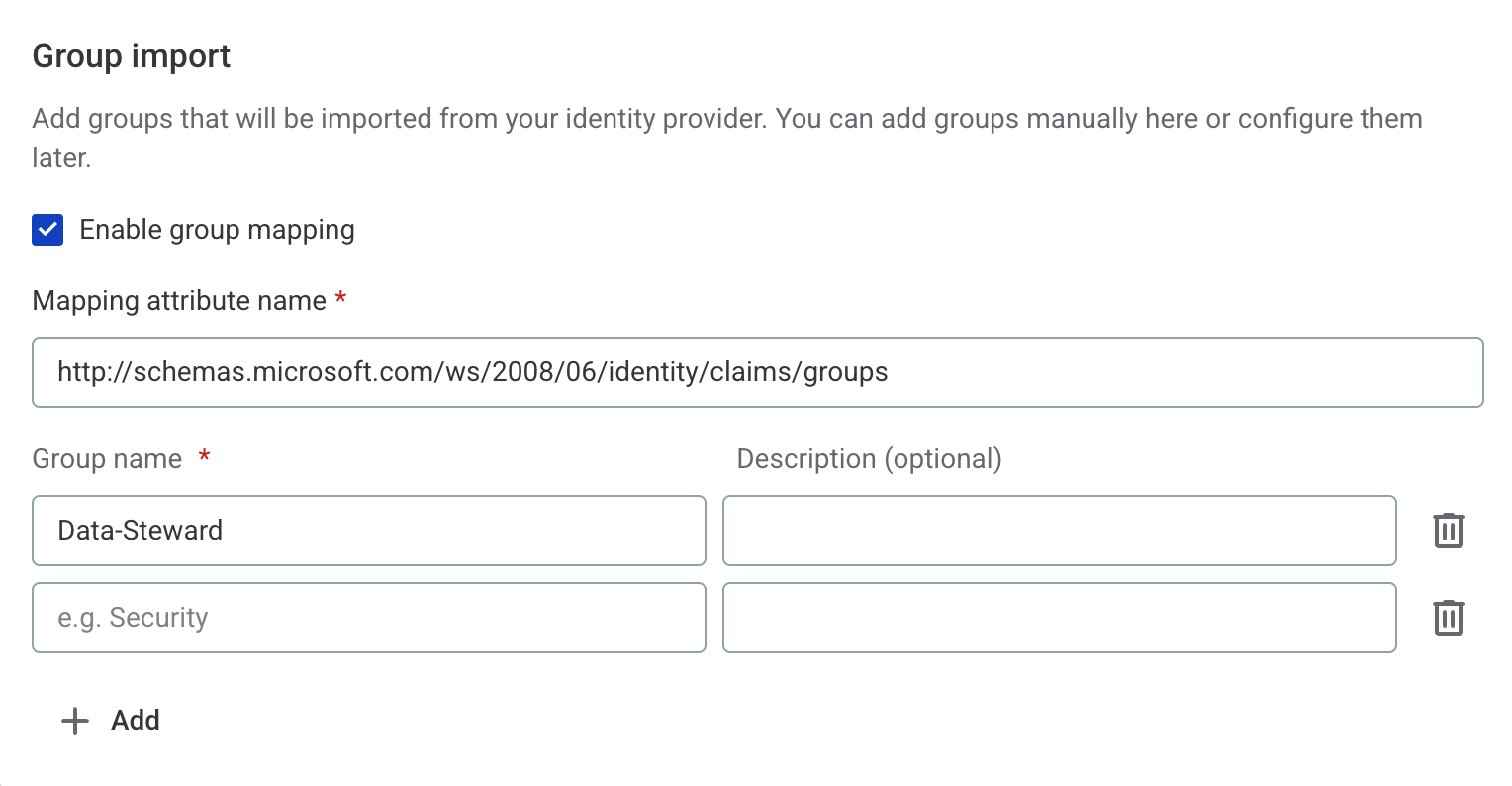
To import AD groups for role assignment in ONE:
-
Select Enable group mapping.
-
In Mapping attribute name, enter
http://schemas.microsoft.com/ws/2008/06/identity/claims/groups. -
Add one row per group:
-
Group name: The AD security group name, as configured in the Azure portal.
-
Description: An optional label visible only in ONE.
-
You can add or update groups at any point after the initial configuration.
Troubleshooting
Login fails after configuration
-
Verify that the Reply URL (ACS URL) in Azure AD exactly matches the Redirect URI from the Cloud Portal.
-
Verify that the Entity ID and SSO URL in the Cloud Portal match the values from Azure AD.
User profile attributes are missing or incorrect
-
Confirm that all four attribute claims are configured in Azure AD.
-
Inspect the SAML assertion that Azure AD is sending (see Debug the SAML assertion).
Group memberships are not reflected
-
Verify that the group claim is enabled in Azure AD and that the user’s groups are assigned to the enterprise application.
-
Confirm that the group names in the Cloud Portal Group import exactly match the group names in your directory.
Debug the SAML assertion
To inspect what Azure AD is actually sending:
-
Open an incognito browser window and go to Developer Tools > Network tab with Preserve log enabled.
-
Attempt to sign in using the SSO option.
-
Find the POST request that contains
SAMLResponse. -
Copy the value and decode it with a SAML decoder, for example, SAMLTool.
-
Verify that all expected attributes (
name,emailaddress,givenname,surname,groups) are present in<AttributeStatement>.
Was this page useful?