
Embedded Gen AI Features
Leverage Gen AI in Ataccama ONE to generate SQL queries and ONE expressions from text prompts, write catalog item descriptions, or provide plain text explanations for existing SQL queries.
Before you start
Take a moment to get familiar with the recommended practices for using Generative AI capabilities of ONE, described in Gen AI Best Practices. This will help you use Generative AI more effectively.
Using Gen AI features requires specific identity provider roles. See Identity Provider Roles.
In addition, take note of the following:
-
Generative AI works with a maximum of 80 attributes. If more than 80 attributes are present in a catalog item, only the first 80 are taken into consideration.
-
The Gen AI service is a shared model, and there is a limit to the number of requests that can be sent each minute. If the number of requests has been exceeded, you are notified and need to wait a short time before trying again. This takes up to one minute but usually less.
Enable and disable Generative AI features
All features can be enabled or disabled from Settings > AI settings > Gen AI.
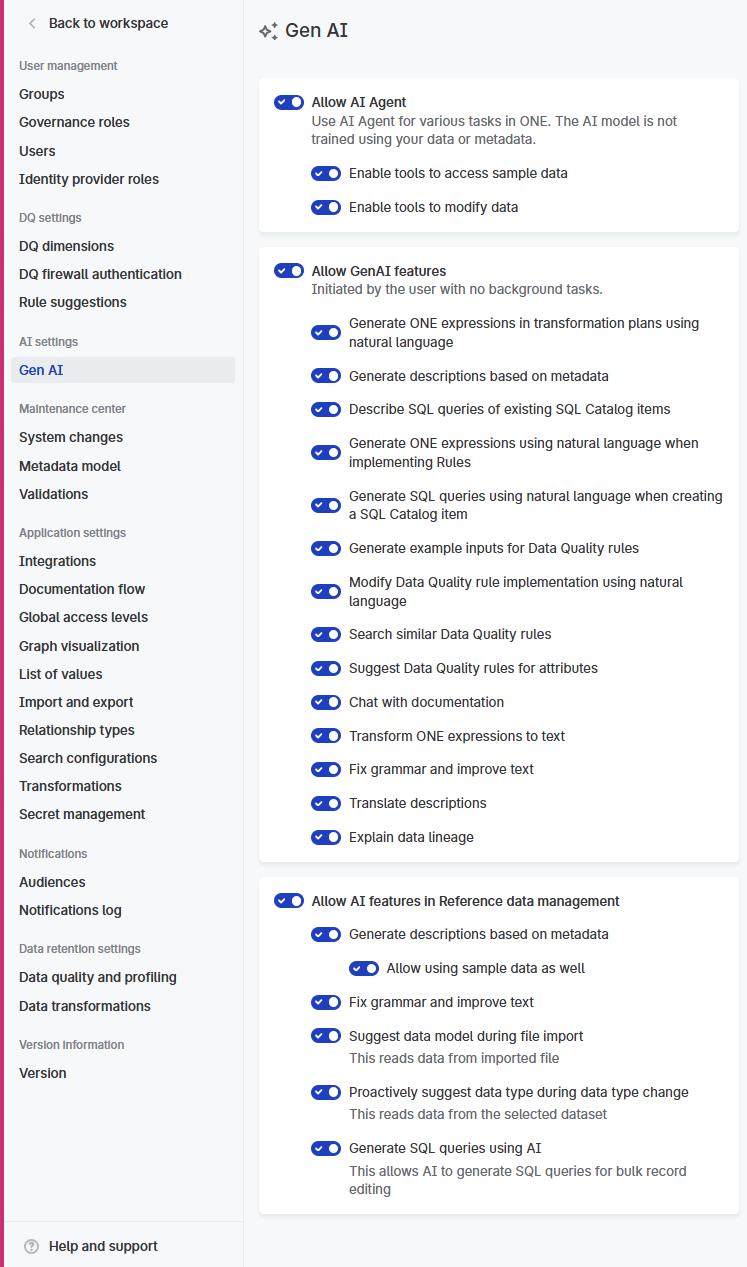
When Generative AI features are enabled, metadata is shared with OpenAI in order to leverage these features.
Who can use Generative AI
When enabled, Generative AI features are available for users who have permission to create or edit the relevant entity, for example:
-
Users who can add or edit catalog item descriptions can use Generative AI to create catalog item descriptions.
-
Users who can create or edit rules can use Generative AI for ONE Expressions in rules.
-
Anyone with permission to create SQL catalog items can now use AI to generate queries.
Create SQL catalog item query
| Provide prompts in English for optimum results. |
When creating SQL catalog items, you can use Generative AI to assist in writing your SQL query. After selecting Create SQL Catalog Item and selecting the source in which you want to save the new catalog item, select Use AI.
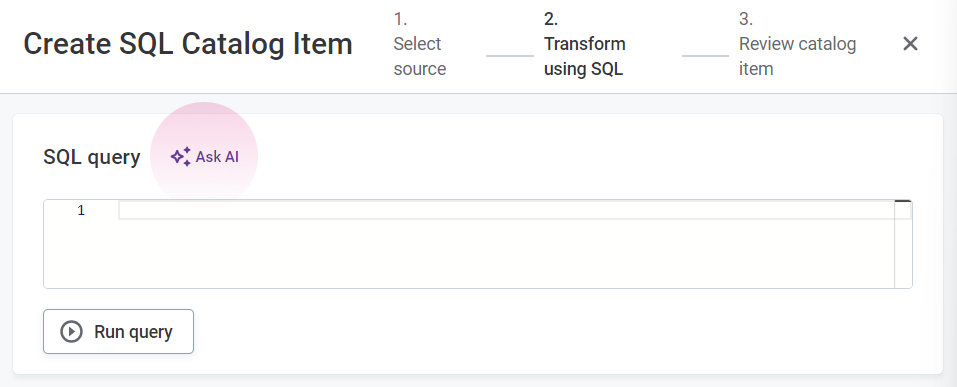
Select the necessary catalog items. In AI prompt, describe your use case and then enter.
If the prompt is successful, the generated query can be seen under SQL query: select Run query for a preview of the outcome. Note that previewing the query is not available on connections using edge processing.
|
In this example, we use the prompt 'select customers who are from USA and have a credit limit above 100000 and order them by their credit limits in descending order. I am interested in their names , email and credit' to generate the following query: 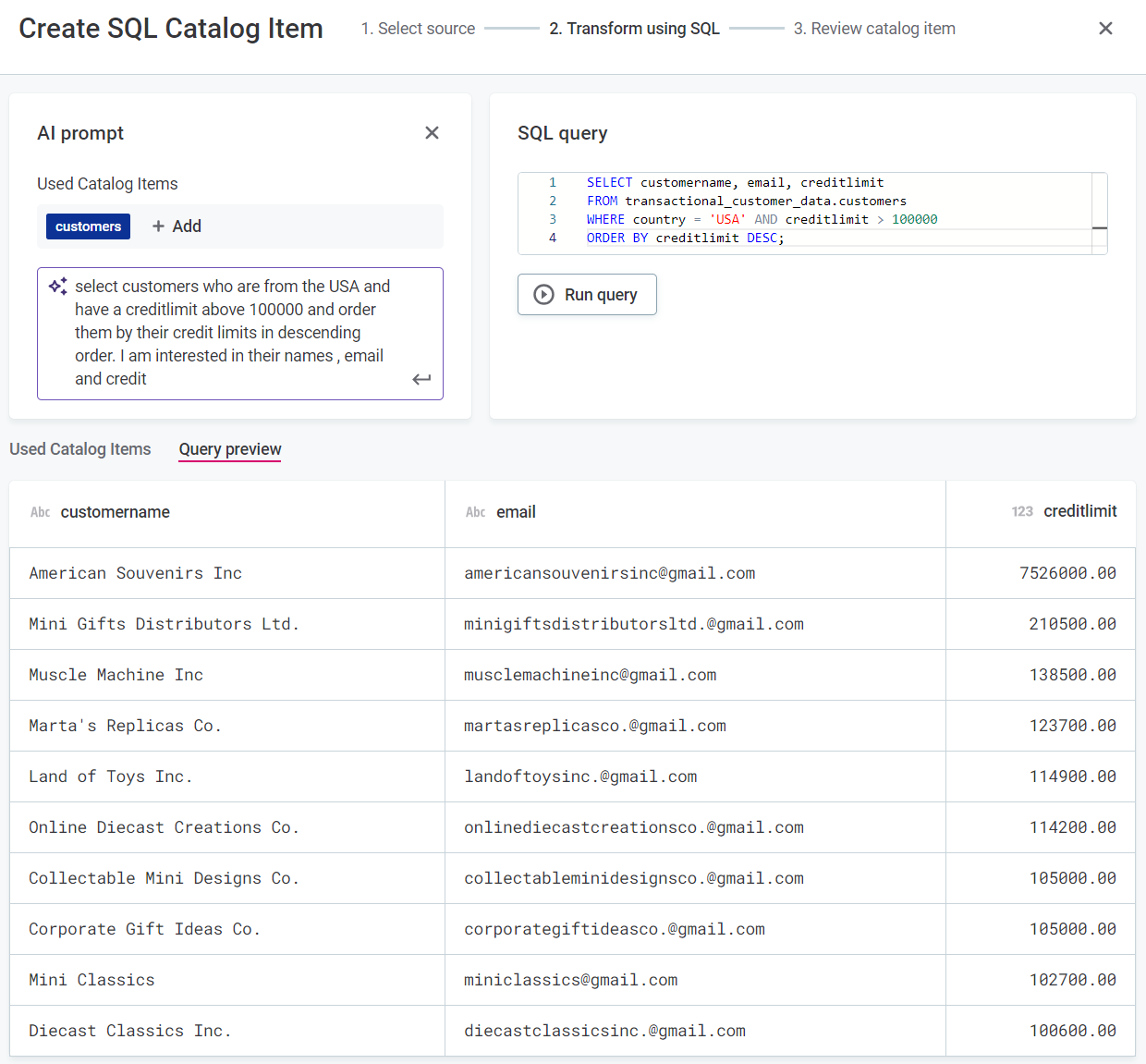
|
Explain SQL query
To understand how an existing SQL catalog item was created, generate a plain text description of the SQL query used. On the Overview tab of the required SQL catalog item, locate Query and then select Explain.
This description is only indicative, it is not permanently stored or used anywhere else in ONE.
Generate full rule implementation
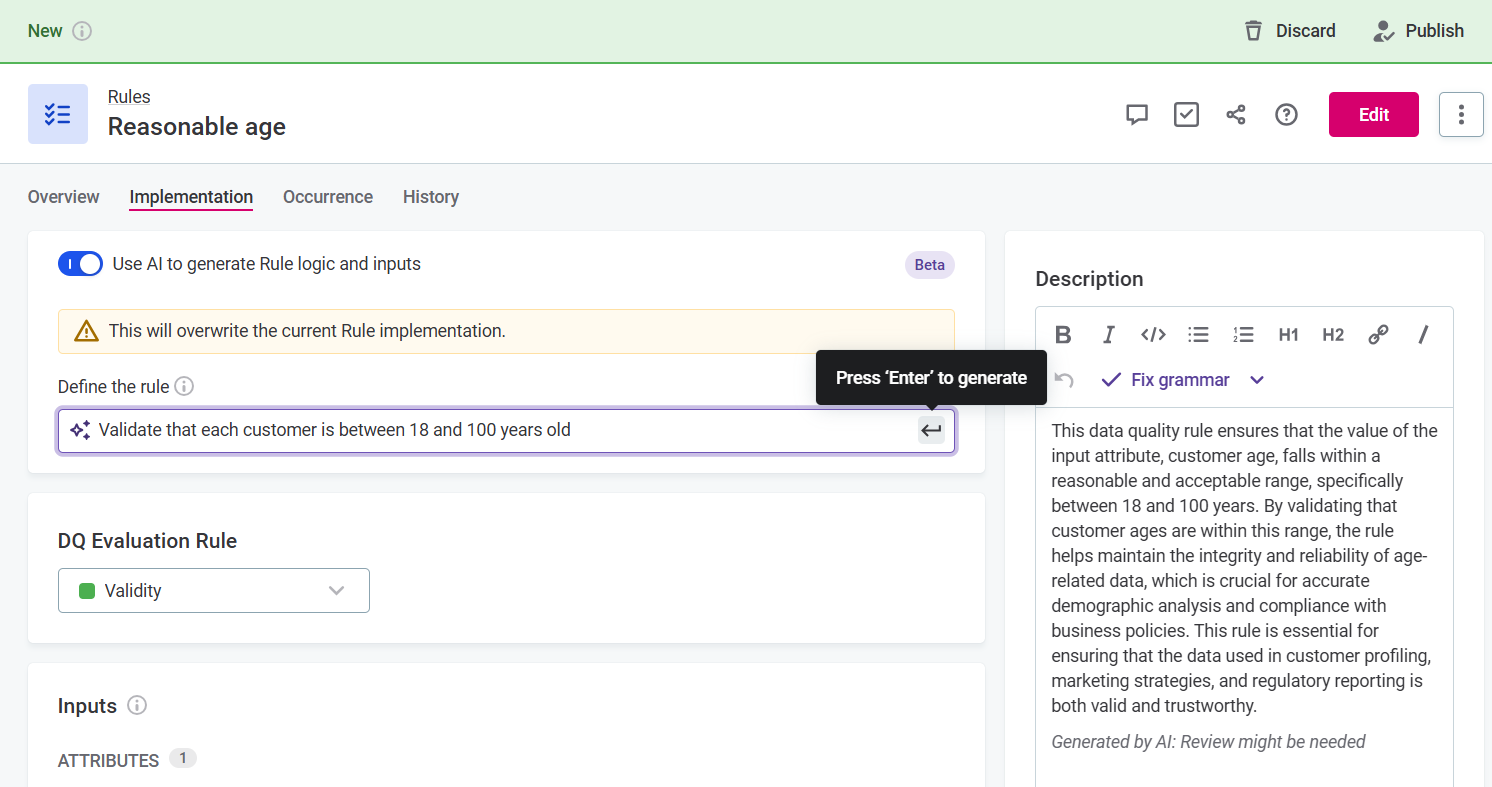
You can generate full DQ evaluation rule implementations with Gen AI using natural language.
| This overwrites any existing rule implementation. |
-
Go to the Implementation tab of one of your rules.
-
Select the option Use AI to generate Rule logic and inputs.
-
Provide a plain text prompt using natural language in the Define the rule field.
-
Press Enter.
Generate or explain ONE expressions
When creating rules, you can either use the condition builder or ONE expressions to specify rule logic. Instead of having to write ONE expressions from scratch, you can use AI to generate the expression from a text prompt.
You can also generate the expression based on Python syntax or validate, build on, or edit an existing expression.
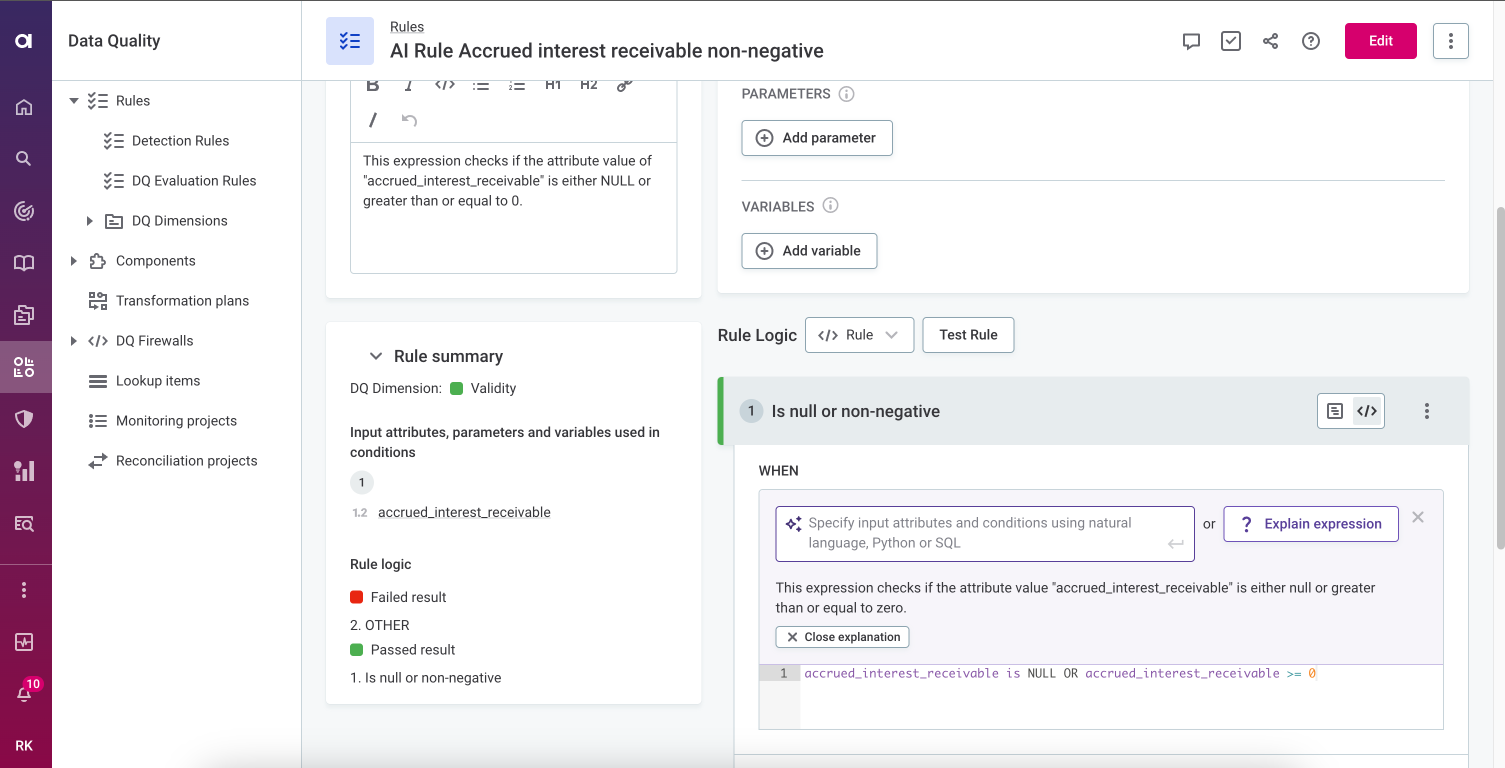
If an expression is already in place, you can select Explain expression to generate an explanation of the expression in text. Note that AI might provide an incorrect or incomplete description of what the rule expression does.
This description is only indicative, it is not permanently stored or used anywhere else in ONE.
|
For example, stock ticker symbols listed on major exchanges like NASDAQ should consist only of uppercase alphabetic characters (A-Z) and sometimes a period. For the symbol attribute, we can create a rule condition to check the format. Here we have used the prompt: doesn’t contain only alphabetic uppercase characters and up to one period and is not between 1 and 6 characters long. Rather than outlining the requirements yourself, you can also call up AI to do it for you, for example, by changing the prompt to: doesn’t meet the requirements of a NASDAQ stock ticker. 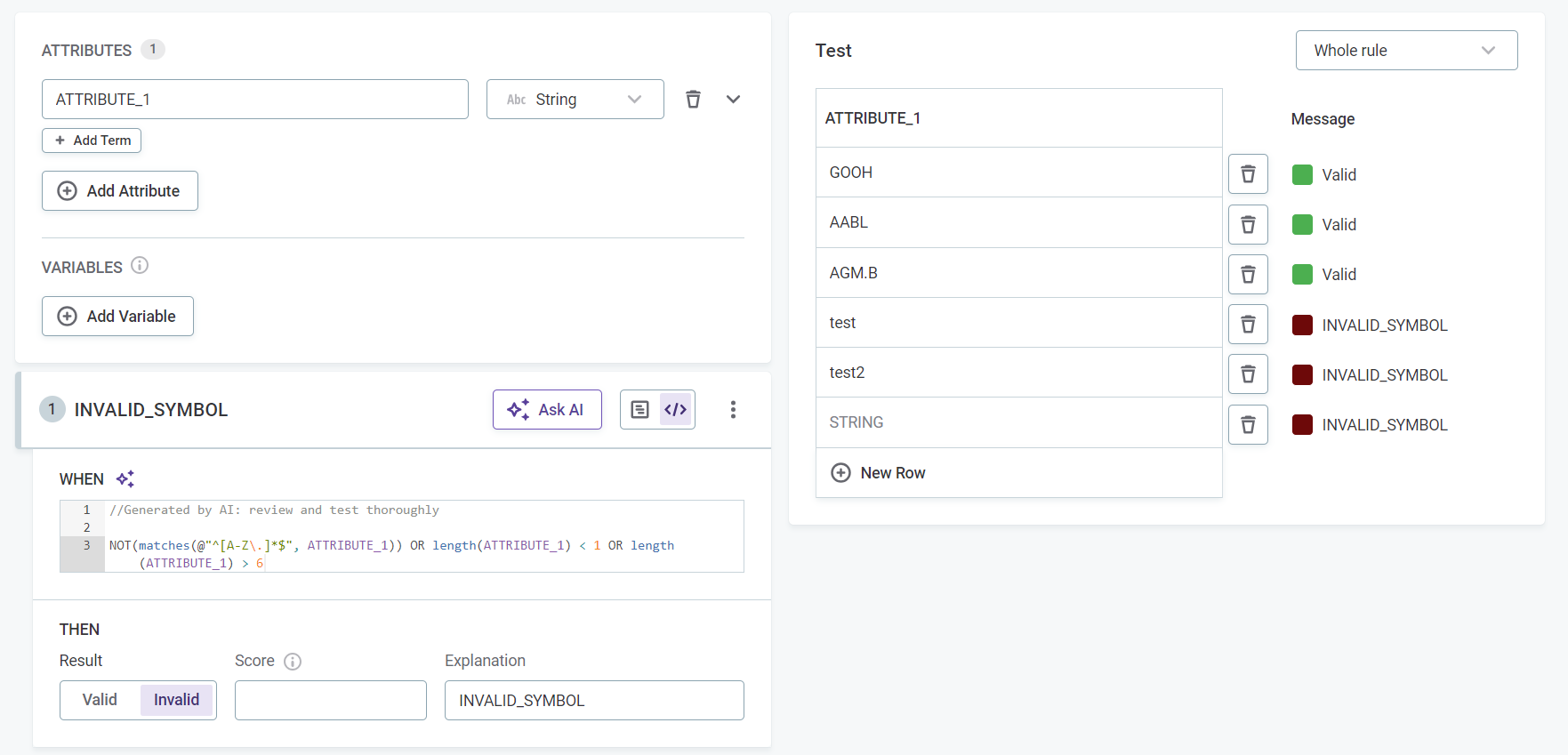
|
Best practices when writing prompts for ONE expressions
Note that AI only affects the condition expression, not the whole condition. That means it is not enough to, for example, write in the prompt that the value must be between one and five characters and expect that values which do not comply are marked invalid: you need to make sure to align the expression and the result (for example, Valid/Invalid).
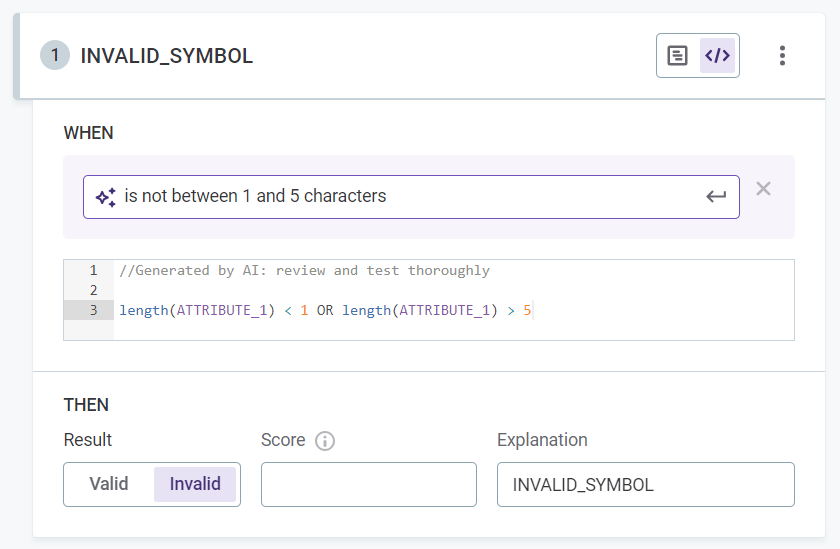
In the example given, using a prompt such as: 'value must be between 1 and 5 characters' results in the expression length(ATTRIBUTE_1) >= 1 AND length(ATTRIBUTE_1) ⇐ 5 and needs to be used in combination with the Valid result, not the default Invalid result.
You should instead use a prompt such as: 'is not between 1 and 5 characters' (length(ATTRIBUTE_1) < 1 OR length(ATTRIBUTE_1) > 5) and proceed with the Invalid result, as is common practice when defining rule conditions.
Generate descriptions
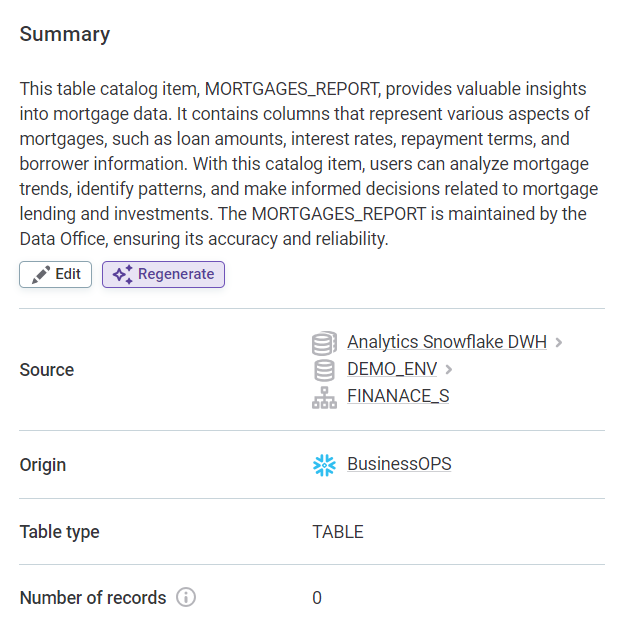
Where descriptions are missing or could use improving, save time and generate descriptions using AI. Changes must be saved and published.
This works for the following entities:
-
Catalog items.
-
Attributes.
-
Rules.
-
Business terms.
-
Reference data tables.
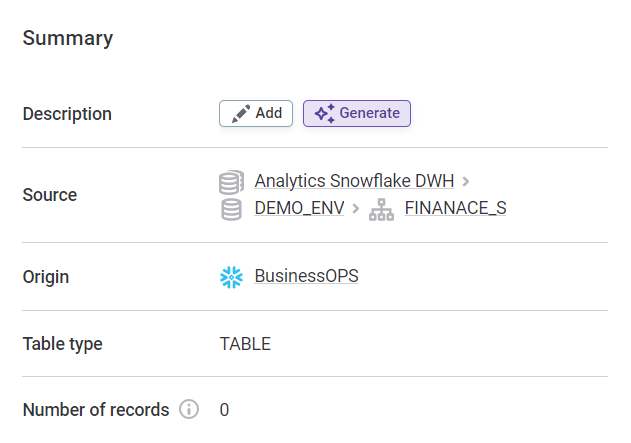
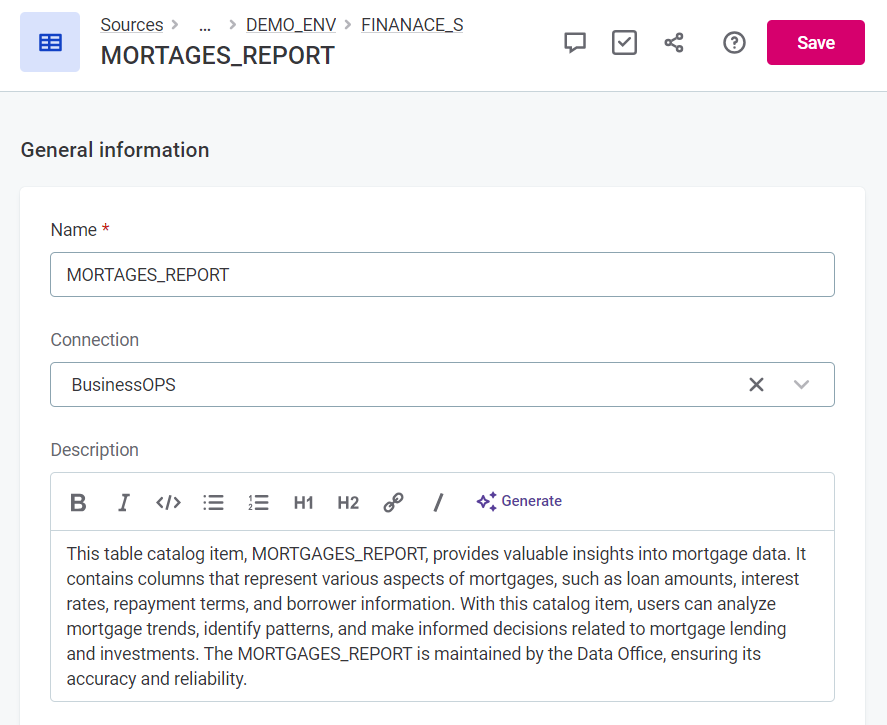
Descriptions can be re-generated at any point to account for any changes in the dataset.
|
When generating descriptions for reference data tables, you can optionally allow AI to use sample data in addition to metadata for more accurate and contextual descriptions. |
Suggest DQ rules
Gen AI can suggest suitable data quality rules for attributes from your existing rule library located in Data quality > Rules.
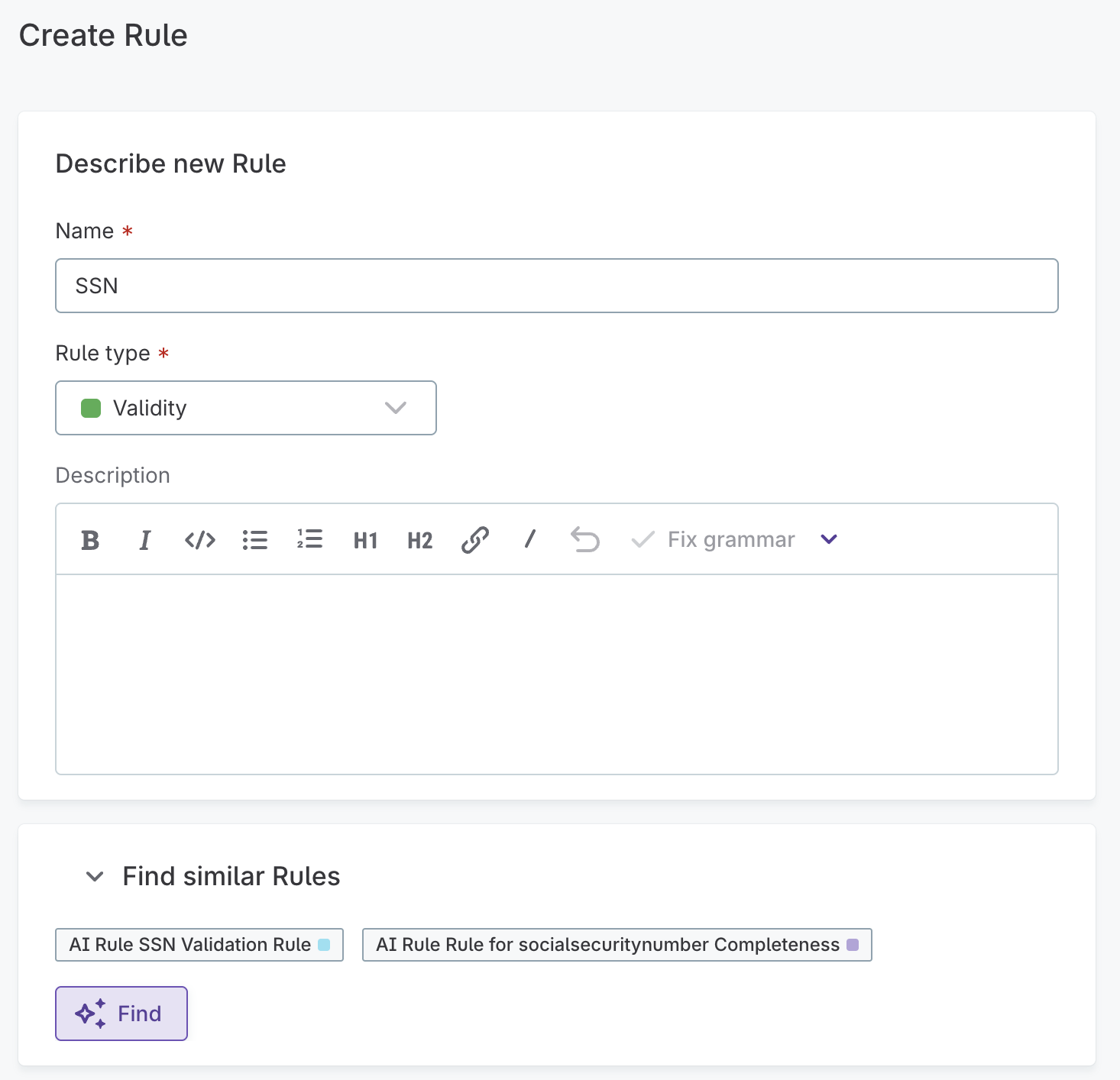
Find similar rules
When creating a new DQ rule, AI can identify existing rules with similar names or descriptions to help you avoid duplicates. On the Create Rule screen, enter the rule name and description, then select Find in the Find similar rules section to see matching results.
Debug DQ rules
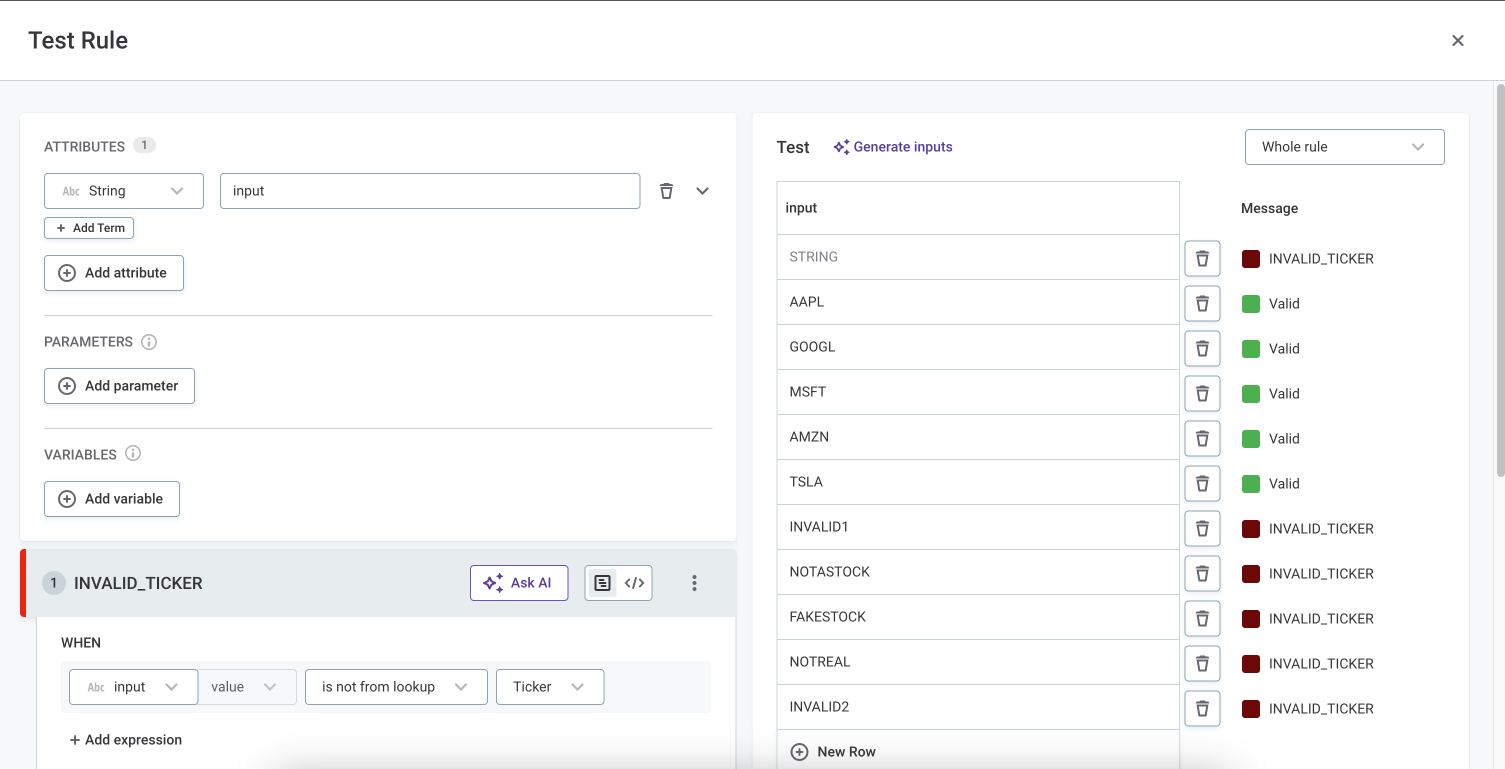
On the Test Rule screen, you can use AI to help debug rules by generating example inputs.
Currently, this is only possible for rules with just one rule condition applied.
Select Generate inputs in the Test section on the Test Rule page.
Improve writing
You can use writing assistance features to improve written text.
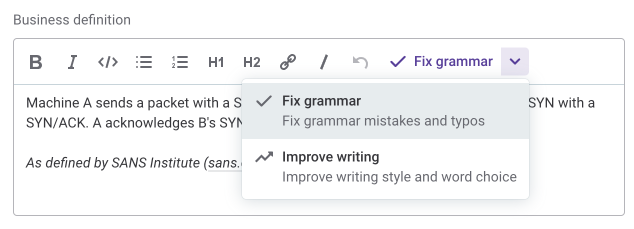
The following two options are available on editable text fields such as descriptions, definitions, and the like.
-
Fix grammar: Select to automatically fix grammar mistakes and typos.
-
Improve writing: Select to improve style and word choice of your text.
Reference data
Gen AI provides AI-powered capabilities within reference data to help you model, structure, and maintain your reference data tables more efficiently.
Suggest data model during file import
When creating a new reference data table from a file, AI can analyze your file and suggest an optimized schema.
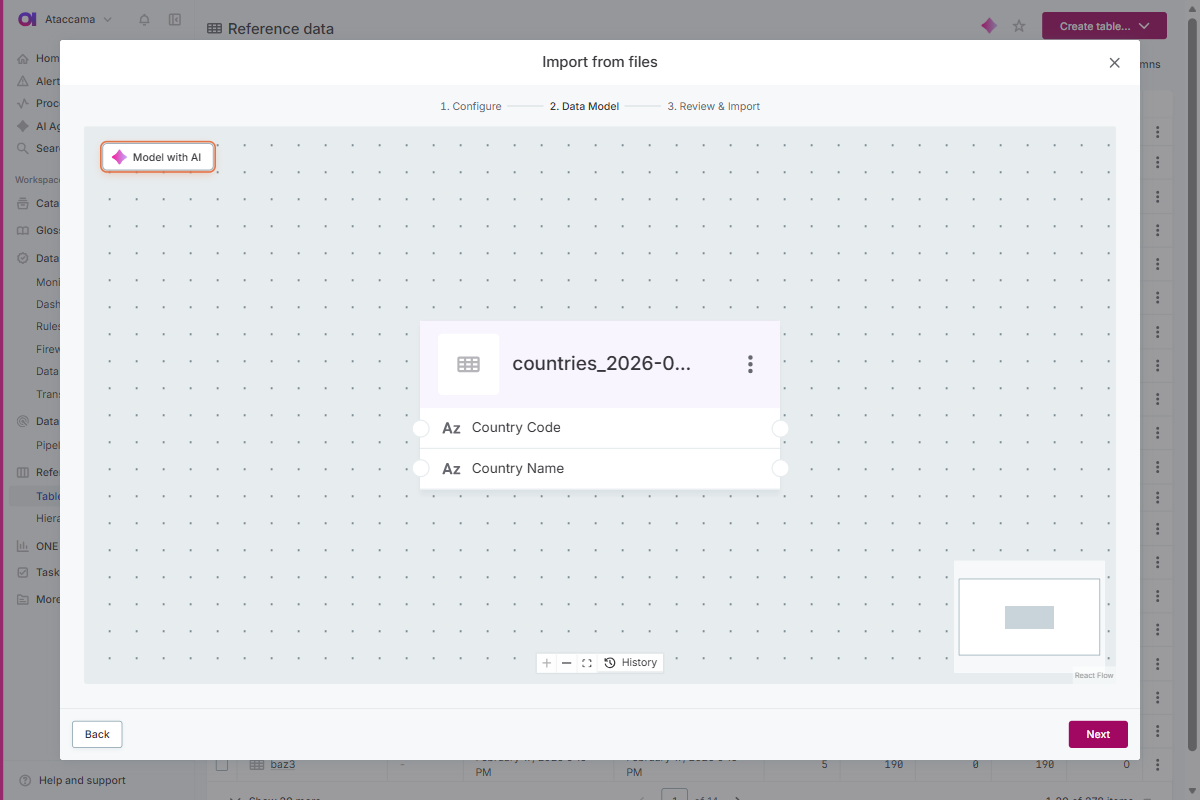
On the Data Model step of the import wizard, select Model with AI, and then Generate optimal data model.
The AI identifies relationships and proposes an optimized schema including table naming, attribute organization, and deduplication keys.
Refine the result further using natural language, then review the canvas preview and select Next.
|
Data types are autodetected and cannot be changed during import. Modify them after import on the Data structure tab. |
For more information, see Create Reference Data Tables.
Suggest data types
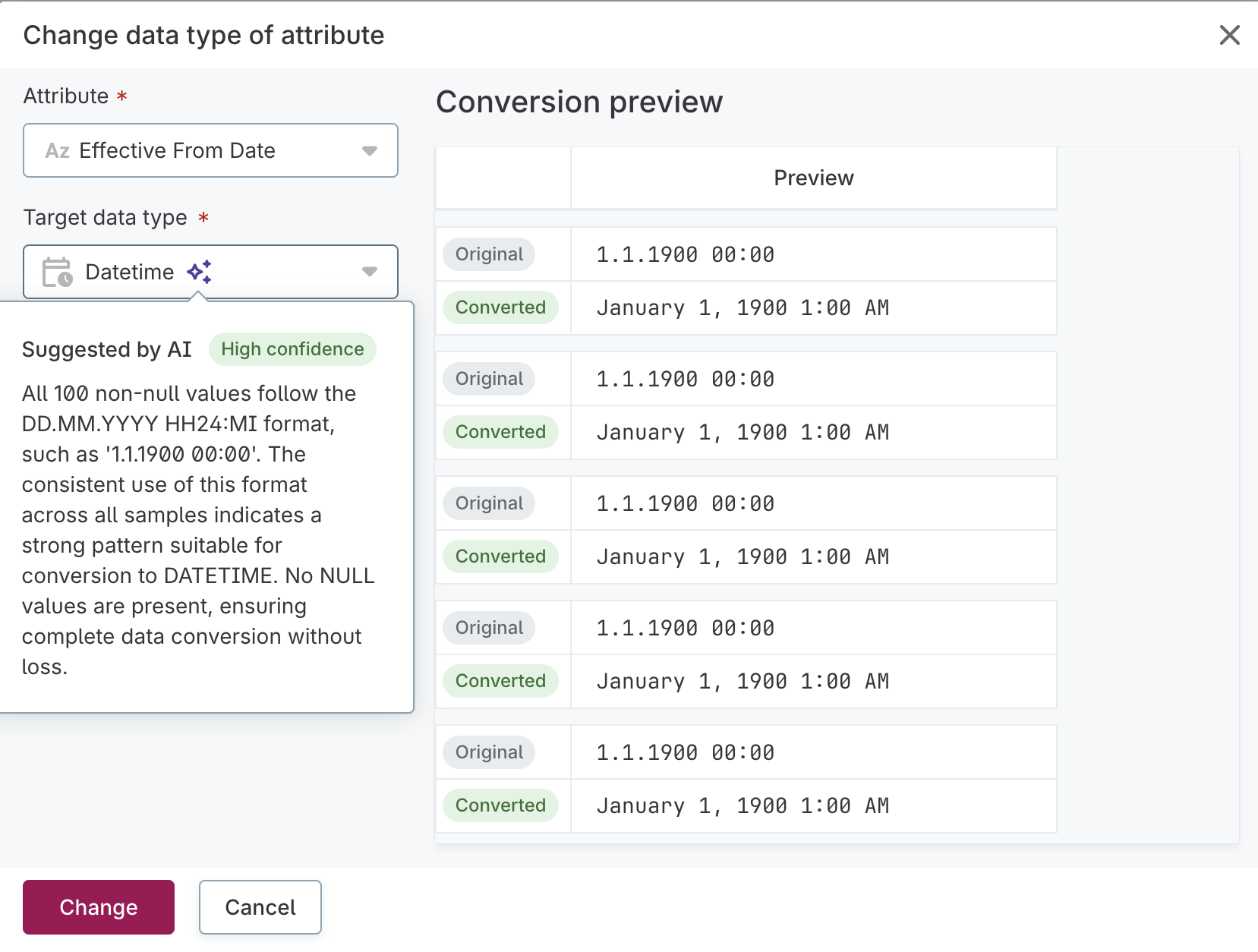
When changing the data type of an attribute in reference data tables, AI can suggest the most appropriate target data type by analyzing a sample of up to 50 non-null values.
For datetime conversions, if your data doesn’t follow ISO 8601 format, AI attempts to detect the pattern automatically. You can also specify custom PostgreSQL-compatible format patterns.
For more information, see Change Reference Data Table Structure - Change Data Types.
Data transformations
Gen AI provides several AI-powered capabilities within data transformations to help you build, test, and understand transformation logic more efficiently.
Plan summary
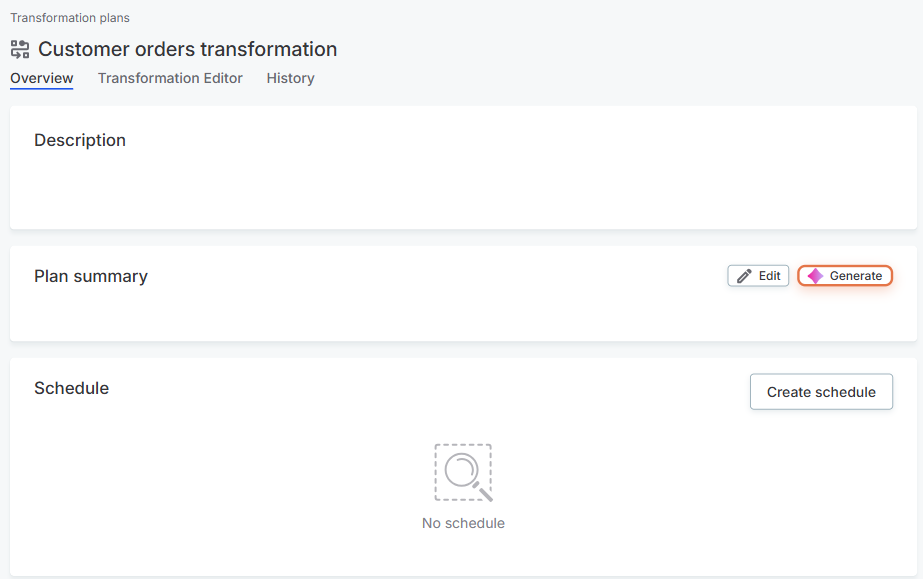
Generate a readable summary of a transformation plan using AI.
This helps you quickly understand complex plans without reviewing each step individually.
Step data generation
Generate test input data for a transformation step using AI.
When building or debugging transformation steps, you can use AI to automatically generate sample input data. This is useful when you need representative test data to validate step behavior but don’t want to create it manually.
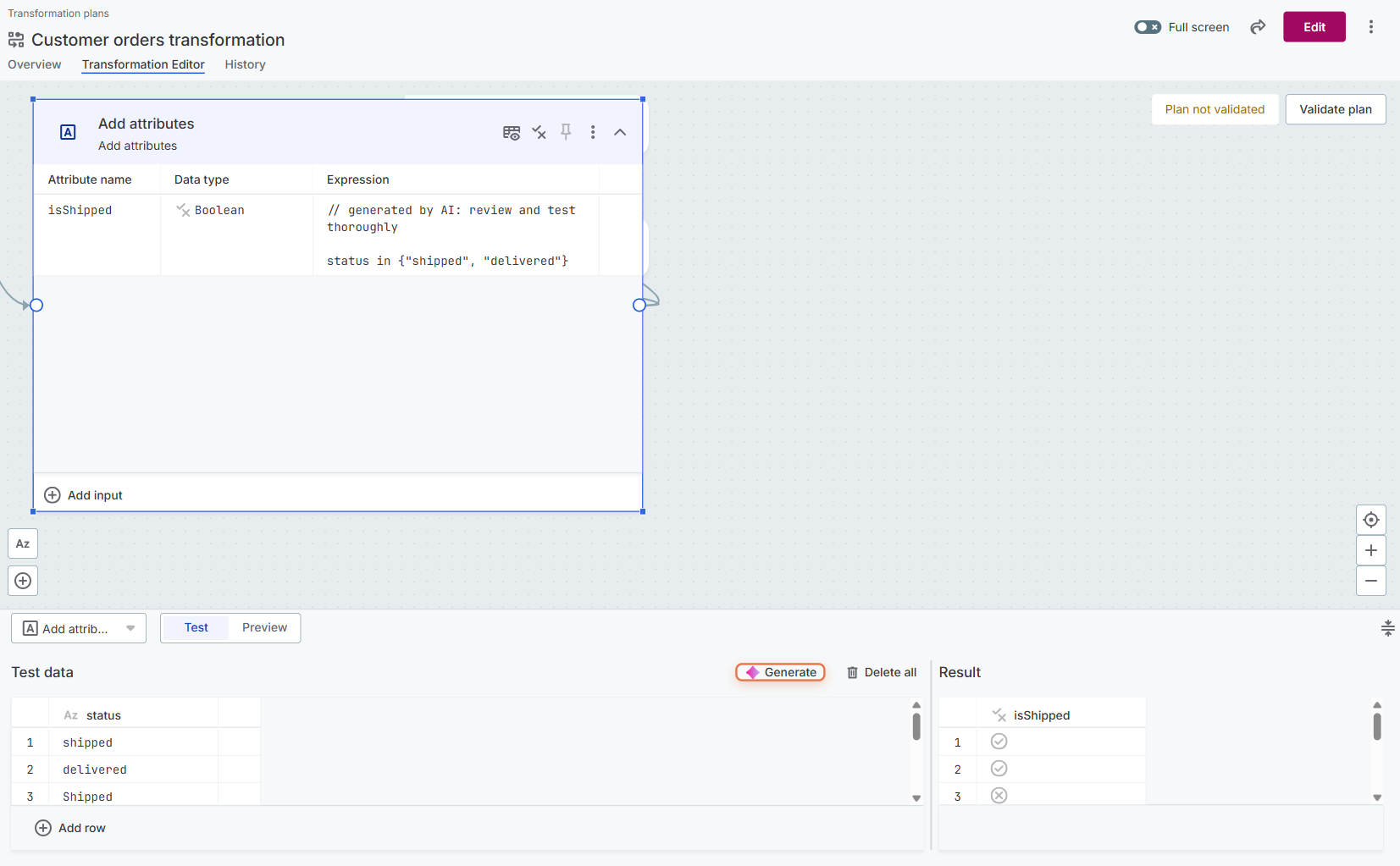
For more information about testing steps with generated data, see Test Transformation Steps.
Expression data generation
Generate test data to evaluate a single expression using AI.
Within the expression testing interface, select Generate to have AI create sample values that test your expression logic. AI analyzes your expression configuration and generates relevant test cases, including both typical cases and edge cases.
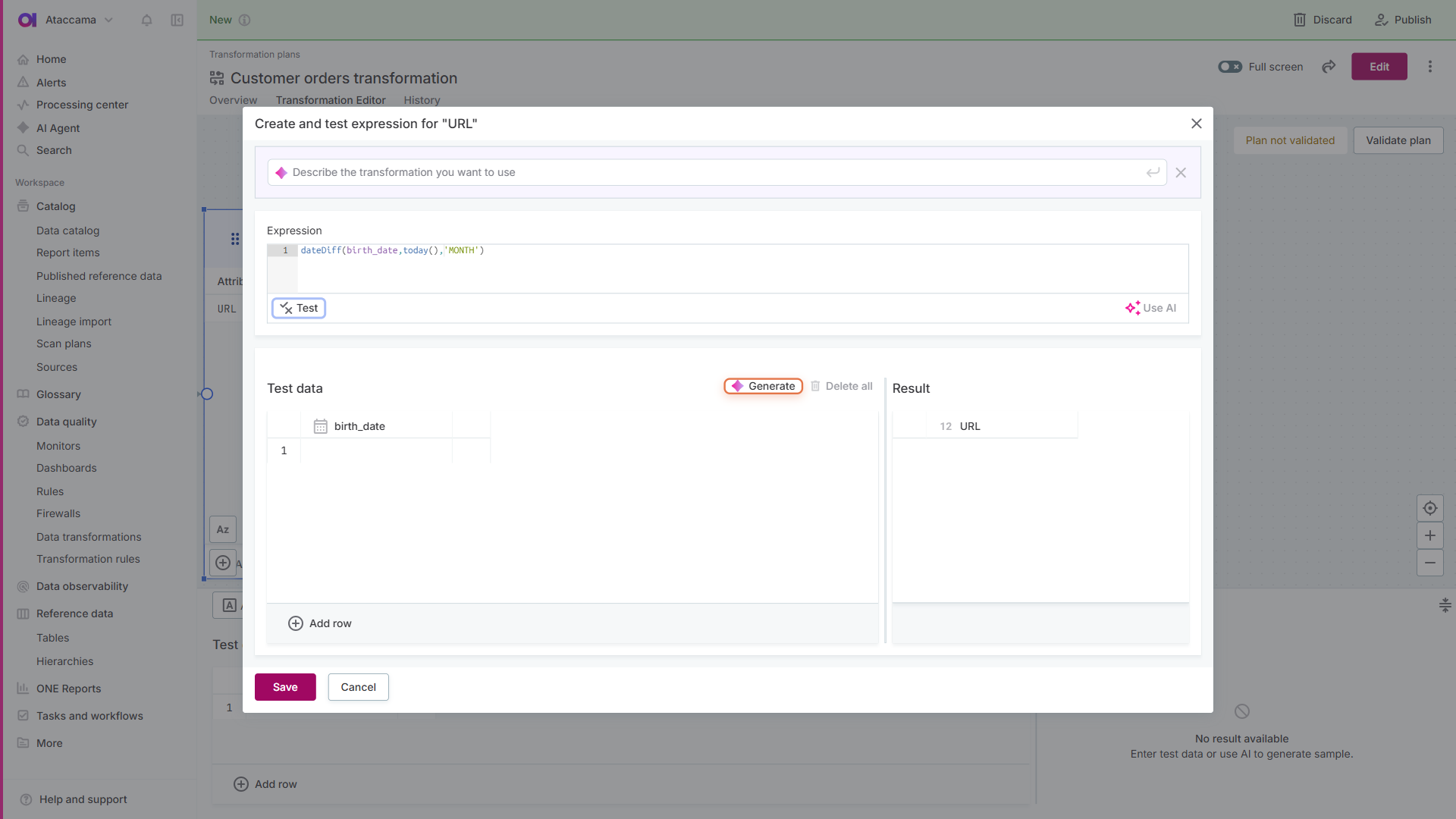
For more information, see Test Expressions.
Rule generation
Create a transformation rule from a natural language description using AI.
When creating transformation rules, describe the desired transformation in plain text and let AI generate the rule logic for you. This accelerates rule creation by translating business requirements directly into transformation logic.
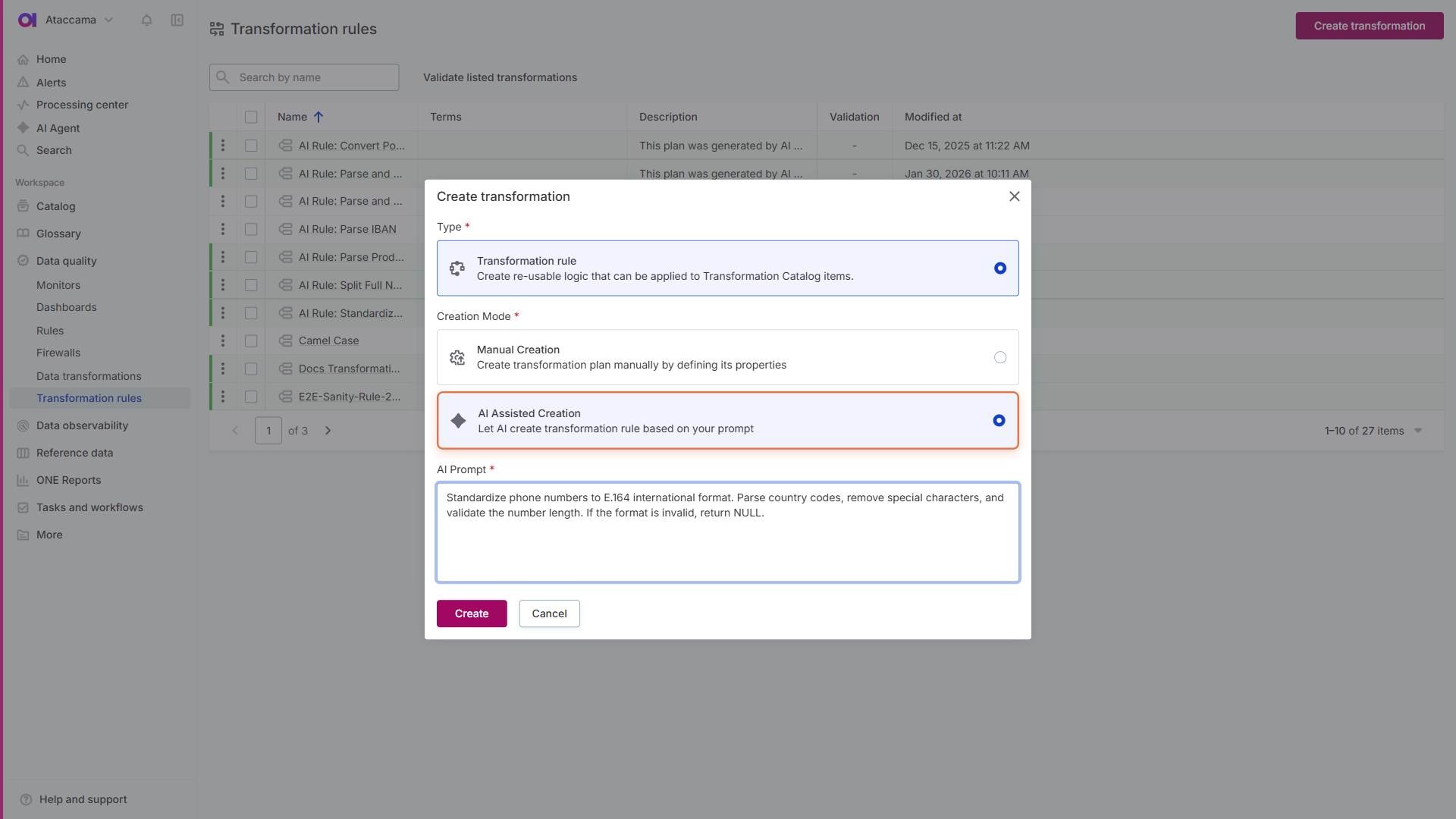
For more information about transformation rules, see Transformation Rules.
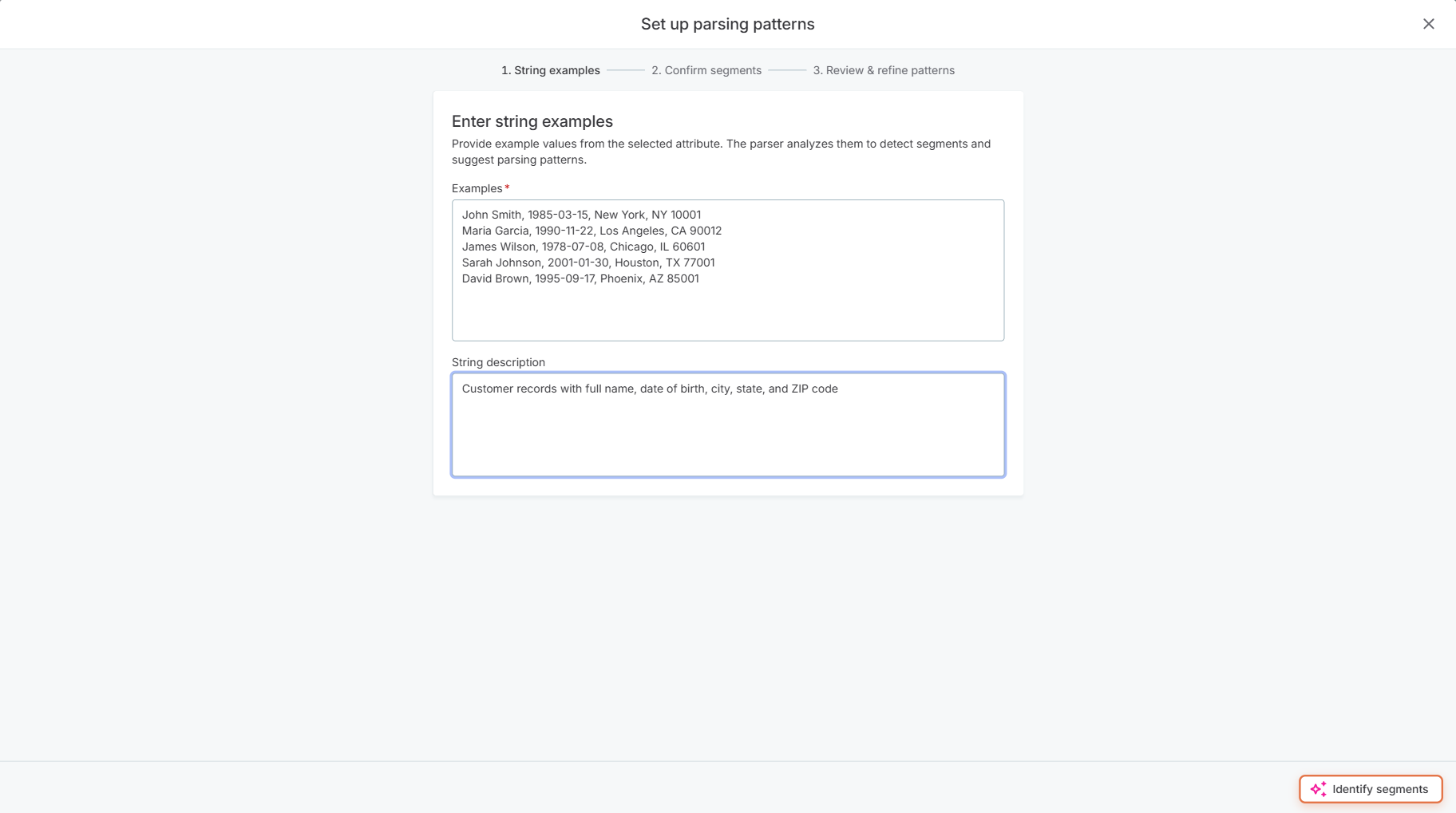
Pattern Parser step
The Pattern Parser step uses AI to extract structured data from unstructured text.
AI assistance is used in the following areas of the Pattern Parser configuration:
-
Segment generation: AI analyzes your example values and descriptions to automatically identify and generate parsing segments.
-
Extracted values preview: AI generates a preview of values that would be extracted for each segment based on your input examples.
-
Constraint detection: AI suggests pattern constraints based on the identified segments and example data.
If AI features are turned off, you can still configure the Pattern Parser step manually, but you need to define all segments, detection methods, and constraints yourself.
Was this page useful?