
Prepare AWS Infrastructure
Ataccama ONE edge instances on AWS require the same underlying infrastructure whether Ataccama-managed or self-managed. This includes a VPC with public and private subnets, NAT egress, and an S3 bucket with an IAM role the edge can assume to write processing results.
Complete the steps on this page before continuing with your chosen deployment option.
Prerequisites
-
An AWS account. We recommend using a dedicated account to isolate edge workloads.
-
IAM permissions to create VPCs, subnets, gateways, route tables, S3 buckets, and IAM roles.
-
A chosen AWS Region and three availability zones (AZ) within it. For example,
us-east-1with zonesa,b,c.
Configure networking
Set up a virtual private cloud (VPC) with public and private subnets across three availability zones, an internet gateway for ingress/egress, and NAT gateways so private workloads can reach the internet.
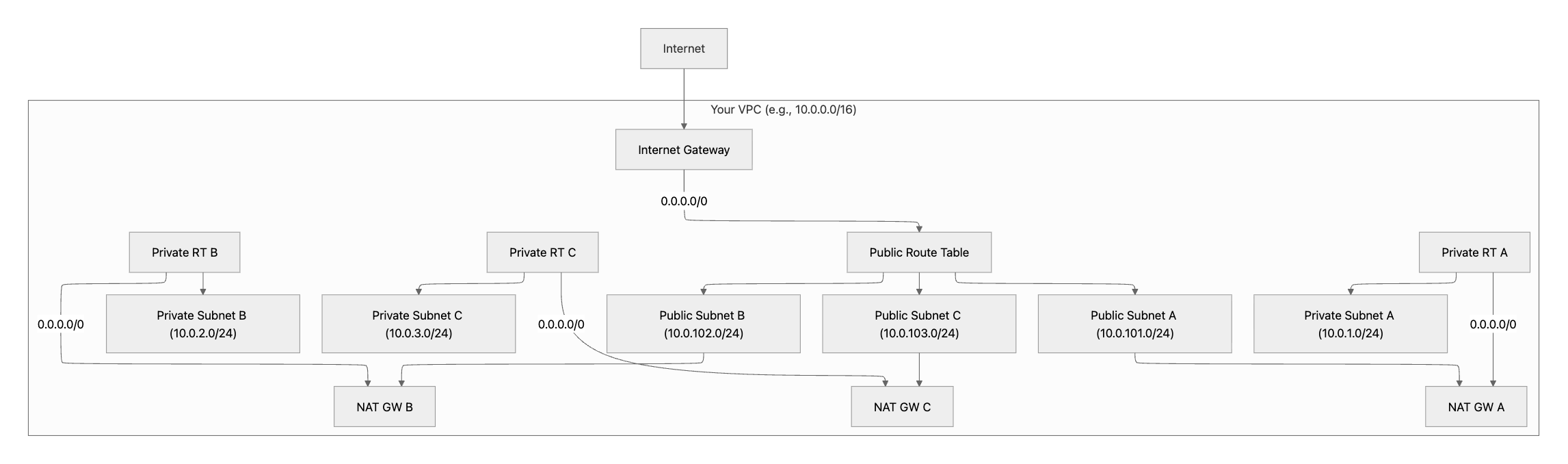
Follow the AWS documentation to complete these steps, using the values from Networking configuration values:
-
Create a VPC using the CIDR from CIDR allocation.
-
Enable DNS hostnames and DNS resolution.
-
-
Create three public and three private subnets, one pair per availability zone. See Subnet layout.
-
Create and attach an internet gateway to the VPC.
-
Allocate Elastic IPs, one per NAT gateway you plan to deploy.
-
Create NAT Gateways in the public subnets, attaching one Elastic IP each. See NAT gateway strategy.
-
-
The public route table sends
0.0.0.0/0to the internet gateway; associate it with all public subnets. -
Each private route table sends
0.0.0.0/0to a NAT gateway; associate one with each private subnet.
-
-
Tag all resources according to Tagging.
VPC endpoint provisioning depends on the deployment option; see VPC endpoints.
Networking configuration values
The following values apply to the edge networking layout.
CIDR allocation
A /16 VPC with /24 subnets provides ample headroom and avoids overlap with most corporate networks:
-
VPC:
10.0.0.0/16(65,536 IPs) -
Public subnets:
10.0.101.0/24,10.0.102.0/24,10.0.103.0/24 -
Private subnets:
10.0.1.0/24,10.0.2.0/24,10.0.3.0/24
|
Ensure CIDR blocks don’t overlap with existing corporate networks or peered VPCs. |
Subnet layout
-
Three public and three private subnets, one pair per availability zone.
-
Disable auto-assign public IPs on private subnets.
-
Enable auto-assign public IPs on public subnets only if needed for load balancers or bastion hosts.
NAT gateway strategy
-
Production: One NAT gateway per availability zone. Each private route table sends traffic to the NAT gateway in the same AZ to avoid cross-AZ data charges and dependencies.
-
Non-production: A single shared NAT gateway in one public subnet, used by all private subnets. Cheaper, but introduces a single point of failure.
VPC endpoints
VPC endpoint requirements differ between Ataccama-managed and self-managed deployments.
Ataccama-managed edges
The VPC provided must not contain VPC endpoints for the following AWS services. These are created and managed by Ataccama as part of the edge deployment:
-
S3 gateway endpoint:
-
com.amazonaws.<region>.s3
-
-
Interface endpoints:
-
com.amazonaws.<region>.kms(KMS) -
com.amazonaws.<region>.secretsmanager(Secrets Manager) -
com.amazonaws.<region>.sqs(SQS) -
com.amazonaws.<region>.logs(CloudWatch Logs) -
com.amazonaws.<region>.sts(STS) -
com.amazonaws.<region>.monitoring(CloudWatch)
-
If the edge VPC runs in a different AWS region than your Ataccama control plane, additional cross-region VPC endpoints are required; see Cross-region access to the control plane. Ataccama only provisions endpoints in the edge VPC region; the cross-region setup is your responsibility.
Self-managed edges
The Terraform module does not create VPC endpoints for self-managed edges. By default, AWS API traffic from the edge leaves your VPC through the NAT gateway.
You should provision your own VPC endpoints in the same AWS region as the edge VPC to keep this traffic on the AWS network — this reduces NAT data-transfer costs, lowers latency, and avoids exposing AWS API calls to the public internet:
-
S3 gateway endpoint, attached to the private route tables:
-
com.amazonaws.<region>.s3
-
-
Interface endpoints, attached to the private subnets, with private DNS enabled:
-
com.amazonaws.<region>.kms(KMS) -
com.amazonaws.<region>.secretsmanager(Secrets Manager) -
com.amazonaws.<region>.sqs(SQS) -
com.amazonaws.<region>.logs(CloudWatch Logs) -
com.amazonaws.<region>.sts(STS) -
com.amazonaws.<region>.monitoring(CloudWatch)
-
-
A security group on the interface endpoints that allows TCP 443 from the VPC CIDR or the private subnets CIDR, depending on your setup.
Apply the endpoint policy from vpc-endpoint-policy.json — shipped in your edge deployment bundle — to each endpoint.
The policy scopes access to the edge IAM roles, the Ataccama platform access role, and the customer-provided roles defined for your tenant.
If the edge instance connects to Snowflake data sources hosted on AWS in the same region, extend the policy with access to Snowflake-managed internal stage buckets:
{
  "Sid": "AllowSnowflakeInternalStageBuckets",
  "Effect": "Allow",
  "Principal": "*",
  "Action": [
    "s3:GetObject",
    "s3:PutObject"
  ],
  "Resource": "arn:aws:s3:::sfc-*/*"
}
Snowflake pushdown processing uses these buckets in both directions: query results that exceed the Snowflake inline-response threshold are downloaded from them (s3:GetObject), and larger lookup tables referenced by rules are uploaded to the Snowflake internal stage (s3:PutObject).
Without this statement, pushdown processing fails on larger results or lookups.
The statement uses "Principal": "*" because Snowflake signs these requests with its own principals, which cannot be known in advance.
The statement is therefore scoped through the Resource element instead, which is the same pattern the shipped policy uses for other presigned-URL access.
sfc-* is a Snowflake naming convention, not a reserved namespace, so narrow the statement (the write action in particular) to the exact buckets of your Snowflake account.
Enumerate the buckets using the Snowflake SYSTEM$ALLOWLIST function and replace the wildcard resource.
If the edge VPC runs in a different AWS region than your Ataccama control plane, additional cross-region VPC endpoints are required; see Cross-region access to the control plane.
NAT-only egress is supported but highly discouraged — although AWS API calls are TLS-encrypted in transit, NAT routing exposes them to public-internet paths and incurs NAT data-transfer charges. Only use it if you cannot provision VPC endpoints in your environment.
Fully private edge (no internet egress)
The endpoints previously listed cover the edge’s runtime AWS API traffic. If the edge VPC has no internet egress at all (no NAT gateway or internet gateway), provision these additional interface endpoints so the ECS control path, Lambda invocation, and supporting management calls stay on the AWS network:
Interface endpoints, attached to the private subnets, with private DNS enabled:
-
com.amazonaws.<region>.ecs(ECS) -
com.amazonaws.<region>.ecs-agent(ECS agent) -
com.amazonaws.<region>.ecs-telemetry(ECS telemetry) -
com.amazonaws.<region>.ssm(Systems Manager) -
com.amazonaws.<region>.lambda(Lambda) -
com.amazonaws.<region>.events(EventBridge) -
com.amazonaws.<region>.tagging(Resource Groups Tagging API) -
com.amazonaws.us-east-1.iam(IAM) -
com.amazonaws.<region>.ecr.api(ECR API) — required only when sourcing container images from Amazon ECR -
com.amazonaws.<region>.ecr.dkr(ECR Docker) — required only when sourcing container images from Amazon ECR
|
IAM is a global service, so its interface endpoint exists only in |
Attach these endpoints to the same interface-endpoint security group (TCP 443 from the VPC or private subnet CIDR) as the base set, and apply the same vpc-endpoint-policy.json endpoint policy shipped in your edge deployment bundle to each of them.
Cross-region access to the control plane
This subsection applies if the edge VPC runs in a different AWS region than your Ataccama control plane. It applies to both Ataccama-managed and self-managed deployments — cross-region VPC endpoints are always your responsibility.
When the edge runs in a different region from the control plane, the edge needs to reach control-plane services in the control plane region for cross-region data exchange. Most AWS services don’t support cross-region access through VPC endpoints; see the AWS PrivateLink cross-region support matrix.
To keep this cross-region traffic on the AWS network, do one of the following:
-
Provision the same set of VPC endpoints in a VPC in the control plane region and peer it with your edge VPC.
-
Route the traffic through your own internal network with VPC endpoint connectivity into the control plane region.
In both cases, configure DNS so the edge resolves AWS service hostnames in the control plane region to the private endpoint IPs — typically via Route 53 Resolver forwarding rules or your own DNS service.
Validate networking
Confirm the following before proceeding:
-
VPC exists with the chosen CIDR.
-
DNS hostnames and DNS resolution are enabled.
-
-
Three public (
10.0.101/102/103.0/24) and three private subnets (10.0.1/2/3.0/24) exist across three AZs.-
Auto-assign public IPs is off for private subnets.
-
If needed, auto-assign public IPs is on for public subnets.
-
-
Internet gateway is attached.
-
The public route table contains
0.0.0.0/0 → Internet gatewayand is associated with all public subnets.
-
-
NAT gateway(s) exist in public subnets with attached Elastic IPs.
-
Private route tables contain
0.0.0.0/0 → NAT gatewayand are associated with private subnets. -
In production, each private route table routes to the NAT gateway in the same AZ to avoid cross-AZ dependencies.
-
-
Outbound HTTPS works from each private subnet (
curl -I example.comsucceeds from a test instance). -
All resources are consistently tagged and named to support automation and auditability.
Create the EFS service-linked role
The AWS account where the edge is deployed needs a service-linked role for Amazon Elastic File System (EFS):
aws iam create-service-linked-role --aws-service-name elasticfilesystem.amazonaws.comFor background, see Using service-linked roles for Amazon EFS.
Create the S3 bucket
The edge uses a customer-owned S3 bucket to store processing results and temporary data.
Follow the AWS documentation to create a bucket, using the values from S3 configuration values.
S3 configuration values
Bucket name
Use a name of the form <edge-instance-name>-s3-<random-suffix>.
The random suffix ensures the required global uniqueness.
Create the IAM role
Follow the AWS documentation to create a custom IAM role for the edge to use when reading from and writing to the S3 bucket.
When configuring the role:
-
Skip permissions selection.
-
Use the trust policy from Trust policy.
-
Name the role
<edge-instance-name>-s3-role. -
Attach the policy from S3 access policy as an inline policy named
s3access. -
Tag the role with
ataccama:edge:customer-provided:instance-name:<edge-instance-name>.
Trust policy
This trust policy lets principals in your AWS account assume the role.
Replace <ACCOUNT_ID> with your AWS account ID.
{
  "Version": "2012-10-17",
  "Statement": [
    {
      "Effect": "Allow",
      "Principal": {
        "AWS": "arn:aws:iam::<ACCOUNT_ID>:root"
      },
      "Action": [
        "sts:AssumeRole",
        "sts:TagSession"
      ]
    }
  ]
}
S3 access policy
This policy grants the edge the actions it needs against your bucket and its objects.
Replace <BUCKET_NAME> with the bucket name.
{
  "Version": "2012-10-17",
  "Statement": [
    {
      "Effect": "Allow",
      "Action": [
        "s3:GetObject",
        "s3:PutObject",
        "s3:ListBucket",
        "s3:DeleteObject",
        "s3:AbortMultipartUpload"
      ],
      "Resource": [
        "arn:aws:s3:::<BUCKET_NAME>",
        "arn:aws:s3:::<BUCKET_NAME>/*"
      ]
    }
  ]
}
Verify the role
Open the role in the IAM console and confirm:
-
The trust policy matches Trust policy.
-
The
s3accessinline policy is attached. -
The
ataccama:edge:customer-provided:instance-nametag is set.
Record the role ARN for later configuration.
Required information for next steps
Record these values. You’ll need them when configuring the edge instance.
-
AWS account ID
-
AWS Region
-
VPC ID
-
Private subnet IDs (all three)
-
Public subnet IDs (all three)
-
S3 bucket name and Region
-
IAM role ARN
Was this page useful?