
Configure Search
This article describes how to add custom entities to full-text search, adjust existing configurations, and perform maintenance tasks such as reindexing or recovering the search index.
About search configurations
Search configurations control which entities are included in full-text search in Ataccama ONE and how they behave in global and entity-specific search results. ONE includes ready-to-use configurations for standard entities.
To view and manage full-text search configurations, go to Global settings > Search configurations.
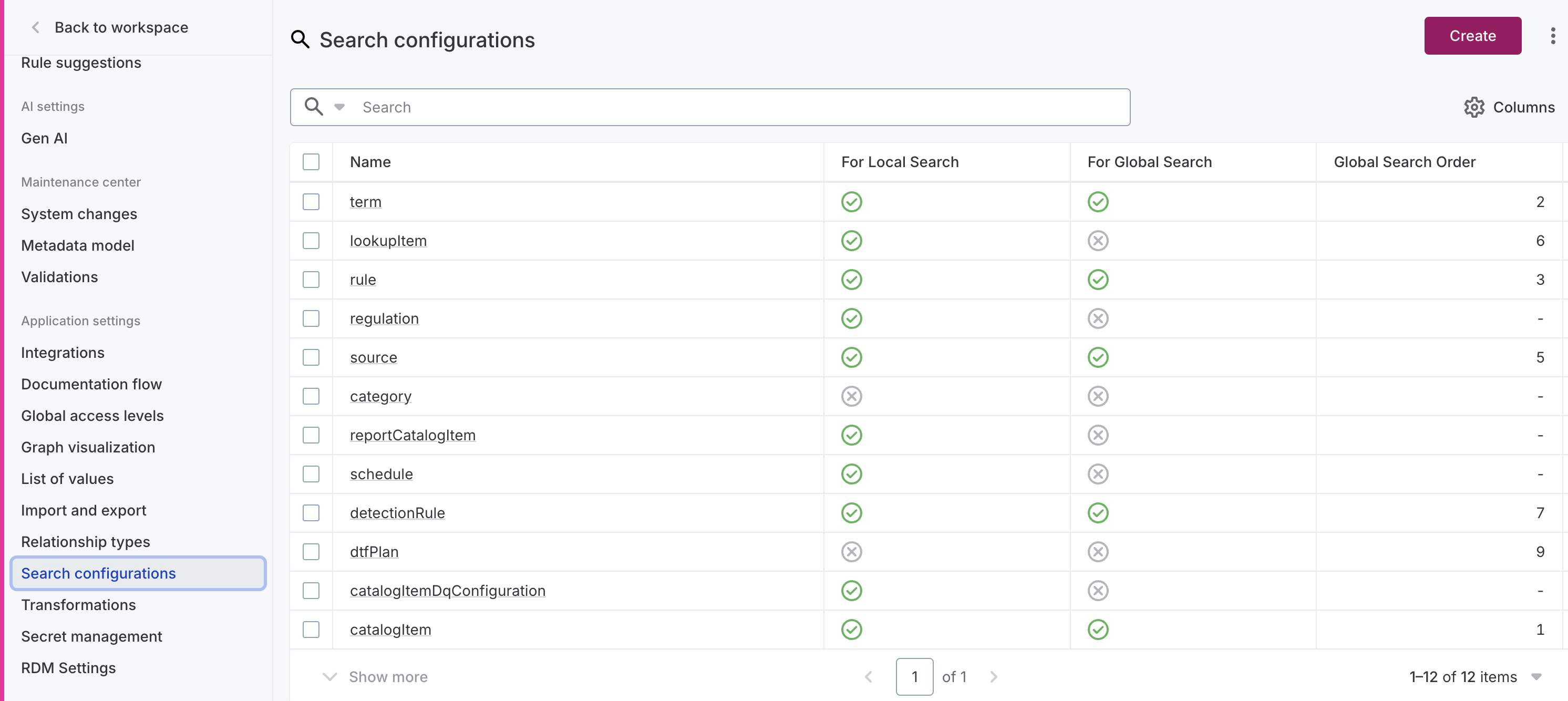
| Search configurations rely on the metadata model behind the catalog. In this context, assets and asset types are referred to as entities. |
Prerequisites
-
You need to be an environment admin. See Environment admins.
How full-text search works
Full-text search in ONE operates at two levels:
-
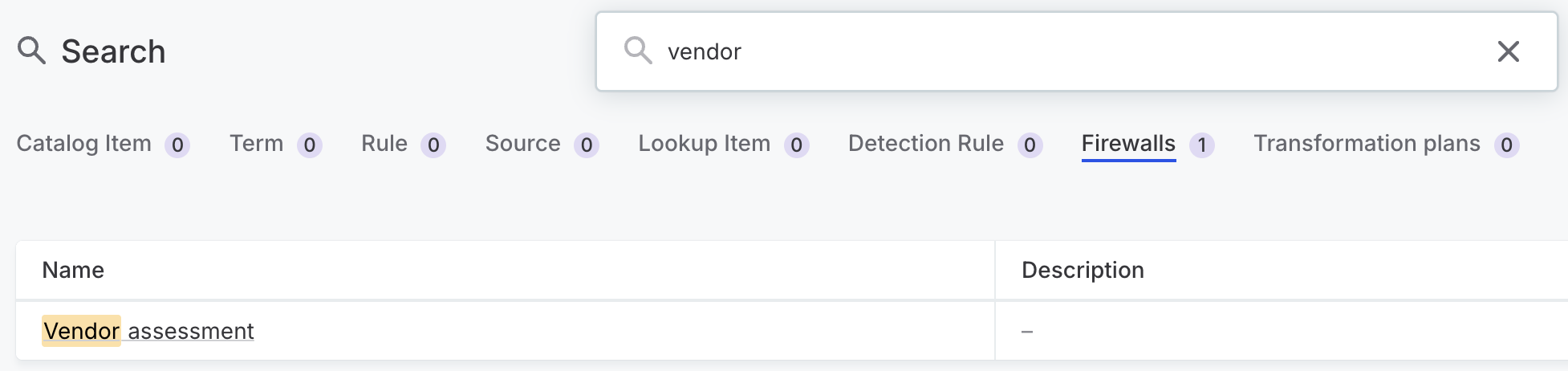
Global search: Searches across all entities that have global search enabled. Results are grouped into tabs, one per entity type.
-
Local (entity-specific) search: Searches within a single entity type on its listing page.
Each entity type needs its own search configuration. Configuring search on a parent entity does not automatically enable it on child entity pages. In other words, each entity (including subtypes) requires its own search configuration.
Full-text search is only available when viewing Published assets. When viewing Unpublished or All assets, a fallback search is used instead, which searches through asset names. For a more advanced alternative to full-text search, use AQL Query Syntax.
For hierarchical entities, full-text search is only available on Flat listing views.
|
When full-text search is not available or configured, fallback search treats multiple words as a single phrase (for example, If you need to search with OR logic, use AQL Query Syntax instead. |
Indexed nodes and properties
Search configurations use indexed nodes and indexed properties to control what is searchable and how the search engine reaches the data. These serve two distinct purposes:
- Searchable properties
-
The values users can find through search. These are properties marked as Searchable or Sortable in the configuration.
- Path properties
-
Properties that define how the search engine traverses from the root entity to nested or related entities. These are not searchable themselves but indicate how to reach the data.
To index a property on a nested or related entity, you need to configure the full traversal path from the root entity. Every step in the path requires its own indexed node and indexed property. If any step is missing, the search engine cannot reach the target property.
The traversal path follows the structure of the metadata model. Each hop corresponds to a relationship: either an embedded property or a reference.
| To check whether a property is embedded or reference, see the entity definition in Global settings > Metadata model. |
You can also index system properties, which are not part of the metadata model.
These properties contain additional metadata and are available for most entity types.
They are prefixed with a dollar sign ($), such as $displayName.
Example: Index attribute names on a catalog item
To make attribute names searchable on catalog items:
-
On the
catalogItemindexed node, addattributesas an indexed property. This tells the search engine how to get from the catalog item to its attributes (in the metadata model,attributesis an array embedded property oncatalogItem). -
Add
attributeas a separate indexed node withnameas a searchable indexed property.
Example: Index term names assigned to catalog item attributes
This is a deeper chain that requires configuring every hop:
-
On the
catalogItemindexed node, addattributesas an indexed property (array embedded). -
Add
attributeas an indexed node withtermInstancesas an indexed property (array embedded). -
Add
termInstanceas an indexed node withtargetas an indexed property (reference toterm). -
Add
termas an indexed node withnameas a searchable indexed property.
Only name in step 4 is the actual search target.
Steps 1–3 define the traversal path.
Ancestor auto-indexing
Ancestor entities (such as parents and grandparents) are an exception to the traversal path rule. If an indexed node exists for an ancestor entity type, all ancestors of that type are indexed automatically and you don’t need to specify the traversal path manually.
For example, if a location indexed node exists in the catalog item search configuration, all locations above a given catalog item in the hierarchy are indexed automatically.
Back references
So far, indexed properties have described paths that follow references forward from the entity being searched to a related entity. You can also index back references: paths that follow a reference from another entity back to the entity being searched.
Use back references when you want to filter results on a listing page by properties of an entity that references the listed entity, rather than one it references itself.
Such search configurations are configured on the entity you want to filter, that is, the entity whose listing page the filter appears on.
Example: Filter business processes by data product
Consider the following relationship chain: dataProduct → dataProductBusinessProcess → businessProcess.
A dataProduct references one or more dataProductBusinessProcess join objects, each of which references a businessProcess.
The reference chain must end at the entity being filtered.
For example, configuring dataProduct → domain on the businessProcess search configuration would have no effect, because the chain doesn’t terminate at businessProcess.
To add a data product filter to the business process listing, configure the chain on the businessProcess search configuration:
-
Add all entities in the chain as indexed nodes:
businessProcess,dataProductBusinessProcess, anddataProduct. -
On the
dataProductindexed node, addbusinessProcessesas an indexed property, then mark it as as searchable and back reference. -
On the
dataProductBusinessProcessindexed node, addbusinessProcessas an indexed property, then mark it as searchable and back reference. -
To enable filtering by the data product name, add
nameas a searchable indexed property on thedataProductindexed node, then add a property search filter pointing at it. See Step 3: Add search filters.
Create a search configuration
Create a search configuration to include an entity in full-text search.
Step 1: Create the configuration
-
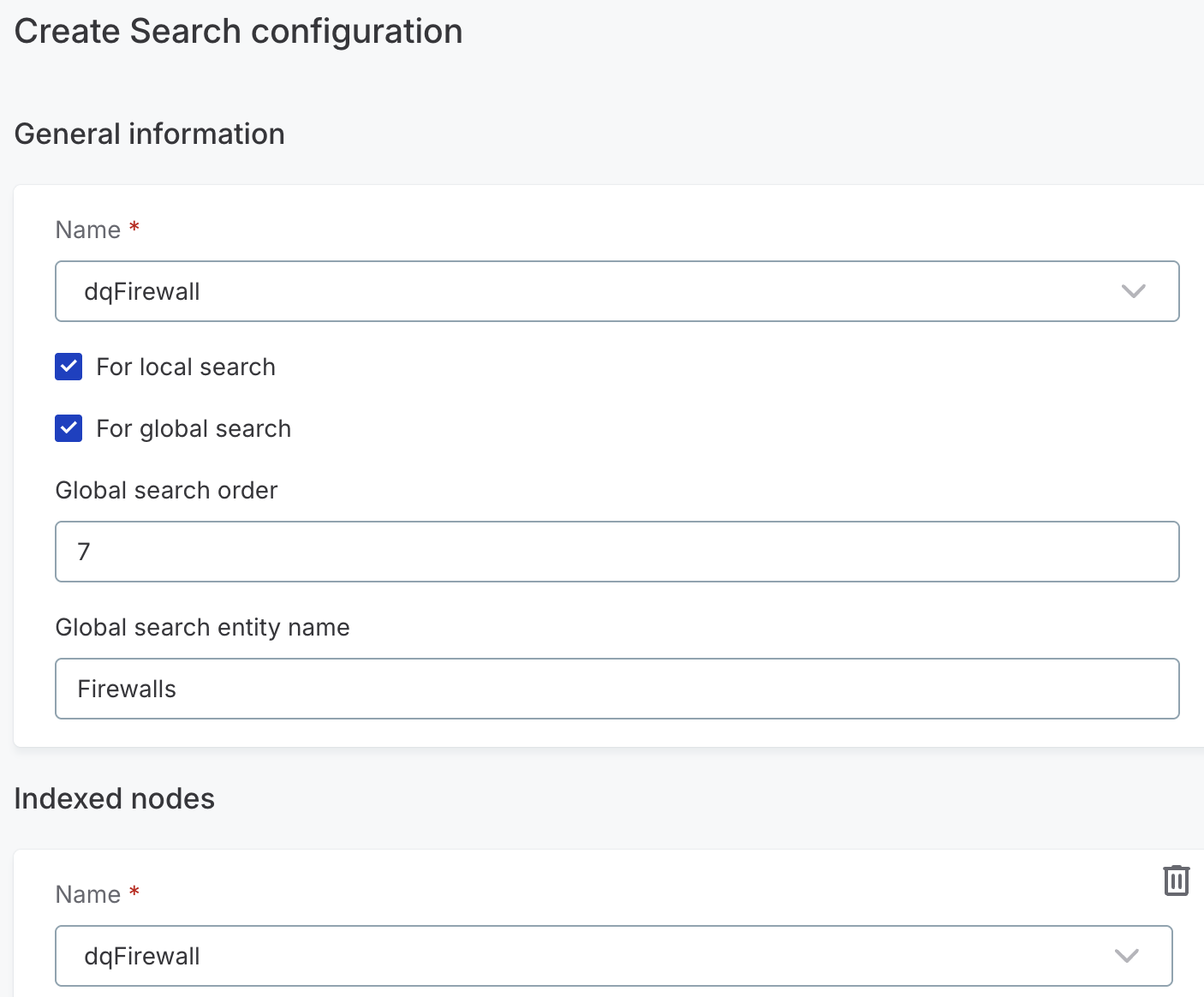
Go to Global settings > Search configurations and select Create.
-
In Name, select the entity that should be searchable (for example,
<yourCustomEntity>). -
Enable the relevant search types:
-
For local search: Enables full-text search for the entity.
-
For global search: Includes the entity in global search.
-
-
If you enabled global search, configure:
-
Global search order: Where the entity tab appears on the global search results page. Lower numbers appear first.
If entities share the same number, they are ordered alphabetically. Skipped numbers are ignored.
If left empty, the tab is placed first.
-
Global search entity name: Display name for the entity’s tab on the global search results page (for example, "DQ Firewall" instead of
dqFirewall).
-
-
In Indexed nodes, select Add Indexed node and select the same entity as in Name.
-
Select Save. This saves the configuration as a draft and makes the indexed nodes and property settings available.
Continue with Step 2: Add indexed properties to refine how search works.
Step 2: Add indexed properties
Index the properties that should be searchable, sortable, or used as traversal paths.
-
In your saved configuration, open your indexed node.
-
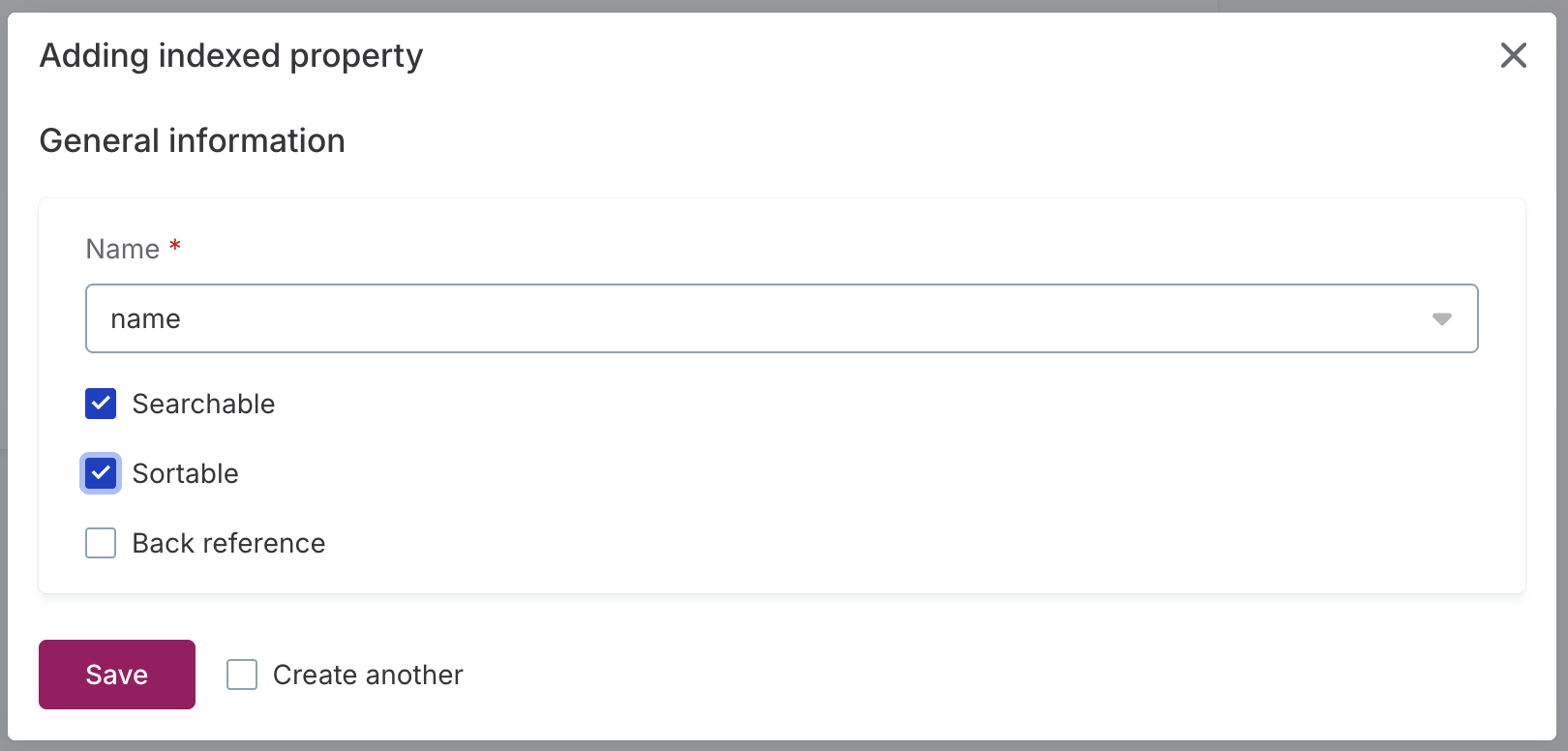
Select Add Indexed property and configure the following:
-
Name: Select the entity property to index (for example,
name,$created,description). -
Searchable: Select to enable search by this property’s values.
-
Sortable: Select to sort search results by this property.
You can enable both for the same property. For example, making
nameboth searchable and sortable allows you to find entities by name and organize results alphabetically.
-
-
Select Save.
-
Repeat as needed until you have added all properties you want to use.
To index properties on nested or related entities, you also need to add properties that define the traversal path from the root entity. See Indexed nodes and properties for details and examples.
If you want to add back references, see Back references.
Step 3: Add search filters (optional)
Search filters let you narrow down results by specific property values. They appear on both the global search results page and entity listing pages.
You can use only indexed properties as filters. If a property you want to use is not available, make sure it’s indexed first.
-
In the entity search configuration, select Add Property search filter.
-
Configure:
-
Name: A user-friendly display name for the filter.
-
Order: Where the filter is located in the filter list.
-
Property: The indexed property to filter by.
-
-
Select Save.
-
Repeat as needed until you have configured all filters.
Reindex and recover search
Search reindexing and recovery are maintenance operations that help resolve some common search issues:
- Reindexing
-
Refreshes the search index for all existing entities without changing the index settings. The index rebuilds automatically after you save and publish configuration changes.
Use only if automatic indexing did not complete successfully or results appear incomplete.
- Recovery
-
A troubleshooting step for when there are inconsistencies between primary storage and search storage, such as outdated or deleted data appearing in search results. This can happen when reindexing fails or after an upgrade.
Recovery deletes all indexed items, clears the change queue, and reindexes from scratch.
Search is unavailable while these tasks are in progress, although you can continue searching for items that have been reindexed. Note that both processes can take up to several hours for large datasets.
To reindex or run search recovery:
-
Go to Global settings > Search configurations.
-
In the three-dot menu, select Reindex or Recovery as needed.
Troubleshooting search
Search not returning expected results
Verify that the relevant properties are marked as Searchable in the indexed properties and that the entity has local and/or global search enabled as needed.
Configuration changes not taking effect
Wait for the search index to rebuild, then refresh your browser.
If changes still don’t appear, verify that all changes were saved before you navigated away from the configuration page.
Full-text search not working due to 'Socket closed' error
If full-text search shows a "Full-text search is experiencing problems" error, or a "Socket closed" error after refreshing, the issue is likely that your proxy is removing headers from server responses, preventing WebSocket communication between the browser and ONE.
To confirm, open browser developer tools and look for: "Error during WebSocket handshake: 'Connection' header is missing."
To resolve this, your network administrator must allowlist the Connection header for the platform domain.
Was this page useful?