
Release Notes: 2025
December 2025
This release introduces the ability to create new catalog items directly from the database output step in data transformations.
Create tables directly from transformation plans
Write transformation outputs to new database tables without leaving your workflow.
In addition to writing to existing tables, the Database output step can now create tables in connected external databases and automatically import them to your Catalog as new items.
When creating a new catalog item, specify:
-
Source and connection
-
Schema name (if applicable)
-
Catalog item name
-
Optional column size customization
For details, see Database Output Step.
Ataccama Data Quality Gates
Ataccama Data Quality Gates enables you to deploy and execute data quality rules directly within your data processing environments. Define rules once in Ataccama ONE, then deploy them as Snowflake User-Defined Functions (UDFs) callable in SQL or use them locally to evaluate data in Python.
For full release notes, see one:dq-gates:data-quality-gates-release-notes.adoc.
November 2025
This release introduces automated file export capabilities for transformation plans and enhanced data processing features.
Scheduled maintenance windows
We’re introducing fixed maintenance windows to deliver critical updates while minimizing disruption to the platform’s uptime and availability.
This allows us to perform operations that require brief downtime, such as upgrading authentication services, databases, and message brokers, implementing complex metadata model enhancements, and migrating major components.
What to expect
Starting December 1, 2025, maintenance windows are available every Saturday, 07:00–12:00 UTC. You will receive 14 calendar days' advance notice before any scheduled maintenance.
During maintenance windows, the platform will be unavailable.
To help you plan across time zones, here are the maintenance windows in your local time:
-
Central Europe (Paris, Berlin, Prague): 08:00–14:00
-
United Kingdom (London): 07:00–13:00
-
US Eastern (New York, Boston): 2 AM–8 AM
-
US Pacific (San Francisco, Seattle): 11 PM–5AM
-
Australia Eastern (Sydney): 5 PM–11 PM
Export data to file storage
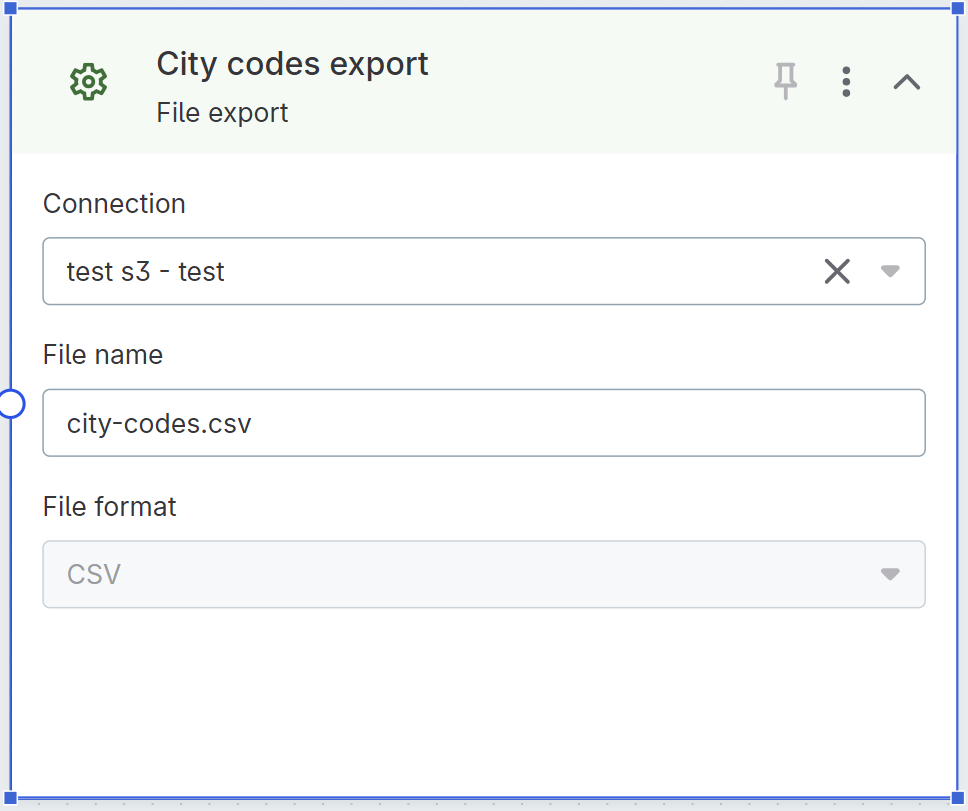
Export data from transformation plans directly to file storage locations such as Amazon S3.
The new File export step enables you to:
-
Export transformation results to CSV format.
-
Configure the target storage connection and file path.
-
Schedule automated exports for regular data delivery.
Common use cases include:
-
Exporting published reference data tables to data lakes.
-
Delivering processed data to downstream systems.
-
Creating automated data feeds for external applications.
When used with reference data tables, scheduled exports always use the latest published version at the time the plan runs.
For details, see File Export Step.
Change data types in reference data tables
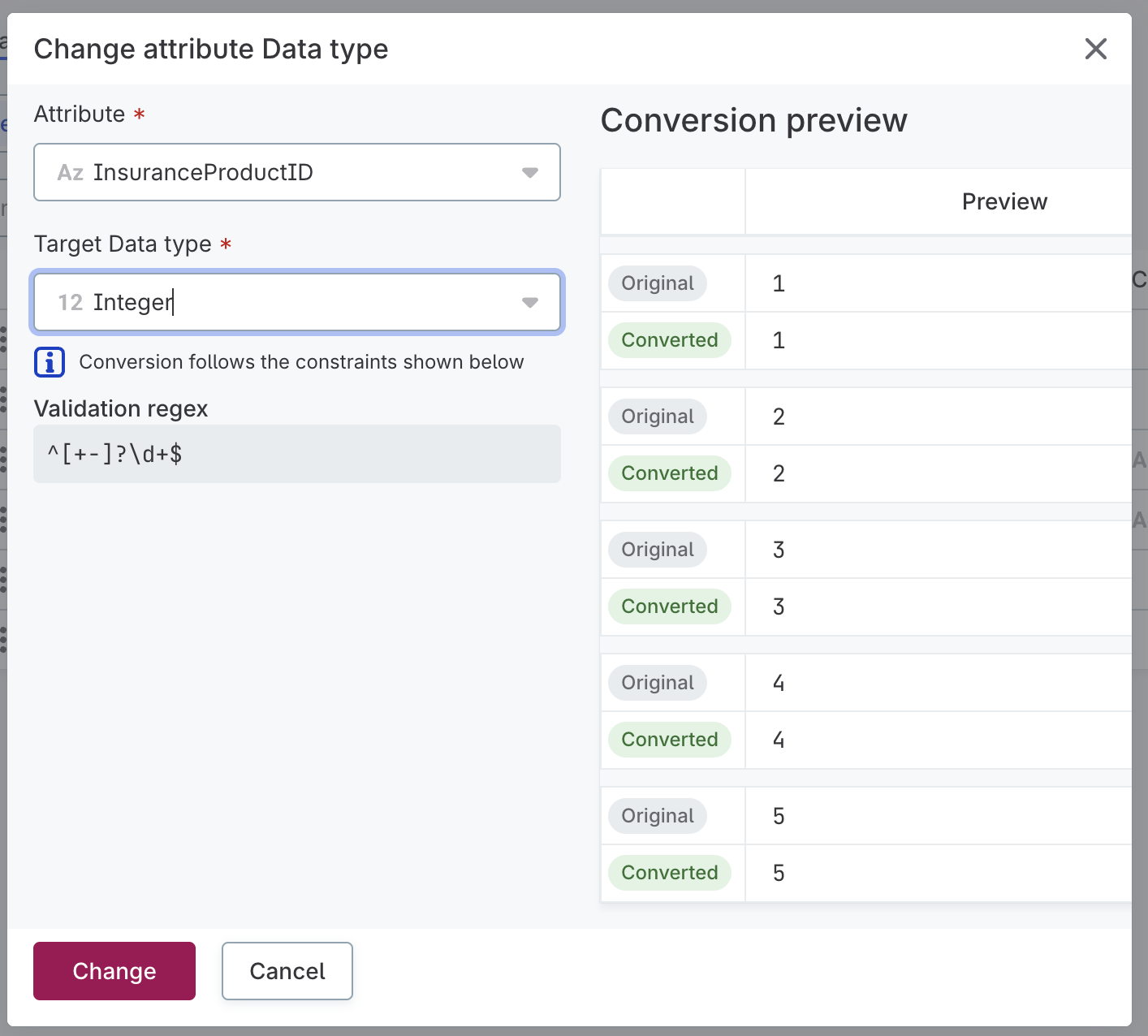
You can now change the data type of attributes in reference data tables and automatically convert existing data through the Data Structure tab.
The conversion preview shows original and converted values side by side, helping you identify data that cannot be converted and will be deleted.
| Data that cannot be converted to the new data type is permanently deleted. Review the conversion preview carefully before confirming the change. |
|
Known limitation
For data type detection or conversions during import, use the AI Agent. These actions are not applied automatically on import. |
For details, see Change data types.
September 2025
This release brings AI-powered productivity features and advanced modeling capabilities to help you manage reference data more efficiently and keep your data quality standards intact.
Work faster with Reference data
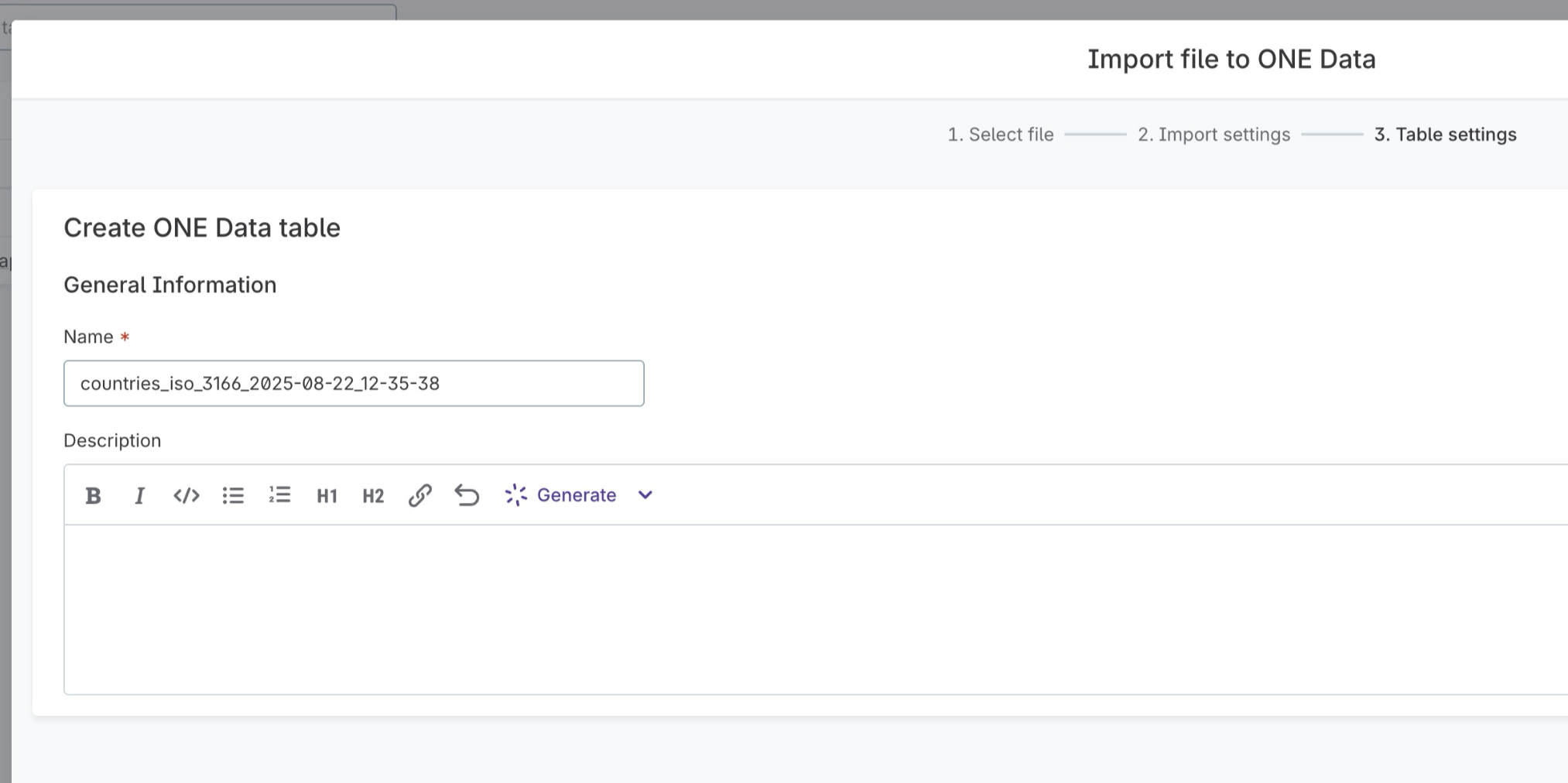
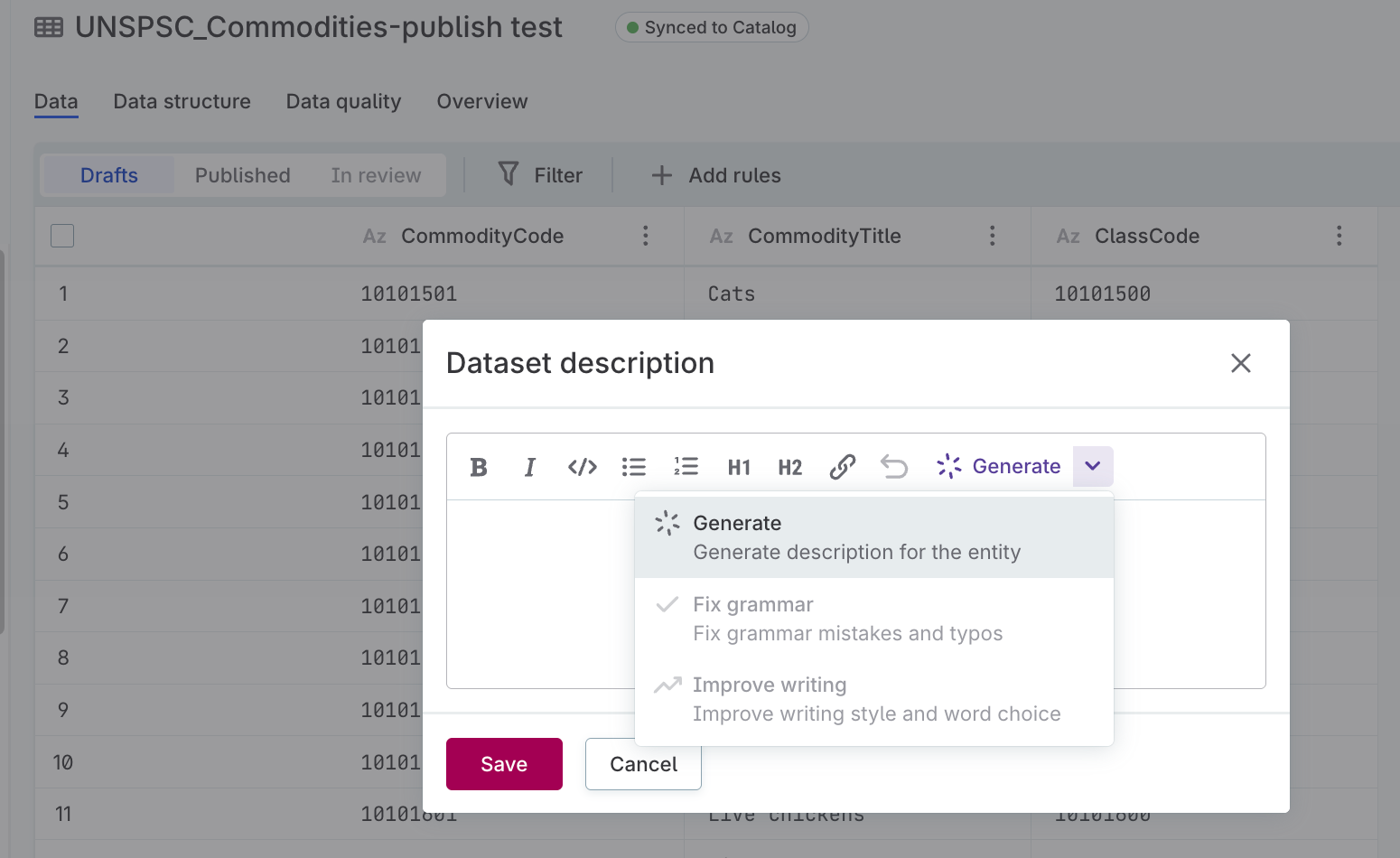
Generate table descriptions with AI
Let AI write comprehensive descriptions for your reference data tables by analyzing structure and sample data.
Choose the generation mode that fits your needs:
-
Generate complete descriptions from scratch.
-
Fix grammar and improve existing descriptions.
-
Improve writing style and word choice.
Access the AI generator directly from the table overview or during file import.
For details, see Generate table descriptions.
Copy and paste from external sources
Paste data directly from spreadsheets like Microsoft Excel or Google Sheets into reference data table cells. Works with single or multiple cells to significantly reduce manual data entry effort.
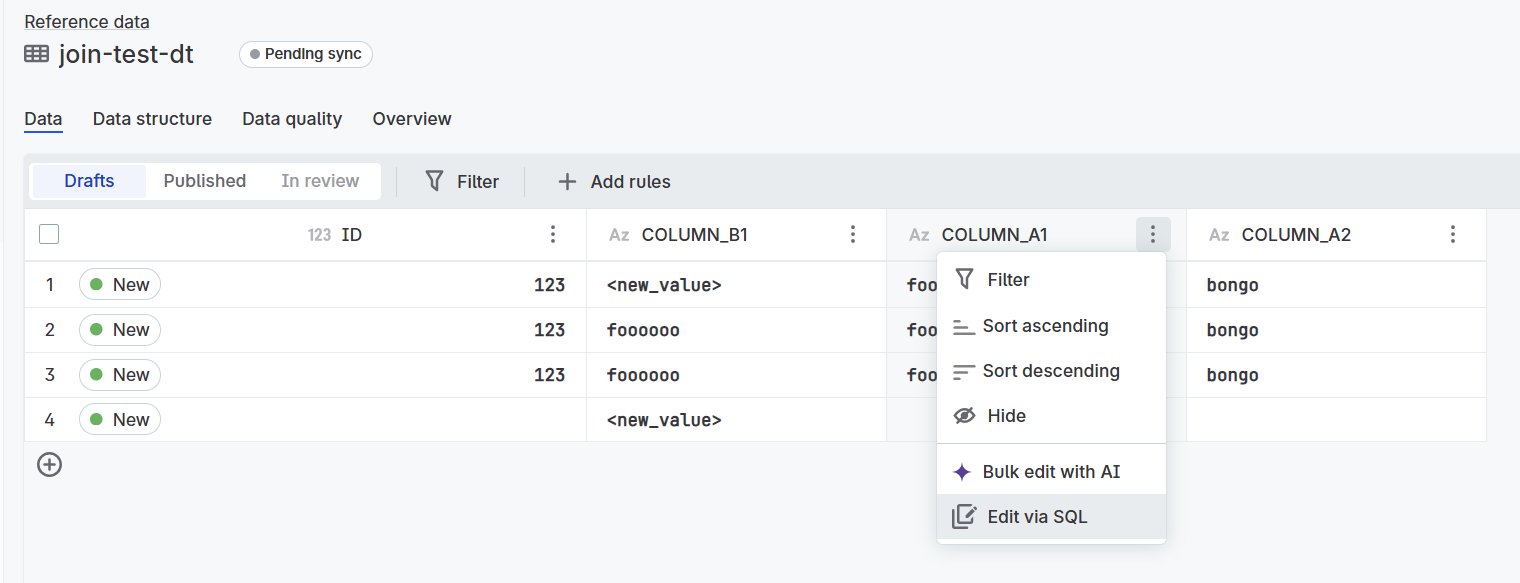
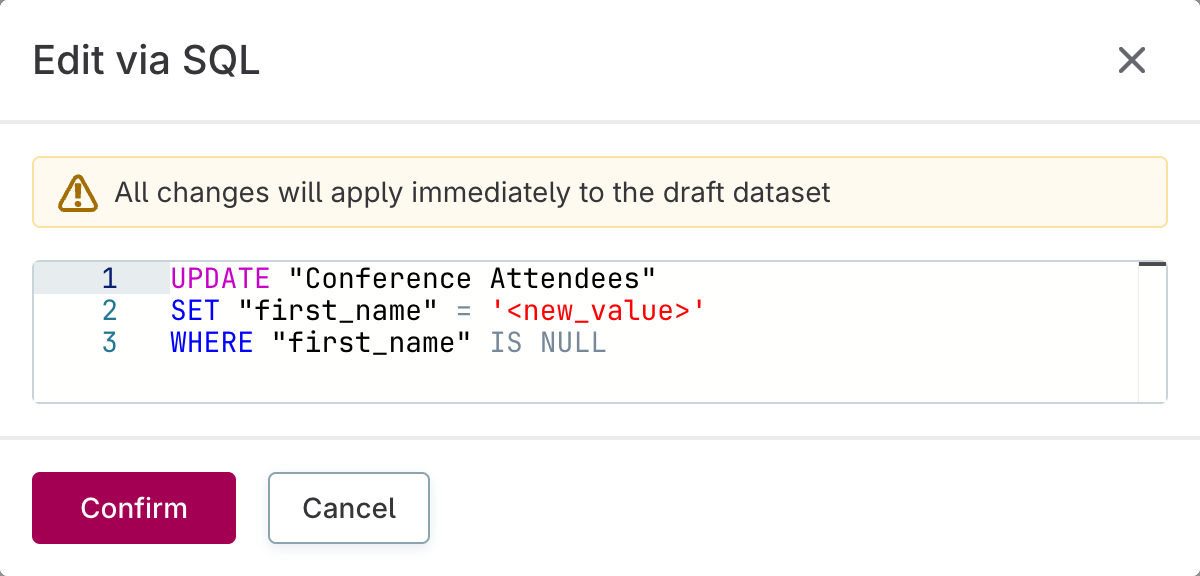
Edit columns with SQL
Update reference data columns using SQL for sophisticated data transformations beyond standard cell editing. Right-click the column header and select Edit via SQL to access the SQL editor.
Streamlined attribute connections
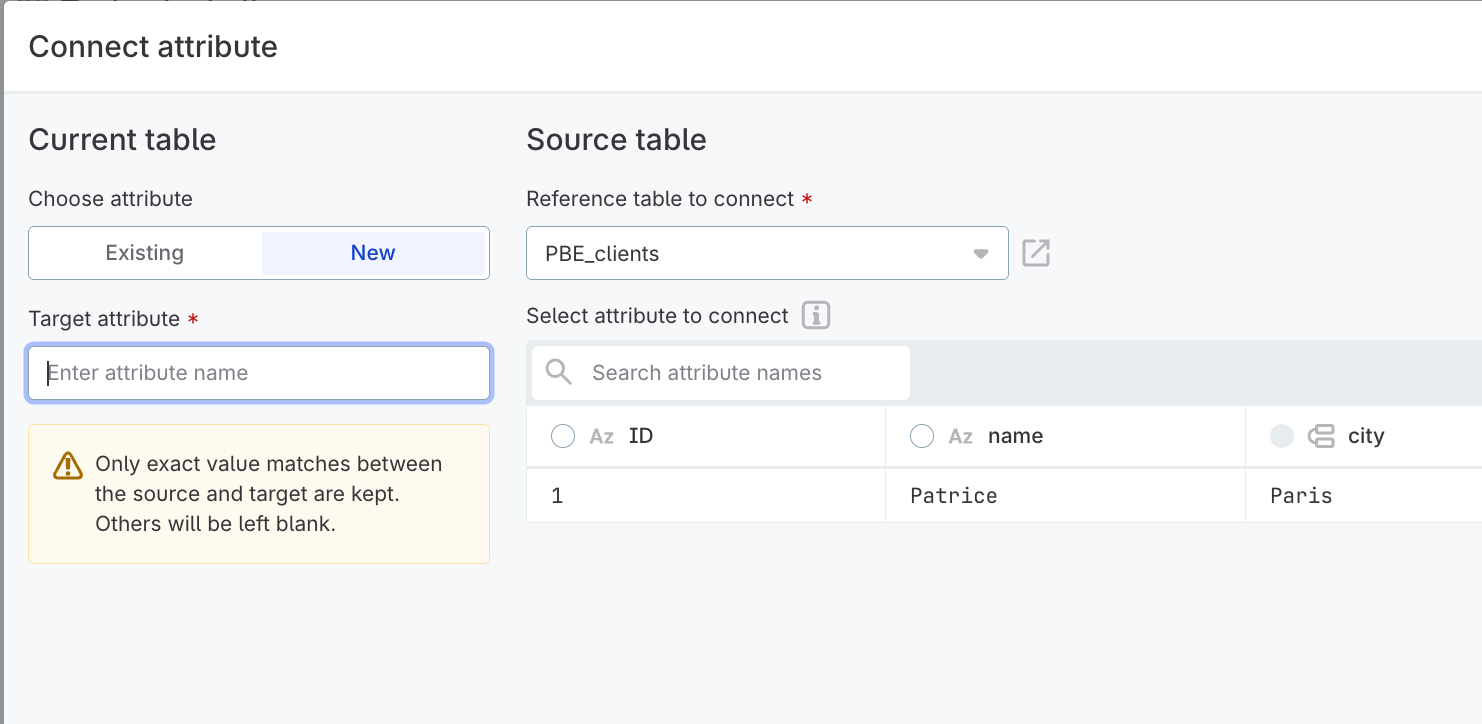
Connect attributes between reference data tables more intuitively with the redesigned connection interface, featuring clearer mapping between source and target tables and enhanced validation.
For details, see Connect Reference Data Tables.
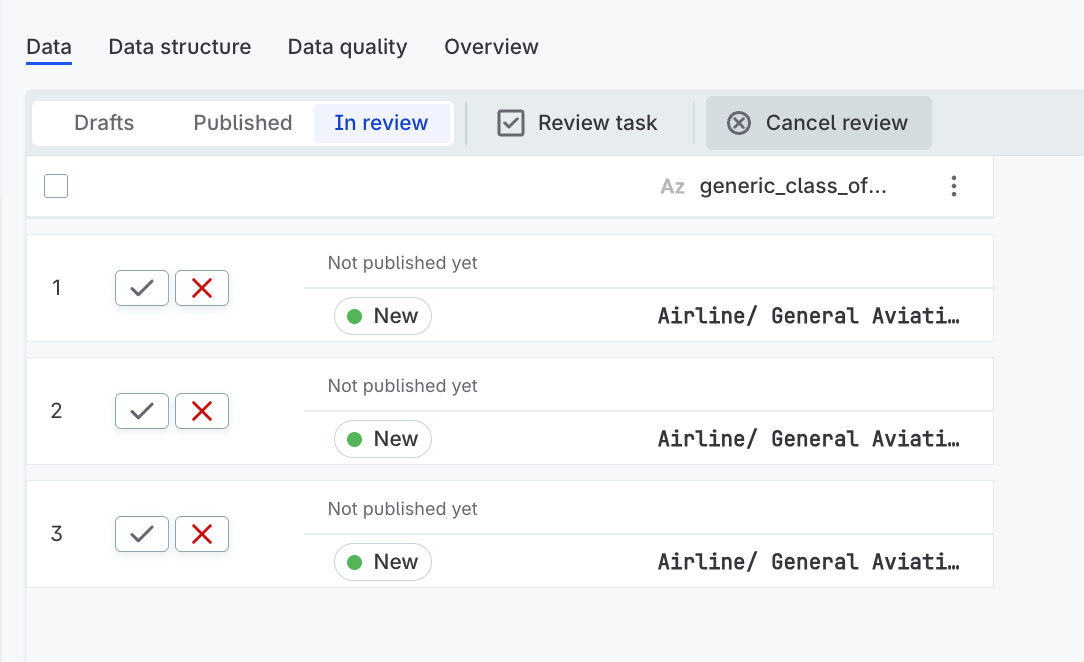
Cancel review processes
Cancel review tasks that are no longer needed to keep your task list focused and clutter-free.
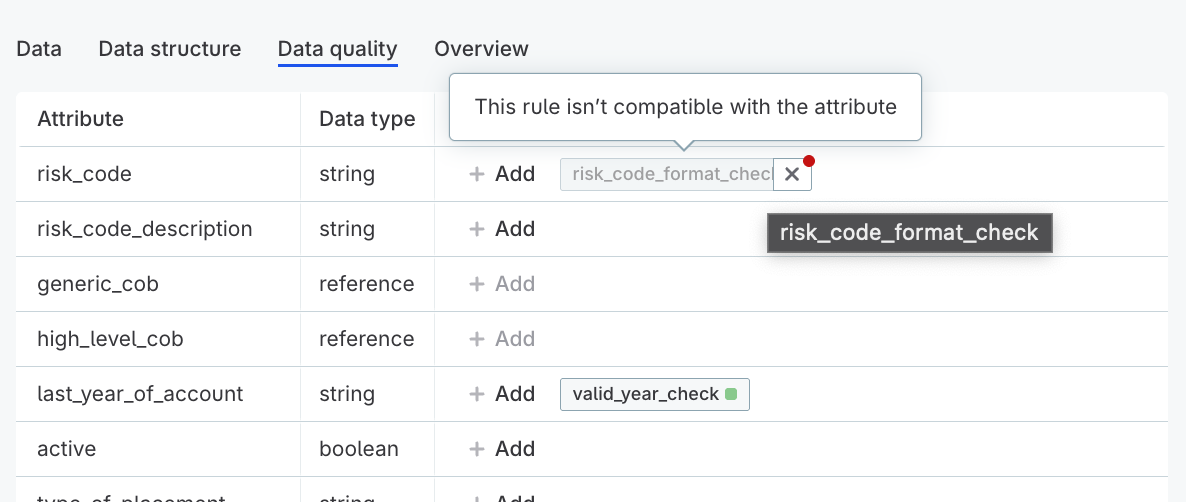
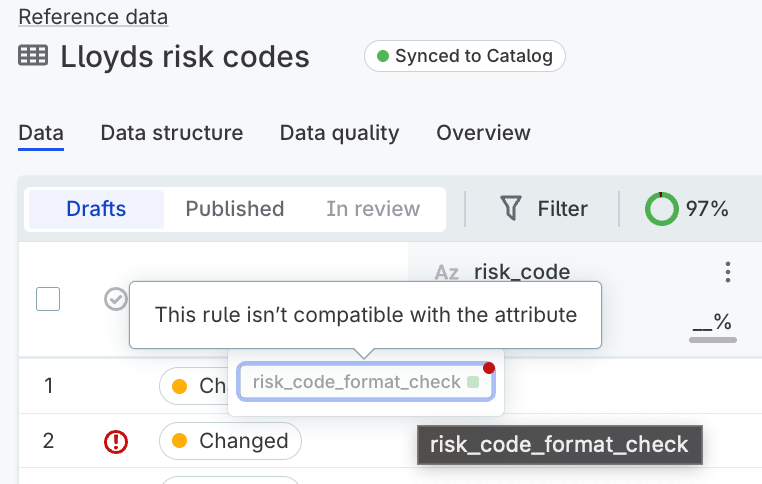
Data quality rule compatibility indicators
Stay informed when attribute changes prevent data quality rules from being applied. The platform displays clear warnings when rules can no longer run (for example, after data type changes), helping you maintain your data quality framework without configuration errors.
Compatibility indicators appear:
-
On attributes on the Data tab.
-
On the Data Quality tab when viewing table details.
Build your AI prompt library
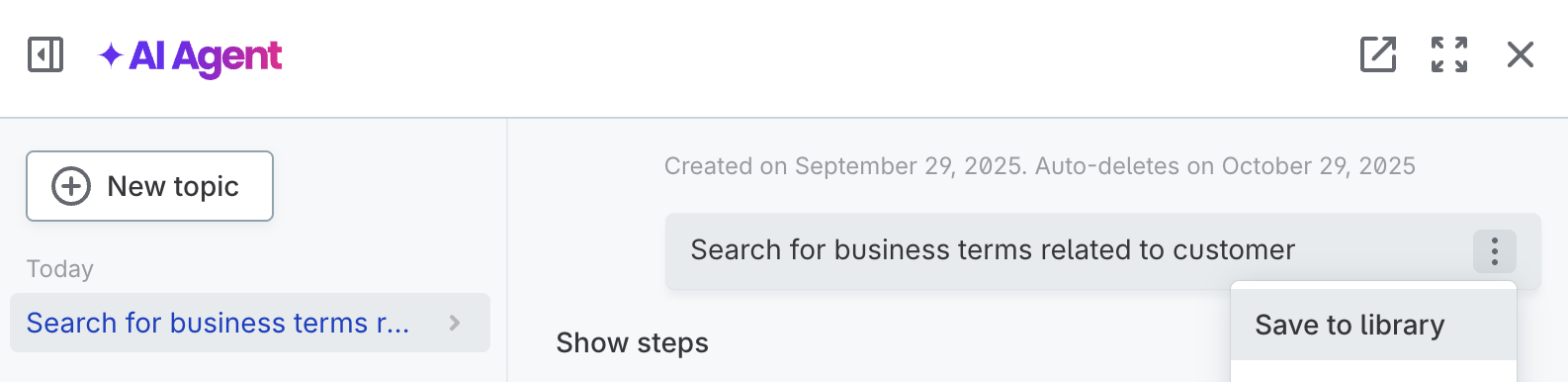
Save frequently used prompts directly from AI Agent conversations to your personal library. Reuse them for faster, consistent results on repeated tasks.
Test expressions and steps in data transformations
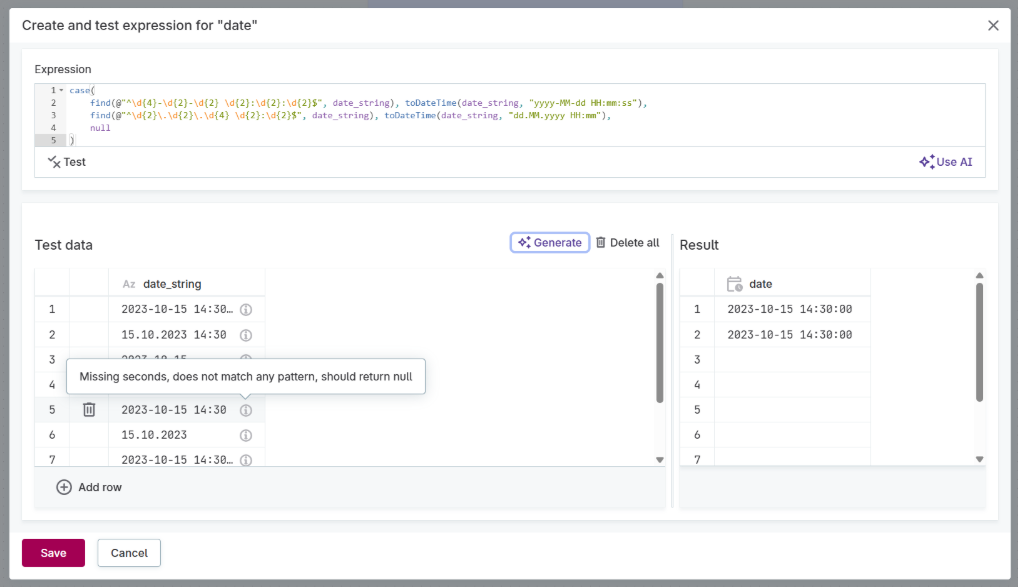
Test transformation expressions and steps with sample data before applying them to your full dataset. Instantly preview how expressions or steps modify input data without running a full plan preview.
This is especially valuable for validating AI-generated configurations before deployment.
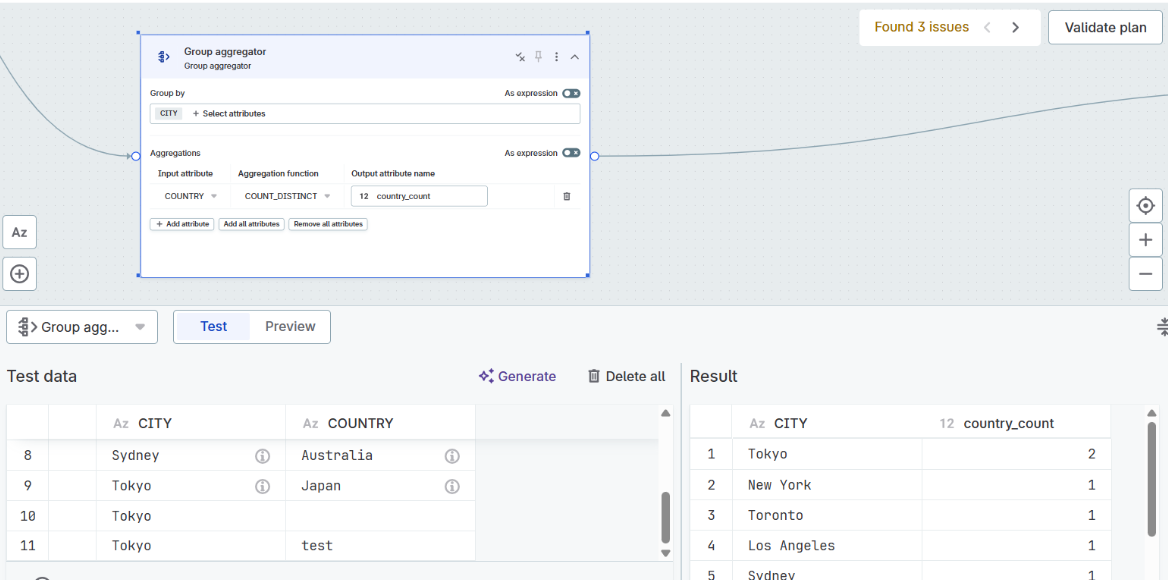
Test with confidence using:
-
Manual test data: Enter your own sample values to test specific scenarios.
-
AI-generated test data: AI analyzes your expression or step configuration, then generates relevant test scenarios, including edge cases.
-
Immediate results: See exactly how your expression handles each input value with inputs and results displayed side-by-side.
For details, see Test Expressions.
Schedule data transformations
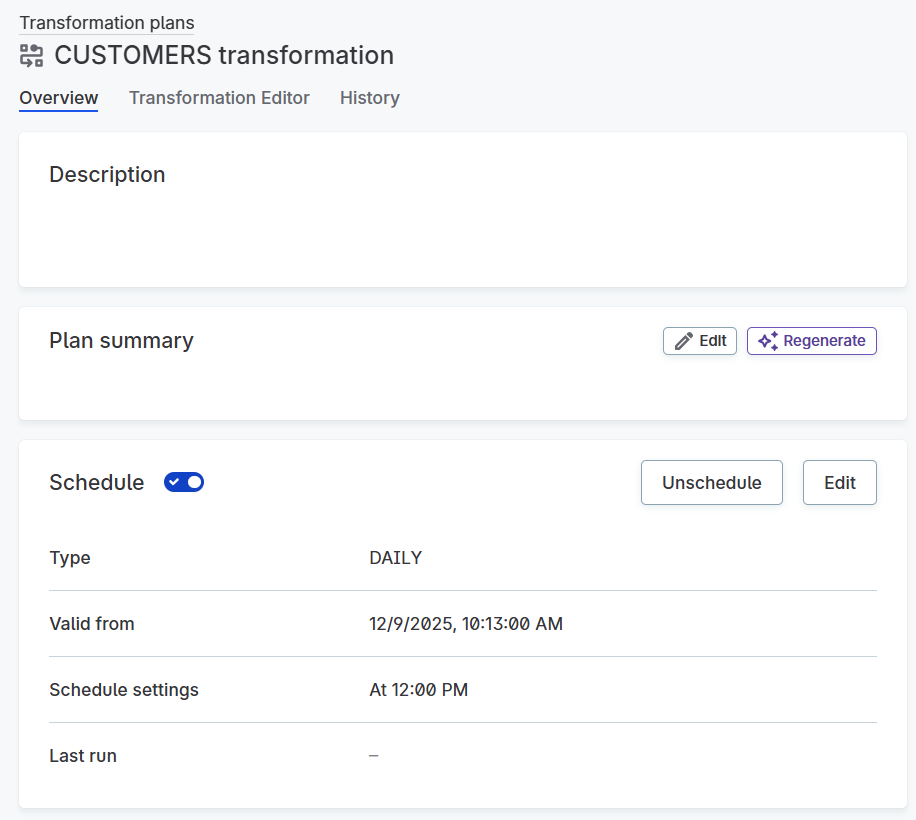
Set up recurring execution of your data transformations using simple interval scheduling or advanced cron expressions. Run transformations automatically on your preferred schedule without manual intervention.
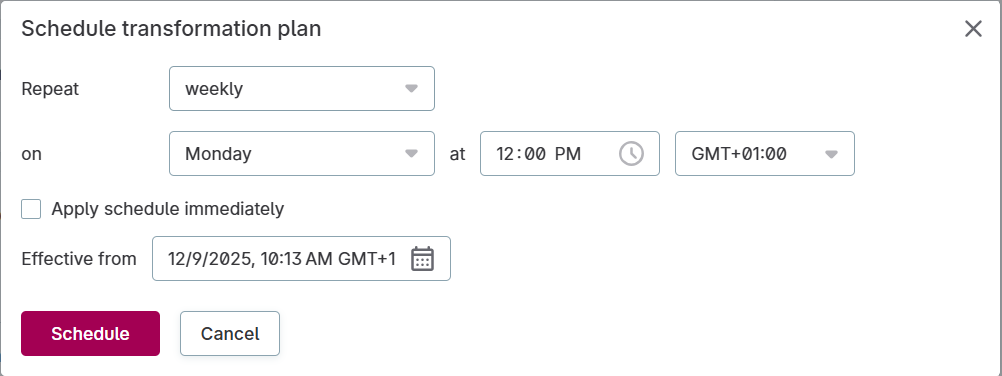
Configure schedules with flexibility:
-
Simple intervals: Choose daily, weekly, or custom interval scheduling.
-
Cron expressions: Define complex schedules with standard cron syntax.
-
Future activation: Set schedules to become active from a specific date and time.
-
Pause anytime: Temporarily stop scheduled executions without deleting the schedule.
For details, see Schedule Transformation Plans.
August 2025
This release introduces enhancements to help data teams work more efficiently and make better-informed decisions about data quality.
Data quality thresholds on rules and DQ views
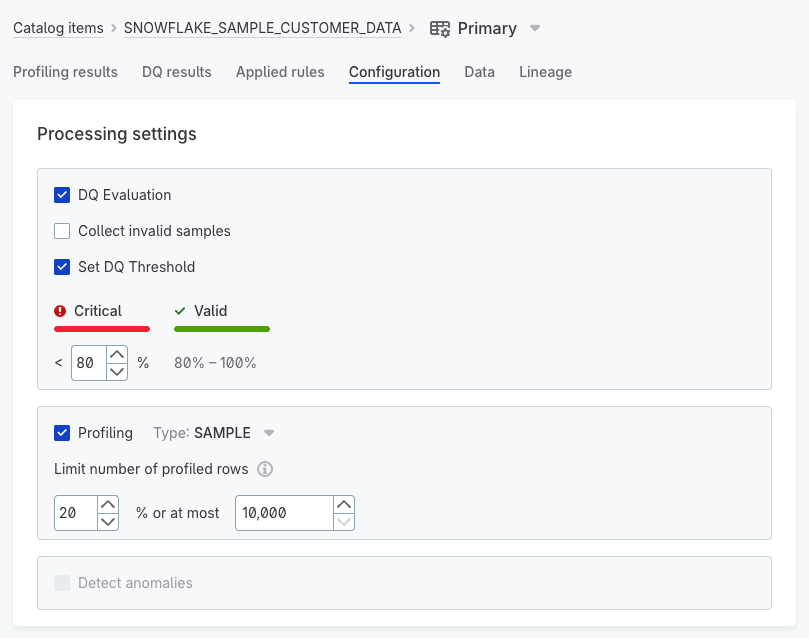
Set thresholds for DQ rules to add context to your data quality metrics. This way, you can clearly determine which results indicate acceptable data quality and which require critical attention, making your DQ results truly actionable.
Leverage thresholds to:
-
Instantly identify which issues require immediate attention.
-
Transform raw percentages into clear directives for your team.
Thresholds can be set as static values at multiple levels:
-
When applying rules - Apply thresholds to specific rule implementations.
-
In DQ views - Set centralized thresholds across your organization.
-
In reusable rules - Define default thresholds for rule templates.
Once configured and evaluated, you’ll find the enriched DQ status displayed across the platform:
-
On asset listings with clear pass/fail indicators.
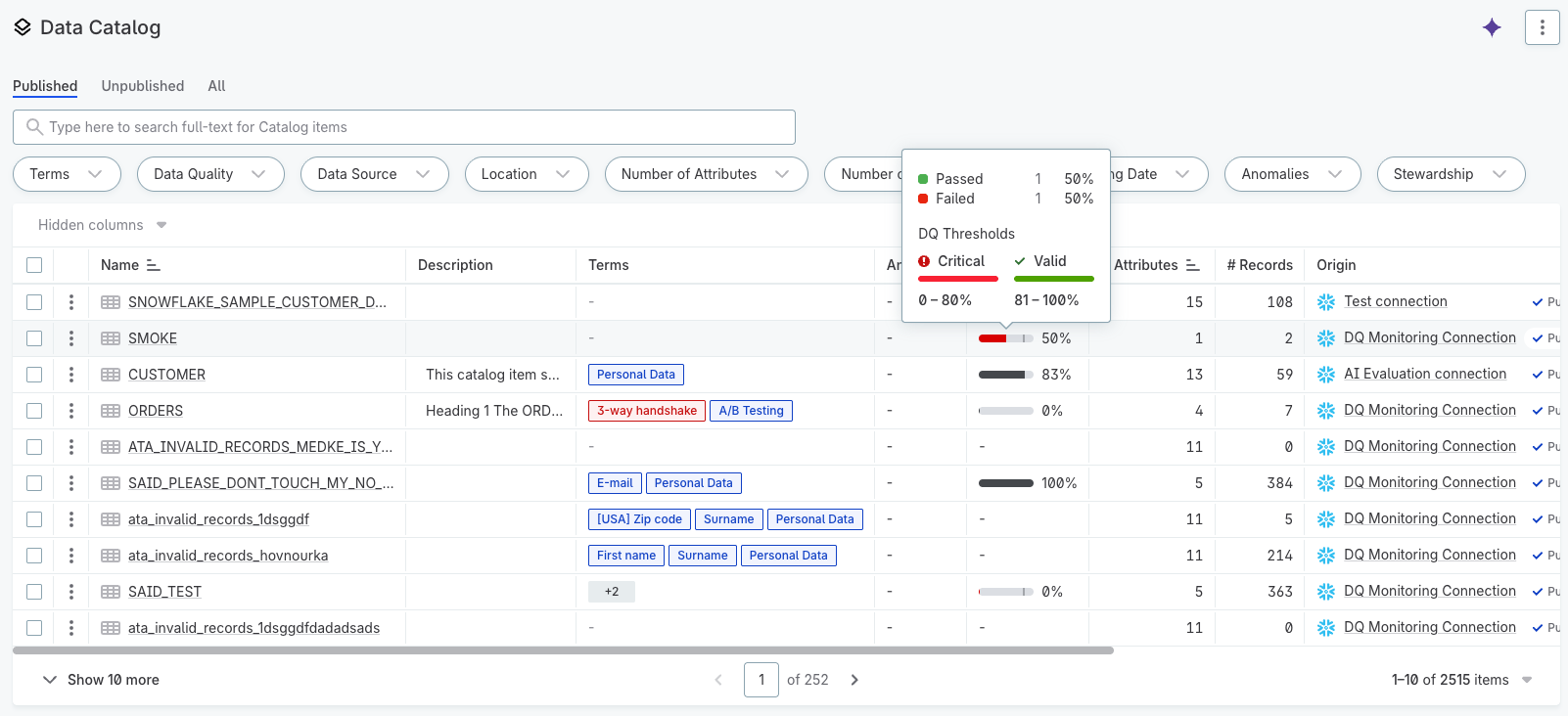
-
In DQ View results with contextual scoring.
-
When viewing rule details in the sidebar.
Bulk publishing and approval in Reference data
Streamline your reference data approval process: review and approve multiple records simultaneously instead of handling them one by one.
All records pending review are now consolidated into a single subtask for easier management. Select and approve multiple records with one action, letting you focus on decision-making rather than routine tasks.
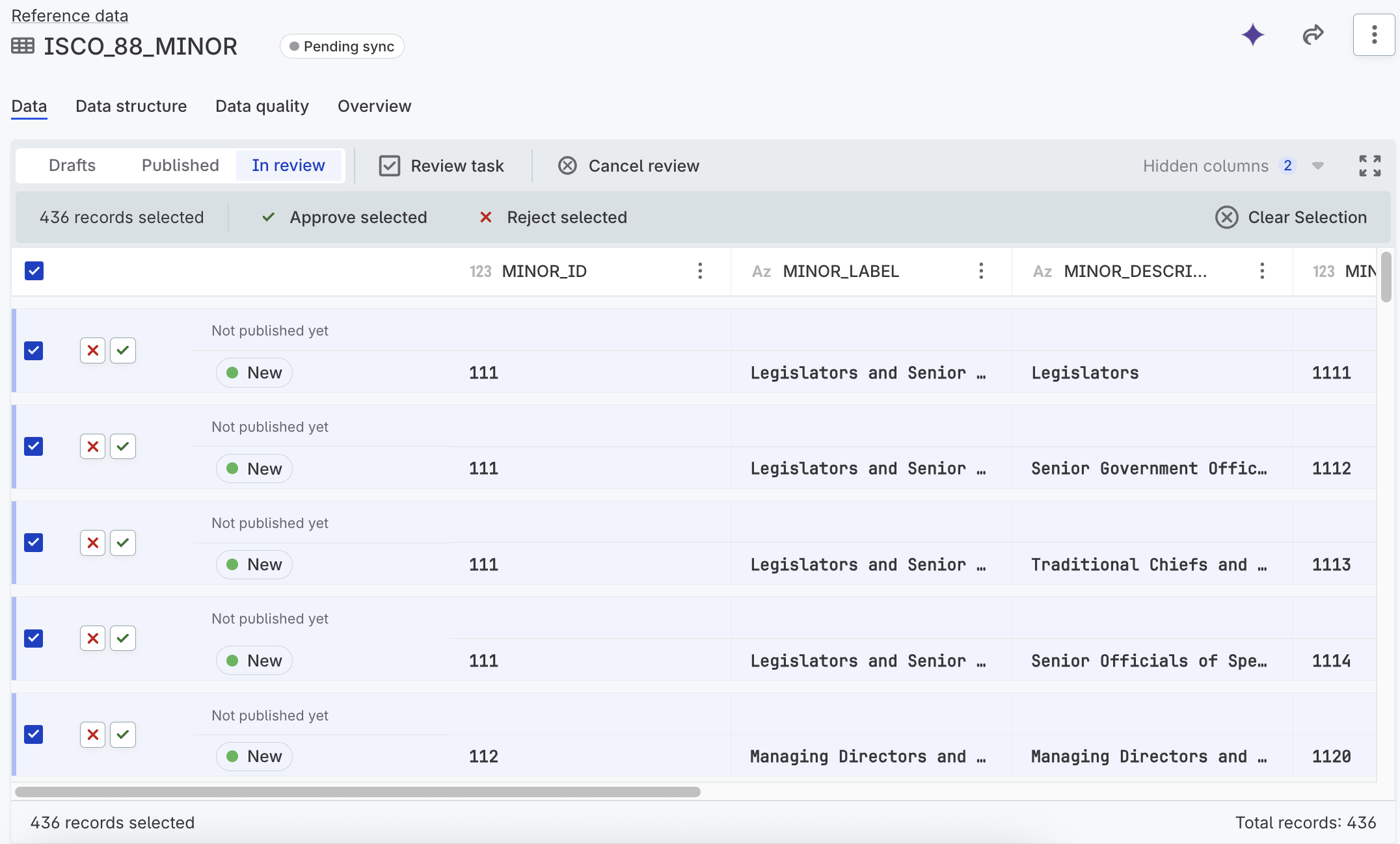
For step-by-step instructions, see Approve and publish changes.
Filter reference data records by status
Find specific records faster with new status-based filtering. Display only the records that need your attention without sifting through irrelevant data.
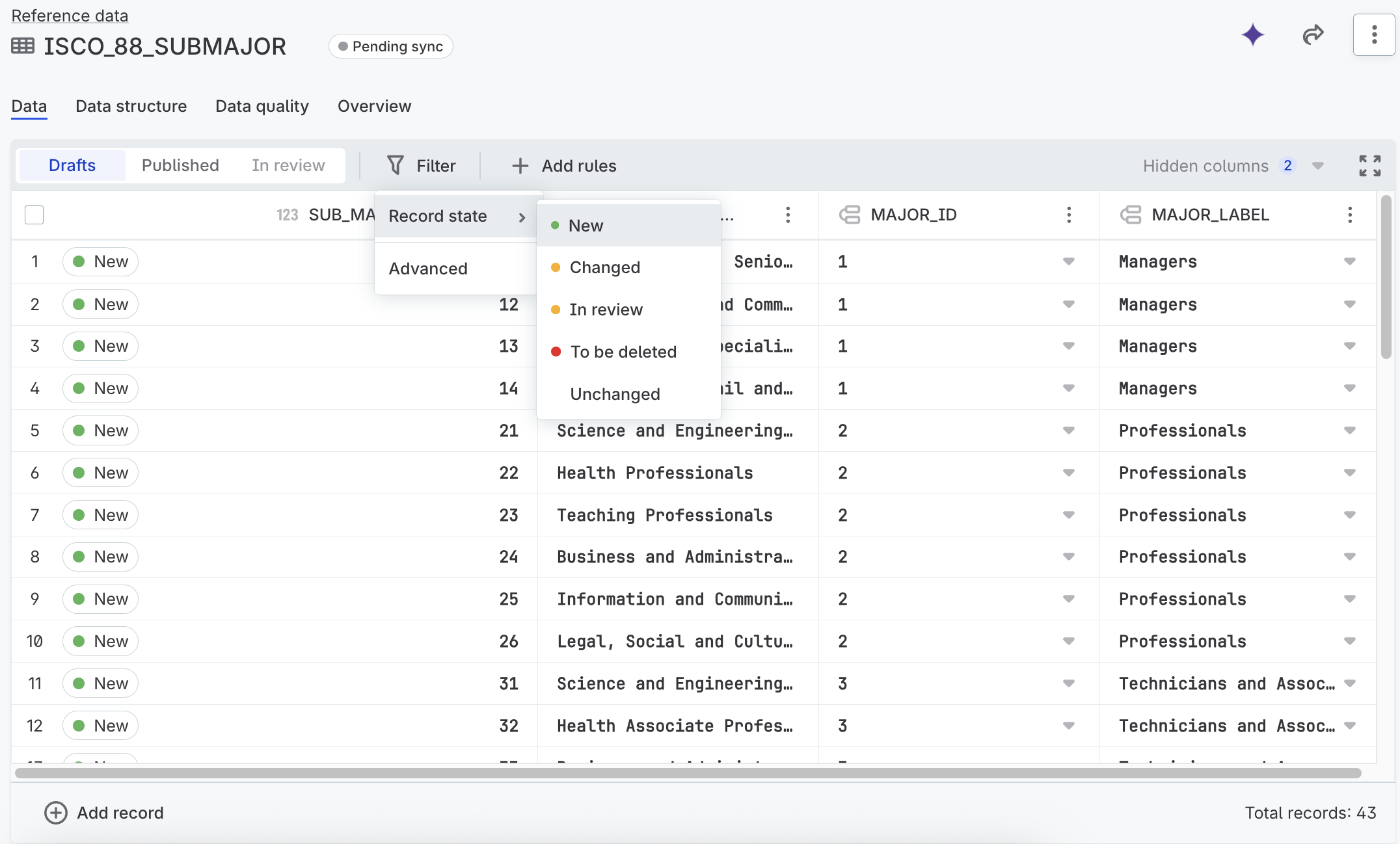
You can filter only:
-
New records
-
Changed records
-
Records pending review or removal
-
Unmodified records
For details about filtering, see Filter records.
Edit Schema step in data transformations
Adjust the structure of your dataset effortlessly with the new Edit Schema step in the plan editor. Reorder columns or rename attributes in a single action, reducing the time spent on manual schema adjustments.
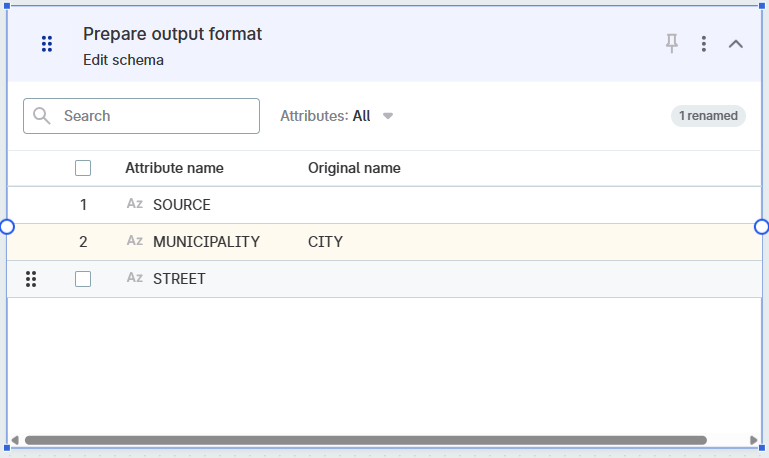
Previously, schema modifications required multiple steps:
-
Reordering columns wasn’t supported.
-
Renaming attributes demanded a multi-step process: create a new attribute, map from the old one, then remove the old attribute.
With the Edit Schema step, you can now:
-
Quickly reorder columns to match your preferred structure.
-
Rename attributes directly without creating intermediary steps.
For details, see Edit Schema Step.
SSO integration through Cloud Portal
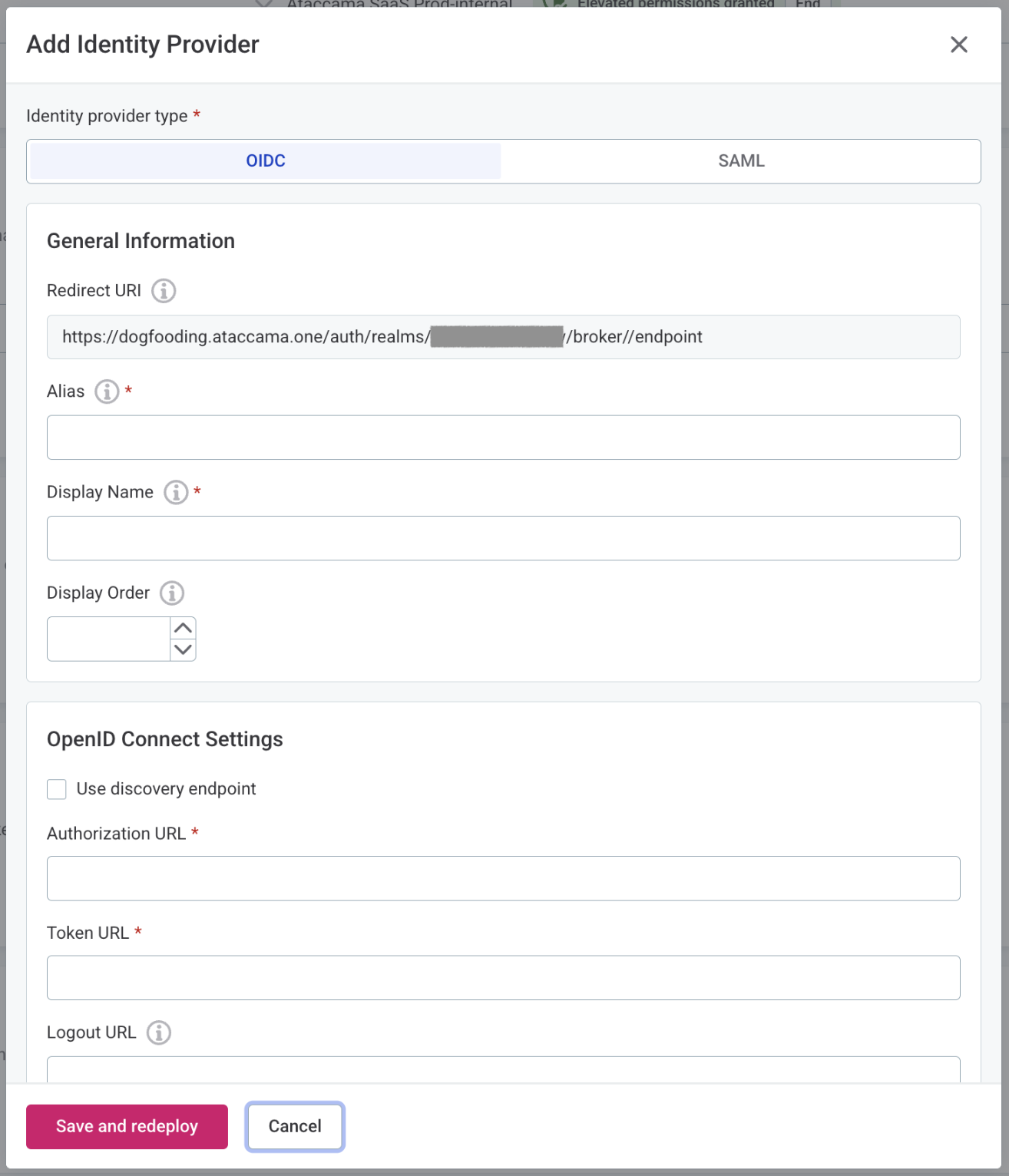
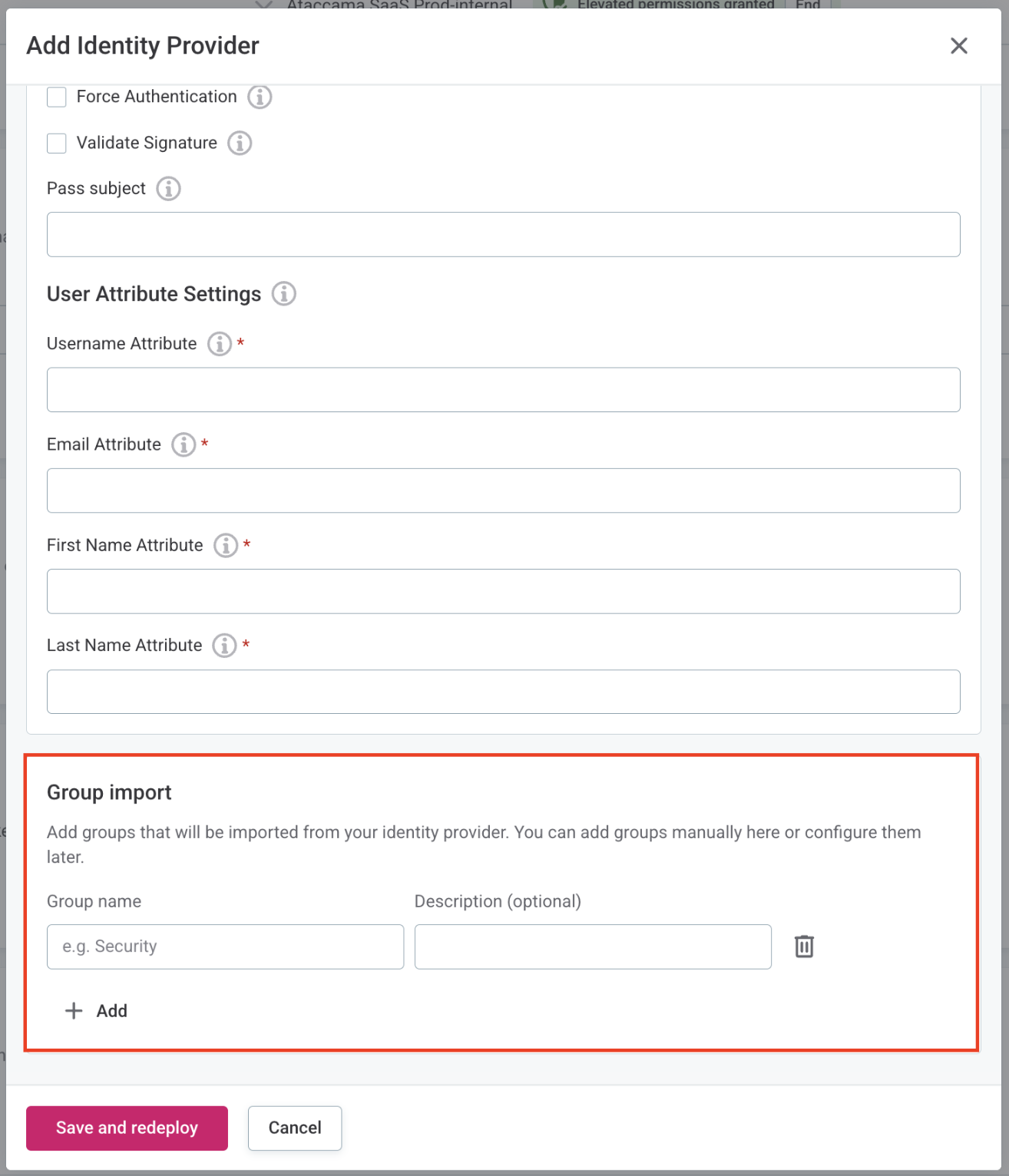
Connect your existing Identity Provider (like Entra ID or Auth0) for single sign-on (SSO) access to Ataccama ONE. Configure SSO directly through your tenant’s Cloud Portal settings.
The integration supports both OIDC and SAML protocols and automatically imports user groups from your Identity Provider, allowing you to set up application permissions at scale rather than individual user management.
Was this page useful?