
Publish and Approve Reference Data
This guide covers the governance workflows for publishing and approving reference data changes to ensure data quality and controlled access.
Understanding the publishing workflow
Reference data follows a specific lifecycle to ensure data quality and governance:
-
Draft state: New or modified records start in draft state.
-
Review and approval: Records must be reviewed and approved before publication.
-
Published state: Only published records are available in the Catalog for rules and transformations.
Publish changes
To publish changes to reference data records:
-
Make your changes to records of a table (add, edit, or delete).
-
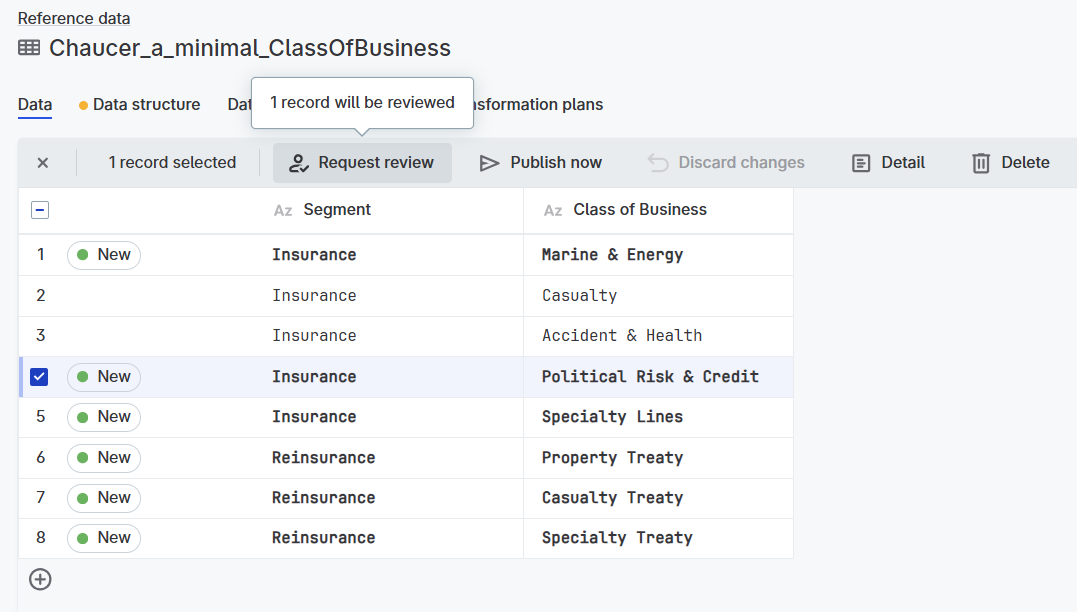
On the table’s Data tab, select the changed records.
-
Select Request review.
-
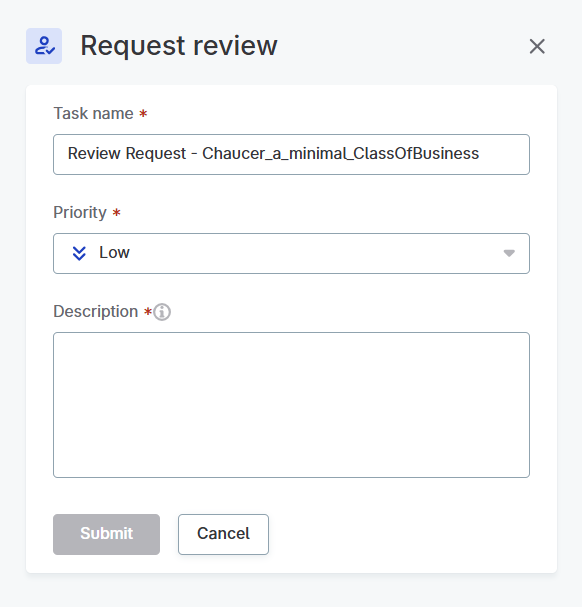
Fill out the Request review form, and then select Submit.
The Reviewer field lists users and groups with the Approver or Owner role on the table. The first eligible reviewer (alphabetically, with groups listed before users) is preselected by default — change it to send the review to someone else.
-
After the request is approved by a user with publishing rights, the record is published in the Catalog.
What happens when you publish
Published changes are automatically made available in the Catalog, which enables:
-
Rules using your reference data.
-
Global search discovery alongside other data assets.
-
Use in data transformations across the platform.
-
Sharing reference data with your entire organization.
Publishing considerations
- Source of truth
-
Reference data remains the source of truth for both data and metadata. To edit reference data or its metadata, you must go to Reference data > Tables.
- Only published records
-
Tables become available in the catalog once their data is published in reference data. Only published records (not drafts) are accessible through the catalog.
- Automatic updates
-
When reference data changes in the Reference data module, rules using that data will be updated according to your selected update strategy.
- Structure changes
-
If you change the structure of a reference data table (add, remove, or rename columns), you must apply the schema change before the updates will be reflected in the catalog.
For detailed information about using reference data in catalog, see Work with Published Reference Data.
Approve and publish changes
Users with Approver or Owner roles can review and approve changes before they are published. This ensures data quality and governance through a controlled approval process.
Approve changes in bulk
To approve multiple changes at once:
-
Go to the relevant reference data table.
-
Go to Data > In review.
This displays all records that are pending approval.
-
Select the records that you want to approve.
-
Select Approve.
The approved changes are immediately published and become available in the Catalog.
Approve individual changes
You can also approve changes individually directly from the table view:
-
Go to the reference data table with pending changes.
-
Go to Data > In review..
-
In the table, locate the records with changes that need approval.
-
Select the Approve icon inline in the table for each record you want to approve.
Alternatively, you can select the Reject icon to discard individual changes.
Reject changes
To reject changes, follow the same steps as for approval, but select Reject instead of Approve.
When you reject a change, the change is rejected from the review process and the record returns to draft state. The change is not published, but it remains in your draft changes and must be manually discarded if you no longer want to keep it.
Cancel a review task
Users with the Approver or Owner role can cancel a review task that is no longer needed — for example, when the underlying changes are no longer relevant or the business requirement has changed. The records return to draft state and editors can make further changes.
To cancel a review:
-
Go to the reference data table.
-
Go to Data > In review.
-
Locate the review task you want to cancel.
-
Select Cancel review.
-
Confirm the cancellation.
What happens after approval
-
Approved changes: Are immediately published and become available in the Catalog for use in rules and transformations.
-
Rejected changes: Are sent back to draft state. The change is not published, but it remains as a draft change in your records until you manually discard it.
-
Canceled reviews: Return records to draft state, allowing further editing before resubmission.
Notifications for review tasks
Review requests in reference data use the platform task notification system (see Tasks). Notifications are sent in-app and by email when a review task is created or its status changes.
The following users and groups receive notifications:
-
Reviewers assigned to the task: Every reviewer is notified about pending reviews and about their resolution. Reviewers can be individual users or groups — see Group notifications for how notifications work when a group is the reviewer.
-
Submitter: The user who requested the review is notified when their change is approved, rejected, or the review is canceled.
Notifications are triggered by task events; there is no separate audience configuration for reference data.
|
Make sure reviewers and owners have valid email addresses in Global settings > Users so they receive email notifications. |
|
Notifications for these review tasks cannot be turned off. |
Next steps
After publishing and approving your reference data:
-
Use across the platform: Work with Published Reference Data.
-
Export data to CSV: Export Reference Data Tables.
-
Validate data quality: Use Reference Data for DQ Validation.
-
Learn best practices: Best Practices.
Was this page useful?