
Secret Management Service
A secret management service connects Ataccama ONE to an external vault where you store credentials such as database passwords, API keys, and access tokens. Instead of entering these values directly in ONE, you reference them by name when configuring source credentials, and ONE retrieves them from your vault at runtime.
This keeps credential management within your existing infrastructure: secrets are never copied into ONE, and you can rotate or revoke them in your vault without touching the connection in ONE.
Currently, AWS Secrets Manager is the only supported provider.
Prerequisites
Before adding the service in ONE, grant ONE access to your AWS Secrets Manager secrets. This means registering the Ataccama identity provider in your AWS account and creating an IAM role that ONE can assume through OIDC, the same mechanism used for Amazon S3 AWS Assume Role connections.
For the full procedure, including the required Secrets Manager permissions policy, see Set Up AWS Secrets Manager Access.
Add a secret management service
-
Go to Global settings > Secret management. The page lists the secret management services that are already available.
To access Global settings, select the Ataccama logo. -
Select Add.
-
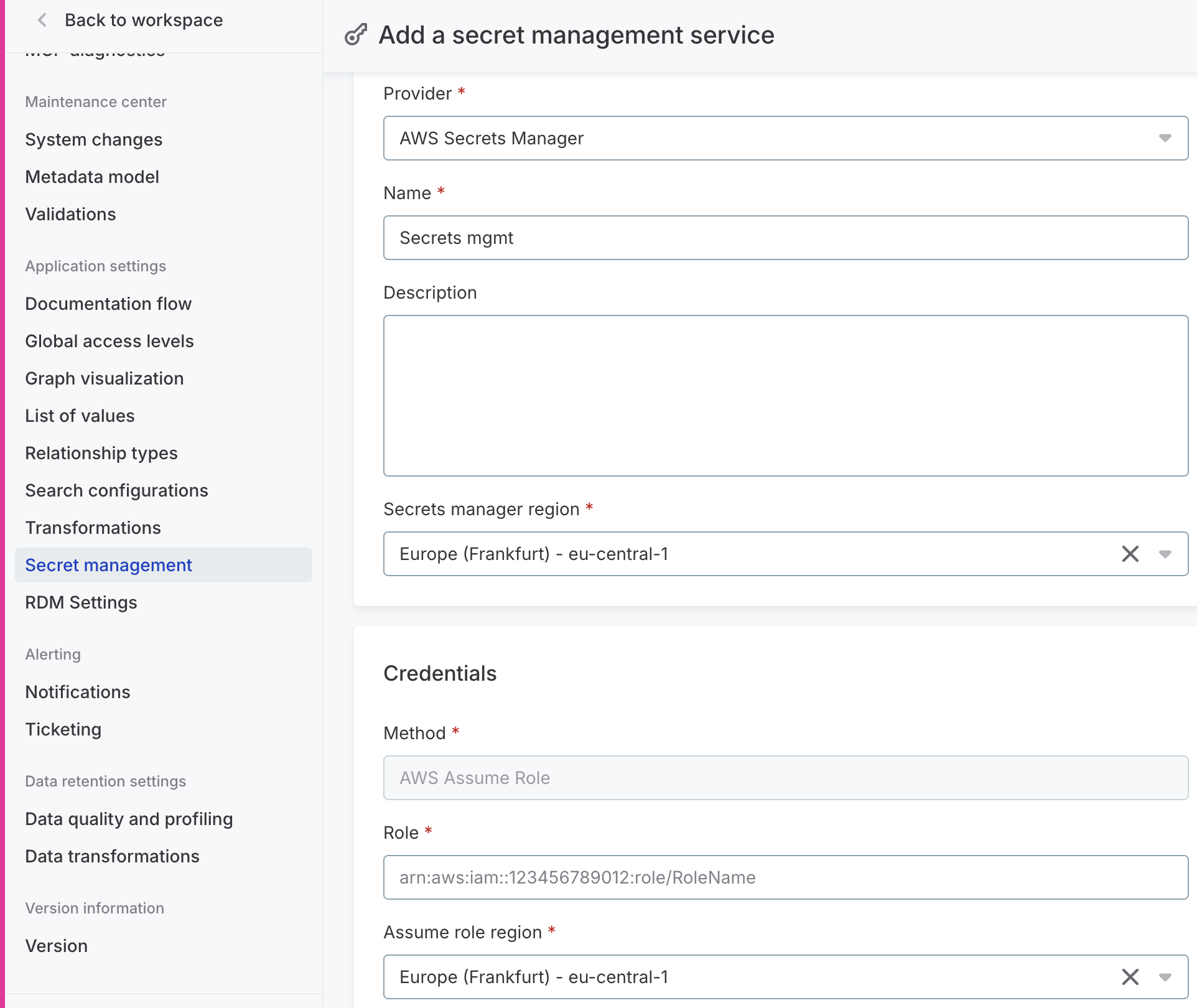
Under General, fill in the following:
-
Provider: Select AWS Secrets Manager.
-
Name: A unique, meaningful name for this service.
-
Description (Optional): A short description of the service or what it’s used for.
-
Secrets manager region: The AWS Region where your secrets are stored. Secrets Manager is a regional service: secrets live in one specific Region and must be retrieved from that Region’s endpoint.
-
-
Under Credentials, fill in the following:
-
Method: AWS Assume Role. This is the only method available and can’t be changed.
-
Role: The ARN of the IAM role to assume, from Prerequisites. Format:
arn:aws:iam::<account-id>:role/<role-name>. -
Assume role region: The AWS Region whose Security Token Service (STS) endpoint is used to call
AssumeRoleWithWebIdentity. This is independent of where the role’s permissions take effect.For most setups, use the same Region as Secrets manager region. Specify a different Region only if your organization standardizes on a specific STS endpoint.
-
-
Select Save.
Use the secret management service
Once the service is added, you can reference its secrets when configuring source credentials instead of entering the values directly.
-
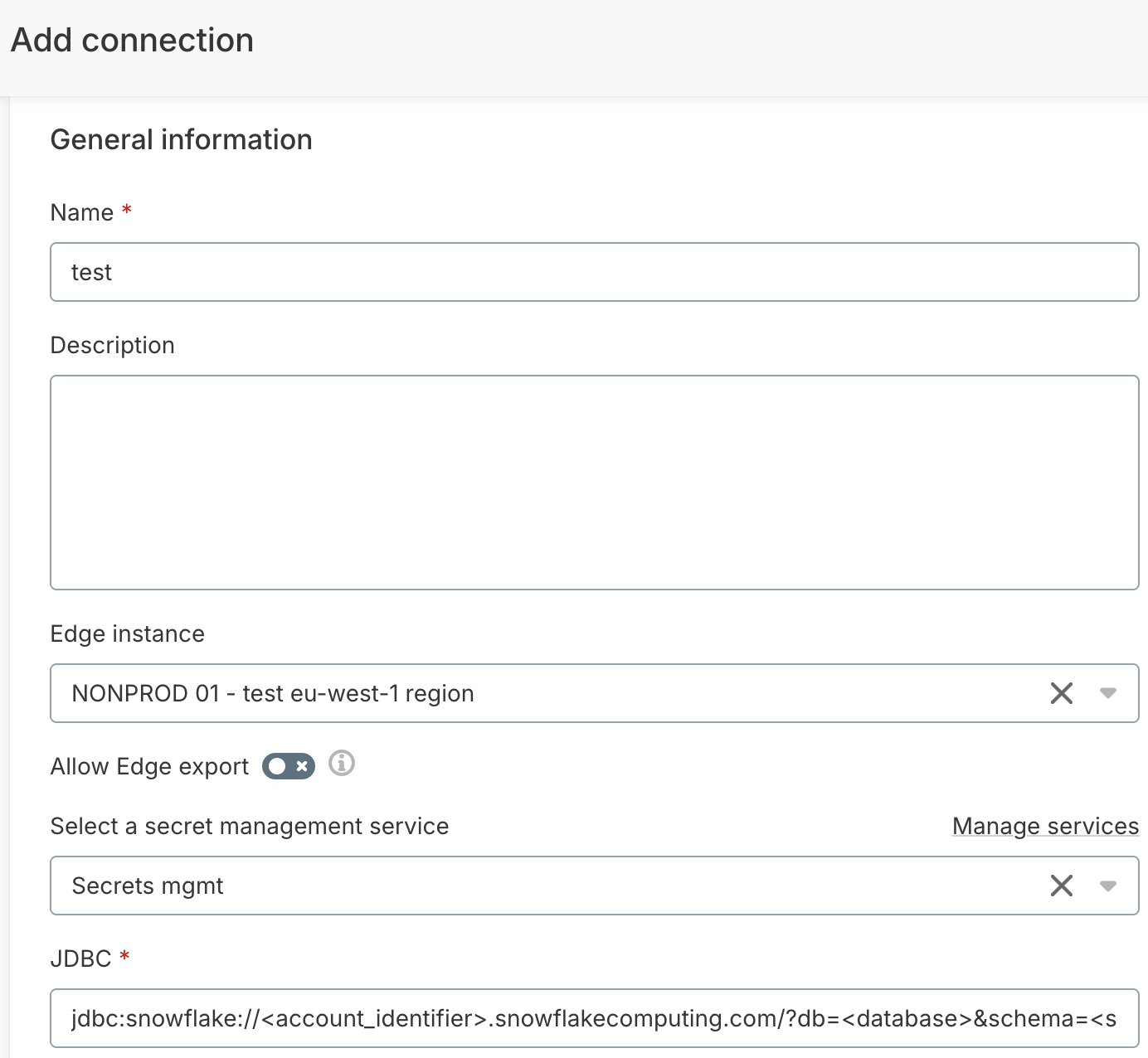
When creating or editing a connection, find Select a secret management service under General information and choose the service you added. The dropdown lists all secret management services available in your environment.
Select Manage services to open Global settings > Secret management and add or edit a service.
-
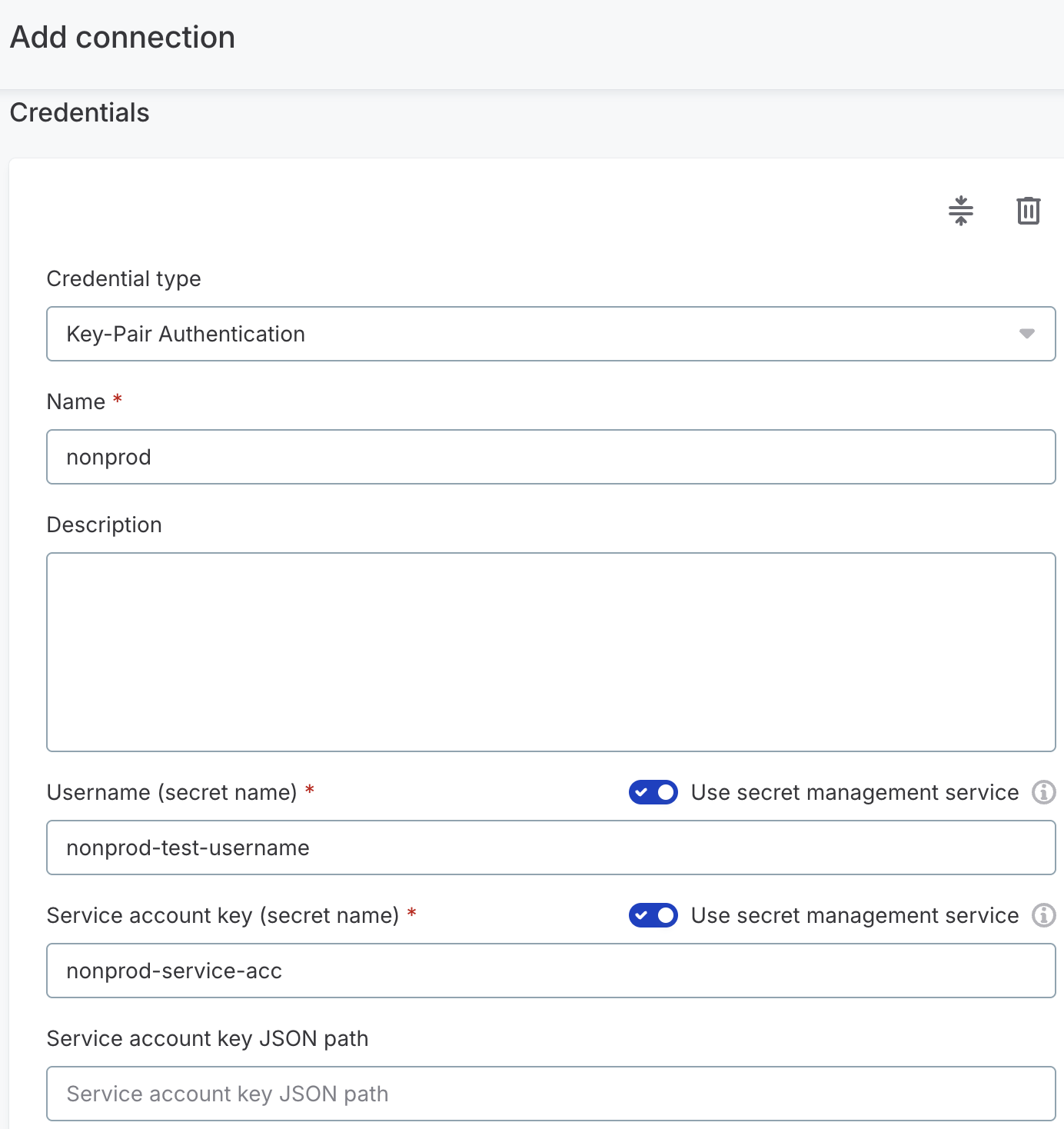
Under Credentials, add a set of credentials and choose the Credential type as usual.
-
For each field you want to retrieve from the vault (for example, Username or Password), enable the Use secret management service option next to it.
The field label changes to indicate it now expects a secret reference, for example Username (secret name).
-
In the field, enter the name of the secret as stored in your vault. For AWS Secrets Manager, you can also enter the secret’s ARN.
-
(Optional) If the secret stores a JSON object rather than a single value, use the accompanying JSON path field (for example, Access key JSON path) to point to the key you want. See Reference a key inside a JSON secret.
You can mix referenced and directly entered values within the same set of credentials: enable Use secret management service only for the fields you want to load from the vault, and type the others in directly.
ONE retrieves the secret values from AWS Secrets Manager at runtime each time it connects to the source.
Reference a key inside a JSON secret
AWS Secrets Manager lets you store a secret either as a single plaintext value or as a JSON object containing several key-value pairs. When a secret holds a JSON object, use the JSON path field under the secret name to tell ONE which key to read the value from. This way, a single secret can be used for several credential fields instead of creating one secret per field.
Each field that supports secret references has its own JSON path field, such as Access key JSON path and Secret key JSON path. Leave it empty when the secret contains only the value you need; fill it in when the value is one property within a larger JSON document.
For example, suppose a single secret stores both AWS keys:
{
  "access_key": "AKIA...",
  "secret_key": "wJal..."
}
Reference that same secret name in both the Access key and Secret key fields, then set:
-
Access key JSON path:
access_key -
Secret key JSON path:
secret_key
You can enter the key on its own (access_key) or as a JSONPath expression ($.access_key); ONE treats both the same way.
For nested values, use dot notation, for example credentials.access_key or $.credentials.access_key.
|
Point the JSON path to a single scalar value, such as a string. If the path resolves to a nested object or an array instead, ONE returns that fragment as raw JSON text rather than the credential you expect. |
Next steps
-
Set Up AWS Secrets Manager Access for the AWS-side IAM role and permissions setup.
-
Connect to a source and reference your stored secrets when adding credentials.
Was this page useful?