
Reorganize Domain and Business Process Hierarchies
After you create a domain or a business process, you can move it under a different parent or promote it to the top level. There are two ways to do this: drag and drop in reorder mode on the listing, or change the parent from the asset’s detail page.
You need Editing access on the asset you’re moving. If you’re moving it under another asset, you need Editing access on that asset too.
What changes when you move a domain or business process
Moving an asset takes everything nested under it. The subtree keeps its internal structure and moves to the new parent as a whole.
Two things are recalculated from the new position:
-
Inherited access: The asset and its nested assets inherit access from their new ancestors instead of their old ones. People who could previously see the asset might lose access to it, and people who couldn’t might gain it.
-
Inherited criticality: An asset whose criticality is set to Inherited picks up criticality from its new parent. See Define Critical Data Elements for how criticality propagates through a hierarchy.
Move assets in reorder mode
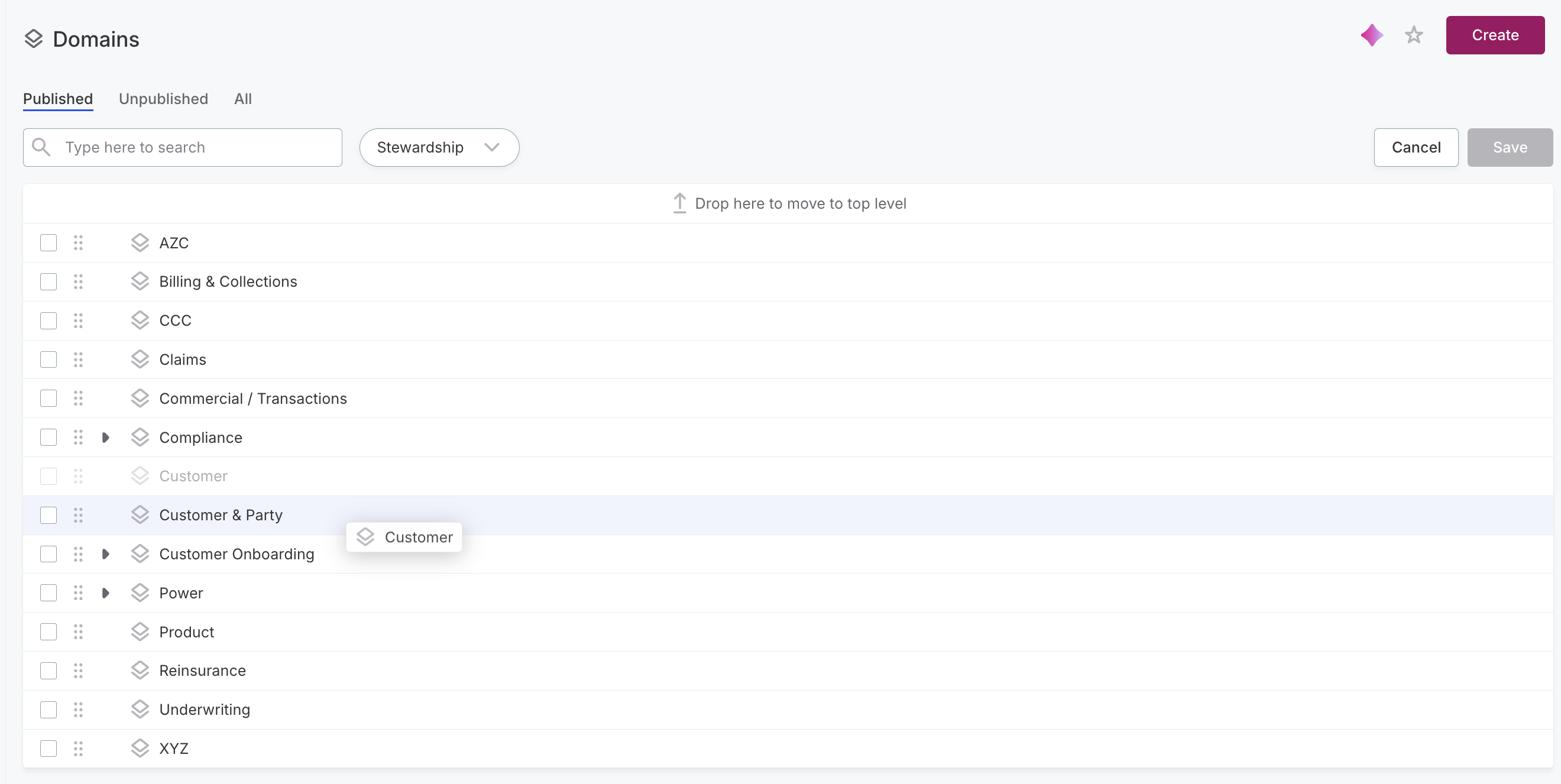
Reorder mode turns the Domains and Business processes listings into a drag-and-drop view where you can restructure the whole hierarchy before saving anything. Use it when you’re moving several assets, or when you want to see the hierarchy while you work.
-
Go to Domains or Business processes.
-
Select Reorder.
-
Drag an asset by its handle to where you want it:
-
To nest it under another asset, drop it onto that asset.
-
To promote it to the top level, drop it onto Drop here to move to top level at the top of the listing.
-
-
Select Save.
To move several assets at once, select them using their checkboxes first, then drag any one of them.
The number of pending moves is shown next to Save, and you can select Cancel to discard them. If you leave the listing with unsaved moves, you’re asked to confirm that you want to discard them.
The filters stay available in reorder mode, which helps when you need to find a parent in a long listing.
Change the parent from the detail page
In the Summary section of an asset’s detail page, the parent field shows the asset’s current parent and lists the assets you can move it under. The field is Parent domain on a domain and Parent process on a business process. Use this route when you’re moving a single asset you already have open.
-
Open the domain or business process you want to move.
-
Select the current value of Parent domain or Parent process.
An asset that isn’t nested under anything shows Top level.
-
Select the asset you want to move it under.
Search by name if the list is long. To move the asset to the top level instead, select Top level (clear parent).
Your selection is saved immediately.
When you can’t move a domain or business process
In some cases an asset can’t be moved: it isn’t draggable in reorder mode, and its Parent domain or Parent process field is unavailable. This happens when:
-
Missing editing access on the asset: Moving an asset counts as editing it, so you need Editing access on the asset itself.
-
Missing editing access on the target parent: You need Editing access on the asset you’re moving it under as well. Assets you can’t move something under aren’t offered as targets.
-
A target inside the asset’s own subtree: An asset can’t be moved under itself or under one of its own nested assets.
-
An asset restored from a deleted version and not yet published: Publish it first, then move it. Other edits, such as changing its description, are still allowed in the meantime.
If you don’t have access to an asset you need to move, ask a data steward or an admin for help. They can either move it for you or grant you access.
Restore an older version after a move
You can’t restore an older version of an asset if something has been moved into or out of that part of the hierarchy since the version was saved. Restoring would undo that move, so the restore is refused.
When this happens, a message names the move that’s in the way: which asset moved, where it sits now, and where the older version expects it.
To restore the version, use reorder mode to move that asset back to where the older version expects it, then restore the version again. If several moves are in the way, the message names one at a time.
Was this page useful?