
Use Effective Dates
Effective dates allow a reference data record to hold several versions, each valid for its own period, so you can see which version applied on any given date.
About effective dates
Reference data changes over time, and a change rarely applies immediately. For example, a tax rate applies from the start of a fiscal year, a product code is retired at the end of a quarter, and an exchange rate holds for a single day.
With effective dates enabled, a record can hold several versions. Every version has a Valid from and a Valid to date, and Ataccama ONE uses them to determine which version applies at a given time. Versions of the same record share the values of the group key attributes, so the table still shows one row per record, with the version that applies today, while the other versions stay available.
Business history and technical history
Effective dates track business history: what your organization considered true for a period, controlled by the validity dates you set.
Technical history is the audit trail of when a record was created, changed, approved, or deleted in ONE. It is recorded automatically for every table, and you can view it separately. See View Technical History.
Precision of validity periods
Validity periods are inclusive on both ends: a version is effective from its Valid from through its Valid to. How precisely the dates are compared depends on the data type of the validity attributes:
| Attribute type | Precision | Continuous versions |
|---|---|---|
Date |
Day |
The Valid from of a version is one day after the Valid to of the previous version. |
Datetime |
Minute |
The Valid from of a version is one minute after the Valid to of the previous version. |
If two versions share a boundary date, they overlap, and overlapping versions can’t be published. See Fix validity problems before publishing.
Status of a version
Each version has a status that describes its validity period relative to today:
-
Effective: The version is valid today.
-
Expired: The validity period has ended.
-
Future: The validity period has not started yet.
When you view the table as of a specific date, the versions that cover the date show the Effective at date status instead, and deleted records that you choose to include show Deleted. See See what was valid on a specific date.
Before you start
-
You need the Owner role on the table, as only owners can change the table structure. See Roles.
-
The table needs two attributes of the same data type, either both date or both datetime, to serve as Valid from and Valid to. If the table has no suitable attributes, ONE can create them for you.
Enable effective dates on an existing table
-
Go to Reference data > Tables and open the table.
-
On the Data structure tab, select Effective Dates.
-
Read the introduction and select Continue.
-
Choose where the validity dates come from:
-
Auto-create new attributes: ONE adds the
valid_fromandvalid_toattributes to the table. -
Map existing attributes: Select the Valid from attribute and the Valid to attribute from the date or datetime attributes the table already has.
-
-
Expand Field configuration and review the allowed date range, the default validity, and the group key. See Effective date settings.
-
Select Enable.
Effective dates become active once the schema change is applied. To review the settings later, open the Data structure tab and select Effective Dates again.
Effective date settings
The Field configuration section of the wizard holds three groups of settings.
Sentinel values set the earliest and latest dates any version can use. Sentinel beginning defaults to January 1, 1990, and Sentinel infinity to December 31, 2099. A version outside this range can’t be published.
Default validity for new records decides which dates are prefilled when a record is created. By default, Use sentinels as default validity is selected, so every new record is valid for the whole allowed range. Clear it to choose the defaults yourself:
| Field | Options |
|---|---|
Default valid from |
Sentinel beginning, Today (creation date), or Custom date. |
Default valid to |
Sentinel end, +1 year from creation, +5 years from creation, or Custom date. |
Today (creation date) uses the date the record is created, in the display timezone of the table. When creating a record, you can still change the prefilled dates.
Group key attributes identify a record across its versions. Select one or more attributes: rows that share the same values in them are versions of one record. The group key matters most when you import data. Without it, every imported row is a separate record, and overlaps between versions can’t be detected.
What you can’t change after enabling effective dates
Once effective dates are enabled, the attribute mapping, the allowed date range, the default validity, and the group key are fixed. To change them, disable effective dates and enable them again with new settings. See Disable effective dates.
The validity attributes themselves can’t be deleted, connected to another table, or changed to another data type. However, you can still rename them.
The column headers of the validity attributes carry a distinct icon so you can tell them apart from other date attributes.
Enable effective dates when creating a table from a file
You can enable effective dates while creating a table from a file, without configuring the table afterwards:
-
In the Review & Import step, turn on Effective Dates.
-
Choose Auto-create new attributes or Map existing attributes.
To map existing attributes, the columns need the Date or Date time data type. If the columns were detected as strings, change their type with Change data type in the Configure or Data Model step first.
-
Expand Field configuration to review the allowed date range, the default validity, and the group key. See Effective date settings.
Before the table is created, the file is checked against the effective dates rules. You’re notified if any date ranges are inverted and, if you set a group key, if any versions of a record overlap.
Select View violations to see the issues detected and the rows involved, or Download full report to fix the source file. Rows with an empty validity date are listed as well, because the missing date is filled with the default validity.
What happens next depends on the Publish data after import option:
-
Publish data after import cleared: You can create the table anyway. The records land as drafts, and you fix the problems before publishing.
-
Publish data after import selected: The table can’t be created until the file is fixed, because the records would be published right away.
View versions of records
On the Data tab, each record takes one row, and the Record state switch decides whether you see the Drafts, that is, the working copy of the table, or the Published data. How you get to the other versions depends on what you need:
-
To see or edit the versions of several records, expand them in the drafts. See See and edit record versions in drafts.
-
To see what the whole table looked like on a date, use time travel on the published data. See See what was valid on a specific date.
-
To work on the full timeline of one record, open its versions. See Manage versions of a record.
See and edit record versions in drafts
-
Set Record state to Drafts.
-
Select the arrow next to the status of a record to expand its versions.
To expand all records at once, select Expand versions in the toolbar. Collapse versions folds them again.
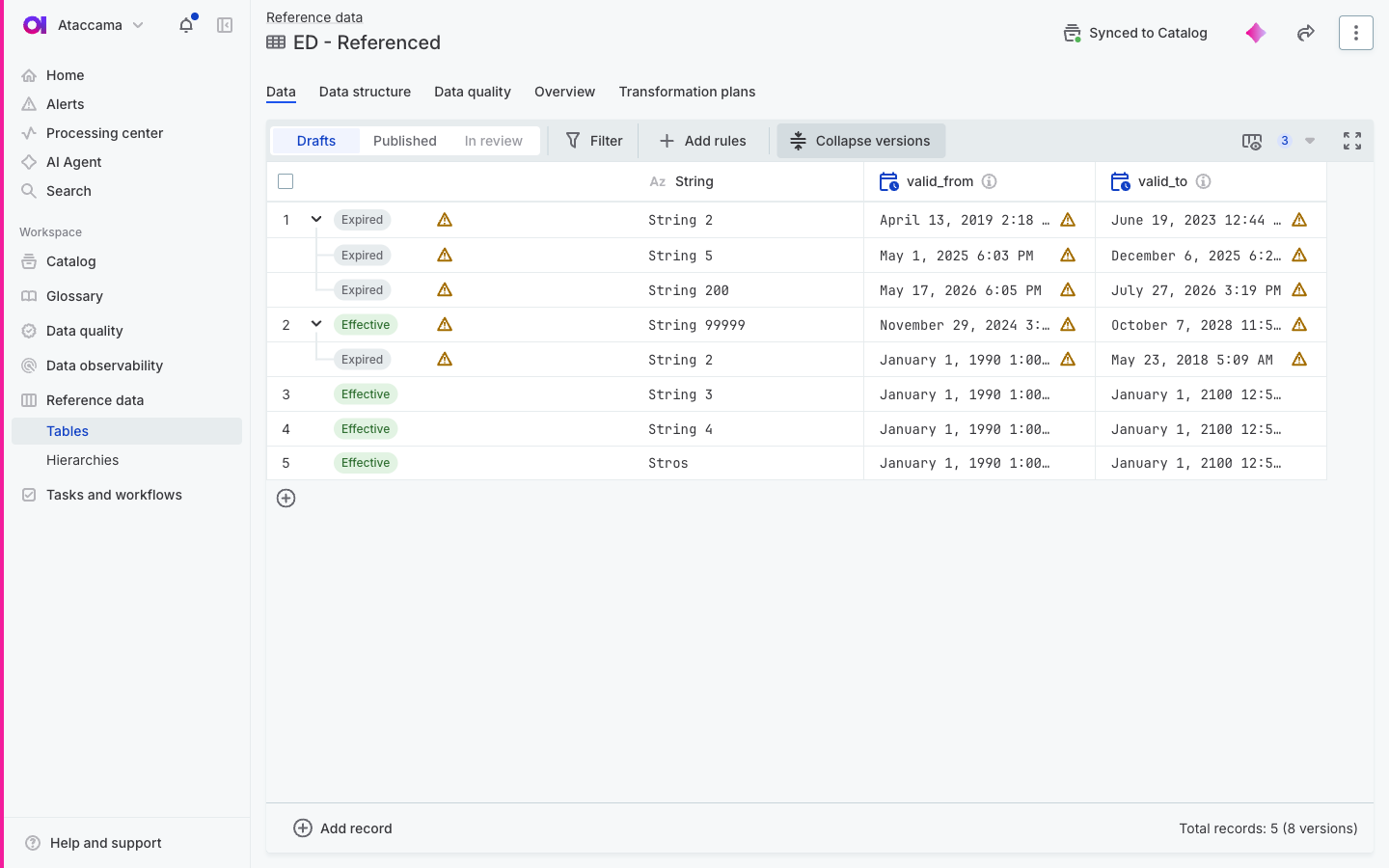
The versions appear as indented rows under the record, each with its own validity period and status, and you can edit them in place like any other record. A warning icon next to a version marks a gap in the timeline of the record. The footer counts both records and versions.
See what was valid on a specific date
-
Set Record state to Published.
-
Select Time travel.
-
In View, select Effectivity.
The other two views serve different purposes:
-
Present: The latest published data, as you see it outside time travel.
-
Technical: Every published version of each record, with the date it was published. See View Technical History.
-
-
In Show, keep Effective at date.
Select All versions instead to list every version of every record, regardless of date.
-
In Show data valid on, enter the date. For tables with datetime validity attributes, enter the time as well.
-
To see records that were deleted after that date, select Include deleted records.
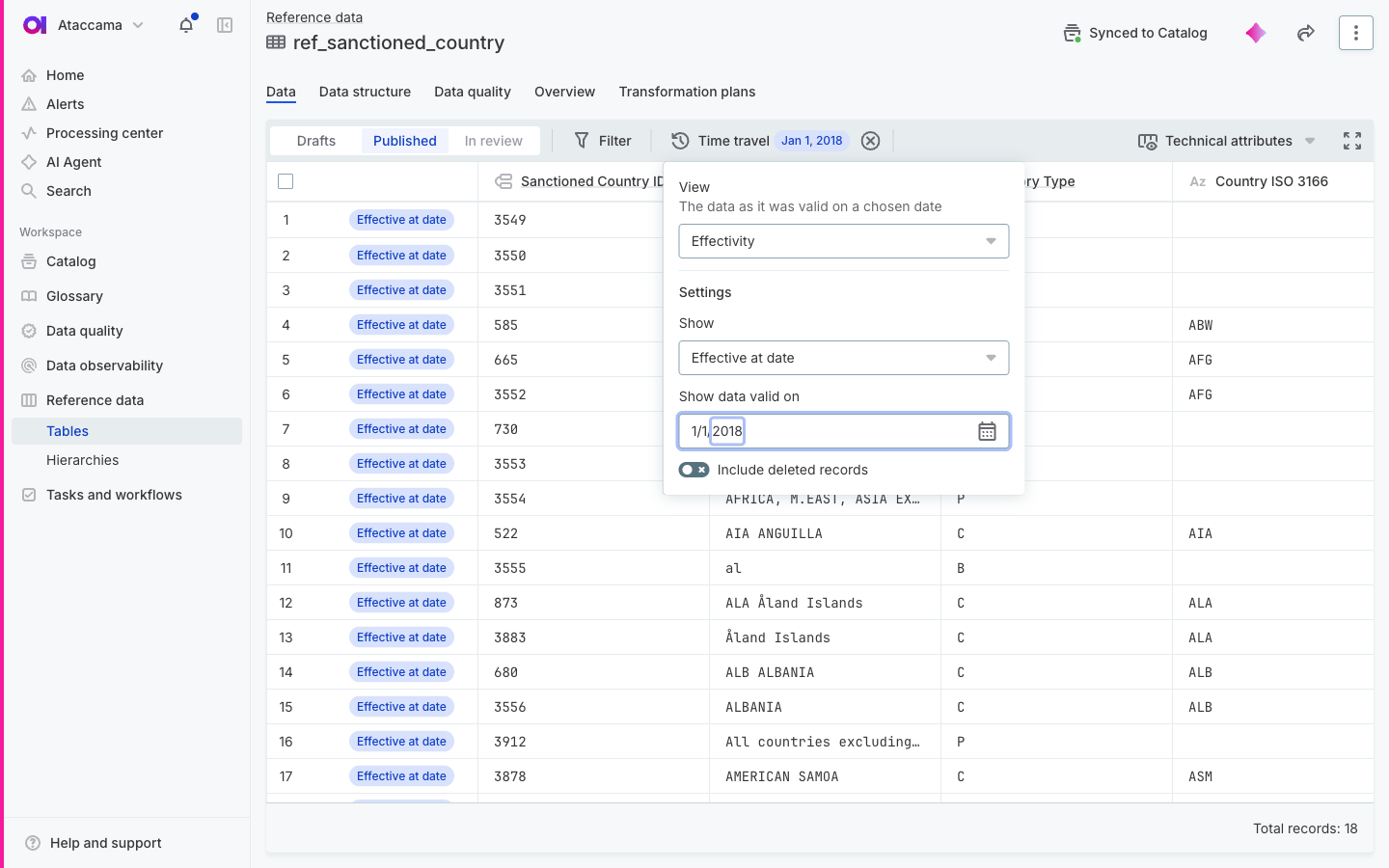
The table now shows only the records that had an effective version on the selected date, each with the Effective at date status and the values of that version. Records with no effective version on that date are left out. Deleted records come back with the Deleted status, which is the only way to see what a deletion removed.
Time travel is read-only, so a historical view can’t be edited by accident. To return to the current data, select Exit time travel.
Manage versions of a record
To work on the full timeline of one record, point to the record, and in its three-dot menu, select Manage versions. The record opens on the Effective Dates tab. You can also open the record with Detail and switch to the tab there.
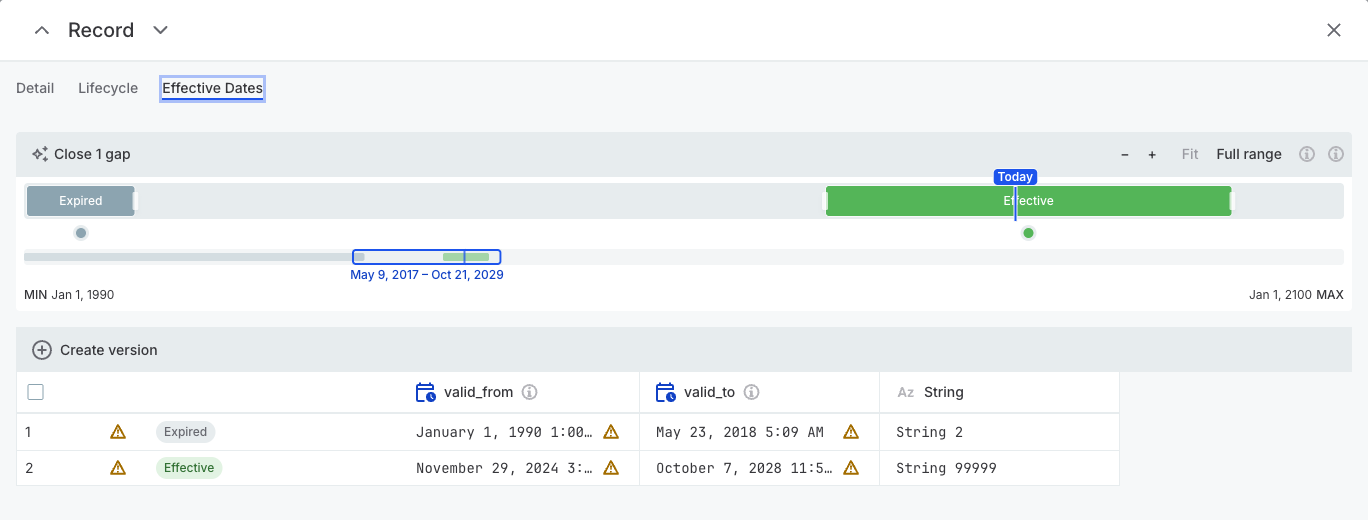
The timeline shows each version as a bar placed by its validity period, with a Today marker and the earliest and latest allowed dates at either end. You can edit the versions directly on the timeline:
-
Drag the edge of a version to change its start or end date.
-
Select a version at a date to split it at that date.
-
Drag across an empty part of the bar to create a new version over that range.
To navigate the timeline:
-
Zoom by scrolling over the timeline or with the − and + buttons.
-
Select Fit to frame the existing versions.
-
Select Full range to see the whole allowed date range.
The versions are listed under the timeline with their dates, statuses, and values.
Create a record version
-
Select Create version.
-
Choose how to create the version:
-
From defaults: Creates a version with the default validity of the table.
-
Continue a version: Select an existing version. The new version copies its values, starts right after it ends, and runs until the next version starts.
-
Precede a version: Select an existing version. The new version copies its values and ends right before it starts.
-
-
Adjust the dates and values as needed.
New versions are created as drafts, so you can review them before publishing.
Close gaps between record versions
A gap is a period that no version of the record covers. Gaps don’t block publishing. However, if today falls in a gap, the record has no effective version, and tables that reference the record can’t show a value for it. See References to tables with effective dates.
To make the timeline continuous:
-
On the Effective Dates tab, select Close gaps.
Here you can also see how many gaps the record has.
-
Under Fill timeline gaps, choose how the gaps are filled:
-
Extend previous version: Stretches each earlier version forward to meet the next one.
-
Extend next version: Pulls each later version back to meet the previous one.
-
Meet in the middle: Extends both versions to the midpoint of the gap.
-
-
Select Close gaps.
Fix validity problems before publishing
Validity problems are flagged as you edit, so you can fix them in any order before you publish. Records are only checked when you publish or send them for review.
The flags on the affected rows tell you how serious a problem is:
-
A warning icon is advisory and doesn’t block publishing. A gap is the usual reason.
-
An error icon blocks publishing. Point to it to see the reason, and select View record to open the record involved.
Publishing and sending for review are blocked while any record in scope has one of these problems:
-
Inverted range: Valid from is later than Valid to.
-
Overlap: Two versions of the same record cover the same period.
-
Sentinel violation: A version lies outside the allowed date range.
-
Missing date: A version has no Valid from or no Valid to.
If you try to publish anyway, ONE lists the records that need fixing and the problem found on each one. Open each record, correct its dates, and publish again. When you send specific records for review, only those records are checked, so other people’s drafts don’t block you.
Import data into a table with effective dates
Importing a file into a table with effective dates works the same as for any other table. See Import from file.
Include the validity attributes in the file as ordinary columns, and make sure that the rows of one record share the same group key values. The imported records land as drafts, and the validity rules are checked when you publish them.
Export a table with effective dates
When you export a table with effective dates, you can export every version of each record as a separate row, or only the version that is effective today. The validity attributes are exported like any other attribute.
References to tables with effective dates
When a table references a table with effective dates, the connected attribute works as usual: the dropdown lists one option per record, not one per version. See Connect Reference Data Tables.
The reference always resolves to the version that is effective today. This holds even when you time travel in the referencing table: the historical view shows today’s reference values.
If no version of the record is effective today, for example because the timeline of the record has a gap, the cell shows No effective version. To fix it, close the gap or extend a version of the referenced record. See Close gaps between record versions.
Disable effective dates
Disabling effective dates removes the version grouping and the Effectivity view from the table. The validity attributes stay as ordinary date attributes, and no record data is lost.
-
On the Data structure tab, select Effective Dates.
-
Under Disable effective dates, select Disable.
If you enable effective dates again later, the history starts fresh and every existing version becomes a separate record.
Next steps
-
Publish your versions: Publish changes to make them effective for consumers.
-
Connect tables: Connect Reference Data Tables to reference the table from other tables.
-
Promote the table: Export and Publish Content to carry the effective dates configuration to another environment.
Was this page useful?