
Create SQL Catalog Items
SQL catalog items let you combine and transform data from source tables into new, virtual catalog items by writing SQL queries directly in Ataccama ONE. This article walks you through how to create SQL catalog items and how to edit their queries.
What are SQL catalog items
In addition to importing data from a source, you can create catalog items by writing SQL queries. This lets you combine and transform data from the source tables into new, virtual catalog items without moving or duplicating any data: for example, you can join related tables, filter records for a specific team, or prepare a clean view for reporting and data quality monitoring. Once created, SQL catalog items behave like other catalog items: you can profile them and evaluate their data quality.
SQL catalog items are placed in folders in the workspace of the source, not in locations, as locations are connected to a database object while SQL catalog items are not.
Who can create SQL catalog items
To create and edit SQL catalog items, you need Editing access or Full access to the catalog configuration, which grants the SQL catalog items capability. To run the query preview, you need at least View data access to the connection. See Access Levels.
Good to know
Before you start, keep in mind the following:
-
SQL catalog items can only be created from sources that support querying: sources with JDBC and metastore connections. For example, you can’t create SQL catalog items from a file system source.
-
Partitioning is not supported unless it is done directly in the query.
-
SQL catalog items can only be processed using full profiling. Sample and custom profiling are not supported. See Run Profiling.
-
Query preview is not available for sources connected through edge processing. You can still create and use SQL catalog items on these sources, but the Run query option and data previews are not shown. AI query generation is available on edge connections as well, but without table previews.
-
The query isn’t checked for statements that modify data. Review what you write: it runs whenever the catalog item is used, including during profiling and data quality evaluation.
Queries that start with a common table expression
A query that starts with a common table expression (CTE) — a WITH clause — works on most databases.
There are three exceptions:
-
MS SQL, Azure Synapse, and the Fabric Lakehouse SQL endpoint: The query can’t be combined with a table filter.
-
Sybase: Queries that start with a CTE aren’t supported.
-
Generic connector: Whether the query works depends on the database you connect to.
To avoid these restrictions, move the query into a database view and create the catalog item on the view.
Create SQL catalog item
To create a new SQL catalog item:
-
Go to Catalog > Data catalog.
-
From the three-dot menu, select Create SQL Catalog Item.
Alternatively, open the source or connection you want to work with and select Create SQL Catalog Item from its three-dot menu.
-
Select the connection you want to work with, and then select Continue.
You can choose only from the connections for which you have appropriate permissions. If you started from a connection, this step is skipped.
-
Write your SQL query.
You can use AI to generate the query: Select Use AI, add the catalog items you want to work with, and describe the data you need. To learn more, see Create SQL catalog item query. -
Select Run query to test the query.
If the query syntax is correct and there are no issues accessing the source, a preview of the new catalog item data is shown on the Query preview tab. If the query is incorrect, more information about the issue is provided in the Error log.
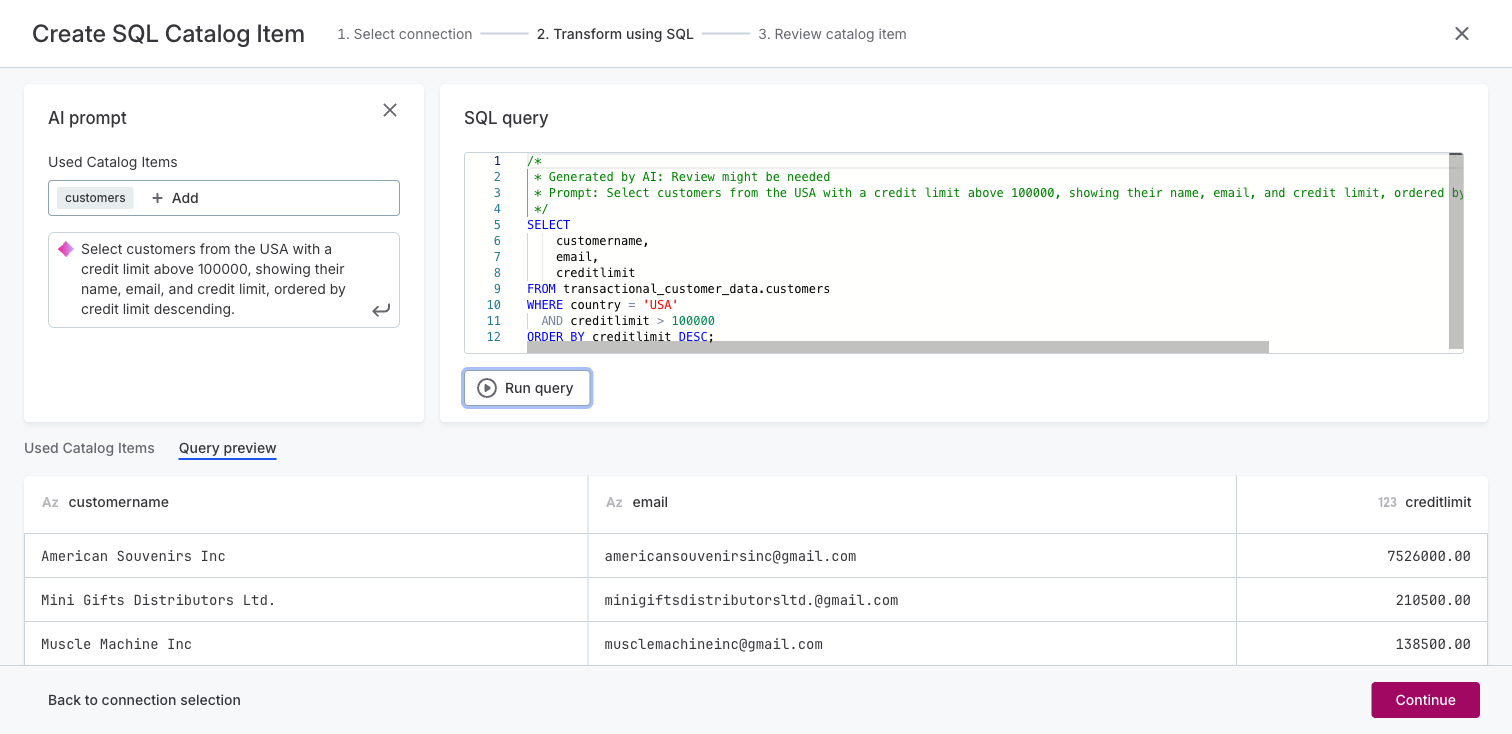
For sources connected through edge processing, Run query is not shown: see Good to know.
-
Select Continue.
-
Select the Folder in which to place the new catalog item.
-
Provide the catalog item Name, Description, and Purpose.
-
Select Create.
The new catalog item is created. In the source detailed view, you can find it in the Workspace section.
Edit the SQL query
You can edit the SQL query used to create the catalog item and regenerate the data.
To edit an SQL catalog item:
-
Open the catalog item and from the three-dot menu, select Edit SQL.
-
Edit the catalog item name and description if needed and select Continue.
-
Modify the query and select Run query to preview the results.
-
Select Save and publish your changes.
Next steps
After you create the catalog item, you can work with it like any other catalog item:
-
DQ Monitors: Set up a DQ monitor to control how profiling and DQ evaluation run on the catalog item.
-
Run Profiling: Profile the catalog item to analyze the structure and content of its data.
-
Detect and Apply Terms: Apply glossary terms to the catalog item and its attributes.
-
Assign Stewardship: Assign a group as the owner of the catalog item.
Was this page useful?