
Assign Stewardship
Stewardship assigns a group as the owner of a data asset. This guide shows you how to assign, transfer, and override ownership.
Before you start
-
You need Full access to an asset to assign stewardship.
-
Familiarize yourself with Stewardship.
Assign stewardship to an asset
You can only assign stewardship to published assets.
-
Open the asset.
-
In the Stewardship widget, select Edit.
-
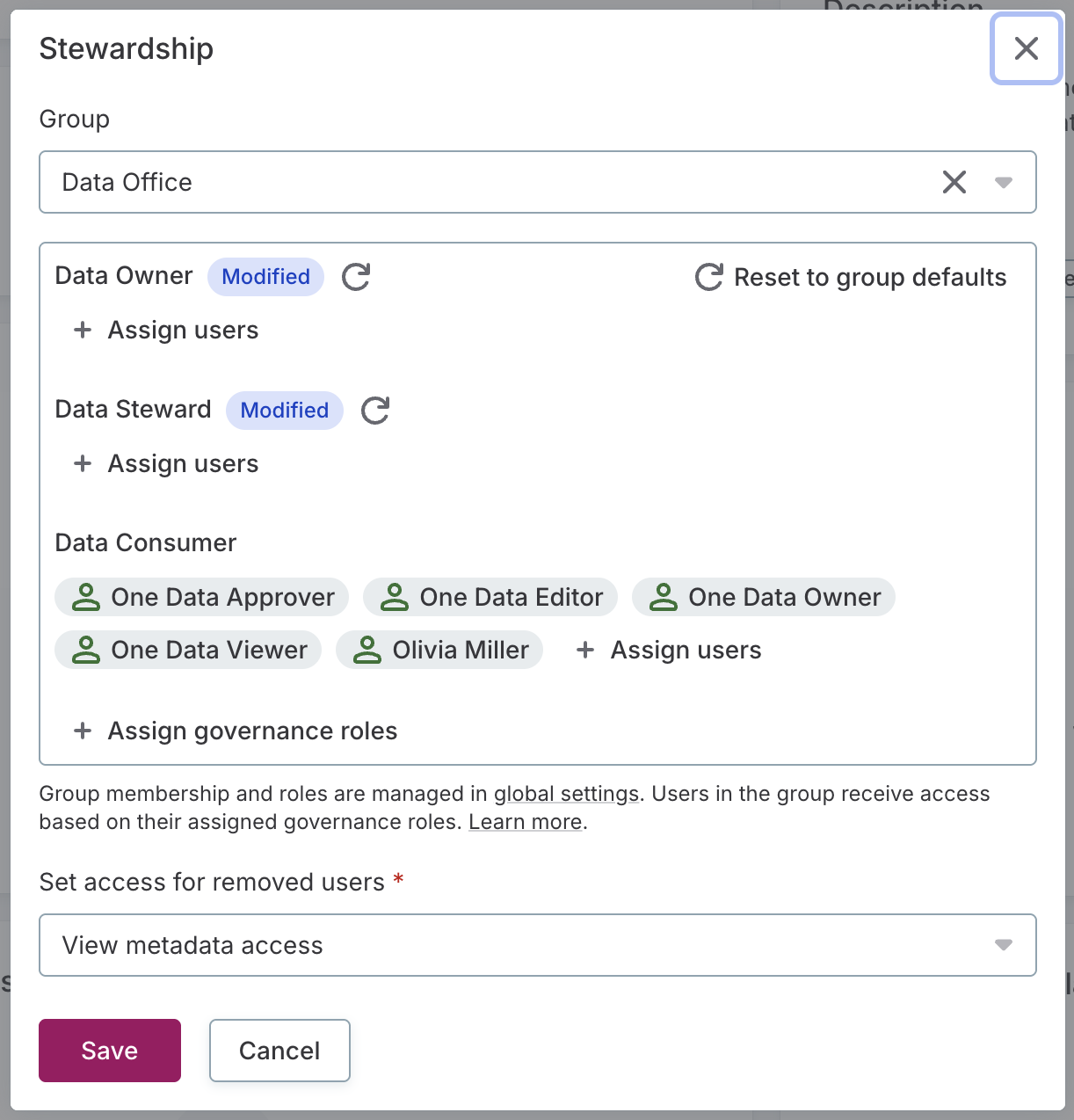
Select a group to be the owner.
-
Review the users and governance roles who will be granted access in the group and override stewardship as needed.
-
Select Save.
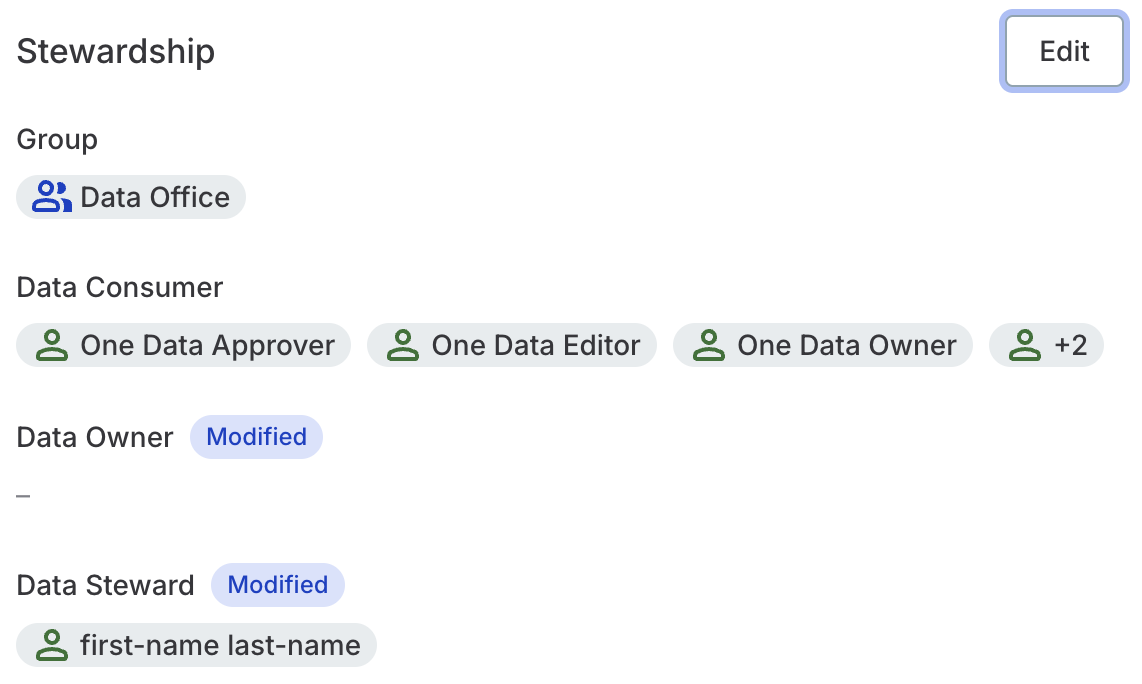
The selected group is now responsible for the asset, and its members receive access based on their governance roles. Governance roles that have been overridden are labeled Modified or Local.
Transfer stewardship
We recommend transferring stewardship instead of removing it to ensure assets always have a clear owner within your organization. If you prefer to remove stewardship entirely, see Remove stewardship.
To assign specific governance roles on this asset without changing the stewardship group, see Override stewardship on an asset instead.
Transferring stewardship also removes any stewardship override on the asset.
To change ownership from one group to another:
-
Open the asset.
-
In the Stewardship widget, select Edit.
-
Select the new owner group.
-
Choose a Level of access for the previous owner (or remove their access).
-
Select Save.
The new owner group is notified of the assignment. The previous owner receives their new access level.
Assign stewardship in bulk
-
Go to a listing screen (for example, Data quality > Rules).
-
Select the assets you want to update.
-
Select the two people icon (Manage stewardship).
-
Select a group to be the owner.
-
Review the users and governance roles who will be granted access in the group and override stewardship as needed.
-
Choose a Level of access for any previous owners (or remove their access).
-
Select Done.
Override stewardship on an asset
A stewardship override keeps the assigned stewardship group but changes who acts in selected governance roles on that asset.
Similarly to transferring stewardship, when you create an override, you need to assign a new access level for people who previously acted in an overridden role, or revoke their access.
Creating an override and editing an existing one work the same way. The assignments you save replace the previous configuration.
To override stewardship:
-
Open the asset.
-
In the Stewardship widget, select Edit.
-
In Data Owner, assign one or more users and select Assign.
-
In Data Consumer, assign one or more users or governance roles and select Assign.
-
Choose a Level of access for any previous owners (or remove their access).
-
Select Save.
Remove a stewardship override
To remove stewardship overrides and return stewardship roles to the members of the stewardship group:
-
Open the asset.
-
In the Stewardship widget, select Edit.
-
Select Reset to group defaults.
-
Choose a Level of access for any previous owners (or remove their access).
-
Select Save.
Keep in mind this doesn’t affect directly shared access. Review and adjust or remove access levels accordingly. See Share an Asset.
Remove stewardship
Removing stewardship leaves the asset without an owner group; consider transferring stewardship instead. Removing stewardship also removes any stewardship override on the asset.
To remove stewardship from an asset:
-
Open the asset.
-
In the Stewardship widget, select Edit.
-
Select the X icon next to the stewardship group.
-
Choose a Level of access the previous owner group keeps (or remove their access).
-
Select Save.
This doesn’t affect directly shared access. Review and adjust or remove access accordingly. See Share an Asset.
Next steps
-
Share an Asset — Give coworkers access to data they’ll work with.
-
API — Assign and transfer stewardship programmatically through the API.
Was this page useful?