
Dropbox Connection
This article describes how to connect to Dropbox.
Availability
| Data processing & catalog | Edge processing | Lineage | Exceptions |
|---|---|---|---|
✔ |
✗ |
✗ |
|
Prerequisites
-
Review how sources and connections work.
-
Create a source to add this connection to.
-
Create a Dropbox application with the required permissions. See Create Dropbox application.
Create Dropbox application
| If you already have an application set up, make sure to verify the application permissions. |
Follow the Dropbox Getting Started guide to create an application in the Dropbox App Console.
When configuring your application, use the following settings:
-
API: Scoped access
-
Access type: Full Dropbox
-
Permissions (on the Permissions tab):
-
files.content.read(in Files and folders) -
openid(in OpenID Connect)
-
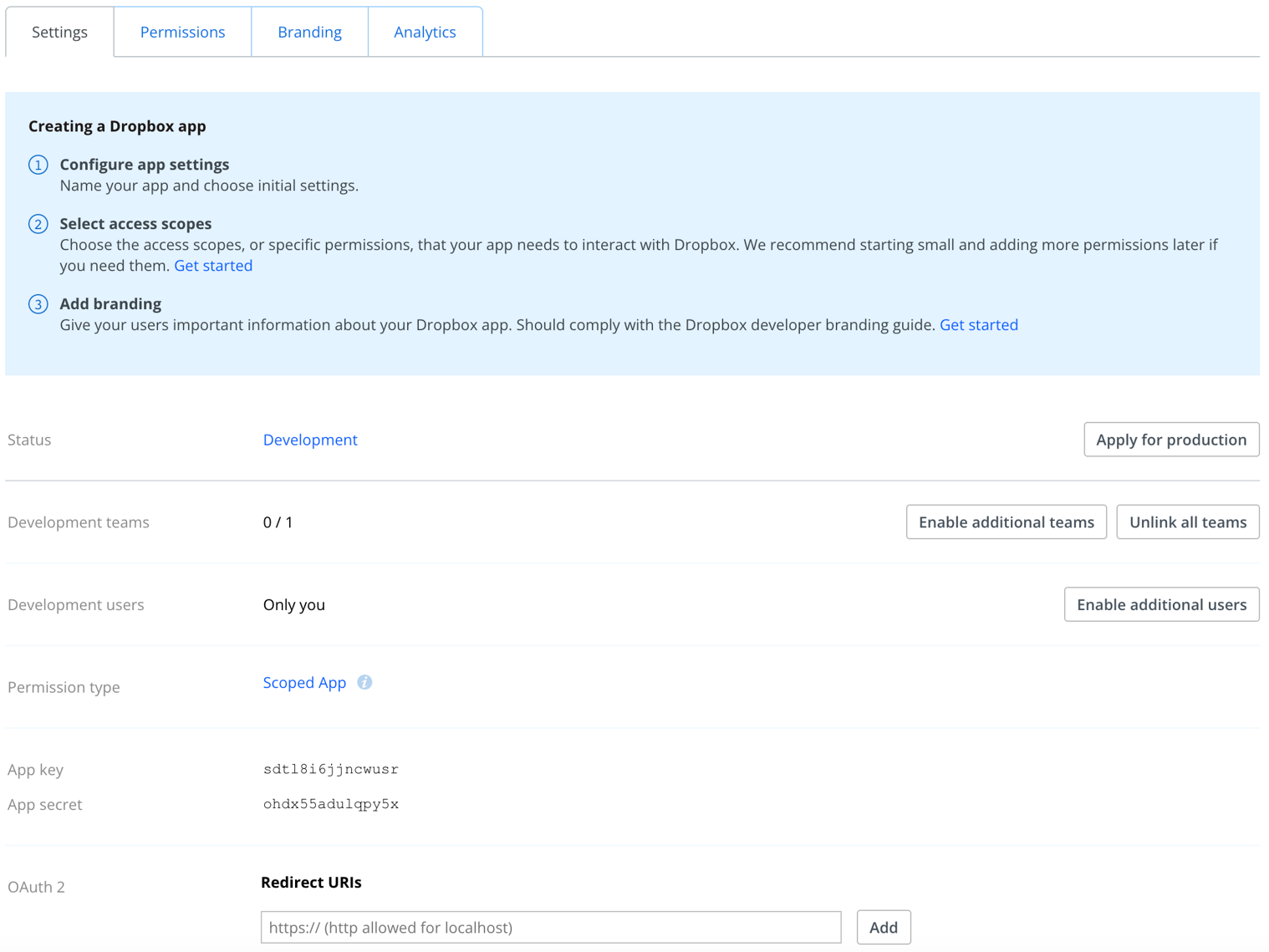
After creating the application, note the App key and App secret from the Settings tab. You’ll need these when configuring credentials in ONE.
Add a connection
-
Go to [your source] > Connections and select Add Connection.
-
In Connection type, select Dropbox.
-
Fill in the following:
-
Name: A meaningful name for your connection. Used to indicate the location of catalog items.
-
Description (Optional): A short description of the connection.
-
Secret management service (Optional): The secret management service used to retrieve connection credentials at runtime. Available only if a secret management service is configured. See Secret Management Service.
-
Add credentials
Only OAuth 2.0 authentication is supported.
Before continuing, make sure you’re logged in to Dropbox in the same browser you’re using for ONE.
Always use the dedicated credential fields for authentication details such as passwords, secrets, and tokens. This ensures credentials are handled with the appropriate level of protection and reliably preserved across environments.
To keep credentials in your existing infrastructure and have ONE retrieve them at runtime, configure a secret management service instead. See Secret Management Service.
| One set of credentials must be defined as default for each connection. Otherwise, DQ evaluation fails and previewing data in the catalog is not possible. |
-
Select Add Credentials.
-
Fill in the following:
-
Name: Provide a clear name for this set of credentials.
-
Description (Optional): Explain what the credentials are used for or provide other useful information.
-
-
Add the ONE redirect URI to your Dropbox app:
-
Copy the Redirect URL shown in ONE.
-
In Dropbox, go to your app’s Settings tab.
-
Paste the URL in Redirect URIs and select Add.
-
-
Back in ONE, provide your Dropbox app details (found on your app’s Settings tab in Dropbox):
-
Client ID: The App key.
-
Client secret: The App secret.
-
-
In Refresh token, select Generate to create a new token.
This might open a Dropbox window asking you to allow access. Select Allow to continue. Once generated, the token’s expiration date is shown in Refresh token valid till.
-
To use this set of credentials by default when connecting to the data source, select Assign as default.
Add write credentials
If you want to export data to this source, add write credentials. Select Add Credentials and follow the instructions in Add credentials.
Was this page useful?