
Add DQ Rules to Terms
Linking DQ evaluation rules to terms in your glossary enables automatic, consistent data quality checks across your entire data landscape. When a term is detected on or assigned to an attribute, all associated DQ rules are applied automatically during evaluation.
Why add DQ rules to terms
Adding DQ rules to terms connects your business vocabulary directly to data quality validation. This approach offers several advantages over applying rules individually to attributes:
- Scalability
-
Define quality standards once on a term and have them applied everywhere that term appears. A single
Emailterm with validation rules can enforce consistent checks across hundreds of attributes in different data sources. - Consistency
-
Every attribute tagged with a term receives identical validation logic. This eliminates inconsistencies that arise when different teams create separate rules for the same data domain.
- Governance alignment
-
Quality standards are documented alongside business definitions, creating a single source of truth. When requirements change, updating a term’s rules propagates changes everywhere that term is used.
- Reduced maintenance
-
Instead of managing rules on thousands of individual attributes, maintain them centrally on a manageable set of terms.
Prerequisites
Before adding DQ rules to a term, ensure you have:
-
Created the DQ evaluation rules you want to apply. See DQ Rules.
-
Created or identified the term you want to configure. See Create Term.
Add a DQ rule to a term
For DQ rules to apply automatically to attributes through a term, link the rules to the term before assigning the term to any attribute. See Rules apply on first assignment.
To add a DQ rule to a term:
-
Go to Glossary > Terms.
-
Select the term type (for example, Business terms) and open the term you want to configure.
-
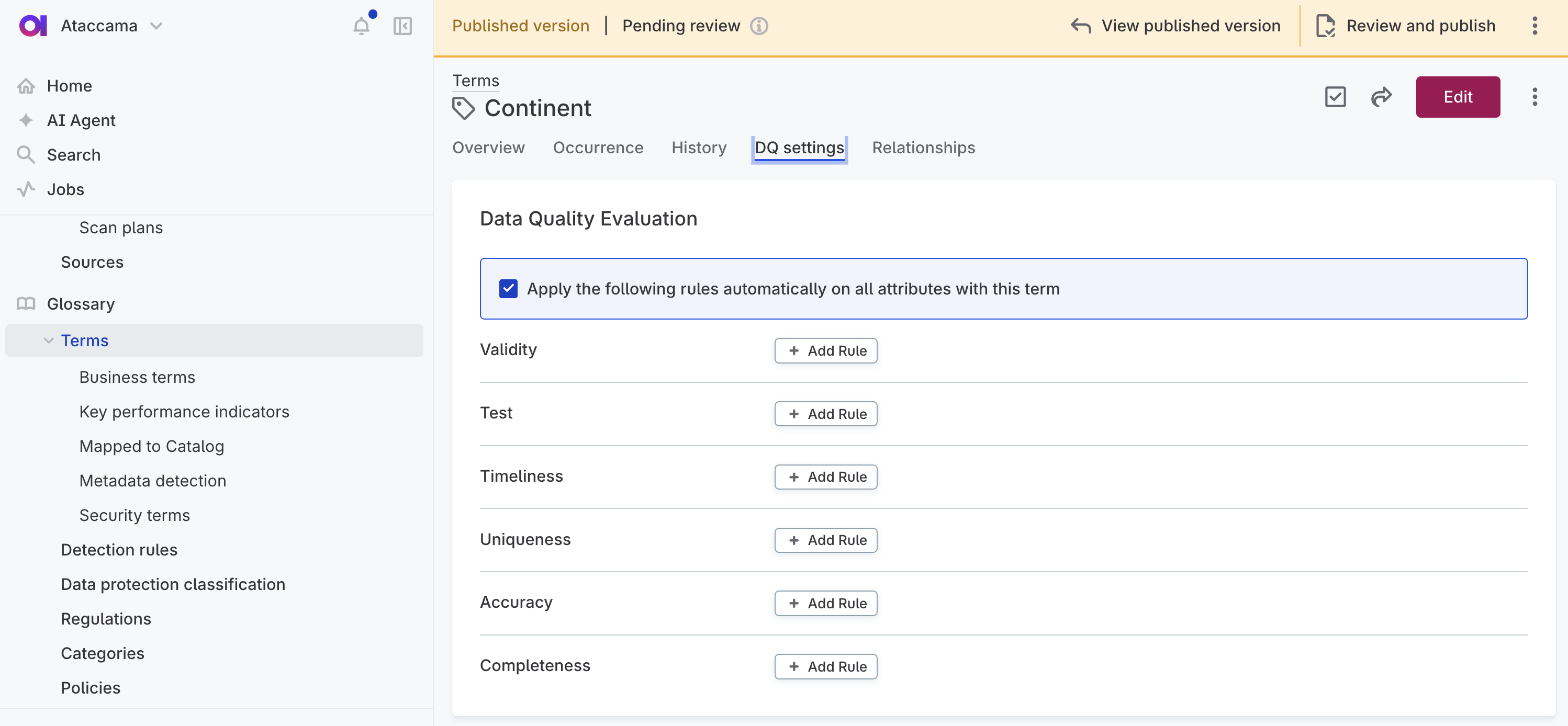
Select the DQ settings tab.
-
In the Data Quality Evaluation section, find the dimension where you want to add a rule (for example, Validity, Completeness, or Accuracy) and select Add Rule.
Any custom dimensions configured in your environment also appear here alongside the default dimensions. -
Select the rule from the list and then select Apply.
-
Repeat for any additional rules you want to add across different dimensions.
-
To enable automatic evaluation on all attributes where this term is detected, select Apply the following rules automatically on all attributes with this term. See How automatic rule application works.
-
Publish your changes to make the configuration active.
How automatic rule application works
When Apply the following rules automatically on all attributes with this term is enabled, the term’s DQ rules are applied whenever the term is assigned to an attribute, without requiring manual rule assignment on each attribute.
This means:
-
When term detection assigns the term to an attribute, the DQ rules become active on that attribute.
-
When you run DQ evaluation on a catalog item, all term-linked rules are included automatically.
-
Results are aggregated by dimension and contribute to the overall quality score.
How term-linked rules behave
The following behavior applies to all term-linked DQ rules, whether the term was assigned by term detection or manually.
Scope
-
Primary DQ monitor only. Term-linked rules are applied to and evaluated only on the primary (default) DQ monitor of a catalog item.
-
Matching data types. The data type of the catalog item attribute must match the data type the rule expects on its input. If the types do not match, the rule is not applied to that attribute, even when the term is correctly assigned.
Rules apply on first assignment
Term-linked DQ rules are applied to an attribute only when the term is assigned to that attribute for the first time.
This means that when you add a rule to a term:
-
The rule is applied to any new attributes that receive the term later. For example, when you run term detection on new catalog items.
-
The rule is not applied to attributes the term was already assigned to. For example, if a term is already on an attribute and you add a new rule to that term afterward, the attribute is not affected by that rule. This also applies when you re-run term detection on existing catalog items.
To apply a rule to attributes that already have the term assigned, add the rule directly to each affected attribute.
View rules applied to a term
To review which DQ rules are currently mapped to a term:
-
Go to Glossary > Terms.
-
Open the term and select the DQ settings tab.
Rules are displayed under their respective dimension categories. You can remove a rule by selecting the delete icon next to it.
Example: Configuring DQ rules for an Email term
This example shows you how to configure a business term with DQ rules that validate email data consistently across your organization.
Scenario
Your organization stores customer email addresses in multiple systems: a CRM, a marketing platform, and a data warehouse. You want to ensure that all email data meets the same quality standards, regardless of where it resides.
Solution
Add DQ rules to a single Email term to define your quality standards once.
When term detection identifies email attributes across your data sources, the rules apply automatically during DQ evaluation.
Configuration
For an Email term, consider adding rules across multiple dimensions:
| Dimension | Rule purpose | Example logic |
|---|---|---|
Validity |
Check that values follow a valid email format |
Value matches pattern |
Completeness |
Ensure email fields are not empty where required |
Value is not null or empty string |
Uniqueness |
Detect duplicate email addresses that could indicate data quality issues |
No duplicate values within the dataset |
Result
Once you configure and publish the term:
-
Term detection identifies attributes containing email data across all your connected sources.
-
The
Emailterm is assigned to matching attributes. -
When you run DQ evaluation, all three rules apply automatically.
-
Results show you quality scores broken down by dimension, helping you identify whether issues stem from formatting problems, missing data, or duplicates.
If you later decide to tighten email validation (for example, blocking disposable email domains), update the rule on the term once and the change applies everywhere.
Next steps
-
Run DQ evaluation to apply your configured rules.
-
Run term detection to assign terms to attributes across your catalog.
Was this page useful?