
Azure Data Factory Lineage Scanner
Scanned and supported objects
|
The scanner automatically generates lineage metadata for all currently supported sources and connections. However, lineage coverage might vary depending on system capabilities, dynamic transformations, or access permissions. While we strive for comprehensive lineage capture, certain dataflows and transformations might be incomplete or unavailable due to technical constraints. We continuously work to expand coverage and accuracy. |
Resources scanned
The lineage information from Azure Data Factory is available on attribute level and the metadata extracted includes the following Azure Factory resources:
-
Factories
-
Linked services
-
Pipelines
-
Datasets
-
Dataflows
Supported source technologies
The scanner supports the following Azure Data Factory linked services:
-
AzureBlobFSLinkedService(Azure Data Lake Storage Gen2) -
AzureBlobStorageLinkedService -
AzurePostgreSqlLinkedService -
AzureSqlDatabaseLinkedService -
AzureSqlDWLinkedService(Azure Synapse Analytics dedicated SQL pool) -
Db2LinkedService -
FileServerLinkedService(on-premises file system) -
HiveLinkedService -
InformixLinkedService -
MySqlLinkedService -
OdbcLinkedService -
OracleLinkedService -
SftpServerLinkedService -
SnowflakeV2LinkedService -
SqlServerLinkedService
Assets on an SFTP or file server linked service are organized under the server the linked service points to.
If the host of a file server linked service is a linked service parameter, such as @{linkedService().Host}, the default value of that parameter is used.
Datasets that override the parameter are still organized under that default.
Supported datasets
Lineage is produced for datasets of the following types:
-
Table datasets:
AzurePostgreSqlTableDataset,AzureSqlTableDataset,AzureSqlDWTableDataset,Db2TableDataset,HiveObjectDataset,InformixTableDataset,MySqlTableDataset,OdbcTableDataset,OracleTableDataset,RelationalTableDataset,SnowflakeV2Dataset,SqlServerTableDataset -
File datasets:
BinaryDataset,DelimitedTextDataset,ExcelDataset,FileShareDataset,JsonDataset
Datasets of other types are skipped, and any transfer that uses them is reported as unresolved.
Limitations
Azure Data Factory enables 12,500 requests per hour. For more details, see the official Microsoft documentation.
Azure Data Factory keeps pipeline run history for approximately 45 days. Runtime lineage resolution can only use runs that are still in that window, so pipelines that last ran more than 45 days ago are not resolved. Schedule scans more frequently than the retention period, otherwise lineage for infrequently run pipelines is lost permanently.
Runtime lineage resolution
Azure Data Factory datasets are often parameterized: the container, folder path, file name, or table name is an expression such as @dataset().basePath or @concat('sales_', dataset().loadDate, '.csv'), and it only gets a value when a pipeline runs.
When only the pipeline definitions are scanned, these datasets are cataloged under the expression itself instead of the file or table the pipeline reads and writes.
Lineage is still produced, but it does not match the files and tables that your other scanners discover.
Runtime lineage resolution closes this gap.
If you enable resolveRuntimeValues, recent pipeline and dataflow runs are read from your factory, and the parameter values recorded for each run are applied to the dataset definition.
Lineage is then produced between the endpoints each run actually used, with files resolved per date.
Runtime lineage resolution is additive. Lineage produced from the pipeline definitions is kept as it is, and the resolved endpoints are added alongside it.
This option is turned off by default because it reads the run history of your factory, which requires additional permissions and uses part of the hourly request budget. See Permissions for runtime lineage resolution.
Supported endpoints for runtime resolution
Endpoints are resolved only where both the source and the target use a connector that the scanner already supports:
-
The SQL Server family.
-
Azure Data Lake Storage and Azure Blob Storage.
If either side of a transfer uses any other connector, the transfer is reported as unresolved.
Unresolved endpoints
Not every expression can be resolved at runtime. Where an endpoint cannot be resolved, no lineage is produced for it and the reason for missing lineage is recorded in the scan log.
| Reason | Description |
|---|---|
Unsupported connector |
One side of the transfer uses a connector that runtime resolution does not cover. See Supported endpoints for runtime resolution. |
Unsupported function |
The expression uses a function that the scanner cannot evaluate, for example |
Unbound parameter |
A dataset parameter has no value in the run and no default value in the dataset. |
Unsupported date format |
The expression uses a date format that cannot be interpreted. |
Supported connectivity
The scanner connects to Azure Data Factory using the following connection method:
-
Connector type: API integration using the Microsoft Azure SDK.
-
Authentication method: Azure Service Principal.
Azure Data Factory permissions
Azure Data Factory uses Azure Role-Based Access Control (RBAC) to manage permissions. To enable access to Data Factory resources using a Service Principal, assign the Data Factory Contributor role to the corresponding app registration (service principal) in Microsoft Entra ID.
Assign roles in Azure Data Factory
To assign a role to an App Registration (Service Principal) in Azure Data Factory, you must have one of the following roles at the appropriate scope:
-
User Access Administrator: Allows managing role assignments without granting full resource control.
-
Owner: Grants full permissions, including the ability to manage access.
-
In Azure Portal, navigate to your Azure Data Factory.

-
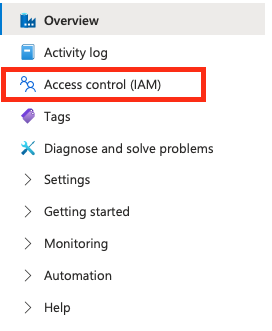
Open Access control (IAM).
-
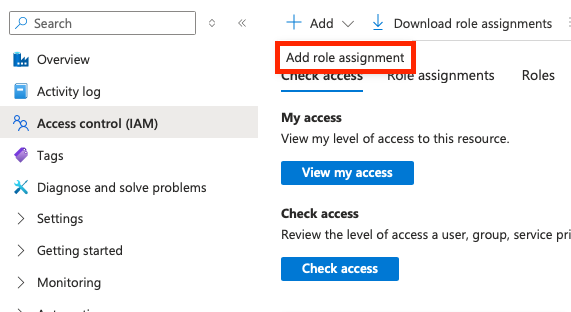
Select Add > Add permissions.
-
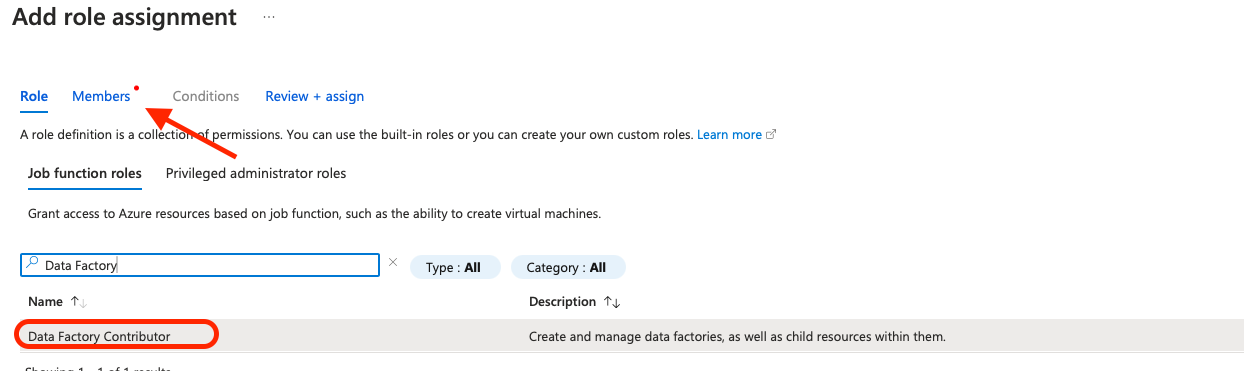
Select the Data Factory Contributor role and on the Members tab, assign it to the relevant user or group of users.
-
Permissions for runtime lineage resolution
With resolveRuntimeValues turned on, the scanner additionally reads the run history of your factory through the following Azure Data Factory endpoints:
| Endpoint | Purpose |
|---|---|
|
Lists the pipeline runs in the configured time window. |
|
Reads the activity runs of each pipeline run, including the parameter values that the run used. |
Both endpoints are covered by the Data Factory Contributor role. If you use a custom role instead, grant it the following actions:
-
Microsoft.DataFactory/factories/pipelineruns/read -
Microsoft.DataFactory/factories/queryPipelineRuns/action -
Microsoft.DataFactory/factories/pipelineruns/queryActivityruns/action
The scanner only reads run metadata. It does not read the data that your pipelines process, and it does not start, cancel, or modify any run.
Scanner configuration
Connection details and credentials are inherited from the source connection. See Azure Data Factory Connection.
All fields marked with an asterisk (*) are mandatory.
| Property | Description |
|---|---|
|
A human-readable description of the scan. |
|
List of Ataccama ONE connection names for future automatic pairing. |
|
Path to Data Factory Manager. |
|
Name of the factory to be processed. |
|
List of dataflow folders to be processed. |
|
Name of the container that holds related resources for an Azure solution. |
|
Resolves parameterized datasets to the files and tables that pipeline runs actually used. Turned off by default. To learn more about runtime lineage resolution and when to enable it, see Runtime lineage resolution. |
|
Resolves date functions such as Dates are taken from the start time of the activity run, not from the time of the scan, so the resolved paths are the ones the run used.
This property only takes effect when |
|
Lineage history in days.
For example, if set to Values above 45 have no additional effect, as Azure Data Factory does not keep older runs.
This property only takes effect when |
{
   "scannerConfigs":[
      {
         "description":"Scan Azure Data Factory",
         "oneConnections":[],
         "inputDataCatalogFilePath":null,
         "factoryName": "myfactoryName",
         "dataflowFolders": ["folder1", "folder2"],
         "resourceGroup":"MetadataExtractionGroup",
         "resolveRuntimeValues": true,
         "lineageFromPastNDays": 30
      }
   ]
}
Was this page useful?