
Understand Profiling Results
After profiling a catalog item, you can view the results for each of its attributes.
Where can I find profiling results
Profiling results are shown in the DQ monitor. Go to the Attributes tab, select an attribute to open its sidebar, then open the Profiling tab.
Anomalies found during profiling are reported separately, under Anomaly detection on the monitor Data quality card. See Anomaly Detection.
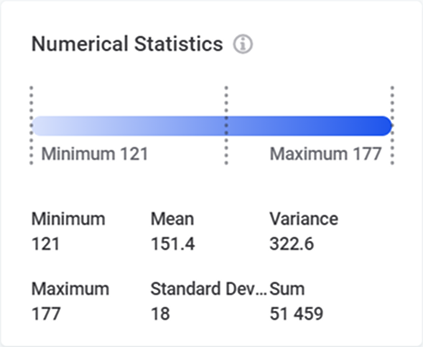
If the catalog item’s connection uses the Strict (no data leaves Edge) compliance mode, only counts (DQ insights) and length statistics are shown. Frequency, frequency group, quantile, mask, and pattern analyses and numerical statistics stay on the edge, and a Compliance mode is on card explains that these metrics aren’t shown. See Compliance mode.
Profiling statistics explained
Frequency, frequency groups, quantile statistics
These statistics help you understand value distribution and uniqueness across your data. They are calculated for all attributes, regardless of their data type.
Use frequency groups and frequency analysis together to gain more insight into the data and determine what percentage of data contains duplicated values.
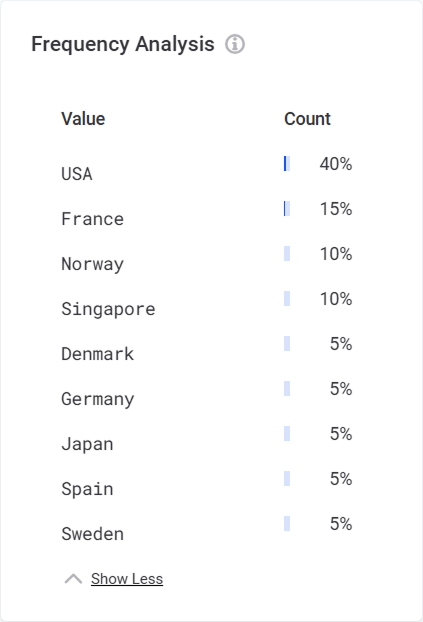
- Frequency Analysis
-
Shows how many times each value occurs in the data.
- Frequency Groups
-
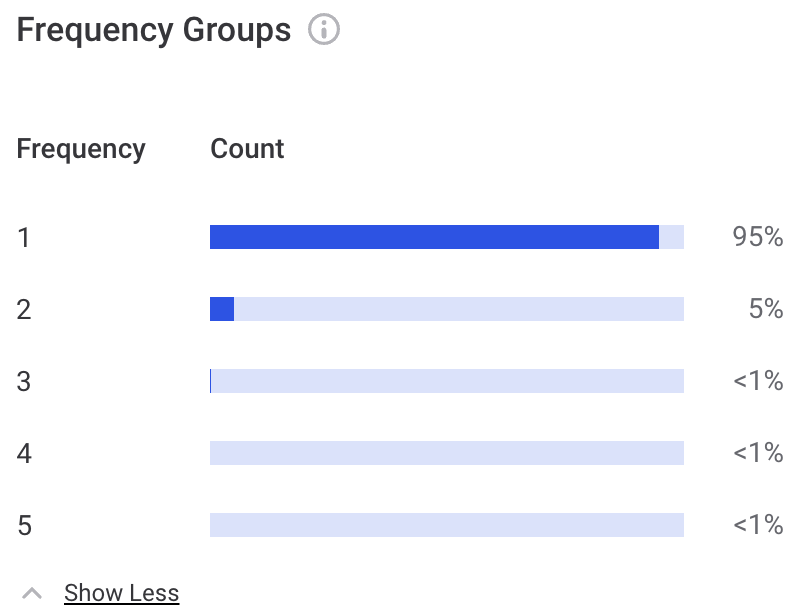
Shows how many unique and duplicated values there are in the data. Null values are excluded from this analysis.
Each group represents values that occur the same number of times. For example, a group with size 2 represents all values that appear exactly twice in your data. If the data contains only unique values, the group size is 1.
- Quantiles
-
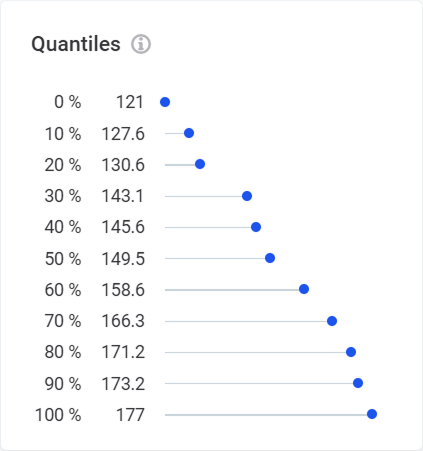
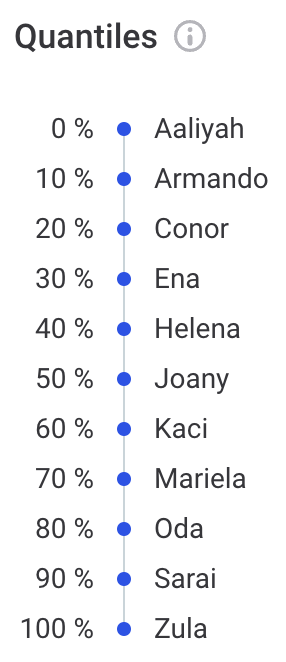
Shows values at specific intervals in the ordered data set. The first value is shown at 0%, the last value at 100%, and median value at the 50% marker.
Numeric attributes show value distribution:
Non-numeric attributes show character distribution:
DQ insights
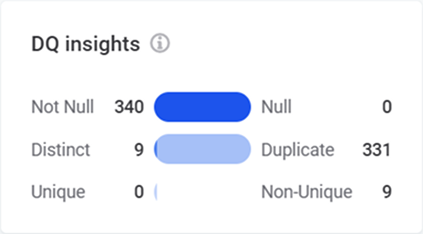
DQ insights display the following information:
-
Not Null: Count of non-null values.
-
Null: Count of
NULLvalues. -
Distinct: Count of different values (includes both unique and non-unique values).
-
Duplicate: Count of values occurring multiple times.
-
Unique: Count of values occurring exactly once.
-
Non-Unique: Count of values with at least one duplicate.
Mask, pattern, length statistics
These analyses help you identify format inconsistencies. They apply only to non-numeric attributes.
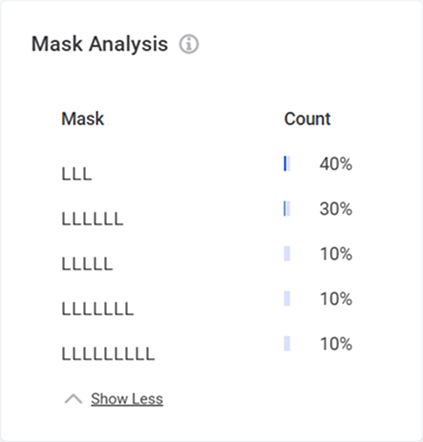
- Mask Analysis
-
Shows structure of values in the data, where "L" represents a letter and "D" represents a digit.
Helps identify unexpected patterns, such as single character records or records with digits in name fields.
- Pattern Analysis
-
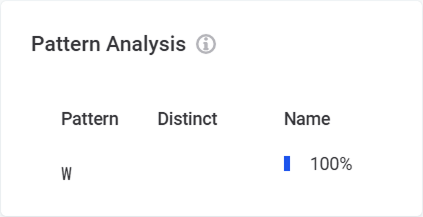
Shows higher-level structure of values in the data, where “W” represents a word, "N" a number, and “L” represents a letter.
It also shows how many records share the same pattern and how many of them are distinct.
- Length Statistics
-
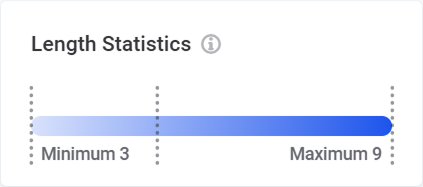
Shows minimum, maximum and mean character length of values.
Next steps
After viewing the profiling results, you can take first steps to evaluate and improve your data quality.
For each attribute on the Attributes tab, you can:
-
Apply additional terms: Select the attribute to open its sidebar, then select Add Term.
-
Review anomalies: Check what profiling flagged as unexpected. See Anomaly Detection for details.
-
Add DQ rules:
-
Apply existing rules: Select Apply rules, then Add rule under the attribute.
-
Create new rules: Select Apply rules, then Create a new rule. See DQ Rules.
-
Was this page useful?