
User Preferences
Customize various aspects of your Ataccama ONE experience to match your role and preferences. Your customizations are saved automatically and apply only to your account.
| Your customizations are stored locally in your browser and don’t sync if you use a different device or browser. |
Home page
You can customize your home page by choosing a layout template and by adding or removing individual widgets.
Change the layout template
Templates provide pre-configured widget arrangements designed for different roles.
-
In the upper-right corner of the home page, select Change template in the three-dots menu.
-
Choose a template:
-
Standard: General-purpose layout for getting started.
-
Steward: Focused on task management and notifications.
-
Operations: Optimized for operations workflows, with processing and notifications.
-
-
Select Choose template.
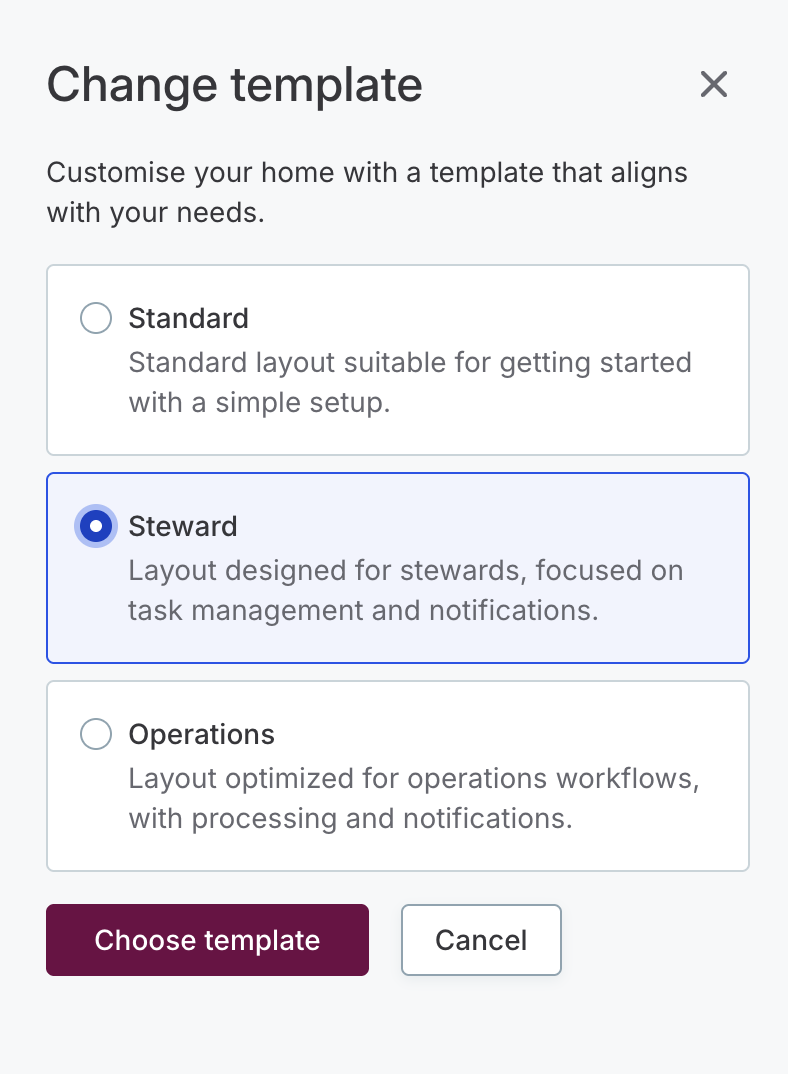
You can add more widgets and re-order them to suit your needs anytime. When you add or remove widgets, a Custom option appears in the template menu to represent your modified layout.
If you switch to a different template, the Custom option is removed and your manual adjustments are lost.
Add or remove widgets
-
In the upper-right corner of the home page, select Add widgets in the three-dots menu.
-
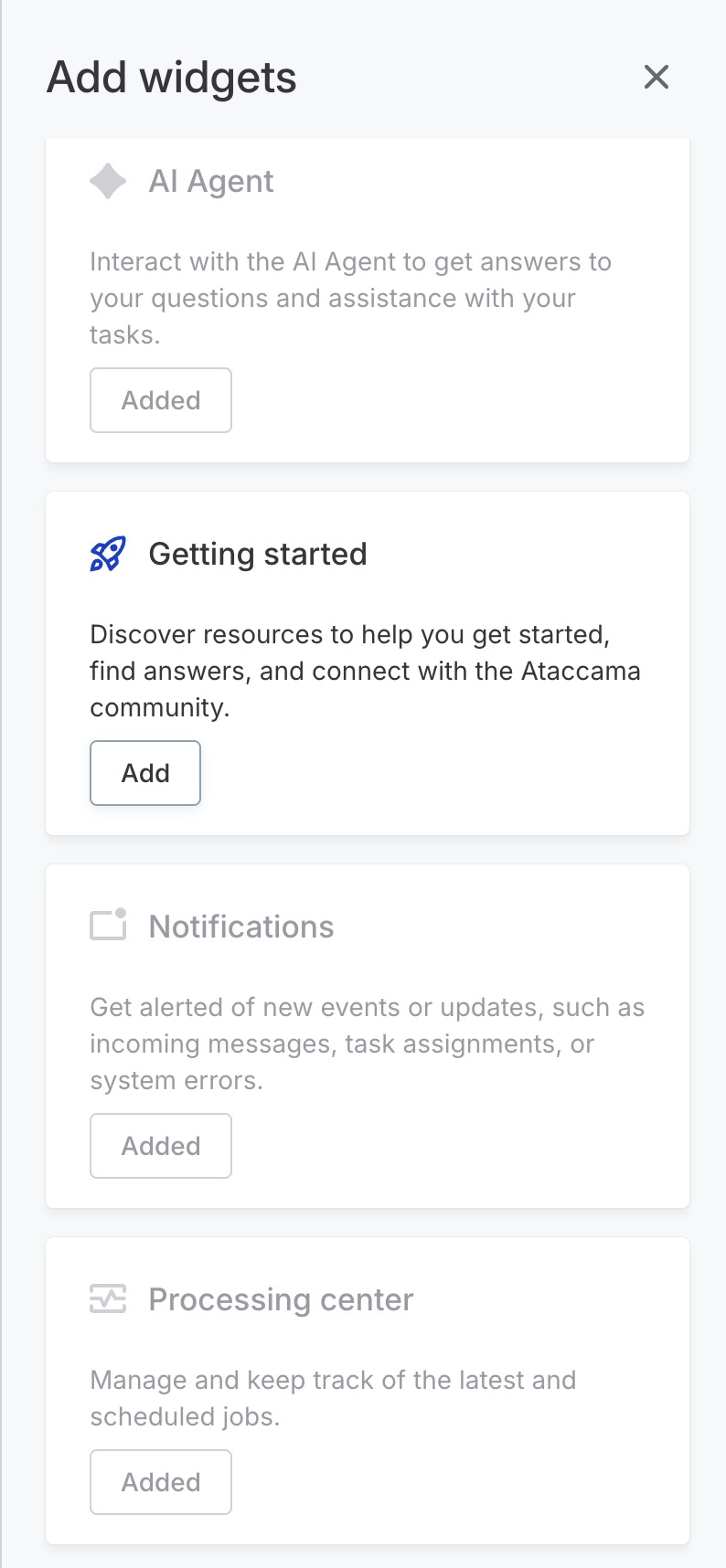
Select Add next to the widget you want to include. Available widgets:
-
AI Agent: Interact with the AI Agent to get assistance with your tasks.
-
Chat with documentation: Talk to the AI assistant and get help with your questions.
-
Getting started: Discover resources to help you get started and connect with the Ataccama community.
-
Notifications: Get alerted of new events or updates, such as incoming messages, task assignments, or system errors.
-
Processing center: Manage and keep track of the latest and scheduled jobs.
-
Report: Generate and view data in a structured format, usually in the form of a table or chart.
-
Rich text: Format text using different styles, such as bold, italic, underline, and adjust font size.
-
Tasks: Manage and track your to-do list, assign tasks to others, set due dates, and monitor progress.
-
Widgets already on your home page are faded and marked as Added.
To reposition a widget, drag and drop it as needed. To delete a widget, use the widget’s three-dots menu.

Was this page useful?