
Create DQ Rule in the Rule Library
Create rule
To create a rule:
-
Go to Data quality > Rules.
-
Select Create.
-
On the Create rule screen, provide the following information:
-
Name: The name of the rule.
-
Rule type: Use the dropdown to choose a data quality dimension for your rule. See Rule type for details.
-
Description (optional): A description of the rule and how to use it.
-
Reference of rule definition (optional): A hint about the context of the rule, or a link to a location with more detail.
-
Find similar rules: Use the AI-powered feature to identify existing rules with similar names or descriptions. Review the results to avoid creating duplicates.
-
-
Select Save to create a draft of the rule.
-
Before publishing or submitting an approval request, you need to define the rule logic consisting of at least one input attribute and condition. Continue to Define rule implementation.
Define rule implementation
Once you have created the rule, go to the Implementation tab.
Generate rule with AI
Select this option to generate a rule using AI:
-
Define the rule and select Generate.
-
Review the rule inputs and logic.
-
If needed, adjust the rule definition and Re-generate.
-
Continue to Test rule.
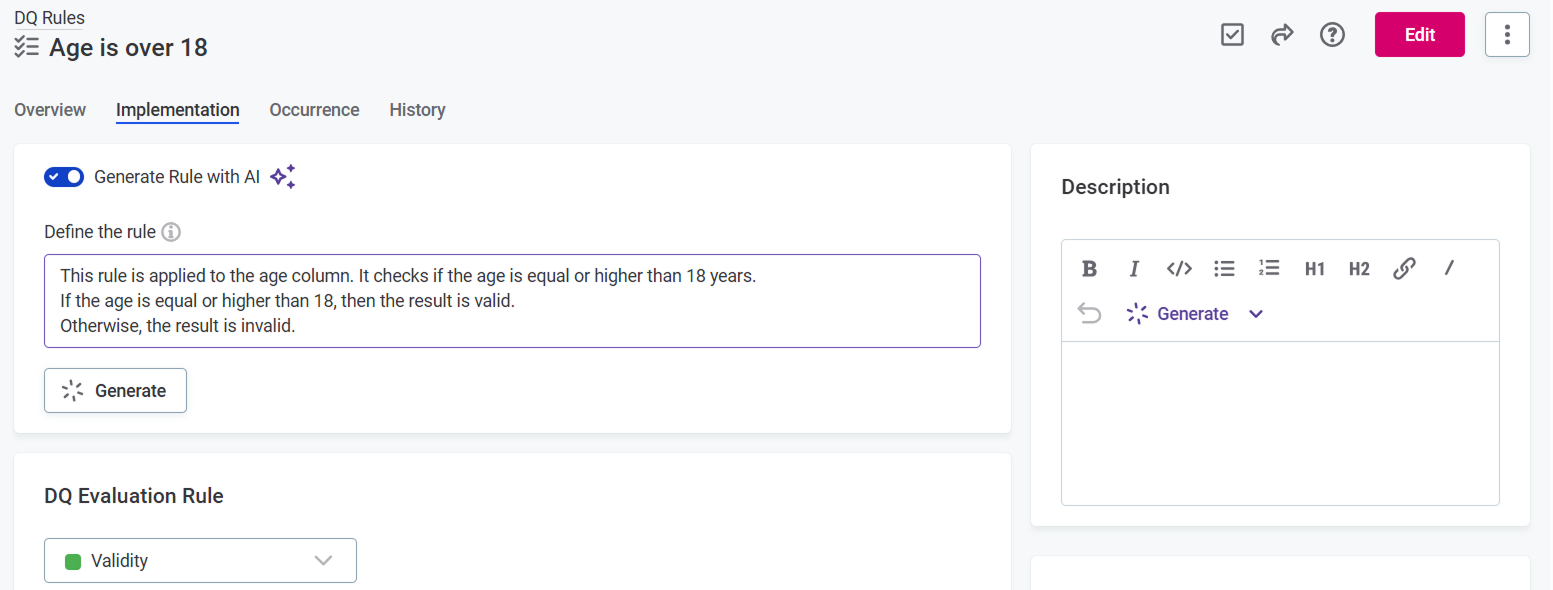
The input attributes and the rule logic are generated together. The logic arrives as an Advanced Expression rather than a built condition, with your description kept above it as a comment. Review the expression before you publish it, as it might not match what you intended.
A single condition is generated, however many checks your description contains, so one explanation covers them all. To report the checks separately, split them into separate conditions. See How combining or splitting conditions across rules affects your results.
Rule type
In the Rule type dropdown, under DQ Evaluation Rules, choose a data quality dimension for your rule:
-
Validity: Validity rules verify the usability of the data (for example, regarding data format, data content or attribute relations). The default results are
ValidandInvalid. -
Uniqueness: Use this dimension to verify that there are no duplicate values and only one instance appears in the dataset. The default results are
Unique,Not populated, andNot Unique. -
Completeness: Use this dimension to verify that the value field is filled. The default results are
CompleteandNot complete. -
Accuracy: Use this dimension to check whether values are accurate and reflect the true values, for example, based on reference data. The default results are
Accurate,No reference available, andNot accurate. -
Timeliness: Use this dimension to verify whether data is available at the time it is needed. The default results are
Timeliness ok,Minor delay, andMajor delay. -
Custom: If you have created any custom dimensions, they can also be selected here.
| DQ dimensions are fully customizable. Validity, Uniqueness, Accuracy, Completeness, and Timeliness are available by default, but their configuration and results can be changed if required. |
Inputs
Select rule inputs: Attributes (at least one is required), Parameters (optional), and Variables (optional). Once added, the inputs are available for building rule conditions in the Rule logic section.
Each input is one of three kinds: an attribute for the data being checked, a variable for a transformed version of it, and a parameter for a value you supply.
Inputs are placeholders, not the data itself. You map them to real attributes when you apply the rule to a catalog item, so the same rule can be reused across catalog items.
Attributes
Select the attribute data type and specify its name. Select Add attribute for each additional attribute.
(Optional) Select Add term to add terms to the attribute.
| Adding terms to input attributes during implementation results in this rule being suggested for other attributes that also have this term. |
Scored and hidden attributes
When a rule references multiple input attributes, each attribute has a Scored or Hidden setting that controls which attribute the rule’s result is reported on:
-
Scored: The rule’s result is reported on this attribute, contributing to its DQ score and invalid samples.
-
Hidden: The attribute participates in the rule’s logic and can affect the result, but the result is not reported on it. The attribute’s DQ score and invalid samples are unaffected by this rule.
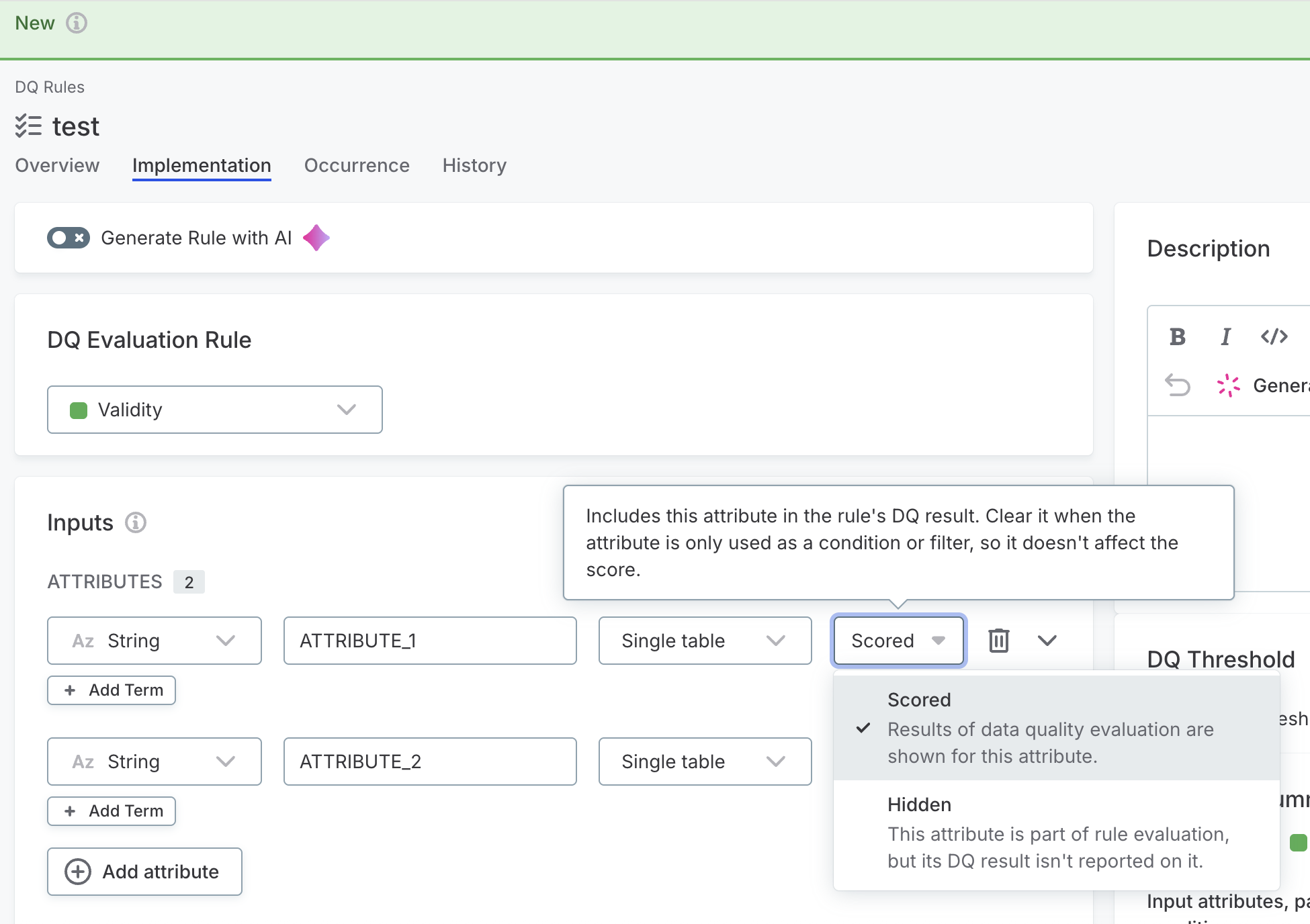
Set an attribute to Hidden when it’s auxiliary in the rule — a reference value or condition — and the result shouldn’t be reported on it. Without this setting, every attribute the rule touches receives the rule’s result, which can distort the DQ score of an attribute that isn’t really the rule’s target.
Common cases:
-
Conditional validation: A rule evaluates one attribute only when another meets a condition. For example, "if
countryisUS, thenzip_codemust be five digits" — setcountryto Hidden so onlyzip_codecarries the result. -
Reference comparison: A rule compares one attribute against a value derived from another. For example, "the
totalmust equal the sum ofline_amount`" — set `line_amountto Hidden so onlytotalcarries the result.
Leave all attributes as Scored when each is equally part of what’s being evaluated, for example a rule that requires both first_name and last_name to be non-empty.
The Scored or Hidden setting only appears for rules with multiple input attributes.
For cross-table rules, the rule inputs are grouped into a Primary table and a Related table. Attributes in the Related table group are automatically set to Hidden and are not scored: results are reported only on the primary table.
Scored is the default. You can update the setting later when applying or editing the rule on a catalog item, so the same rule can be scored differently depending on context.
Parameters
Parameters are placeholders for values provided by the user. Use a parameter in a condition instead of a constant value. You supply the value when you apply the rule, not when you create it, which is what lets one rule be reused with different values on different attributes.
For example, you can use parameters to set up a DQ rule that checks whether the value of an age attribute falls within a certain interval, which is not known upfront.
This rule will use any age interval specified by the user while applying the rule to the age attribute.
| Parameter values are case-sensitive. |
To add parameters:
-
Select Add parameter.
-
Provide a meaningful parameter name.
-
Provide a data type.
Select Add parameter again for each additional parameter you need.
A parameter definition consists of a name and a data type only, with no field for a value. You cannot apply the rule until you fill in every required parameter. See Configure a rule before applying it.
Which data types can be used with parameters
There are two additional data types that can be used with parameters:
-
List of values: Useful for validating whether the value is or is not from a predefined list. You provide the list of values when you apply the rule.Used in combination with the
is from parameter listoris not from parameter listconditions. -
List of masks: Useful for validating whether masks and patterns come from a predefined list or not. This is useful especially for autogenerated rules where the masks are prefilled from profiling (an option preferred to specifying masks manually).This data type is not supported in the Condition Builder yet, use ONE expression
matches([Valid masks], Attribute)instead.
Example: Validate values against a parameter list
In this example, you build a rule that checks whether a value belongs to an allowed list, where the list itself is chosen separately each time the rule is applied.
Because the list lives in a parameter rather than in the rule, one rule covers every attribute that needs this kind of check. The same rule can validate country codes on one attribute and order statuses on another.
To build the rule:
-
Create a rule and open the Implementation tab.
-
Set the attribute data type to
Stringand name the attribute, for exampleVALUE. -
Select Add parameter in the Parameters section.
-
Name the parameter, for example
ALLOWED_VALUES, and set the data type toList of values.The
is from parameter listandis not from parameter listconditions do not appear until the rule has aList of valuesorList of masksparameter, which is why you add the parameter first. -
Select
VALUEin the Rule logic section. -
Set the condition to
is from parameter list.An operand row appears underneath the condition.
-
Select your parameter in the operand row.
The condition now checks the value against whatever list the parameter holds.
-
Set the Result to Valid.
-
In the IF none of the conditions above apply THEN section, set the Result to Invalid.
-
Test the rule, supplying the list you want to test against in the test panel.
The parameter holds no values on the rule itself, so the test uses the list you enter here.
-
Publish the rule.
-
Apply the rule to an attribute.
-
Enter each allowed value in its own field, selecting the plus sign (
+) to add another.The values are joined by or, so a value passes when it matches any of them.
-
Set the Rule instance name to describe this list, for example
Allowed country codes.The instance name appears in the results, so a descriptive name tells you which check ran.
Applying the same rule to a second attribute lets you supply a different list, with no second rule to maintain.
Variables
In the Variables section, you can apply various transformations to your input attributes. Variables store this transformed data. They can be used directly in the rule implementation logic, or to define groups for aggregation rules.
For example, you can create a variable that contains a trimmed value of a string attribute and then apply the rule conditions only on the trimmed version.
To create variables from your attributes:
-
Select a name for your variable. Select Add variable if you require additional fields.
-
Select the attributes that you want to transform. Use the dropdown to choose from the list of input attributes. The transformations will be applied in the next step.
Alternatively, if you are an advanced user, use the dropdown to select Advanced Expression and define the attribute and the transformations using ONE expression language.
-
Add transformations using the Add transformation option. The transformations available depend on the data type of the selected attribute: for a full list of types and available transformations, see List of available transformations.
How to apply multiple transformations to one attribute
You can apply multiple transformations to a single attribute, but you can only add them in a logical sequence.
For example, if you start with an attribute of data type String and apply the To integer transformation, you can’t then apply the Uppercase transformation, as it is only available for strings.
For the same reason, you can only remove the last transformation in the sequence at any given time.
To remove a transformation, hover over it and select x to delete it.
List of available transformations
Expand to see all available transformations
| Datatype | Available transformations | Description |
|---|---|---|
|
|
Changes data type from string to float. |
|
Changes data type from string to integer. |
|
|
Changes data type from string to long. |
|
|
Converts string characters to uppercase. |
|
|
Converts string characters to lowercase. |
|
|
Removes spaces from both ends of the string. |
|
|
Trims string and replaces repeated spaces with a single space. |
|
|
Removes non-digit characters from string. |
|
|
Removes non-letter characters from string. |
|
|
|
Changes data type from integer to float. |
|
Changes data type from integer to date. |
|
|
Changes data type from integer to long. |
|
|
|
Changes data type from Boolean to string. |
|
|
Changes data type from date to datetime. |
|
Changes data type from date to string. |
|
|
|
Changes data type from datetime to date. |
|
Changes data type from datetime to string. |
|
|
|
Changes data type from long to float. |
|
Changes data type from long to string. |
|
|
Changes data type from long to date. |
|
|
Changes data type from long to datetime. |
|
|
|
Changes data type from float to string. |
|
Rounds to the nearest integer that is less than or equal to float value. |
|
|
Rounds to the nearest integer that is greater than or equal to float value. |
|
|
Rounds to nearest integer. |
Rule logic
Rule logic defines the conditions an input value must meet to pass.
-
In Rule type, select Rule, Aggregation rule, or Cross-table rule.
Aggregation rules and cross-table rules require additional configuration.
-
Provide the rule conditions and an explanation of the results.
There are two ways to do this. Use the toggle in the condition header to switch between them:
-
Select Condition Builder to define the rule logic using the predefined options.
-
Select Advanced Expression to use ONE expressions in your rule condition. See ONE Expressions Handbook.
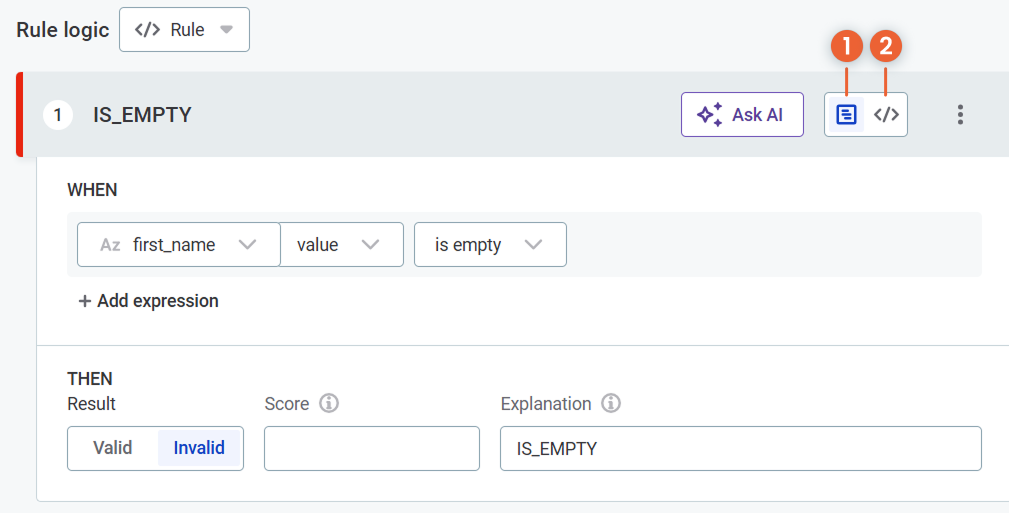
If you selected Advanced Expression, enter the expression in the space provided.
If you selected Condition Builder:
-
Select the input attributes to use in the rule logic.
-
Select any required modifiers, for example,
TrimorRound. Different modifiers are available for string and integer inputs.Expand to see all available modifiers
Modifier Description ValueThe given value of an attribute.
UppercaseUppercase version of string.
LowercaseLowercase version of string.
TrimRemoves any whitespaces from both sides of strings.
Trim leftRemoves any leading whitespaces from strings.
Trim rightRemoves any trailing whitespaces from strings.
SquaredSquares the value of an integer, float, or long data type attributes.
RoundRounds the value of an integer, float, or long data type attributes to the nearest whole number.
AverageAverages the value of integer, float, or long data type attributes (available only when using aggregation rules and grouping).
MinThe minimum of string, integer, or long data types attributes (available only when using aggregation rules and grouping).
MaxThe maximum of string, integer, or long data type attributes (available only when using aggregation rules and grouping).
SumThe sum of of string, integer, or long data type attributes (available only when using aggregation rules and grouping).
-
Select the required conditions, for example,
matches maskorhas length of, and provide the necessary requirements.The conditions available depend on the data type of the input. See Conditions available by data type.
For comparison conditions, you also choose what to compare the value against: a value you type, another input attribute, or a parameter.
-
Select whether the condition defined should produce the result that is, for example, Valid or Invalid. Options are different depending on the dimension chosen.
A condition sets a result and an explanation only, not a score.
-
Enter an explanation for the condition.
The explanation names the condition, and it’s what gets reported for every record that matches it, in test results and dashboards. It’s how you tell later why a record failed, so make it specific enough to read on its own.
-
-
How rule conditions are evaluated
A rule can contain more than one condition. Select Add condition to add another.
Conditions are evaluated in the order they are listed, and the first condition a record matches decides the outcome. The remaining conditions are not evaluated, so a record receives one result and one explanation even when it satisfies several conditions. This applies to every condition in the rule, whether you define it with the Condition Builder or as an Advanced Expression.
Records that match none of your conditions fall through to the IF none of the conditions above apply THEN section. Set the Result for those records there. The explanation for the fallback is predefined and cannot be changed.
Because the first match decides, list your conditions from the most specific to the most general. For example, if one condition catches an empty value and another catches a badly formatted one, put the empty-value condition first, so an empty value is reported as empty rather than as badly formatted.
To change the order later, select the three-dot menu on a condition, then select Move Up or Move Down. To turn off a condition without deleting it, select Disable in the same menu.
How combining or splitting conditions across rules affects your results
A rule returns one explanation per record, no matter how many conditions it contains.
Use several conditions in one rule when they are alternative reasons for the same result and the first applicable reason is enough. For example, a range check works as one rule with two conditions: too low and too high both mean the value is out of range.
Use separate rules when you need each check counted independently. A record that matches an earlier condition never reaches the later ones, so the count for a later explanation includes only the records that had no earlier problem. Separate rules avoid this, because each rule evaluates every record and carries its own result and its own threshold.
Test rule
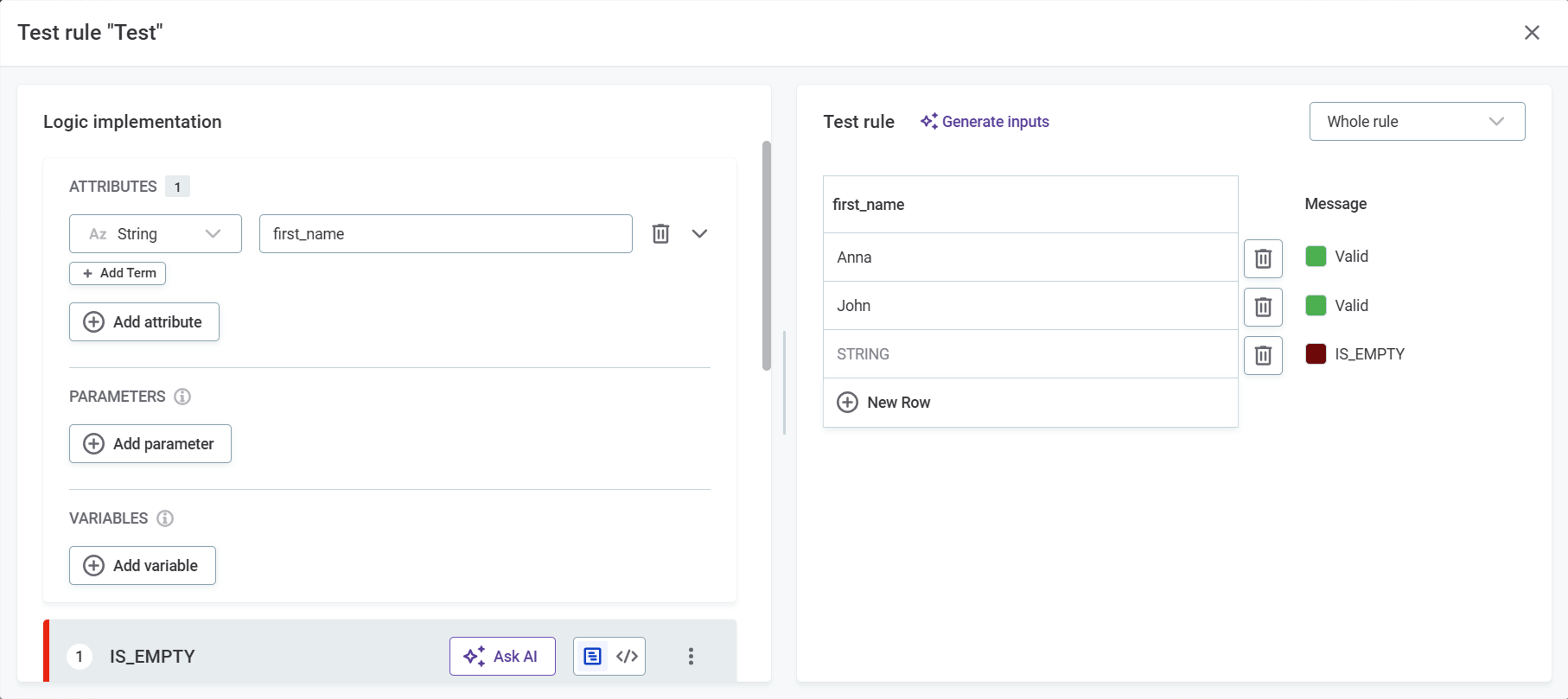
Select Test rule, then try different inputs in the dialog that opens. Select Add row to test more inputs, or Generate inputs to have AI suggest them. The result for each row is shown automatically in Explanation.
The whole rule is tested by default. To check whether a single condition works on its own, select it by name from the dropdown in the upper right of the dialog.
Conditions available by data type
The conditions available in the Condition Builder depend on the data type of the input.
An input counts as empty only when it has no content at all.
Text such as NULL, null, N/A, n/a, ., ,, -, or _ is content, so is empty does not match it.
If the rule has a List of values parameter, two further conditions become available for String and numeric inputs: is from parameter list and is not from parameter list.
Both check the value against the list supplied through that parameter.
For conditions that read from a catalog item, select ON DATA CHANGE in Data updates so that the rule always uses the latest data. If you select a catalog item that is not managed as reference data, no automatic updates are available.
Aggregation rules add is unique and is not unique, which evaluate a group rather than a single value.
See Aggregation Rules.
Conditions for String attributes
| Condition | Description |
|---|---|
|
The input has no value. |
|
The input has a value. |
|
The value is the same as the one you compare it to. |
|
The value differs from the one you compare it to. |
|
The value contains the substring you define. |
|
The value does not contain the substring you define. |
|
The value begins with the text you define. |
|
The value ends with the text you define. |
|
The value has the length you define. |
|
The value does not have the length you define. |
|
The value matches the pattern you define. |
|
The value belongs to the catalog item attribute you select. |
|
The value does not belong to the catalog item attribute you select. |
|
The value belongs to the reference data catalog item you select. |
|
The value does not belong to the reference data catalog item you select. |
|
The value belongs to a list you type in when defining the condition. |
|
The value does not belong to a list you type in when defining the condition. |
|
The value is numeric. |
|
The value is not numeric. |
|
The value corresponds to the mask you define. |
|
The value does not correspond to the mask you define. |
|
The value corresponds to the regular expression you define. |
|
The value does not correspond to the regular expression you define. |
Conditions for numeric attributes
Integer, Float, and Long attributes support the same conditions.
| Condition | Description |
|---|---|
|
The input has no value. |
|
The input has a value. |
|
The value is the same as the one you compare it to. |
|
The value differs from the one you compare it to. |
|
The value is lower than the one you compare it to. |
|
The value is lower than or equal to the one you compare it to. |
|
The value is higher than the one you compare it to. |
|
The value is higher than or equal to the one you compare it to. |
|
The value belongs to the catalog item attribute you select. |
|
The value does not belong to the catalog item attribute you select. |
|
The value belongs to the reference data catalog item you select. |
|
The value does not belong to the reference data catalog item you select. |
|
The value belongs to a list you type in when defining the condition. |
|
The value does not belong to a list you type in when defining the condition. |
Conditions for Date and Datetime attributes
Date and Datetime attributes support the same conditions.
The today conditions compare against the current date, so you do not have to enter a date yourself.
Use them for timeliness checks, where what counts as late shifts every day.
| Condition | Description |
|---|---|
|
The input has no value. |
|
The input has a value. |
|
The date is the same as the one you compare it to. |
|
The date differs from the one you compare it to. |
|
The date is earlier than the one you compare it to. |
|
The date is the same as or earlier than the one you compare it to. |
|
The date is later than the one you compare it to. |
|
The date is the same as or later than the one you compare it to. |
|
The date is the current date. |
|
The date is earlier than the current date. |
|
The date is the current date or earlier. |
|
The date is later than the current date. |
|
The date is the current date or later. |
|
The value belongs to the catalog item attribute you select. |
|
The value does not belong to the catalog item attribute you select. |
|
The value belongs to the reference data catalog item you select. |
|
The value does not belong to the reference data catalog item you select. |
Next steps
-
Assign Stewardship — Assign an owner group to the rule.
-
Run DQ Evaluation — Run DQ evaluation to see how your data performs against the rule.
-
Data Quality Thresholds — Configure a threshold to flag results that fall below an acceptable level and trigger alerts automatically.
Was this page useful?