
Work with Reference Data Records
Daily operations for adding, editing, filtering, and viewing reference data records.
Add records
-
Open your table > Data tab.
-
Select Add record.
-
Provide information in the available columns.
-
Press Enter.
Result: New record added in New draft state, ready for publishing.
Edit records
-
Select the field you want to change.
-
Enter the new value.
-
Press Enter.
Result: Record switches to Changed draft state, ready for publishing.
Copy and paste data
Streamline data entry with enhanced copy-paste capabilities. You can copy values from external sources like spreadsheets and paste them directly into table cells, significantly reducing manual data entry effort.
Copy and paste single values
-
Copy a value from an external source (Excel, text editor, etc.).
-
Select the target cell in your reference data table.
-
Paste the value using Ctrl+V or right-click > Paste.
-
Press Enter to confirm the change.
Copy and paste multiple values
-
Select and copy multiple cells or rows from an external application like Excel.
-
Select the starting cell in your reference data table where you want to paste the data.
-
Paste the values using Ctrl+V.
-
The adjacent cells are automatically populated with the copied data.
-
Press Enter to confirm all changes.
Supported features
The enhanced copy-paste functionality supports:
-
Single and multiple cell operations: Paste individual values or entire data ranges.
-
Data from external applications: Works with Excel, Google Sheets, text editors, and other applications.
-
Automatic data type handling: Data types are automatically converted and validated during paste operations.
-
Batch operations: Paste multiple rows of data at once for faster data entry.
Note: If pasted data doesn’t match the expected data type for a column, validation errors appear. You can correct them before saving.
Bulk edit
You can perform bulk column updates directly in the interface. The Bulk edit action includes two tabs: Basic and Advanced, with AI assistance available to help you through the process.
-
The Basic tab allows for straightforward edits without needing SQL knowledge.
-
The Advanced tab is for users who prefer to use SQL syntax for more complex updates.
| For datetime columns, values you enter are in the configured display timezone and are converted to UTC when saved. |
Access bulk edit
-
In the Data tab, right-click on any column header or select the three-dot menu for the column.
-
Select Bulk edit.
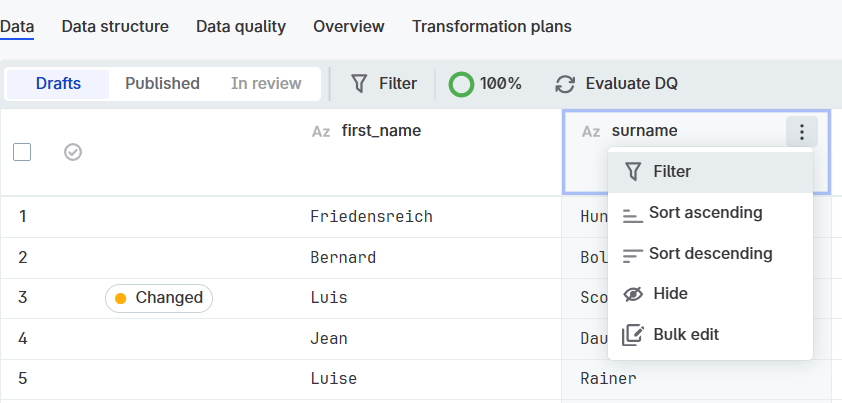
The Edit dialog opens with two tabs:
-
Basic: For straightforward edits without SQL knowledge.
-
Advanced: For SQL-based updates with AI assistance.
-
Basic tab
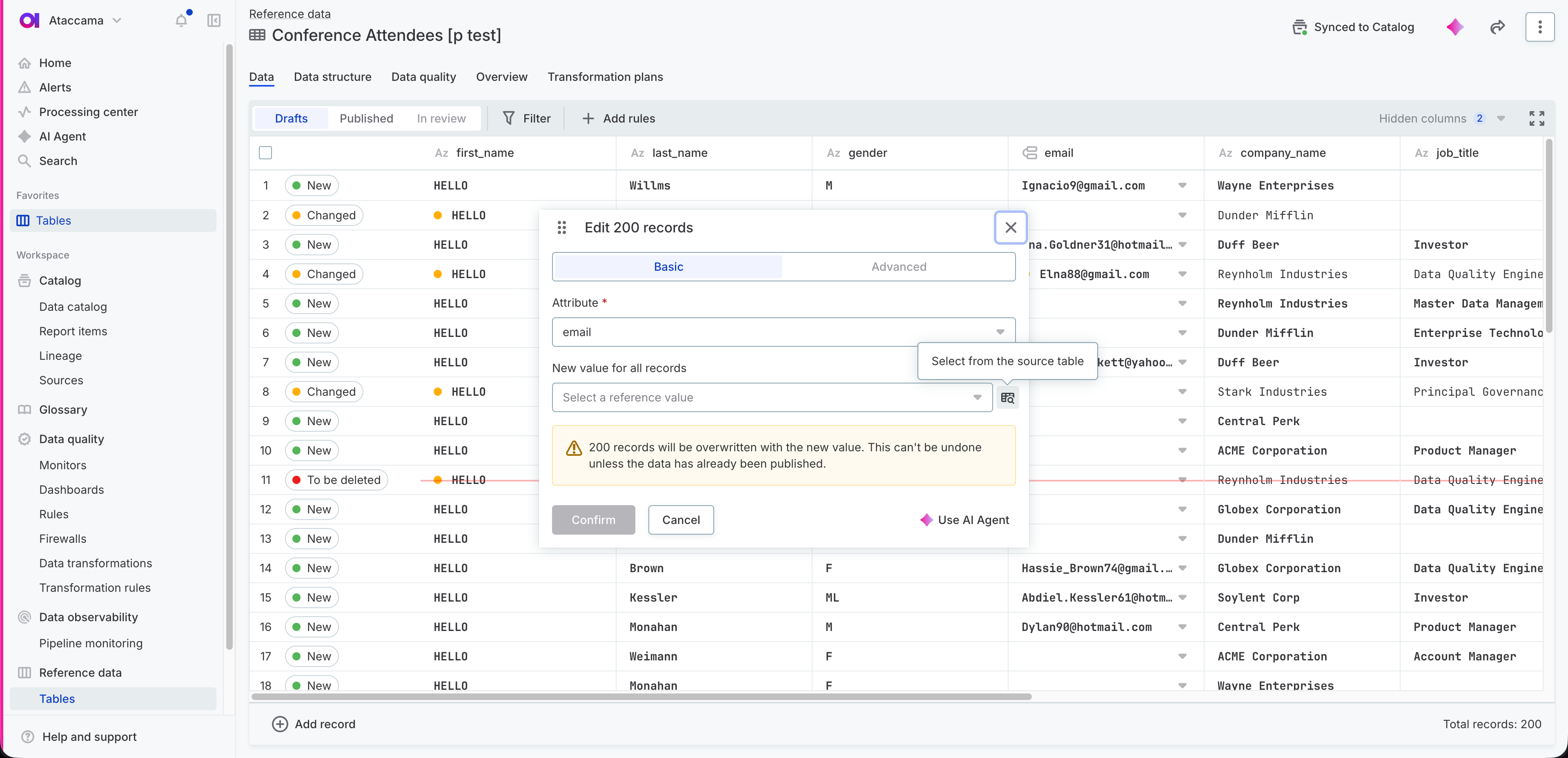
Use the Basic tab for simple column updates without SQL knowledge:
-
Select the attribute you want to edit.
-
Enter a new value for all records.
For connected attributes, you can also select a value by browsing the source table. See Select from the source table.
-
Select Confirm to apply the changes.
Advanced tab
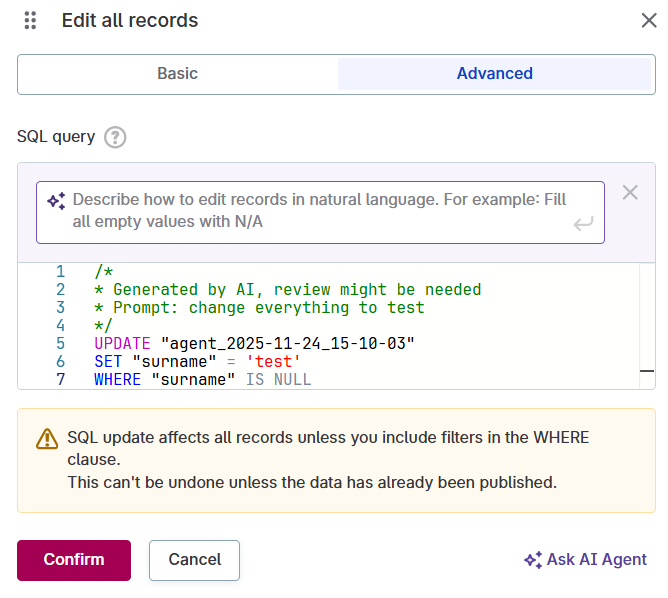
Use the Advanced tab for SQL-based updates with AI assistance:
-
Switch to the Advanced tab.
-
Modify the SQL query according to your requirements or use AI assistance to generate the SQL.
-
Select Confirm to execute the SQL statement.
| All changes apply immediately to the draft dataset. Make sure to review your updates carefully before confirming the execution. |
Duplicate records
Create a copy of an existing record to use as a starting point for a new entry. This is useful when several records share most of their field values.
-
Point to the row of the record you want to duplicate.
-
In the first column, select the three-dot menu > Duplicate.
Result: New record added in New draft state with the same field values as the source record, ready for editing and publishing.
Delete records
-
Point to the record header row.
-
Select three dots menu > Delete.
Result: Record marked as To be deleted, ready for publishing.
Filter records
You can filter your data to find, analyze, and edit needed records.
Quick filter: Right-click any column header > Filter (preselects that attribute)
Record state:
-
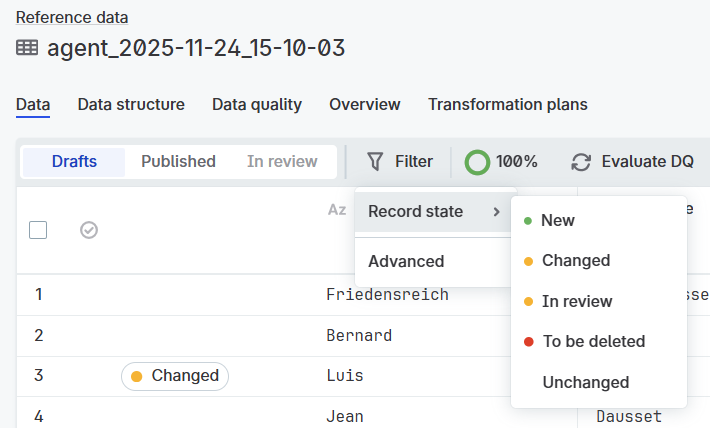
Select Filter on the Data tab
-
Choose an option from the Record state list.
-
New
-
Changed
-
In review
-
To be deleted
-
Unchanged
-
Data quality:
-
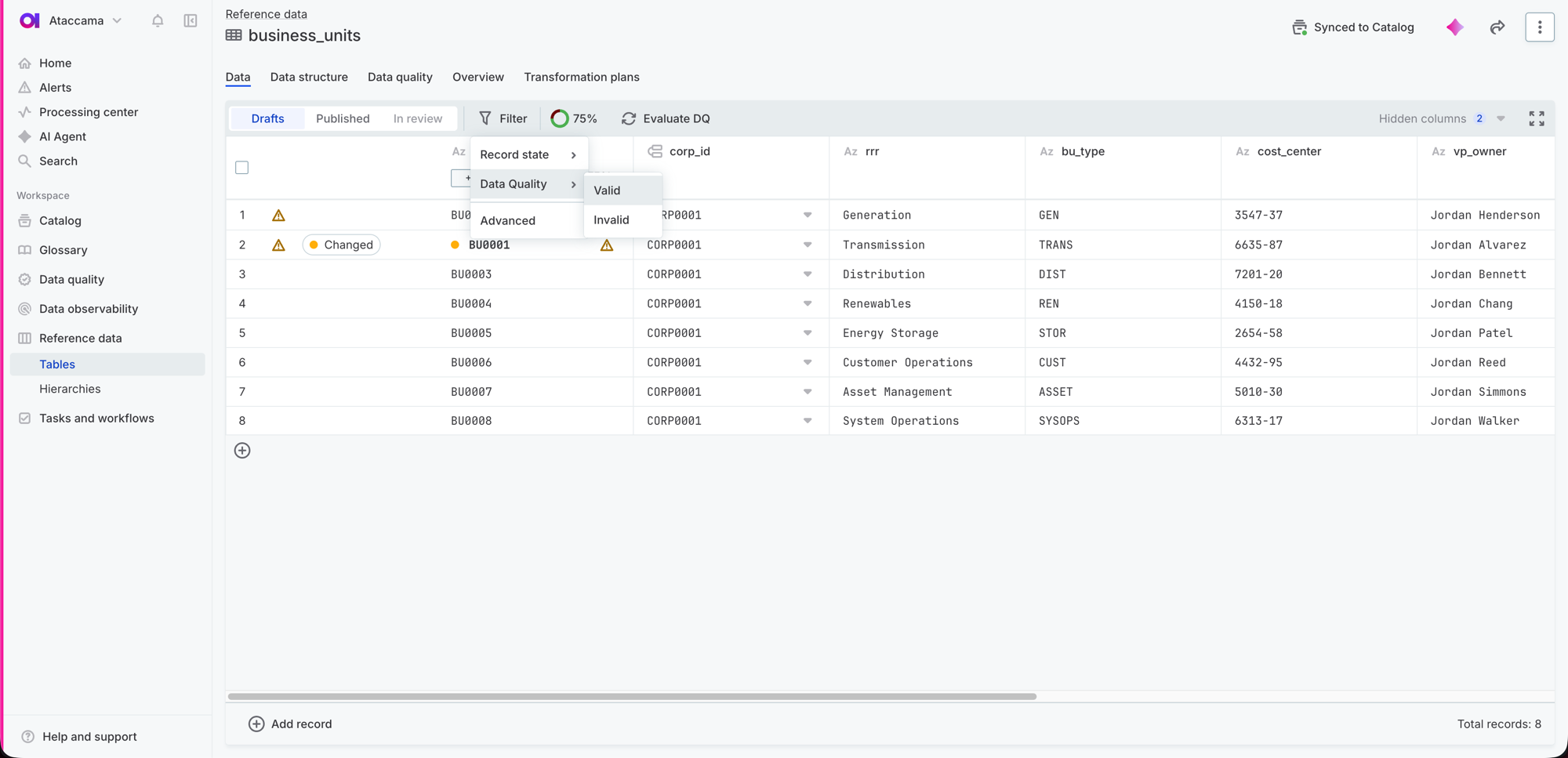
Select Filter on the Data tab.
-
Point to Data quality and choose one of the options:
-
Valid: Records that passed all data quality rules during the latest evaluation.
-
Invalid: Records where one or more rules failed during the latest evaluation.
-
This filter relies on the results of the most recent data quality evaluation. If rules haven’t been evaluated yet, run an evaluation first so records have a validation status to filter by. See Monitor data quality results.
| To filter for failing records directly, select the overall quality indicator, then select Show invalid records. |
Advanced filter:
-
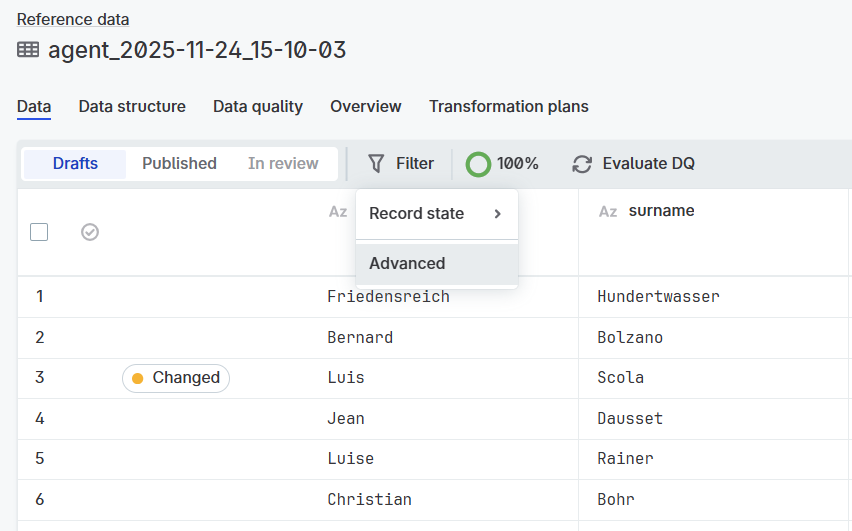
Select Filter on the Data tab
-
Select Advanced.
-
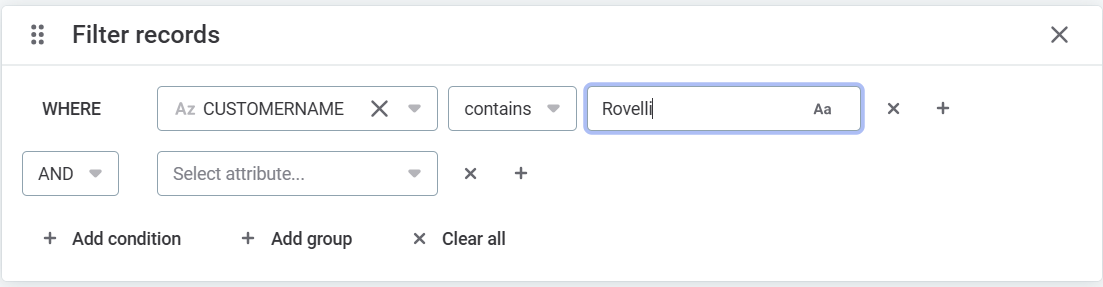
In the Filter records dialog, define the conditions of your filter:
-
Attribute: Select the attribute name.
-
Condition: Select the condition. The options available depend on the data type of the input attribute. Here are some of the most common ones:
-
String:
contains,begins with,ends with,is empty,is not empty,equal to,not equal to. -
Integer:
=,>,<,>=,⇐,!=,is empty,is not empty. -
Date:
equal to,not equal to,after,before,after or same as,before or same as,is empty,is not empty. -
Boolean:
is,is empty,is not empty. -
Expression: Enter the value against which the condition is checked.
-
-
| When filtering by datetime attributes, enter values in the configured display timezone. The filter automatically converts them to UTC for server-side filtering. |
Filters are applied as soon as you define the first condition. You can keep adding conditions (Add condition or the Plus option in the condition row) until you get the records you’re looking for.
Make sure you select the correct operator between conditions: AND or OR.
For more complex queries, you can aggregate several conditions into one to further refine the search results (Add group).
You can also clear all filters with Clear all.
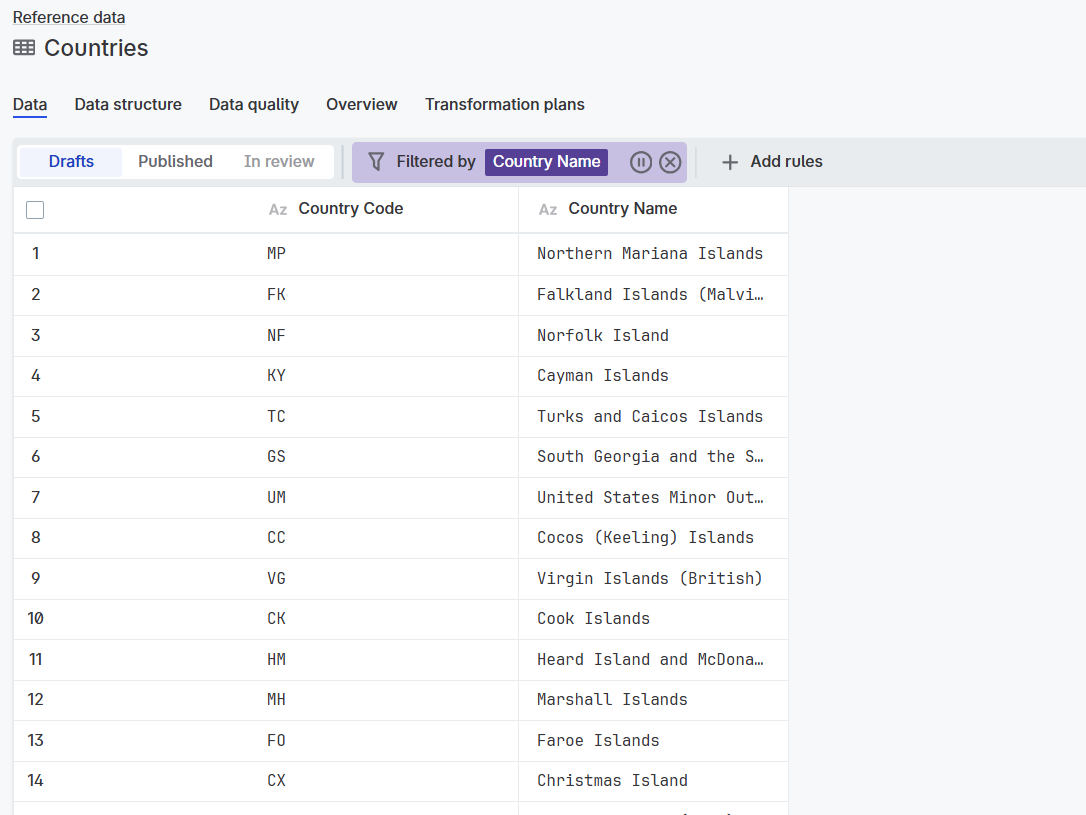
Applied filters are listed above the table in the Filtered by section. You can select this to add or remove filters.
Select the Filter off (Pause) icon for an unfiltered view of the data. To resume, select the Filter on (Play) icon.
Monitor data quality results
When data quality rules are configured and evaluated, validation results appear on the Data tab.
Data quality results and the Evaluate DQ action are available in Draft, In review, and Published datasets. For In review datasets, the results show the future state of the published dataset — the data quality it will have once the in-review changes are applied. For more about where results appear and how rules are managed, see Monitor Data Quality of Reference Data.
Check validation status
After evaluation, a data quality column appears on the left showing icons for each record. Select any validation icon to see failed rules and explanations.
Column headers show a quality bar for each attribute. Select the bar to see applied rules and pass/fail counts.
The toolbar shows an overall quality indicator:
-
Select the indicator to see the dataset-level breakdown
-
Select Evaluate DQ to trigger a new evaluation
Fix validation issues
-
Locate failing records using the data quality column.
-
Select the validation icon to see which fields and rules failed.
-
Edit the failing fields directly in the grid.
-
Trigger a new evaluation to verify your fixes.
For details about managing rules, see Monitor Data Quality of Reference Data.
View record detail
You can view detailed information about a record, including an editable list of all attributes, record history, and state overview.
To view record details:
-
Point to a record in the header row.
-
In the three dots menu, select Detail.
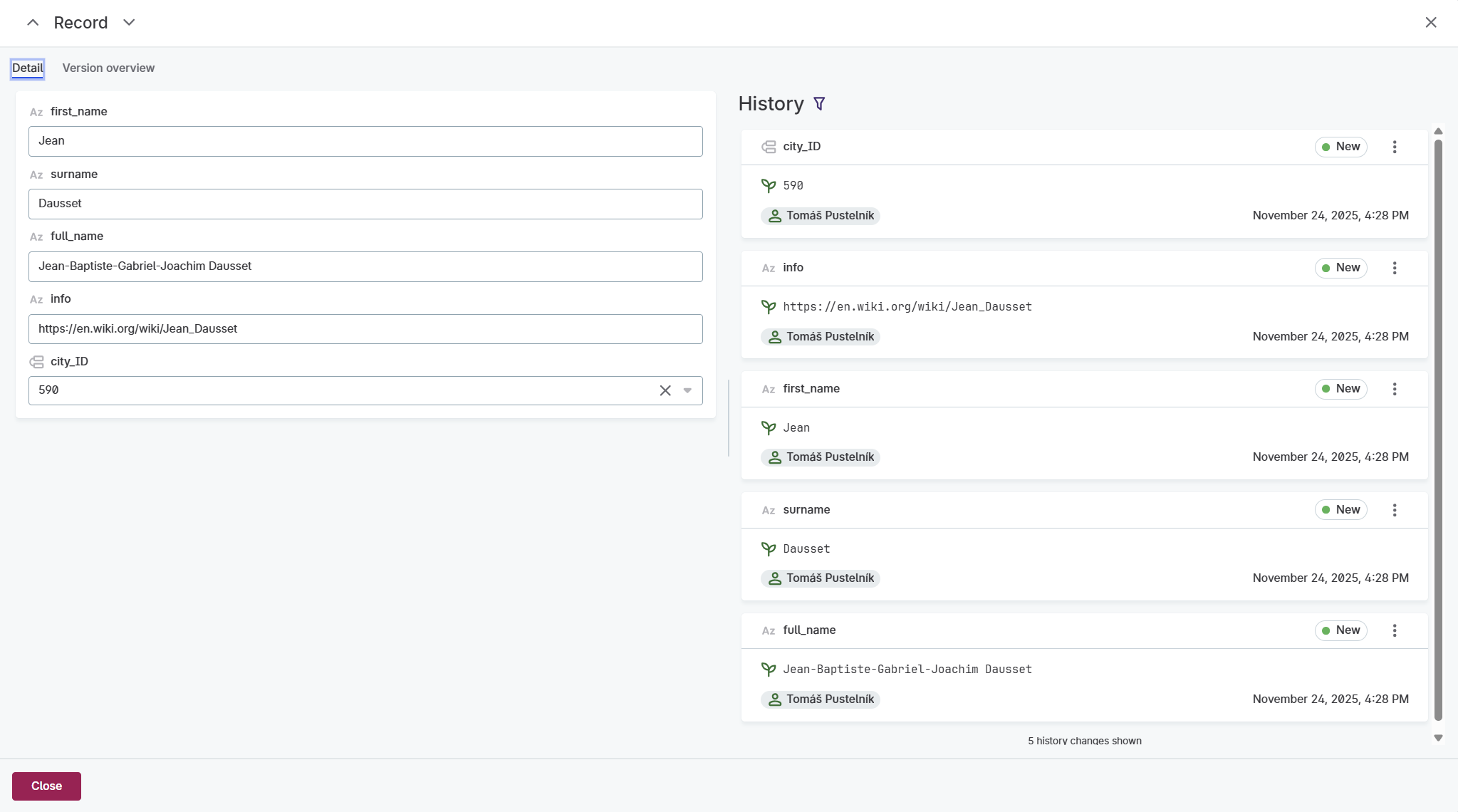
The Detail tab provides the following options:
-
Editable list of all attributes.
-
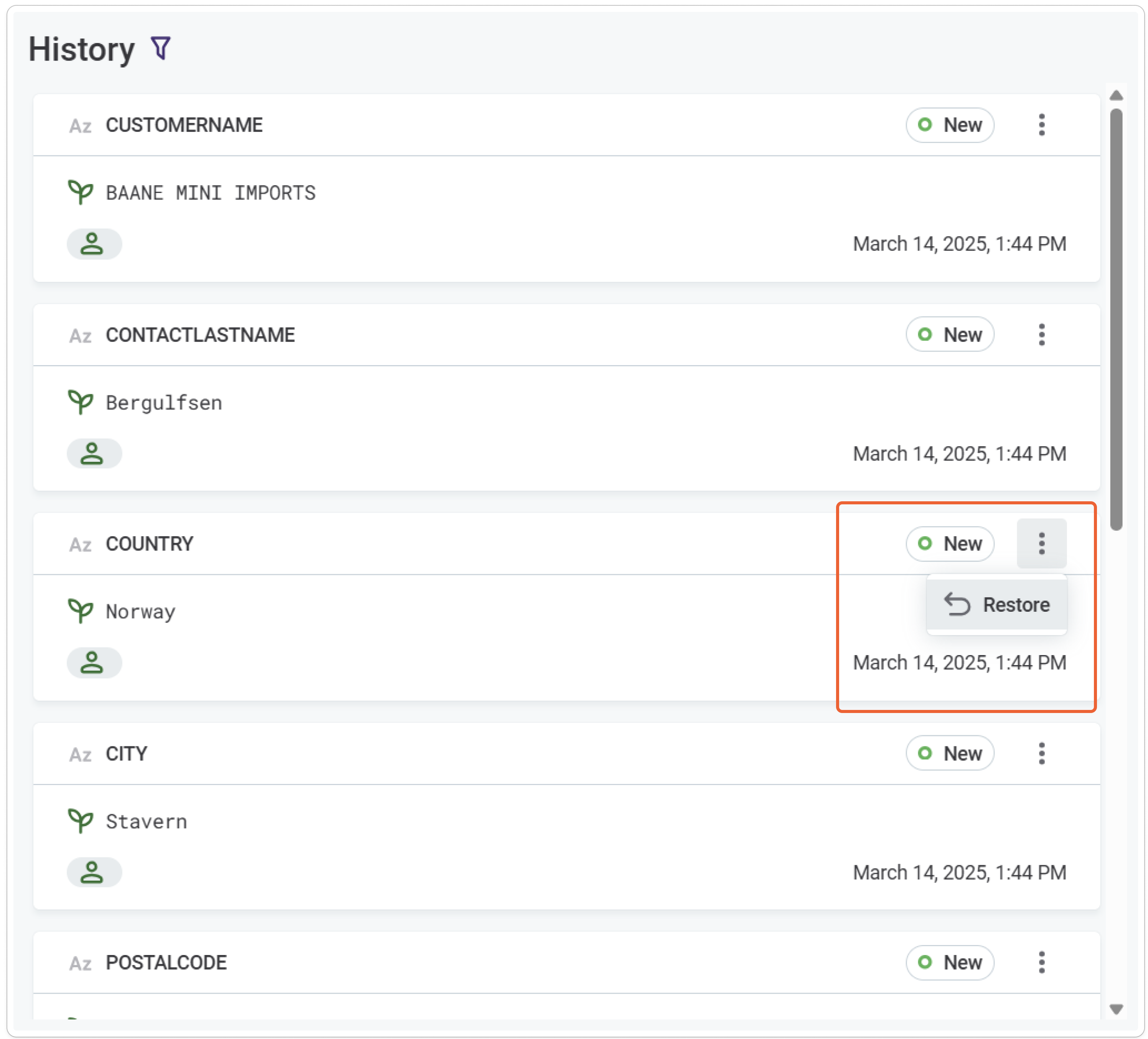
History: List of historical versions of the record.
To restore an older version of the record, select Restore from the three dots menu on the record version in the History list.
-
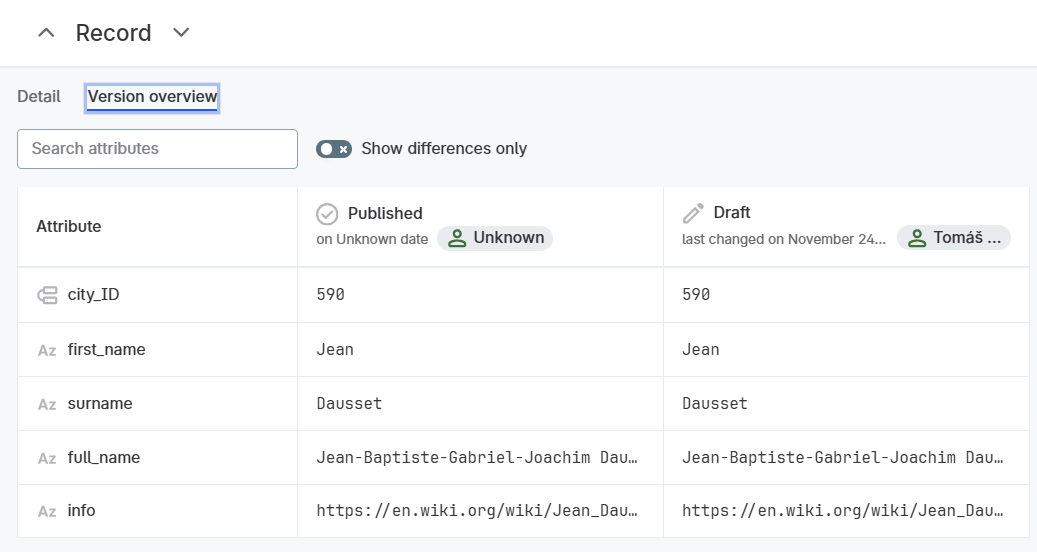
Version overview tab.
Here you can find information about the state of record attributes.
Select Show differences only to only show attributes that are different in the published and draft versions.
+
Next steps
After making record changes:
-
Monitor quality: Monitor Data Quality to configure and manage validation rules.
-
Publish changes: Publish Your Data.
-
Export data to CSV: Export Reference Data Tables.
-
Use across platform: Work with Published Reference Data.
Was this page useful?