
Built-In Lineage Scanner
| This guide is intended for admin users. To make sure you have the necessary permissions to run the scanner, see Lineage Permissions. |
To retrieve lineage metadata using Ataccama built-in lineage scanner, you first need to create a scan plan and then execute it. Once the plan finishes successfully, your next step is to import lineage metadata to ONE.
Architecture
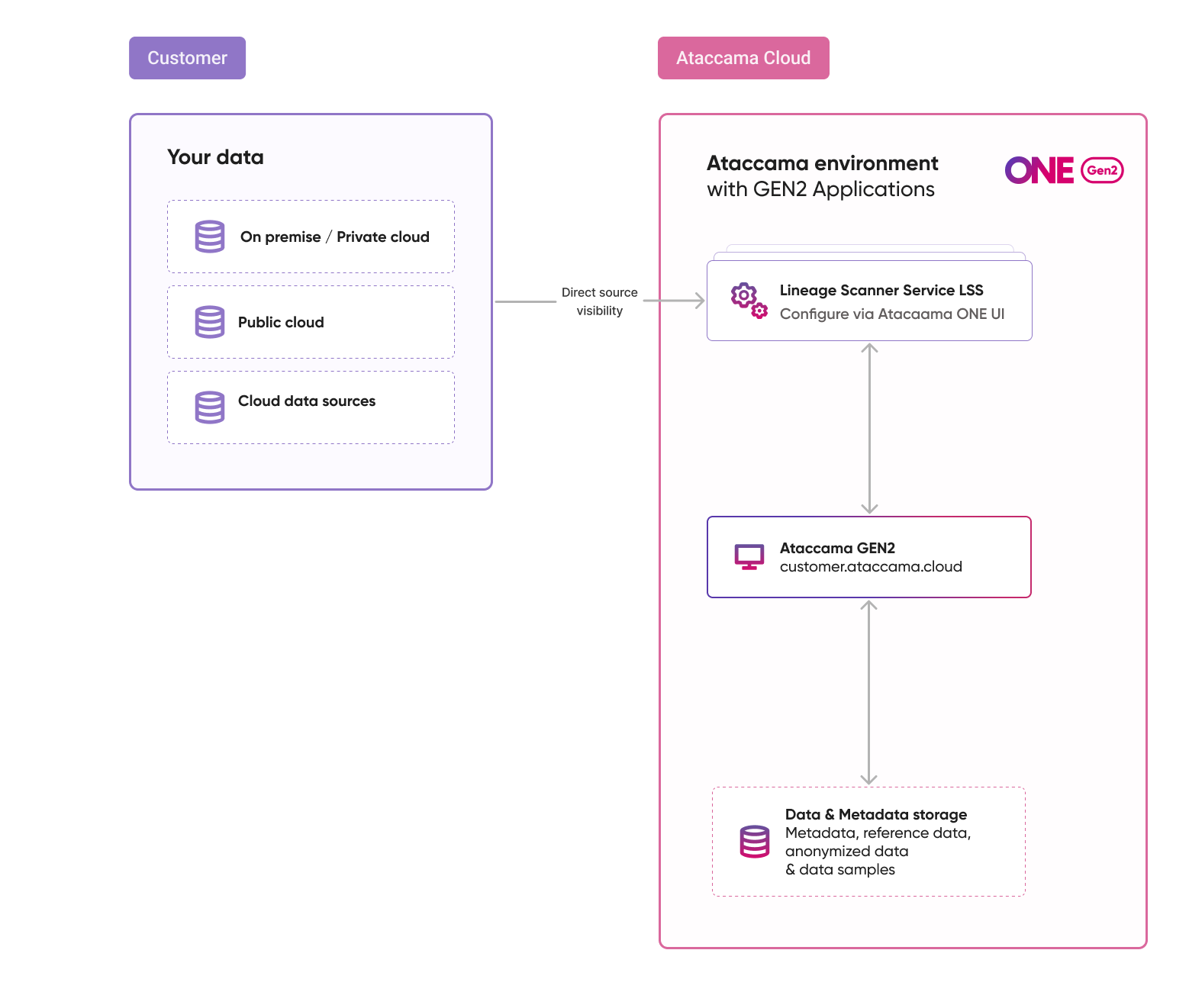
The Lineage Scanner Service (LSS) is deployed as part of Ataccama ONE. The following diagram shows how the service integrates with the rest of the platform.
Prerequisites
-
You are using the built-in Ataccama lineage scanner.
-
You have a working connection to your source. The scan plan inherits connection details and credentials from this connection.
For instructions, see Sources and the relevant connection page for your source.
-
You have a scan plan you want to use. A scan plan is a valid JSON file whose structure depends on the source technology.
For detailed instructions, see the relevant page under Scanner Configurations for your source technology.
Create scan plan
To add a new scan plan to ONE:
-
Go to Lineage > Scan Plans.
-
Select Create.
-
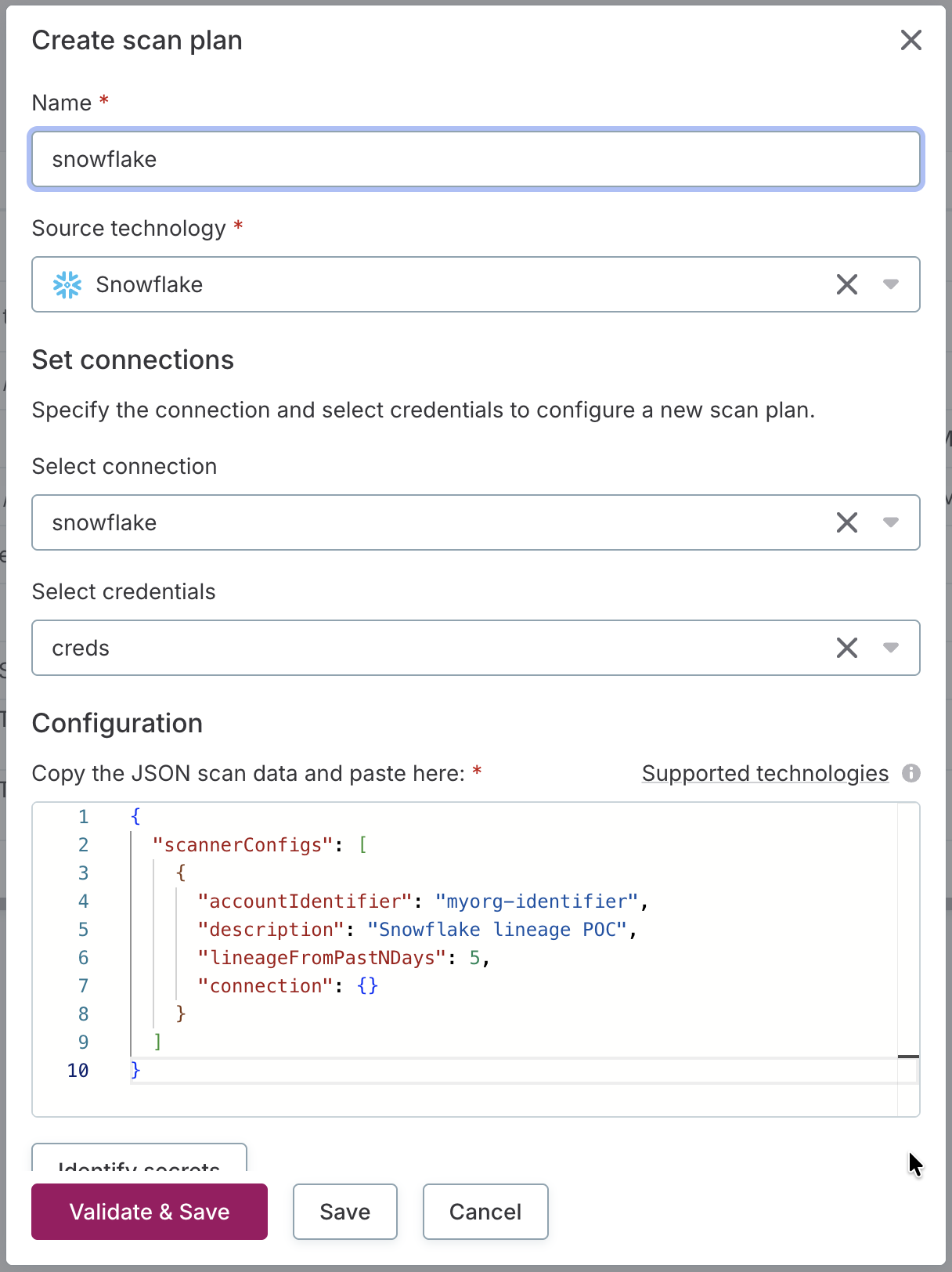
Fill in the name of your scan plan. This name will also be used for scanner jobs.
-
In Source technology, select the source type that will be scanned.
-
Select the connection and credentials you want to use.
-
In Configuration, paste the contents of your scan plan. The configuration must be in valid JSON format.
-
Select Validate & Save to check the file syntax and save the plan. Alternatively, if you are confident your scan data is in valid JSON format, select Save instead.
You can now run your lineage scan.
| To edit your scan plan, on the Scan Plans screen, open the three-dot menu of the scan plan and select Edit scan plan. |
Run lineage scan
Once you have a scan plan ready, run it to retrieve lineage metadata from your source.
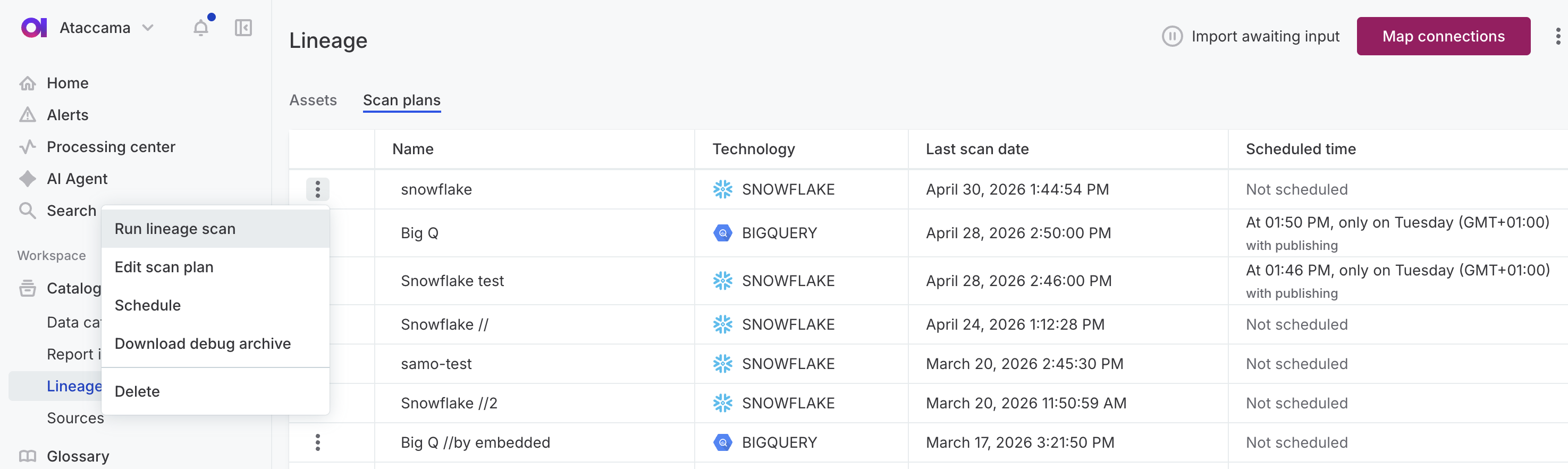
On the Scan Plans screen, open the three-dot menu of the plan you want to use and select Run lineage scan. This starts the scan and the scan status changes to Running.
Once the scan finishes, you can import the scan results to ONE. See Next steps.
Schedule scan plan
Schedule scan plans to run automatically at defined intervals. This is useful for maintaining up-to-date lineage metadata without manual intervention.
For best results, start by importing lineage manually to familiarize yourself with the process and validate the results. Next, enable Automatic import to automate the scan and import process while still manually reviewing the extraction results before publishing.
Once you trust the results, enable Automatic publishing to fully automate the entire lineage update process.
To schedule a scan plan:
-
On the Scan Plans screen, open the three-dot menu of the scan plan you want to schedule.
-
Select Schedule.
-
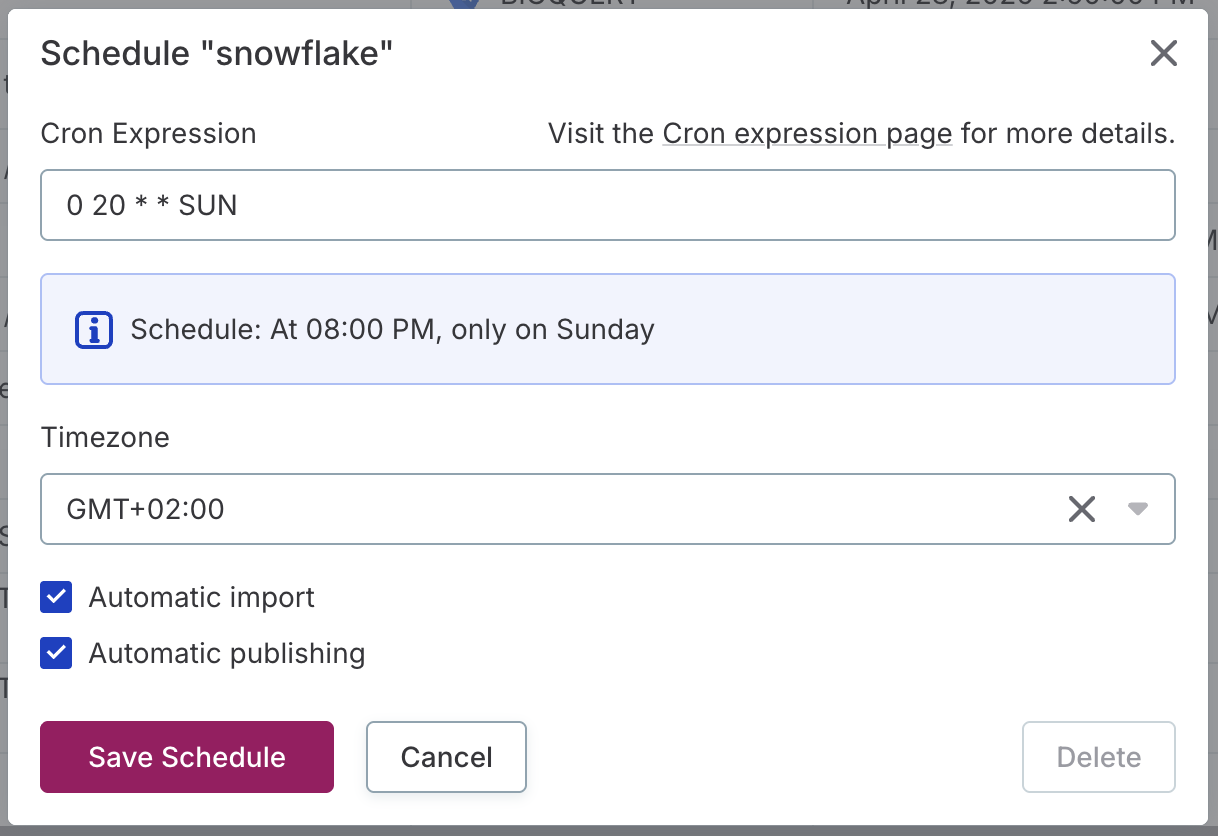
Configure the schedule settings:
-
Cron expression: Define when the scan should run.
To generate a valid cron expression, use the Cron Expression Generator. -
Time zone: Select the time zone for the schedule.
-
Automatic import: Select to automatically import the scan results after the scan completes successfully.
When selected, the lineage import runs automatically and stops at the confirm import stage. You then need to manually review and publish the results (see Import Lineage).
-
Automatic publishing: Select to automatically publish the imported lineage metadata.
This option is only available when Automatic import is applied. When both options are selected, scan results are automatically published using the Expand mode. For details about write strategies, see Publish new lineage metadata.
-
-
Select Save Schedule to save the schedule configuration. The scan plan runs automatically at the defined time.
To exit without saving, select Cancel. Delete removes any previously saved schedule for this scan plan.
Delete scan plan schedule
To delete an existing schedule, on the Scan Plans screen, open the three-dot menu of the scan plan. Select Schedule and then Delete.
Scheduling limitations
When scheduling lineage scans, be aware of the following limitations:
-
Scheduled lineage imports should not be scheduled to run at the same time or at times where they might overlap.
-
Do not perform manual imports while a scheduled import is ongoing.
Overlapping imports can fail. If this happens with a scheduled import, you can either:
-
Run the import manually.
-
Wait for the next scheduled import to run.
Troubleshooting the scan
If the scan finished with an error, download the scan debug archive and examine its content.
To access the debug archive, on the Scan Plans screen, open the three-dot menu of the plan and select Download debug archive.
Next steps
Once you generate the lineage file, upload it to ONE.
Was this page useful?