
Data Slices
Use data slices to limit a DQ monitor to part of a catalog item. This page covers which connections support data slices, how to build slice conditions, and what changing a slice does to existing results.
What data slices are and when to use them
A data slice is a set of conditions on a catalog item’s attributes that limits a DQ monitor to the matching records. When a monitor is sliced, only the matching rows are read, profiled, and evaluated.
Slicing helps when you only care about part of a table. A monitor can check only the previous day’s orders, only the rows for a single country, or only the records that have a value in a particular column. On large tables, reading fewer rows can also shorten runs.
Each monitor has its own slice, and other monitors on the same catalog item are not affected. You can run a sliced monitor and an unsliced one side by side on the same data.
Before you start
Data slices work on catalog items from the following connections:
|
A monitor on any other connection cannot be sliced. This includes Sybase, file and object storage connections, and business applications such as Salesforce. For the full list of connectors, see Supported Connectors.
You need Editing access on the monitor to change its slice. See Access Levels for what each access level covers.
Limit a monitor to a subset of records
-
Select Configure monitor in the monitor header.
-
Go to Where to look > Slice.
-
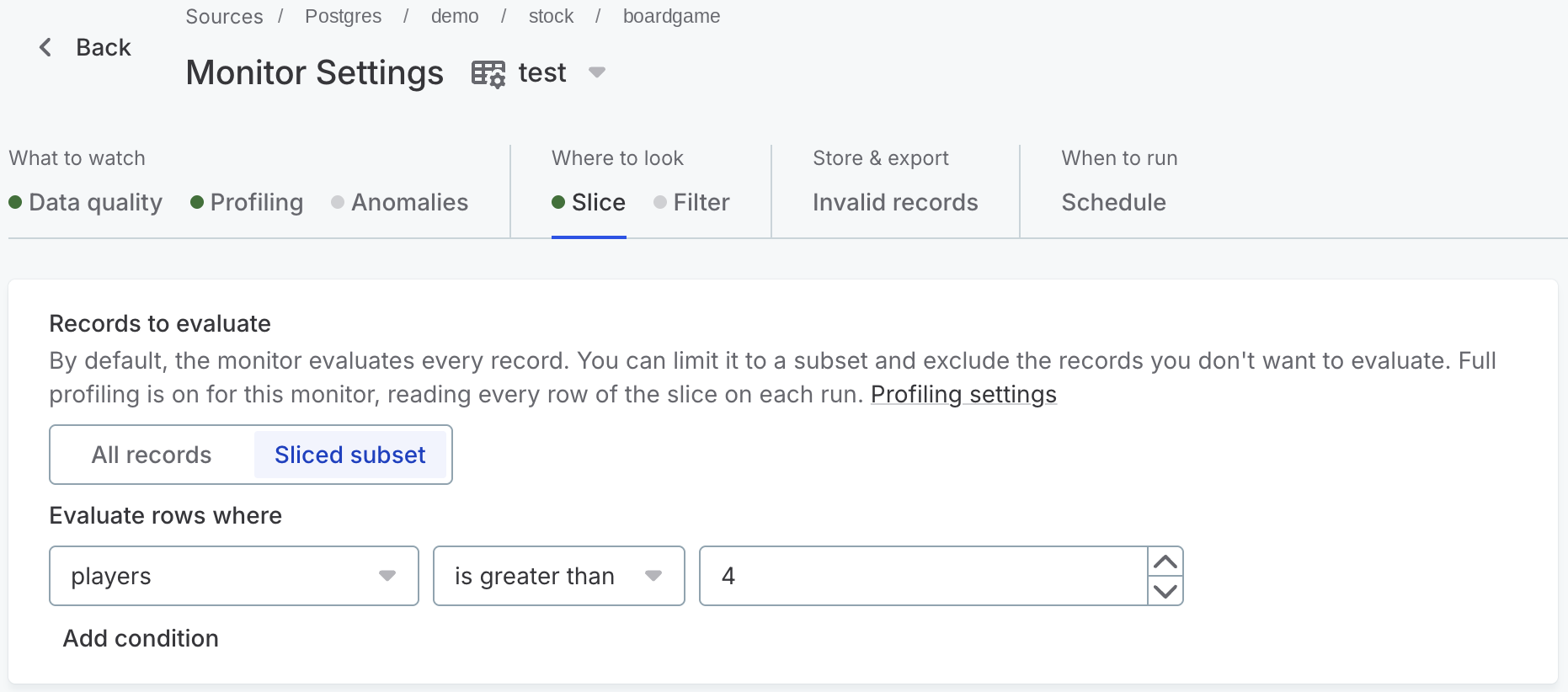
Under Records to evaluate, select Sliced subset.
If the monitor already has results, you’re asked what happens to them. See Change or remove a data slice. If the monitor uses sample profiling, you’re asked to turn on full profiling.
-
Under Evaluate rows where, build the first condition:
-
Select the attribute.
-
Select the operator.
-
Enter the values that the operator needs.
-
-
To narrow the slice further, select Add condition and build the next one.
-
Publish your changes.
See Publish Changes for how publishing works.
Conditions combine with and, so a row is evaluated only when it matches every condition.
To go back to evaluating the whole catalog item, select All records.
Operators for slice conditions
The operators offered depend on the data type of the attribute you select:
| Operator | Available for |
|---|---|
is, is not, is empty, is not empty |
All attributes except dates. |
is less than, is at most, is greater than, is at least |
Text, whole number, and decimal number attributes. |
is and is not accept several values, and the row matches when the attribute matches any of them.
The comparison operators take a single value. is empty and is not empty take no value at all.
Slice conditions on date attributes
A date attribute has no operator to select. Instead, you pick the period to evaluate:
-
All dates: Every record, whatever its date. The attribute does not narrow the slice.
-
Previous day, Previous month, Previous quarter, Previous year: Relative periods that end before the run starts and are recalculated on every run.
-
A custom range: The period between the From and To dates, or everything from the From date onward if you select Onward.
The relative periods are what make a slice useful on a schedule. A monitor set to Previous day evaluates a different set of rows each time it runs, so each run reports on fresh data and you can compare one run against the next.
What a data slice affects
A slice applies to the work the monitor does: DQ evaluation, profiling, anomaly detection, invalid sample collection, and invalid record exports all see only the sliced rows.
The record count a run reports is the number of records in the slice, not the size of the whole catalog item.
A sliced monitor always uses full profiling, which reads every row of the slice.
A slice does not change the catalog item itself. Browsing the data in the catalog still shows the full table.
Change or remove a data slice
Runs made under different slices describe different sets of rows, so their scores can’t be compared. When you add, change, or remove a slice on a monitor that already has results, you choose what happens to those results:
-
Keep the previous results, mark the break: Earlier runs stay as they were evaluated, and the monitor’s trend marks where the slice changed.
-
Put this slice on a new monitor instead: The monitor you’re editing keeps its scope and history, and a new monitor with the slice is created on the same catalog item. The new monitor is named after the original with (sliced subset) added. It starts with the same rules, DQ threshold, and schedule, and evaluates the sliced records from its first run.
When you remove a slice, this option is Measure the whole table on a new monitor instead, and the new monitor is named with (all records) added and evaluates every record. Publish the new monitor before you run it.
-
Delete the previous results: Every earlier run is deleted, including its profiling results, DQ results, and invalid samples, and the trend starts again from the next run. You’re asked to type a confirmation phrase first.
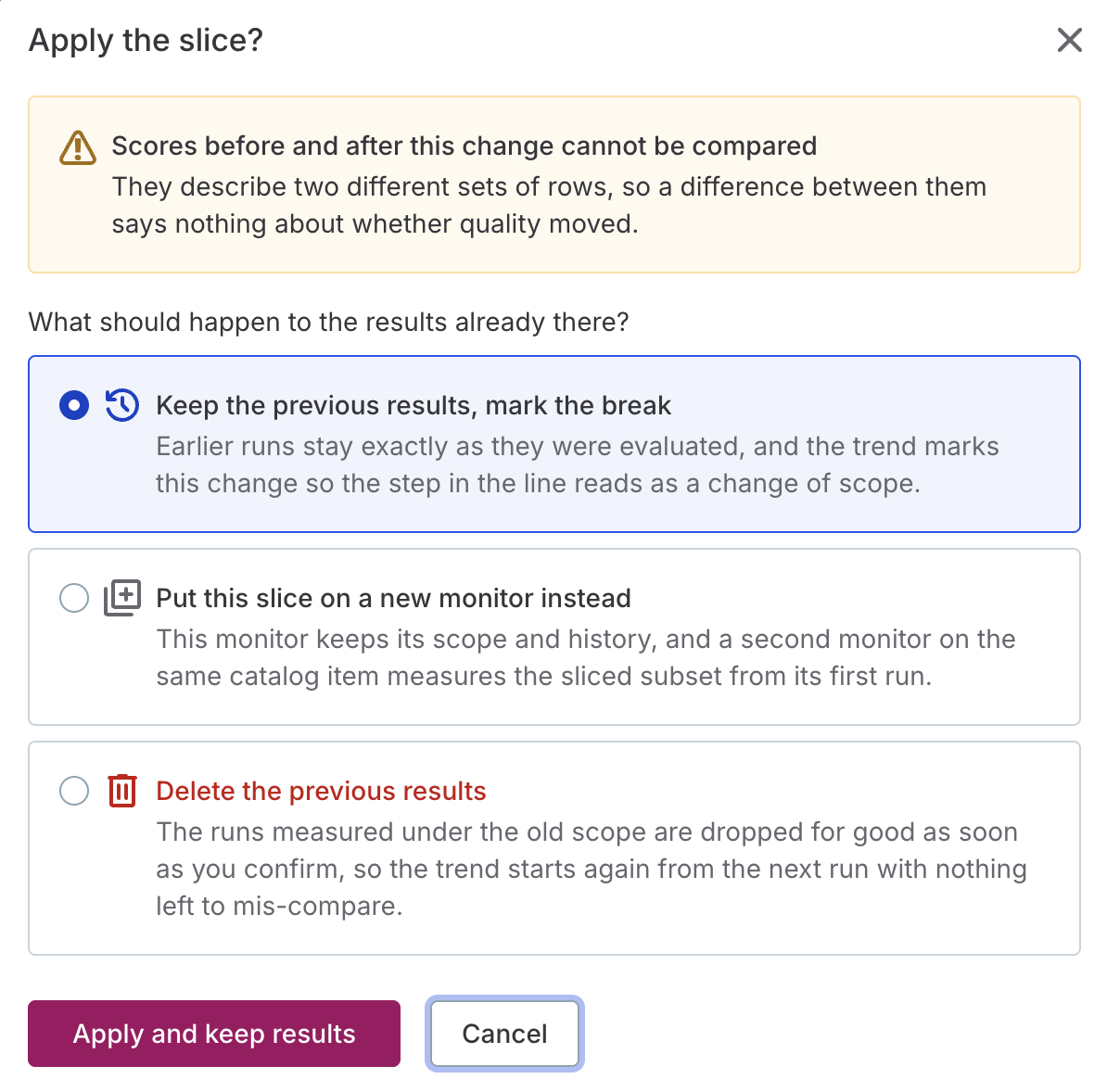
Publish your changes to apply the slice.
|
Previous results are deleted as soon as you confirm, before you publish. They stay deleted even if you then discard your changes, and this cannot be undone. |
Limitations of data slices
-
A monitor can have one slice at a time. To evaluate the same catalog item under two different slices, use two monitors.
-
Slices are available on most SQL data sources. See Before you start for the supported connections.
-
If the AI agent sets up a slice, it might add conditions that the Slice tab can’t display. The monitor still evaluates them, and editing the conditions that are shown leaves the hidden ones untouched. When a slice contains such conditions, a message on the Slice tab tells you so.
Was this page useful?