
Data Quality Dimensions
Data quality dimensions categorize rules by the aspect of quality they measure. When you create a data quality rule, you assign it to a dimension that reflects what the rule evaluates, for example, whether data is valid, complete, or accurate.
Data quality dimension results feed into the Overall Quality metric visible throughout the platform, including on catalog items, attributes, and terms.
How dimensions relate to rules
Data quality in Ataccama ONE is measured across multiple dimensions, each representing a different aspect of quality. When you create a data quality rule, you assign it to a dimension - such as Validity, Completeness, or Accuracy — based on what the rule measures. Each dimension has its own set of results (for example, Validity uses Valid and Invalid, while Completeness uses Complete and Not complete). This lets you see quality from different angles while also producing an aggregated overall quality metric.
Access data quality dimensions
To configure data quality dimensions:
-
Select the workspace dropdown (your organization name) at the top of the navigation menu.
-
Under DQ settings, select DQ dimensions.
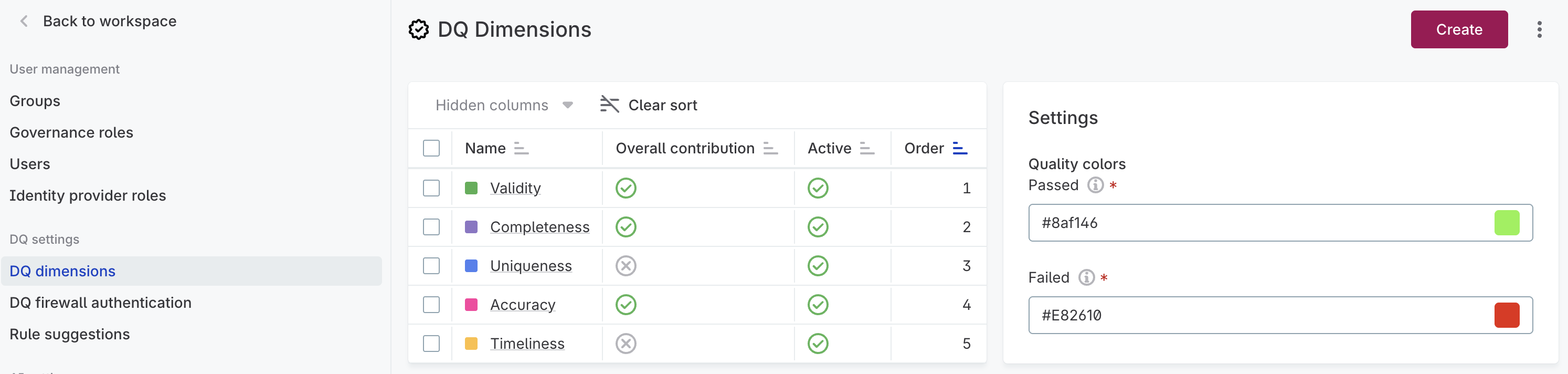
The list view displays all configured dimensions with the following information:
-
Name: The dimension name.
-
Overall contribution: Whether results from this dimension contribute to Overall Quality.
-
Active: Whether this dimension is available for selection during rule creation.
-
Order: The order dimensions appear in the list view.
The Settings panel on the right side of the page contains the Quality colors configuration (see Quality colors).
Default dimensions
The platform includes five predefined dimensions, each designed to measure a specific aspect of data quality:
| Dimension | Purpose | Default results |
|---|---|---|
Validity |
Verify data usability, including format, content, and attribute relationships. |
Valid, Invalid |
Completeness |
Verify that required values are present. |
Complete, Not complete |
Accuracy |
Check whether values reflect true values, typically against reference data. |
Accurate, No reference available, Not accurate |
Uniqueness |
Verify that no duplicate values exist in the dataset. |
Unique, Not populated, Not unique |
Timeliness |
Verify that data is available when needed. |
Timeliness ok, Minor delay, Major delay |
Be aware that if a value contains NULL, Null, null, ., ,, -, _, N/A, n/a, or similar, it is not recognized as incomplete by default Completeness rules.
|
Choose the dimension that best describes what you’re measuring, but keep in mind that the dimension doesn’t affect how the rule evaluates data - that’s determined by the conditions you define.
Overall quality
Overall Quality is a combined metric that reflects how well your data passes data quality rules across contributing dimensions. This metric appears in data quality results for catalog items, attributes, and terms.
Which dimensions contribute
The following dimensions contribute to overall quality:
-
Validity
-
Completeness
-
Accuracy
-
Any custom dimensions you create.
| You cannot change which dimensions contribute to overall quality. |
How results affect overall quality
Each dimension result is classified as either Pass or Fail:
-
Pass results increase the overall quality percentage.
-
Fail results decrease the overall quality percentage.
|
Overall quality is not a simple average. A record must pass all applicable data quality rules to be counted as passing. If any rule fails, the record fails. This means overall quality is always less than or equal to the lowest quality percentage among contributing dimensions. |
Quality colors
In the Settings panel on the right side of the DQ dimensions page, you can configure the colors used to represent quality outcomes across the platform:
-
Passed: The color representing results that contribute positively to overall quality.
-
Failed: The color representing results that contribute negatively to overall quality.
Create a dimension
-
In DQ dimensions, select Create.
-
Configure the dimension:
-
Name: A unique name for the dimension.
-
Order: The order dimensions appear in the list view.
-
Active: When enabled, this dimension is available during rule creation.
-
Color: The color used in reports.
-
Abbreviation: A short code for use in results and reports.
-
Description (optional): Context about when to use this dimension.
-
-
Configure default results:
-
Default condition result: The result applied when a new rule condition is added.
-
Default fallback result: The result applied when data doesn’t meet any defined conditions.
If no results exist yet, add them first (see Add a result) and return to configure defaults. You can’t publish your new dimension until both defaults are set.
-
-
Select Save, then Publish to make the dimension available.
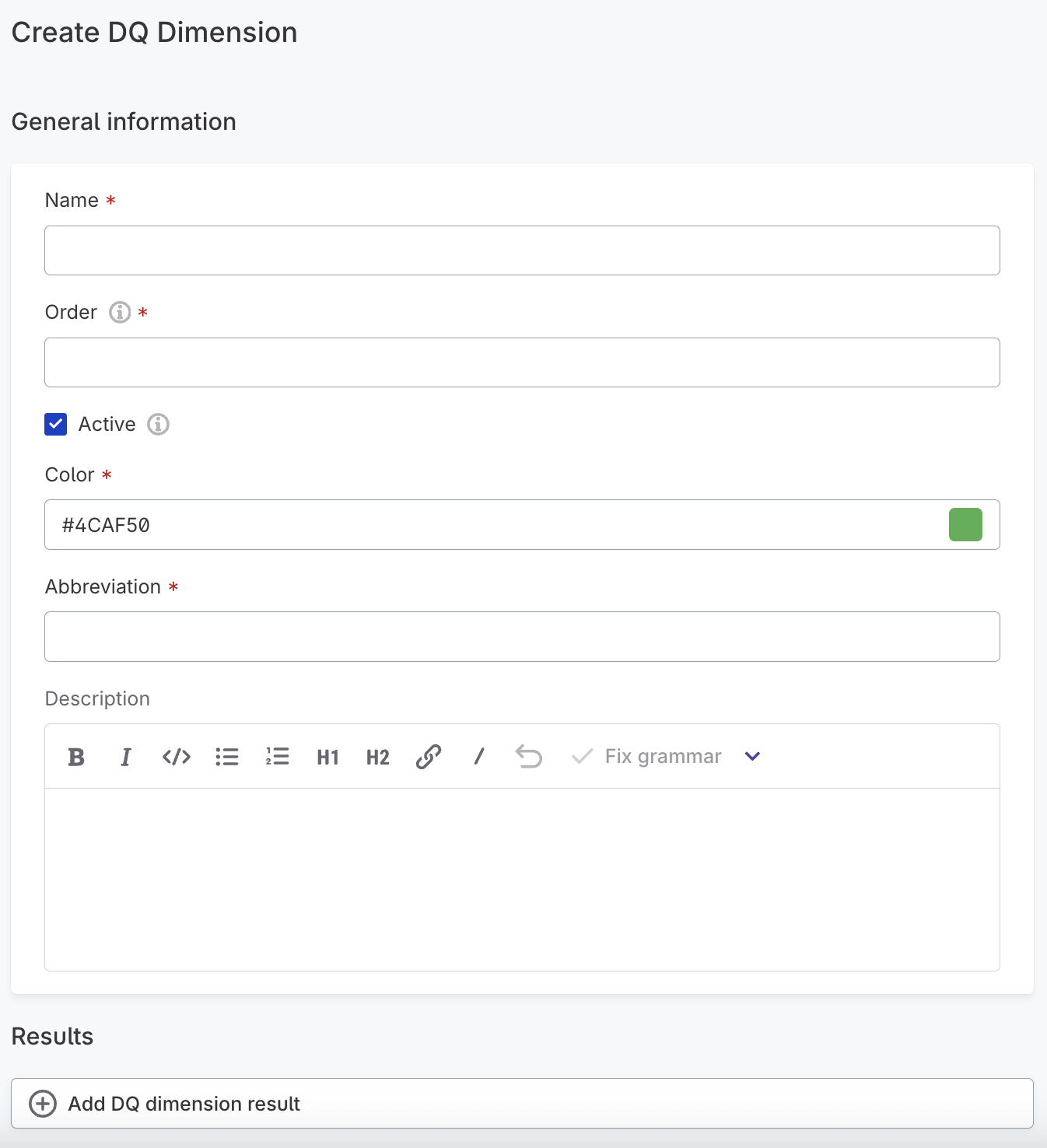
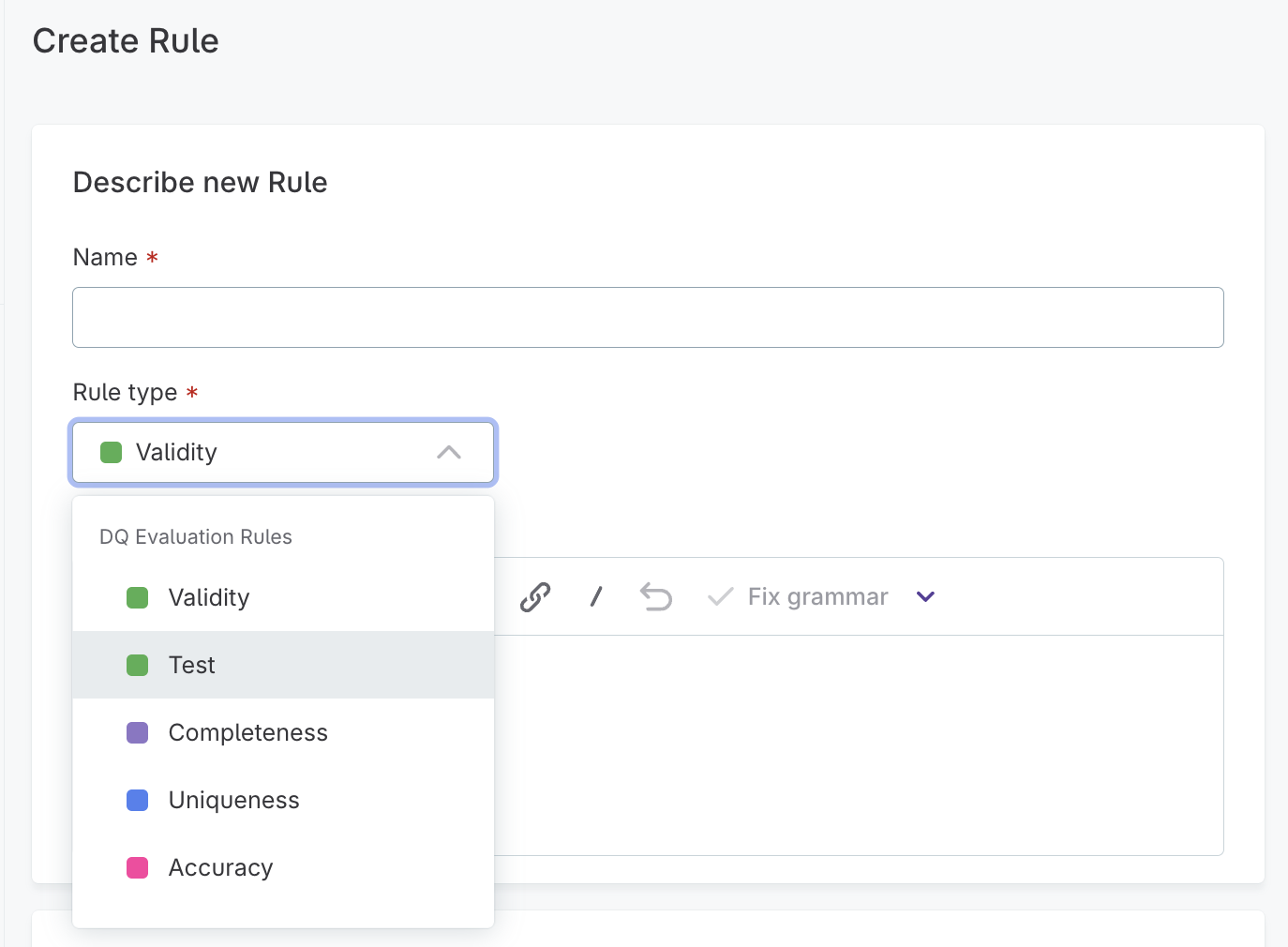
Once published, the new dimension appears in the Rule type dropdown when creating data quality rules.
| All dimension and result names must be unique. Duplicate names cause data quality evaluation to fail. |
Edit a dimension
-
In DQ dimensions, select the dimension name.
-
Select Edit.
-
Make your changes and select Save.
-
Select Publish to apply changes.
Delete a dimension
You cannot delete a dimension that is currently used in rules. To prevent a dimension from being used in new rules without deleting it, clear the Active option in the dimension settings.
To delete an unused dimension:
-
From the list view: Select the dimension using the checkbox, then select Delete.
-
From the dimension page: Use the three-dot menu and select Delete.
After deleting, publish your changes.
Add a result
Dimension results define the possible outcomes when a rule evaluates data.
-
Open the dimension you want to configure.
-
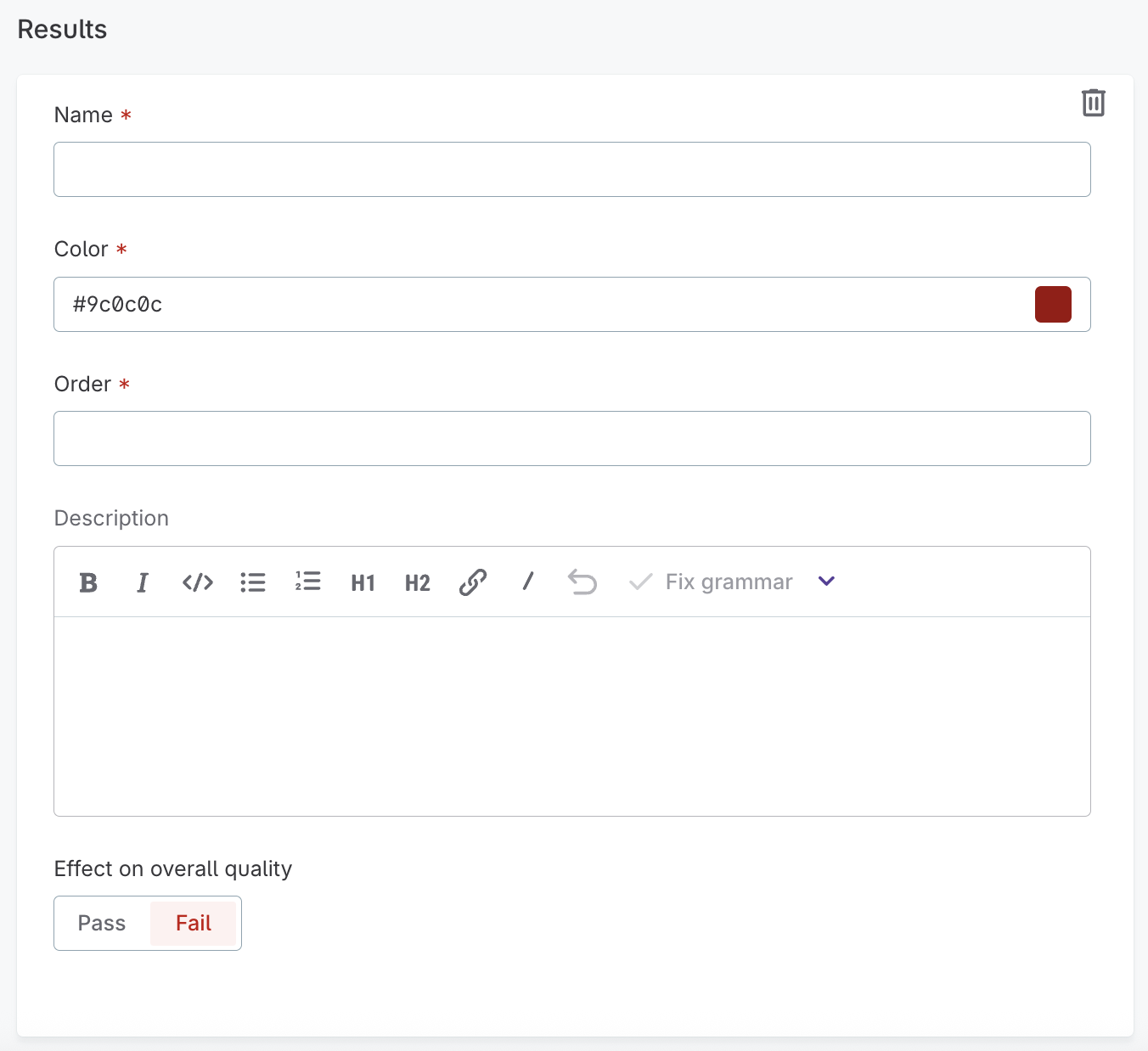
Select Add DQ dimension result.
-
Configure the result:
-
Name: A unique name for the result.
-
Description (optional): What this result indicates.
-
Effect on overall quality: Select Pass (increases quality) or Fail (decreases quality).
-
Color: The color for this result in reports.
-
Order: The display position in the results list.
-
-
Select Save, then Publish.

Edit a result
-
Open the dimension containing the result.
-
For the result you want to change, select the three-dot menu and choose Edit.
-
Make your changes and select Save.
-
Select Publish to apply changes.
Delete a result
You cannot delete a result that is currently used in rules.
To delete an unused result:
-
From the dimension page: Use the three-dot menu for the result and select Delete.
-
From the result page: Use the three-dot menu and select Delete.
After deleting, publish your changes.
Aggregation example
This example demonstrates how overall quality is calculated when multiple dimensions and rules are involved.
Setup
Two rules use Dimension A (for example, Validity): Rule A1 and Rule A2. One rule uses Dimension B (for example, Completeness): Rule B1.
| Dimension | Result | Effect |
|---|---|---|
Dimension A |
Result 1 |
Pass |
Result 2 |
Fail |
|
Result 3 |
Fail |
|
Dimension B |
Result X |
Pass |
Result Y |
Fail |
Evaluation results
| Record | Rule A1 | Rule A2 | Dimension A | Rule B1 | Dimension B |
|---|---|---|---|---|---|
Record 1 |
Result 1 |
Result 1 |
Pass |
Result X |
Pass |
Record 2 |
Result 1 |
Result 2 |
Fail |
Result Y |
Fail |
Record 3 |
Result 2 |
Result 3 |
Fail |
Result Y |
Fail |
Record 4 |
Result 2 |
Result 2 |
Fail |
Result X |
Pass |
Aggregated results
Rule-level breakdown:
-
Rule A1: 50% Result 1, 50% Result 2
-
Rule A2: 25% Result 1, 50% Result 2, 25% Result 3
-
Rule B1: 50% Result X, 50% Result Y
Dimension-level quality:
-
Dimension A: 25% pass, 75% fail
-
Dimension B: 50% pass, 50% fail
Overall quality: 25%
Only Record 1 passes all rules across both dimensions. Even though Dimension B shows 50% pass rate, the Overall quality reflects that only one in four records meets all quality criteria.
Troubleshooting
Data quality evaluation fails with duplicate name error
Symptom: Data quality evaluation fails and logs indicate a duplicate name issue.
Cause: Two or more dimensions or results share the same name. All dimension and result names must be unique across the entire configuration.
Resolution:
-
Go to DQ dimensions and review all dimension names.
-
Open each dimension and check result names.
-
Rename any duplicates to ensure uniqueness.
-
Publish your changes and retry the evaluation.
Manage access
To control who can view or edit a dimension:
-
Select the dimension name to open the Overview tab.
-
Select the three-dot menu and choose Manage access, or go to the Access tab.
-
Configure permissions as needed.
For more information, see Share an Asset.
Was this page useful?