
Display Results by Date
In ONE Reports, you can configure visualizations to display only the latest or earliest data entries based on a date or time attribute. This is useful when you want to focus on the most recent results — for example, showing only the latest DQ evaluation or the most recent data quality scores.
Why use this feature
By default, visualizations display all available results. However, when working with data collected over time, such as recurring DQ evaluations, you often need to see only the most current information.
This setting is typically used in combination with Values to show in the Dimensions section. The date or time attribute determines the order of results (latest or earliest first), while Values to show controls how many results appear in the visualization.
Displaying only the latest or earliest results helps you:
-
Focus on current data without manual adjustments.
-
Avoid inconsistencies caused by data collection timing.
-
Create dashboards that always reflect the latest state.
How is this different from filtering
You might consider using a filter to show results from a specific date, such as "show only records from the last day". However, this approach is vulnerable to inconsistencies in data collection timing and ETL processes—if data arrives late or a scheduled job is delayed, your visualization may appear empty or incomplete.
By using the Display results by date setting instead, your visualization always shows the latest (or earliest) available data, regardless of when it was collected. This makes your reports more reliable and resilient to timing variations.
For more information about filtering options in ONE Reports, see Apply global filters.
Configure displayed results
To display only the latest or earliest results in a visualization:
-
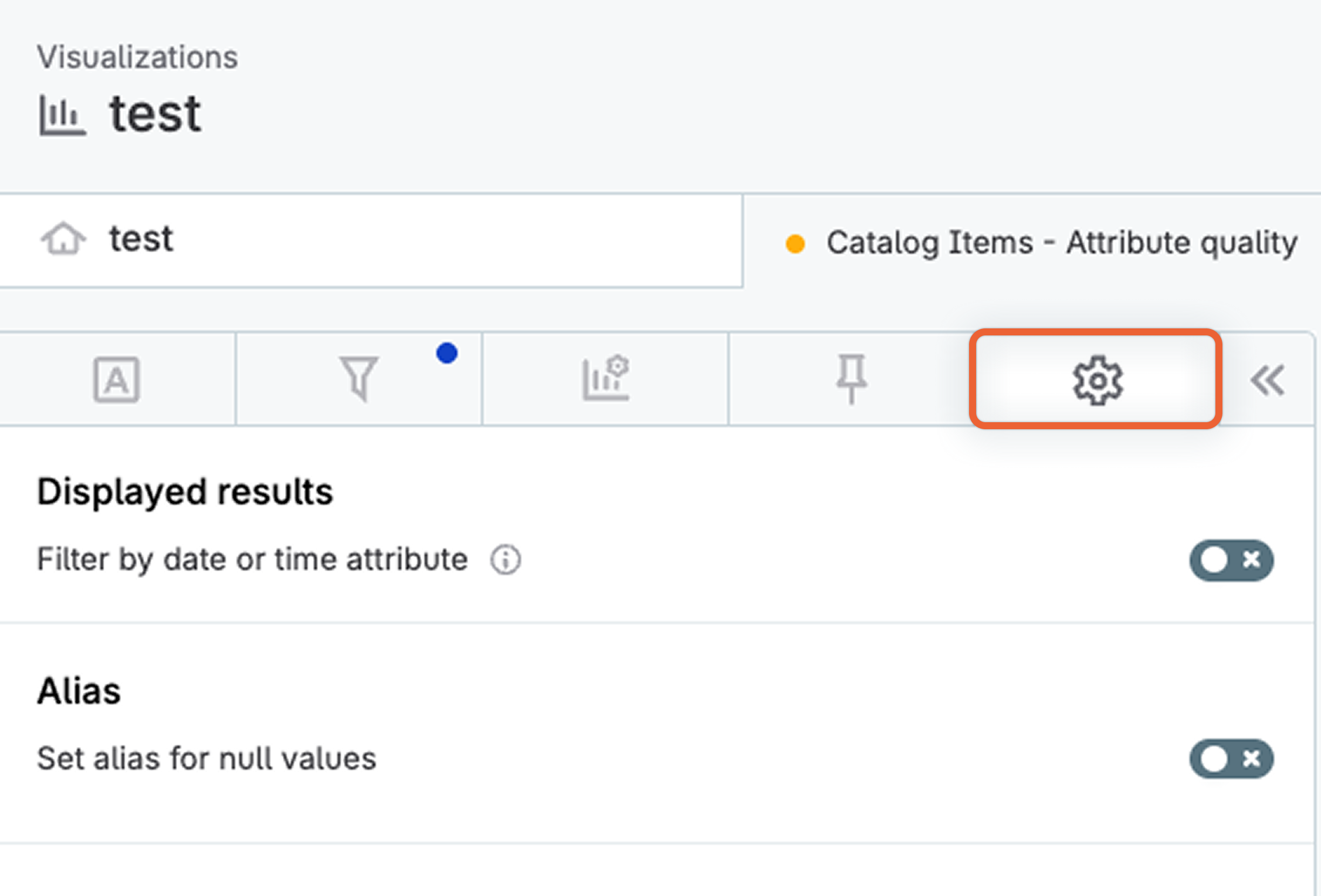
In the visualization editor, select the Data settings tab (gear icon).
-
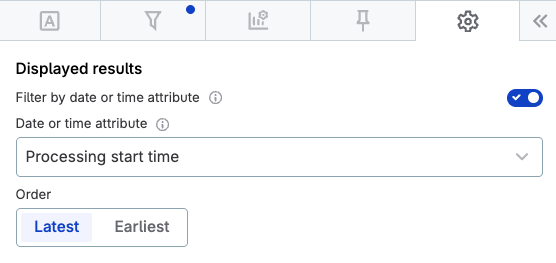
In the Displayed results section, enable Filter by date or time attribute.
-
In Date or time attribute, select the attribute that determines the order of your results.
The dropdown displays available date and time attributes from your data, such as
Processing start time,Processing finish time, orProcessing date.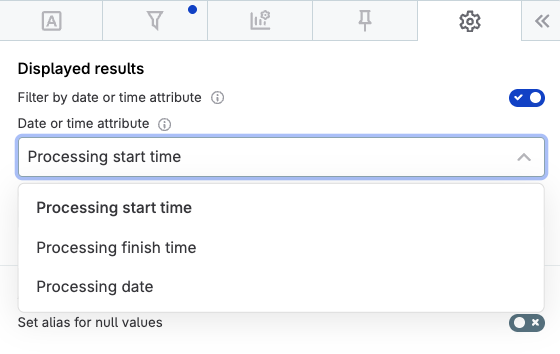
-
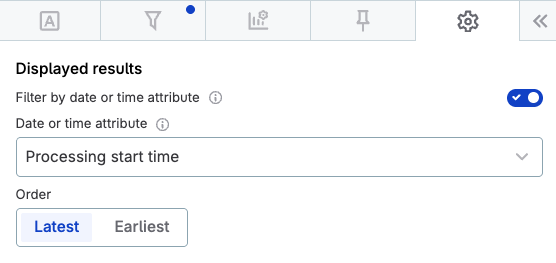
In Order, choose whether to display the Latest or Earliest entries.
-
Adjust Values to show in the Dimensions section to control how many results are displayed.
For example, to display the 20 most recent DQ evaluation results, set the order to Latest and Values to show to
20.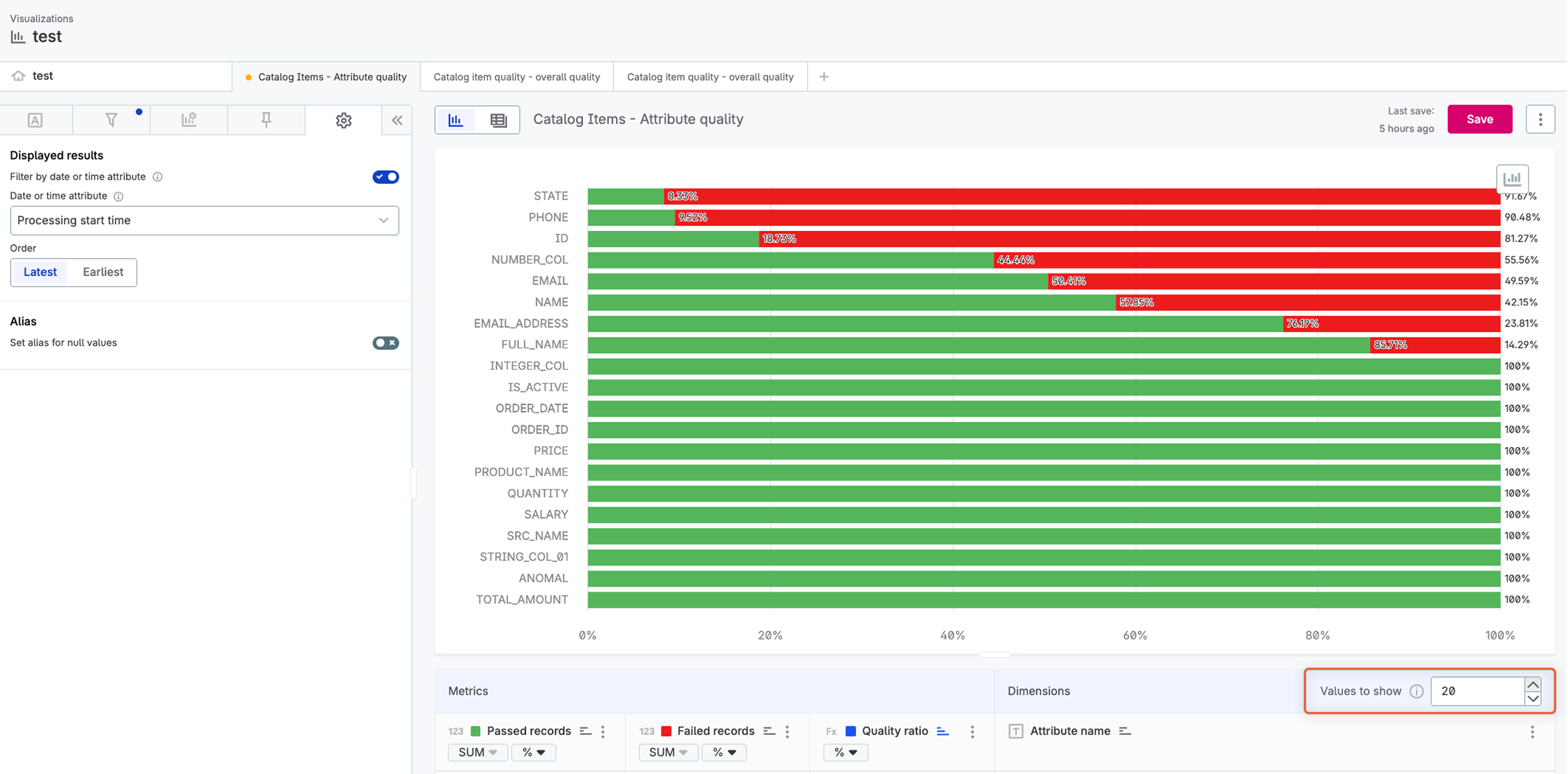
Your visualization now displays results ordered by the selected date attribute.
Was this page useful?