
Test Transformation Steps
Step testing lets you validate how a transformation step processes data using sample input rows, without running a full plan preview. Use this when you want to confirm that a step behaves correctly for representative or edge-case data before deploying your plan.
To test an individual expression field rather than the entire step, see Test Expressions.
Test steps
Prerequisites
-
An open transformation plan.
-
A step that supports testing added to the plan (Add attributes, Embedded plan, Group aggregator, Join, or Transform data).
Testing workflow
-
Choose the step you want to test.
-
Select the Test icon in the step detail.
-
The panel displays two sections side by side:
-
Test data: input columns for the selected step.
-
Result: output produced by the step’s expressions for each input row.
-
-
Add input rows to test against:
-
Select Add row to enter values manually.
-
Select Generate to have AI create sample input rows automatically.
-
-
Select Calculate in the Result section to run the test.
-
Review the result columns to confirm the step behaves as expected.
-
Modify the step configuration as needed and re-test without losing your test data.
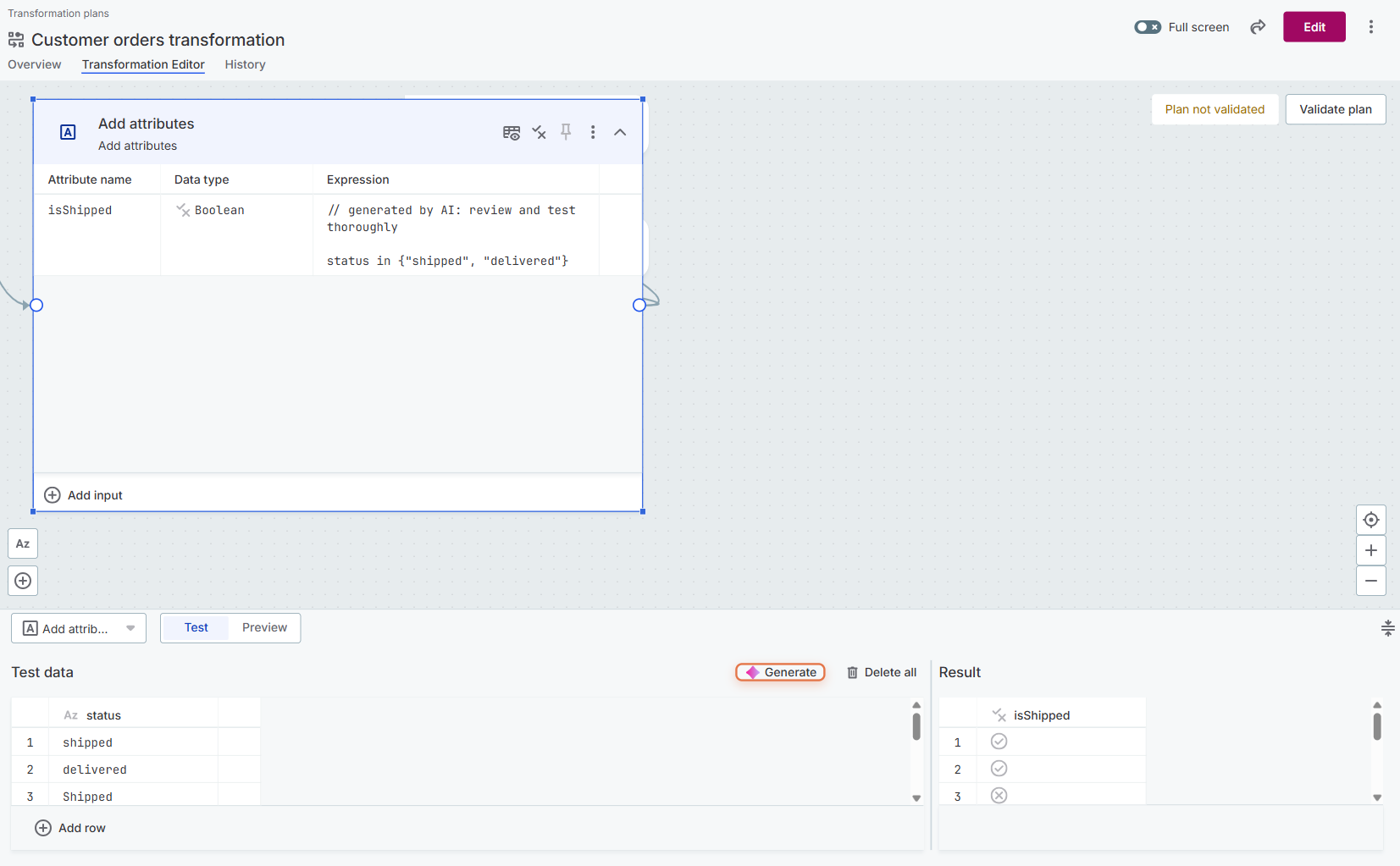
Add test data
Manual entry
Select Add row to add a blank input row, then type values directly into each column field.
Add as many rows as needed to cover typical cases and edge cases.
Paste from external sources
Copy rows from a spreadsheet, CSV file, or another application and paste them into the test data section.
ONE automatically maps values to the correct columns based on the column order.
AI-generated test data
Select Generate in the Test data section to have AI create representative sample input rows:
-
AI considers the step type, connected input schema, and attribute definitions to generate relevant data.
-
Generated rows include both typical values and edge cases such as nulls, boundary values, and special characters.
For the full testing workflow, see [_testing_workflow].
Read results
After adding test data, select Calculate in the Result section to run the test. The result section then displays the step’s output for each input row you provided.
Review all output columns — not just the ones you modified — to confirm the step behaves as expected end to end. Keep in mind that results reflect the step’s logic in isolation — upstream steps are not executed, so output might differ from a full plan preview.
Was this page useful?