
View Technical History
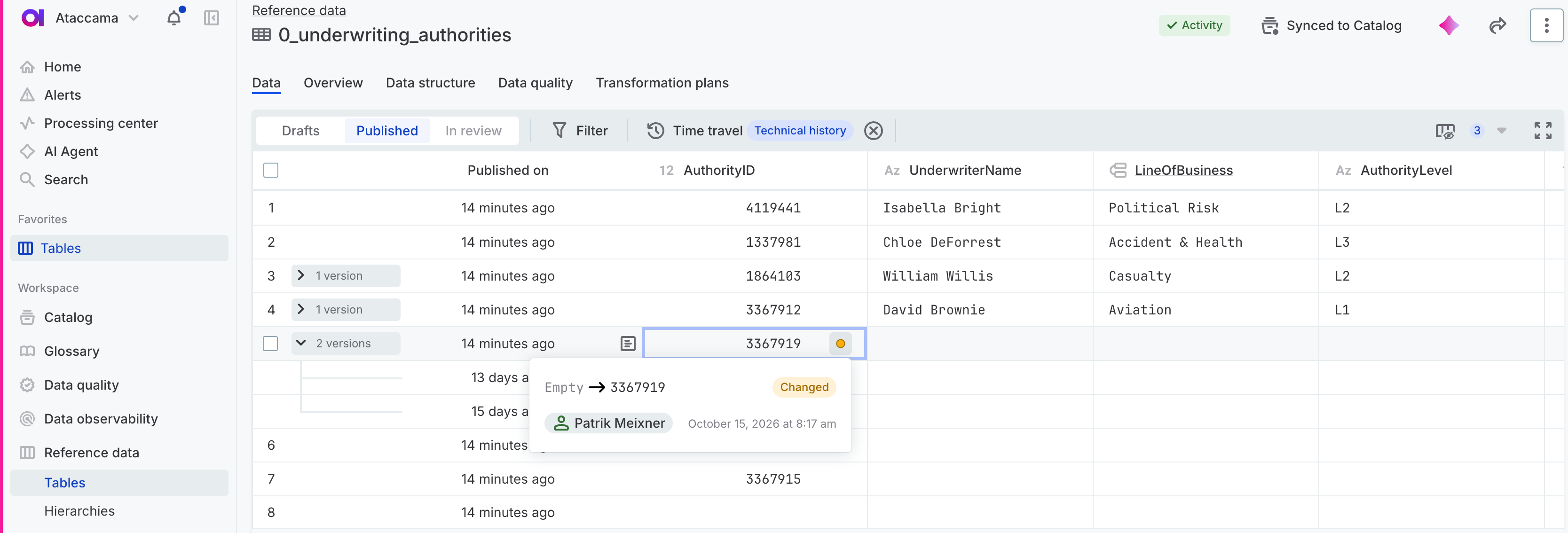
Technical history lists every published version of a record, so you can see how its values changed, who published each change, and when.
About technical history
Every reference data table has technical history, with or without effective dates. It is recorded automatically each time a change is published, covers only published data, and can’t be edited manually.
Technical history is separate from the business history that you manage with effective dates, that is, the periods for which a version of a record is valid. To see the changes to a single record instead, open its record detail.
What counts as a version in technical history
Versions in technical history work as follows:
-
A new version is created each time the table is published and the record changed since its last version, whether in a value, in the data type of an attribute, or in a reference connection.
-
Reverting a value to an earlier one and publishing also creates a new version.
-
Publishing again without a change doesn’t create a new version.
-
The current record always matches its newest version.
-
The view shows up to 50 versions per record.
-
Deleting a published record also removes its technical history.
View earlier versions of records
-
Go to Reference data > Tables.
-
Select the table.
-
On the Data tab, set Record state to Published.
-
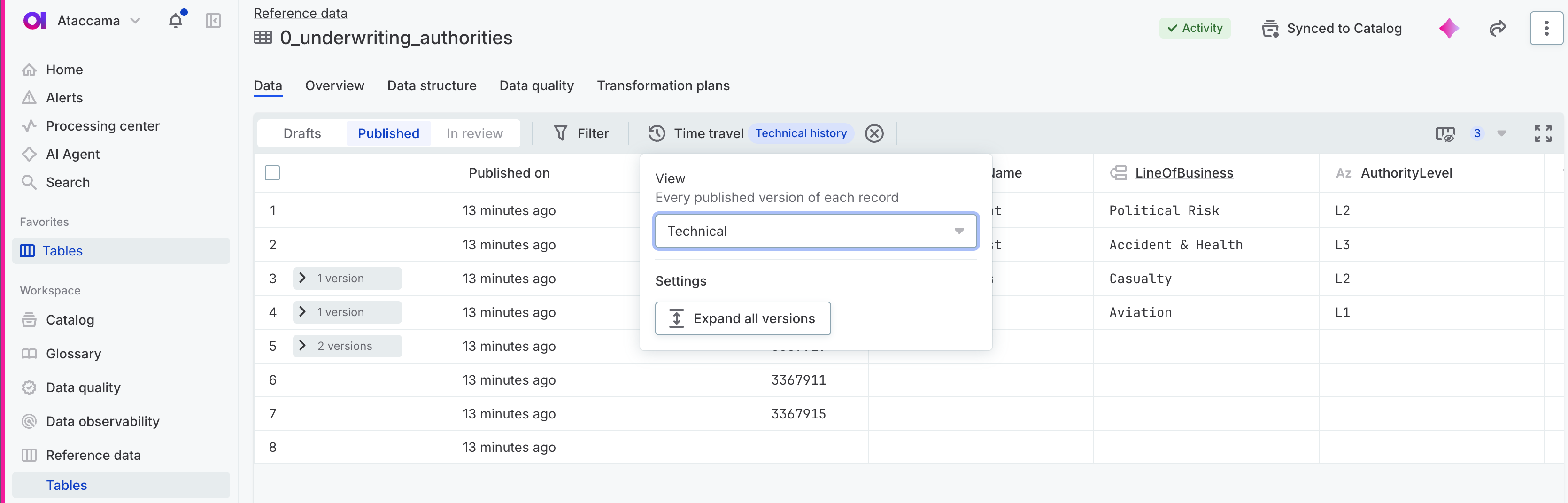
Select Time travel and then set the view to Technical.
The toolbar now shows Time travel with a Technical history badge, and the table gets a Published on column. Each record with more than one version shows the number of versions in the first column of its row, for example 3 versions. The count includes the current version, and records with a single version show no count.
The view is read-only. On tables without effective dates, filters apply to earlier versions as well, so a record stays in the table when any of its versions matches.
To see the current data or what was valid on a specific date instead, select Present or Effectivity. See See what was valid on a specific date. To return to the current data, select Exit time travel.
Expand the versions of a record
To see the earlier versions of a record, select its version count.
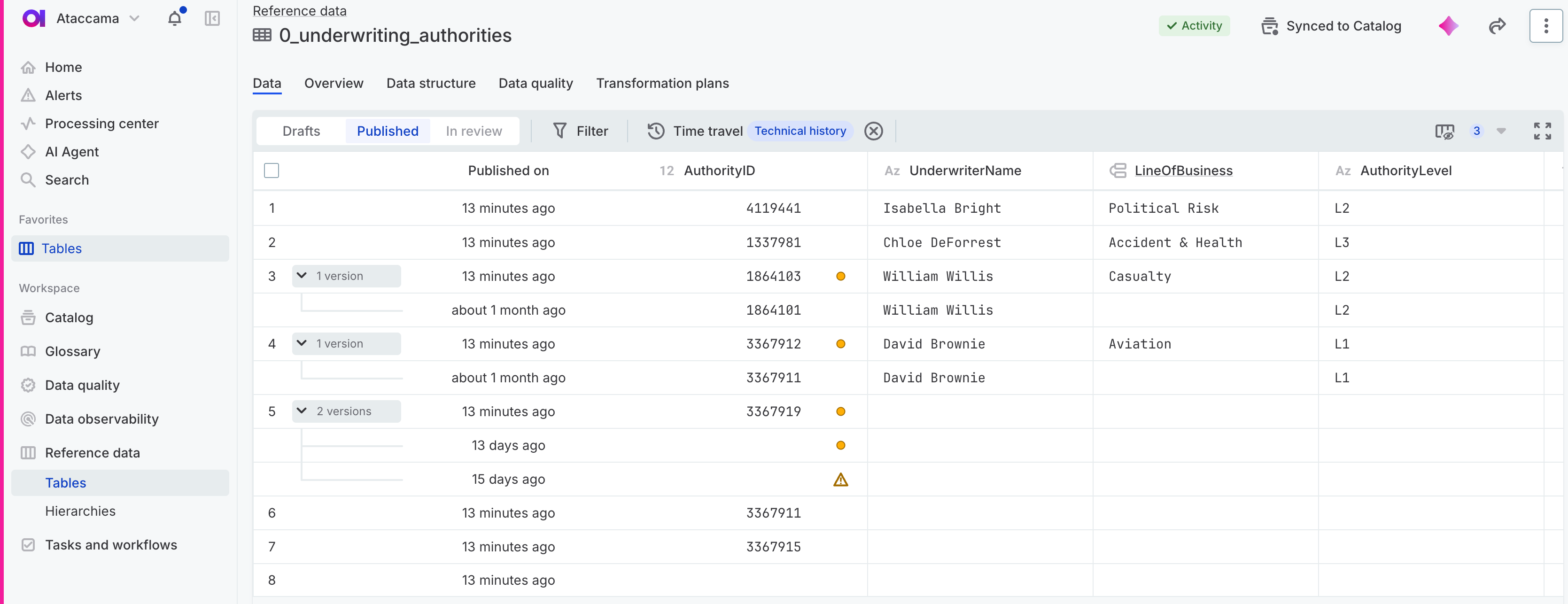
The earlier versions appear as indented rows under the current record, newest first. Each row shows the values of that version and when it was published. On tables with effective dates, the current version has the status Effective and the previously effective versions have the status Historical.
To expand all loaded records at once, select Time travel and then, under Settings, Expand all versions. Collapse all versions folds them again.
Next steps
-
Review a single record: View record detail to see the history of one record.
-
Track business history: Use Effective Dates to manage the periods when versions of a record are valid.
-
Publish changes: Publish changes to create a new version of a record.
Was this page useful?