
Aggregation Rules
A standard DQ rule evaluates each record on its own. An aggregation rule first groups records that share the same values, and then evaluates each group as a whole.
Grouping works in the same way as the GROUP BY clause in SQL: records with matching values in the selected inputs are collected into one group.
When to use an aggregation rule
Use an aggregation rule for checks that a single record cannot answer:
-
Whether a combination of values occurs more than once, which is how you find duplicates.
-
How a value compares to the average for its group.
-
Whether each group contains the expected number of records.
Aggregation rules are available for every DQ dimension.
Uniqueness checks need an aggregation rule
To find duplicate values, you might expect to reach for the Uniqueness dimension. On its own, that is not enough.
The conditions that test uniqueness, is unique and is not unique, evaluate a group rather than a single record.
A standard rule sees one record at a time, so it cannot tell whether a value appears anywhere else in the data.
Grouping is what gives the rule something to compare against, and only an aggregation rule can group.
The dimension and the rule type are separate settings on the Implementation tab:
- Dimension
-
Determines which result categories the rule can return. For Uniqueness, the defaults are Unique, Not populated, and Not unique. See Data Quality Dimensions.
- Rule type
-
Determines whether the rule gets a Group By section, and so whether it can compare records with each other.
Because the two are independent, you do not need the Uniqueness dimension to detect duplicates. The worked example on this page groups records and reports duplicates as Invalid under the Validity dimension, because the business question there is whether a listing is valid.
Before you start
Make sure you are familiar with creating a standard DQ rule. We recommend reading the following topics:
-
DQ Rules — The available ways to create DQ rules and when to use each one.
-
Create DQ Rule in the Rule Library — The full rule creation workflow, including inputs, variables, and conditions.
Create an aggregation rule
-
Go to Data quality > Rules and select Create.
-
Provide the rule Name, then select Save.
-
On the Implementation tab, set Rule type to Aggregation rule, and set Dimension to the dimension you want to report on.
-
Select Change Type when prompted.
If you already defined rule logic as a standard rule, that logic is not kept when you change the rule type. -
Define the Attributes used by the rule, along with any Parameters and Variables.
-
In Rule logic, add inputs to the Group By field using the plus sign (
+).The menu lists the attributes and variables that are not yet part of the group. Records that share the same values across all inputs in Group By form one group.
-
Define the condition:
-
To check whether each group is unique, use the Condition Builder.
-
To apply aggregate functions to each group, use an Advanced Expression.
-
-
Test the rule. See Test an aggregation rule.
Condition Builder
The Condition Builder is the no-code option.
-
In the WHEN section, open the input list and select your group.
Groups are listed under Group by results, after the individual attributes and variables.
-
Select the condition.
For an aggregated group, the available conditions are
is uniqueandis not unique. -
In the THEN section, set the Result and provide an Explanation.
-
Optionally, select Add condition to define further conditions.
Records that match none of your conditions fall through to the IF none of the conditions above apply THEN section. Set the Result for those records there. The explanation for the fallback is predefined and cannot be changed.
Advanced Expression
Select the code icon (</>) in the condition header to write the condition as a ONE expression instead of using the Condition Builder.
For the expression syntax, see ONE Expressions Reference and ONE Expressions Handbook.
Attributes, variables, and the group are all available in the expression, and you can apply aggregate functions such as avg and count to the group.
This is what you need for any group-level check other than uniqueness.
For worked examples, see Example: Compare a value to the group average and Example: Check the record count per group.
| You can create a group from a single input attribute, without any transformation, to make aggregate functions available on that attribute. |
Test an aggregation rule
Select Test rule to open the test panel, then use Add row to build a test dataset.
Because an aggregation rule evaluates groups rather than individual records, you need enough rows for the groups to form. A test with a single record always returns a unique group, even when the same value is duplicated in your real data. Add several rows, including some that repeat a combination, so that the results are meaningful.
The same limitation applies when a rule is evaluated through a DQ firewall. See DQ Firewalls.
Example: Detect duplicate product listings with a uniqueness condition
This example builds a uniqueness check on a composite key, tests it, and then hardens it against a problem that silently breaks grouping on string attributes.
Why a duplicate listing needs a composite key
In a product master data table fed by several supplier feeds, the same physical product should never be listed twice under the same supplier with the same SKU.
Duplicates like these usually mean that a merge failed during onboarding, or that a re-import was not deduplicated. Either way, they cause double counting in inventory and sales reporting.
Neither SUPPLIER_CODE nor SKU is unique on its own: one supplier sells many products, and the same SKU can be issued by different suppliers.
Only the combination of the two identifies a listing, which is what makes this an aggregation rule rather than a single-attribute check.
Configure the rule
-
Create an aggregation rule with the Validity dimension, as described in Create an aggregation rule.
-
Under Attributes, add the two attributes that make up the key:
Attribute name Data type SUPPLIER_CODEString
SKUString
Add only the attributes that form the key. A product name or a unit price is not part of what makes a listing a duplicate, so leave those out of the rule entirely.
Leave both attributes as Scored (the default) because each one is equally part of the key and the duplicate result applies to both. See Scored and hidden attributes.
-
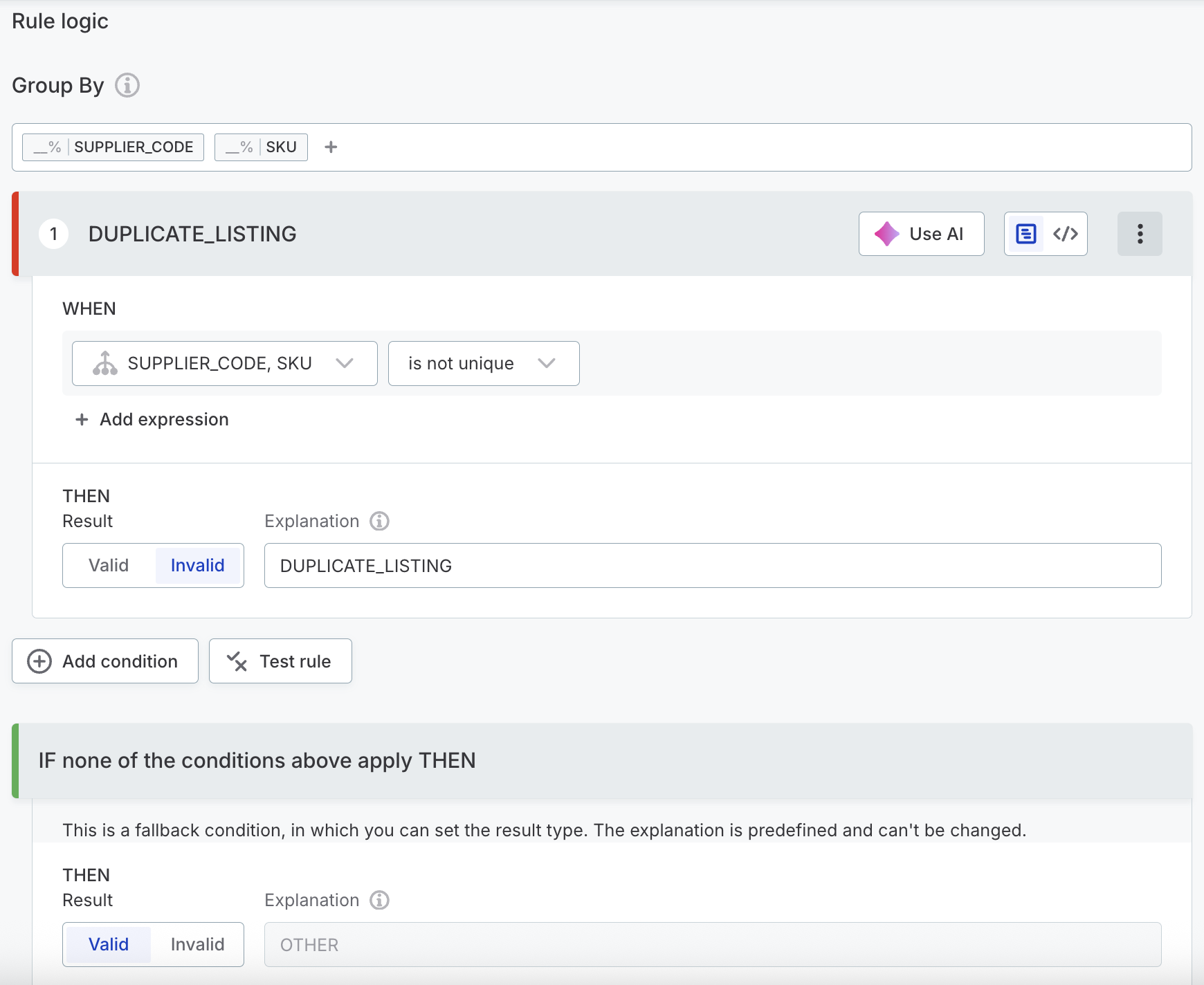
In Rule logic > Group By, add both
SUPPLIER_CODEandSKU.Each distinct pairing of the two values now forms one group.
-
In the Condition Builder, set WHEN to the
SUPPLIER_CODE, SKUgroup with the conditionis not unique. -
Set the THEN result to Invalid and enter
DUPLICATE_LISTINGas the Explanation. -
Leave the fallback result as Valid, so that any combination appearing exactly once passes.
Test the rule and check the results
The source data for this example looks as follows.
Only SUPPLIER_CODE and SKU are inputs to the rule, so those are the only values you need to enter in the test panel.
| Record | SUPPLIER_CODE |
SKU |
PRODUCT_NAME |
UNIT_PRICE |
|---|---|---|---|---|
1 |
|
|
Wireless Mouse |
19.99 |
2 |
|
|
USB-C Cable 2m |
8.50 |
3 |
|
|
Wireless Mouse (V2 desc) |
21.99 |
4 |
|
|
Bluetooth Speaker |
34.00 |
5 |
|
|
USB-C Cable 2m |
8.50 |
6 |
|
|
USB-C Cable, 2m |
8.75 |
7 |
|
|
Laptop Stand |
45.00 |
8 |
|
|
Wireless Keyboard |
29.99 |
Select Test rule, then use Add row to enter the eight pairs of values. The rule groups them as follows:
| Group | Records | Group size | Result |
|---|---|---|---|
|
1, 3 |
2 |
Invalid, |
|
2, 5, 6 |
3 |
Invalid, |
|
4 |
1 |
Valid |
|
7 |
1 |
Valid |
|
8 |
1 |
Valid |
Every record in a repeated group is flagged, including the first occurrence. The whole group is reported as a problem, and there is no attempt to identify which record is the original.
Why only the grouped attributes matter
Two results are worth looking at closely:
-
Record 8 shares a supplier with records 1 and 3 but has a different SKU. It is a genuinely different product, and it correctly stays Valid.
-
Record 6 has a different product name and a different unit price from records 2 and 5, yet it still joins their group. Only the grouped attributes decide the outcome, so records can differ elsewhere and still be duplicates. A duplicate is defined by the key, not by the whole record.
Harden the rule with variables
Grouping compares raw string values, so a key with a stray space does not match the same key without one.
If one SUP-100 record arrives with a SKU of A1-2345 followed by a space, it does not join records 1 and 3, even though it is the same supplier and the same product.
It forms a group of one and is reported as Valid, so a real duplicate goes unflagged.
A trailing space is invisible in the results, so nothing looks wrong.
To protect against this, normalize the values in a variable and group by the variable instead of the raw attribute:
-
Under Variables, add a variable based on the attribute you want to clean.
-
Select Add transformation and choose Squeeze spaces.
This removes spaces from both ends of the string and replaces repeated space characters with a single space character. A value with a leading space, a trailing space, or repeated internal spaces all normalize to
A1-2345before they reach the grouping step. -
If casing differences are also a realistic risk in your source data, add a Lower case transformation to the same variable.
-
In Group By, replace the raw attribute with the variable.
| Aspect | Base rule | Hardened rule |
|---|---|---|
Group by |
|
|
Handles trailing and repeated spaces |
No |
Yes |
Handles casing differences |
No |
Only if Lower case is also applied |
Condition and result |
|
Unchanged |
Grouping matches values exactly, so a difference in how a value is written splits a group even when the meaning is the same. Where you cannot rely on the formatting of an attribute you group by, normalize it before grouping.
Example: Compare a value to the group average
This example flags transactions that sit more than 10% above or below the average transaction value for their customer. Because the average is a property of the customer rather than of any single transaction, the comparison is only possible once the records are grouped.
-
Create an aggregation rule with the Validity dimension, as described in Create an aggregation rule.
-
Under Attributes, add
CUSTOMERas a string andAMOUNTas an integer.Input attributes and variables must use a data type that is compatible with the aggregate function you want to apply. -
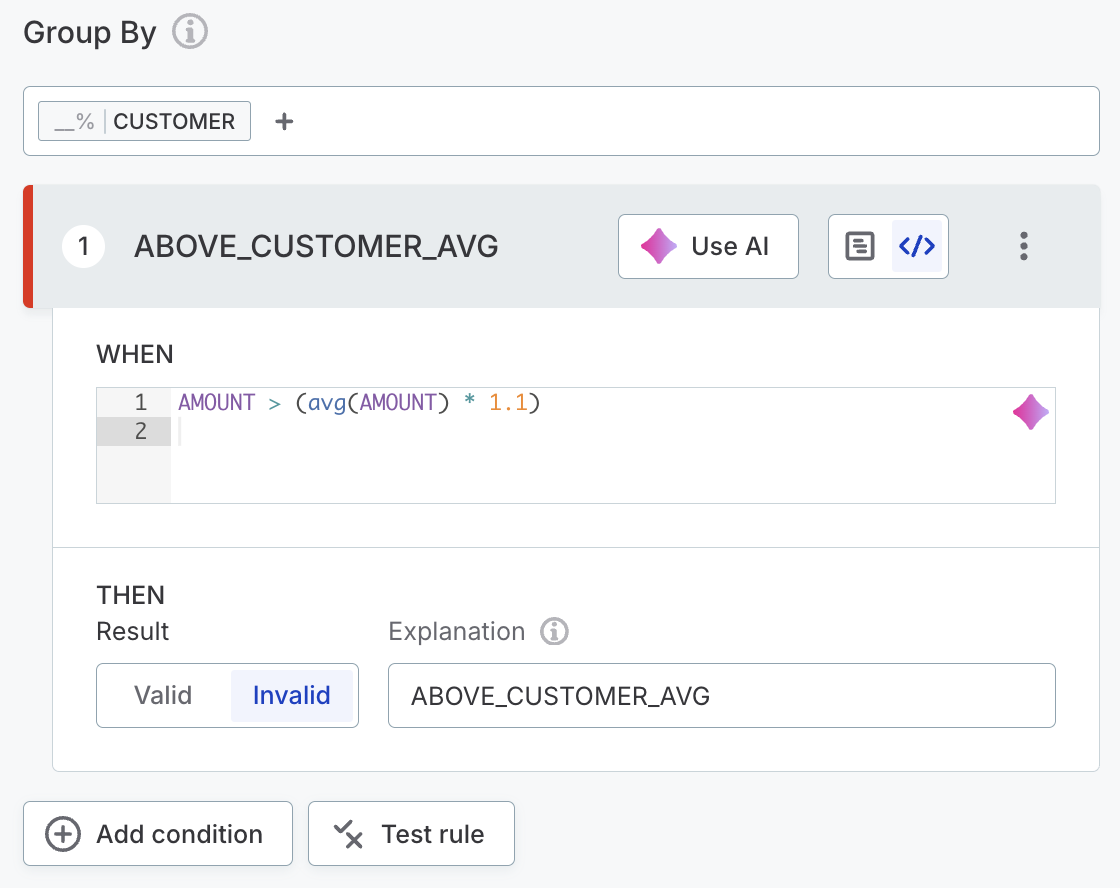
In Group By, add
CUSTOMER, so that each customer’s transactions form one group. -
Switch to Advanced Expression and define the two conditions that fall outside the accepted range.
The value is more than 10% above the average for its customer:
AMOUNT > (avg(AMOUNT) * 1.1)The value is more than 10% below the average for its customer:
AMOUNT < (avg(AMOUNT) * 0.9)avgtakes the attribute as its argument and averages it across the group being evaluated, not across the whole dataset. -
Set the result for both conditions to Invalid, and enter an Explanation for each, for example
ABOVE_CUSTOMER_AVGandBELOW_CUSTOMER_AVG. -
Leave the fallback result as Valid.
Testing the first condition against two customers produces the following results:
CUSTOMER |
AMOUNT |
Group average | Result |
|---|---|---|---|
|
10 |
11.5 |
Valid |
|
10 |
11.5 |
Valid |
|
10 |
11.5 |
Valid |
|
16 |
11.5 |
Invalid |
|
1000 |
1666.67 |
Valid |
|
1000 |
1666.67 |
Valid |
|
3000 |
1666.67 |
Invalid |
The two groups are judged against their own averages, not against each other.
An amount of 1000 passes in C2 while an amount of 16 fails in C1, because each is compared only to the other records that share its customer.
Example: Check the record count per group
This example checks that each day contains the expected number of transactional records, which in this case is 24. A missing or duplicated batch shows up as a group whose size is wrong, something no single record reveals on its own.
-
Create an aggregation rule with the Validity dimension, as described in Create an aggregation rule.
-
Under Attributes, add a
DATEattribute of the Datetime data type. -
In Group By, add the
DATEattribute, so that each day forms one group. -
Switch to Advanced Expression and use
count()to check the size of each group:(count() != 24)count()takes no argument. It counts the records in the group currently being evaluated, not the records in the whole dataset. -
Set the result to Invalid and enter an Explanation, for example
WRONG_RECORD_COUNT. -
Leave the fallback result as Valid.
Any day with more or fewer than 24 records is flagged. To check a different interval, group by an attribute at that granularity instead.
Next steps
-
Add DQ Rules to Terms — Apply your newly created DQ rule to a term.
-
Run DQ Evaluation — Run DQ evaluation to see how your data performs against the rule.
-
Data Quality Thresholds — Configure a threshold to flag results that fall below an acceptable level and trigger alerts automatically.
Was this page useful?