
AI Agent Skills
Skills are focused packages of instructions that tell the AI Agent how to handle a specific kind of task. Alongside the skills built by Ataccama, you can create custom skills so the AI Agent follows your organization’s own processes and naming conventions, such as how to name rules or which glossary terms to check first. Each skill can also set what the AI Agent’s reply should look like for that task.
For how the AI Agent selects and uses skills, see How the AI Agent works.
Before you start
Take a moment to get familiar with the recommended practices for using Generative AI capabilities of Ataccama ONE, described in Gen AI Best Practices.
Creating and changing custom skills requires the antaiagent-admin role in the Ataccama identity provider. See Reserved identity provider roles. Users without this role can view skills but not change them.
In addition, take note of the following:
-
Custom skills are shared with everyone in your organization. As soon as a skill is enabled, the AI Agent can use it in the chats of anyone in your organization.
-
The AI Agent chooses a skill from its name and description only. It reads the full instructions only after it selects the skill, so the description decides whether the skill is used at all.
Where to find skills
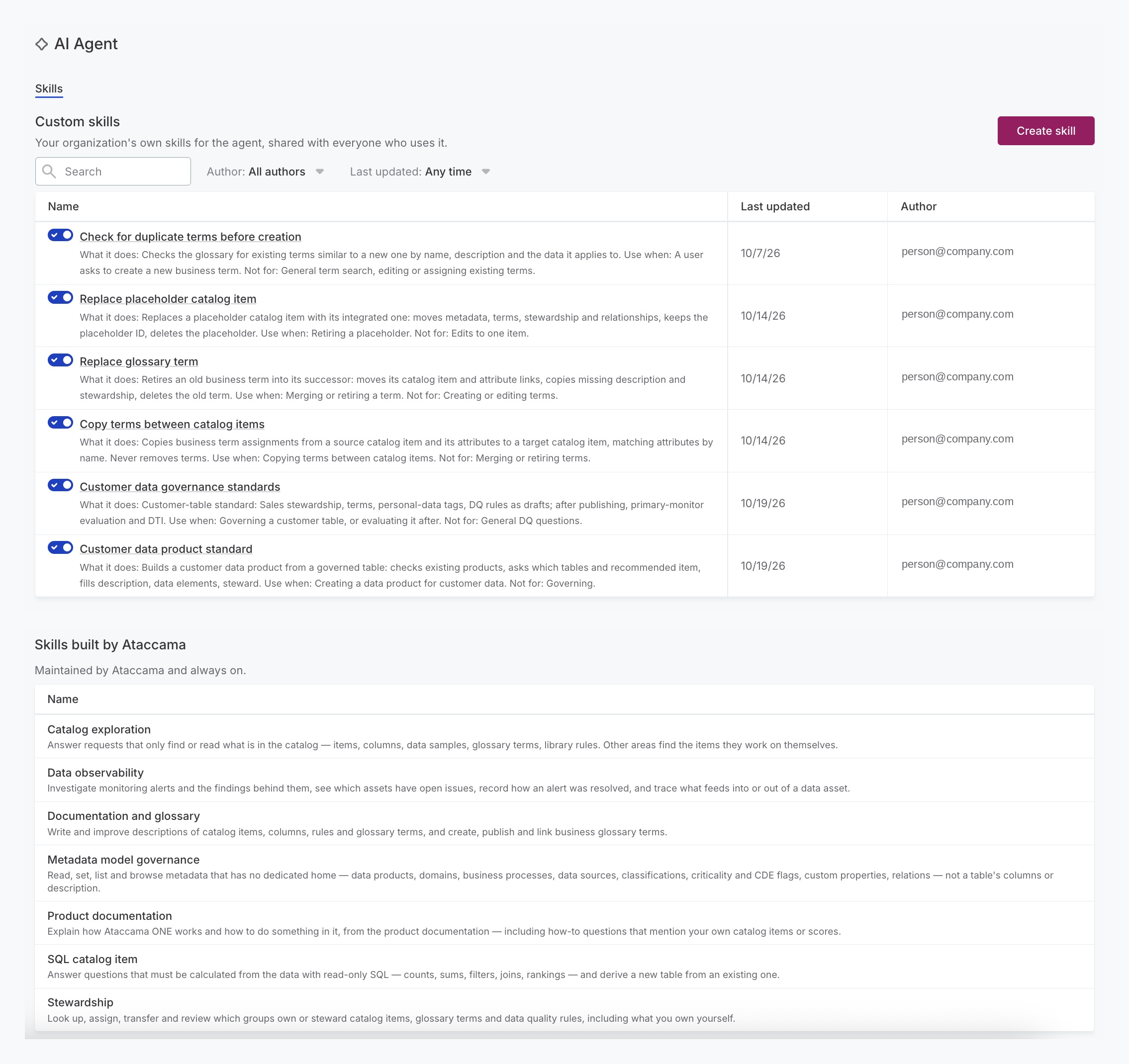
Skills are managed in Settings > AI settings > AI Agent, on the Skills tab. The tab has two sections:
-
Custom skills: Skills your organization creates.
-
Skills built by Ataccama: Skills that come with the AI Agent.
Custom skills
Create a custom skill
-
Go to Settings > AI settings > AI Agent and select the Skills tab.
-
In the Custom skills section, select Create skill.
-
Fill in the following fields:
-
Name: Up to 200 characters. It can’t be the same as the name of a skill built by Ataccama.
-
Description: What the skill does and when to use it, up to 256 characters including the template labels.
-
Instructions: The steps the AI Agent follows after it selects the skill, up to 40,960 characters.
-
-
Optional: To review the draft before you save it, select Evaluate skill. See Evaluate a skill.
-
Select Save.
The skill is enabled right away.
| To see how the template is filled in, select Insert example. To return to the empty template, select Reset to template. |
Best practices for writing custom skills
The Description and Instructions fields start with a template. The first three of the following labels are in Description, and the other three are in Instructions. Under each label, add the following:
-
What it does: One line that starts with a verb.
-
Use when: The specific requests that should trigger the skill.
-
Not for: Similar requests that the skill shouldn’t handle.
-
Works with: The assets, terms, or tools the skill uses.
-
Steps: A numbered list of what the AI Agent does, in order.
-
Reply: What the answer to this task should look like.
When writing a skill, keep in mind the following:
-
Keep each skill to one complete task. The AI Agent loads at most one custom skill per request, so a skill can’t rely on another custom skill to cover part of the task. If the description is about one thing and the instructions about another, the AI Agent can’t use the skill reliably.
-
Leave out general preferences. Preferences that should apply to every answer, such as which language to answer in or how long answers should be, don’t work as skills. A skill applies only to the requests it’s loaded for, so the preference wouldn’t apply anywhere else.
-
Use exact names. Refer to catalog items, glossary terms, and other assets exactly as they appear in ONE, so the AI Agent can find them.
-
Avoid overlapping skills. If two skills claim the same requests, the AI Agent might select the wrong one. The same applies to skills built by Ataccama. If a custom skill covers requests that a skill built by Ataccama already handles, the AI Agent might use the custom skill instead, with less effective results.
Evaluate a skill
Evaluate skill reviews a draft the way the AI Agent reads it, so you can fix problems before the skill is used in chats. It is available on the New skill page after you fill in the Description and Instructions fields, and on the page of any saved skill.
The review contains the following sections:
-
Will it get picked up?: How clearly the name and description tell the AI Agent when to use the skill, rated Strong or Needs work.
-
Will it be followed?: How clearly the instructions tell the AI Agent what to do, rated Strong or Needs work.
-
What to fix: Suggested wording for the description and instructions.
-
Overlaps with other skills: Other skills, including skills built by Ataccama, that claim the same requests.
-
Names it mentions: Whether the catalog items, terms, and other assets that the draft names exist in the catalog, marked as Found in the catalog, Not found in the catalog, or Several matches.
-
Test it with: Requests to try in the AI Agent, each with a note on what it tests. To send one to the AI Agent, select Send to chat (arrow icon) next to it.
After you change the draft, select Re-run to review it again.
When you try a skill in a chat, the AI Agent tells you which skills it loaded, so you can check that it picked up yours.
If the catalog is turned off for your environment or can’t be reached, the review skips the catalog names check and shows a message instead.
Skills built by Ataccama
Skills built by Ataccama are maintained by Ataccama and are always on. They are listed in the Skills built by Ataccama section of the Skills tab, so you can see which tasks the AI Agent already handles. For use cases and example prompts, see AI Agent Handbook.
You can’t edit, disable, or delete skills built by Ataccama.
Limitations of custom skills
Up to 50 custom skills can be enabled at the same time. If you reach the limit, an error is shown when you save or enable a skill.
For each request, the AI Agent loads at most one custom skill, in addition to skills built by Ataccama.
Custom skills don’t affect embedded Gen AI features, such as generating catalog item descriptions.
Custom skills can’t be:
-
Generated from a document.
-
Imported from or exported to a
.mdfile. -
Restored after deletion.
Was this page useful?