
Browse Records
To work with master data, open an entity from the navigation panel, find the records in its listing, and open a record to see its detail. Use this page to get oriented in the MDM Web App and learn how to work with records.
Find an entity
The All tab of the navigation panel lists the entities by data category: master data, instance data, reference data, datasets, and matching proposals. To learn what each category holds and how master and instance data relate, see Types of Data.
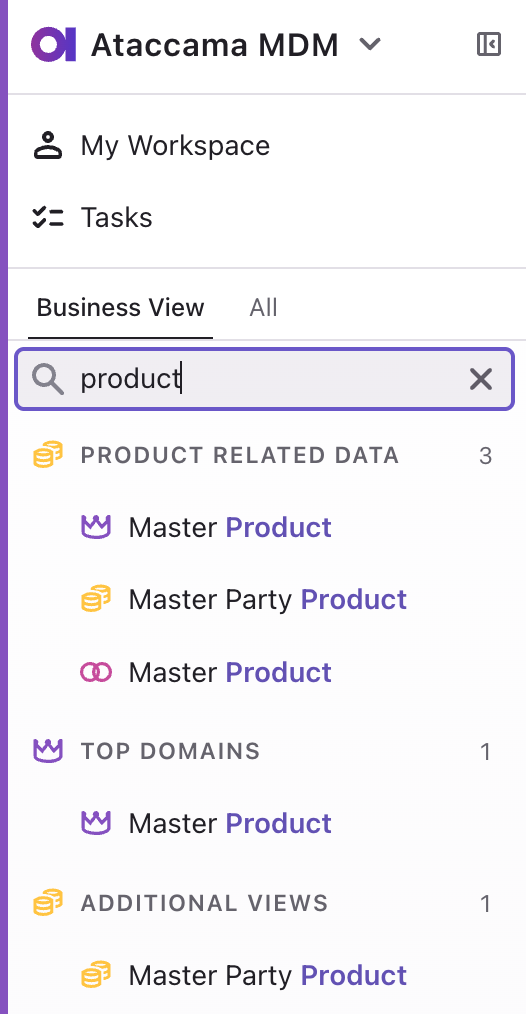
If a business view is configured, the Business View tab groups the entities the way your organization works with them.
If the navigation panel lists many entities, search for the entity by name. Select an entity to open its record listing.
To browse several entities at once, open a dataset. Datasets first need to be configured, see Datasets.
Read the record listing
Once you open an entity, the listing shows the entity records, one per row, with the record attributes as columns. More records load as you scroll down.
If data samples are configured, an entity shows a sample of its records instead of the full listing. The threshold and the number of records shown depend on the configuration. See Configuring Data Samples.
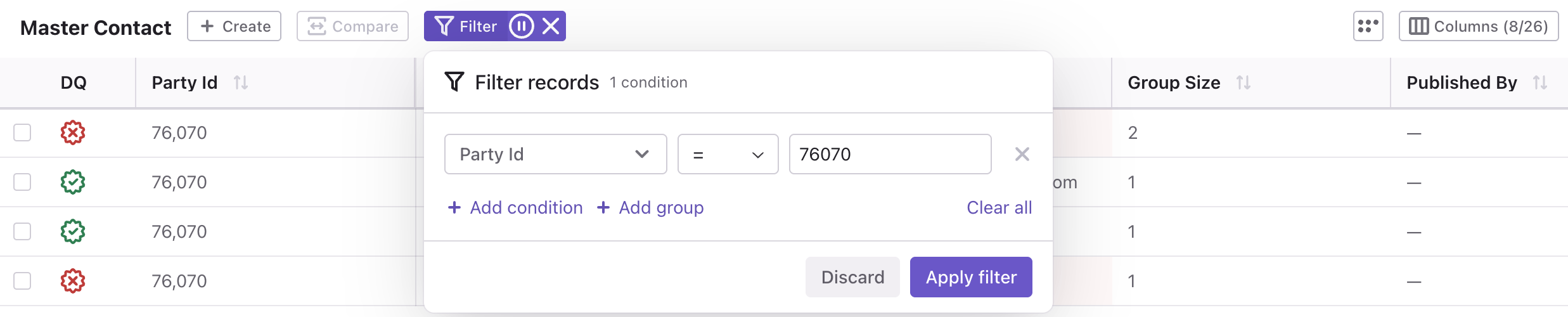
To find other records, use the filter. See Filter the record listing.
If data quality validations are configured, each row and each value with an issue carries an indicator. See Data quality indicators.
In the listing, you can:
-
Sort by a column: select the column header. The arrow shows whether the sort is ascending or descending. Select the header again to change the order.
-
Resize a column: drag its edge.
-
Fit more rows on the screen: select Switch to compact rows, the five-dot icon next to Columns. Select it again to switch back.
-
Compare records: select two or more rows and select Compare. See Compare Records.
Change the column layout
You can change which columns are shown and in what order. The same column layout is used in the compare view.
Column changes apply only to your browser session and aren’t shared across the application. They survive logging out, but not switching browsers or clearing the browser cookies.
To change the column layout:
-
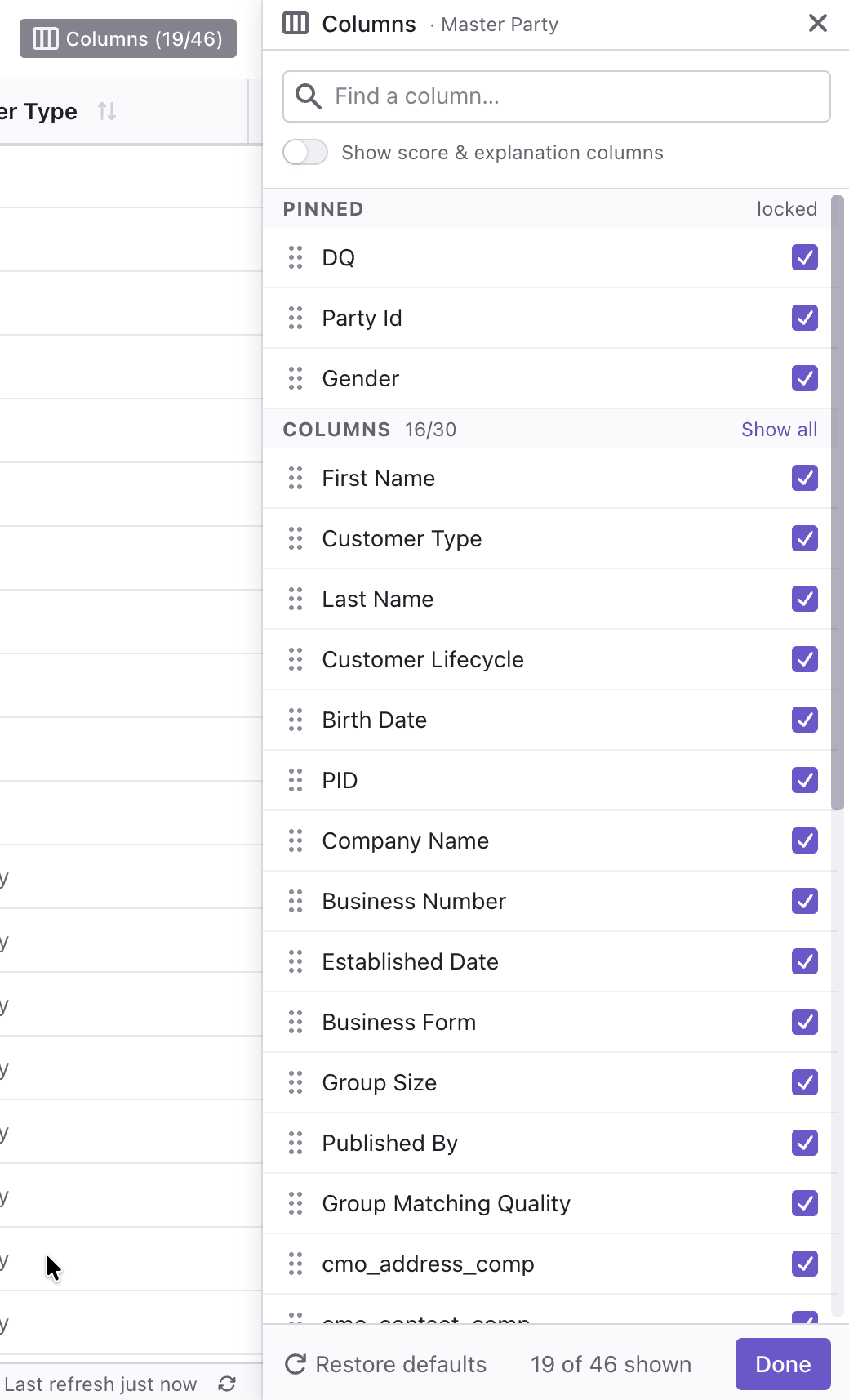
Select Columns in the upper-right corner.
-
Change the layout:
-
To show or hide a column, select or clear its Show checkbox.
-
To reorder columns, select the six-dot icon and drag and drop the column.
-
To keep columns in view when you scroll to the right, drag them to the Pinned group at the top. This helps with tables that have many columns.
-
To display score and explanation columns, select Show score & explanation columns.
-
-
When you’re finished, select Done.
Use search to find a column faster in entities with many columns.
To restore the default order and visibility of the columns, select Restore defaults.
View record detail
Select a row to preview the record in the side panel. To open the record, double-click the record in any of the listings, or select the record ID.
To switch from the preview to the full view, select the Open details icon in the upper-right corner or select the three-dot menu and then Open detail.
To share a link to the record, select Copy link.
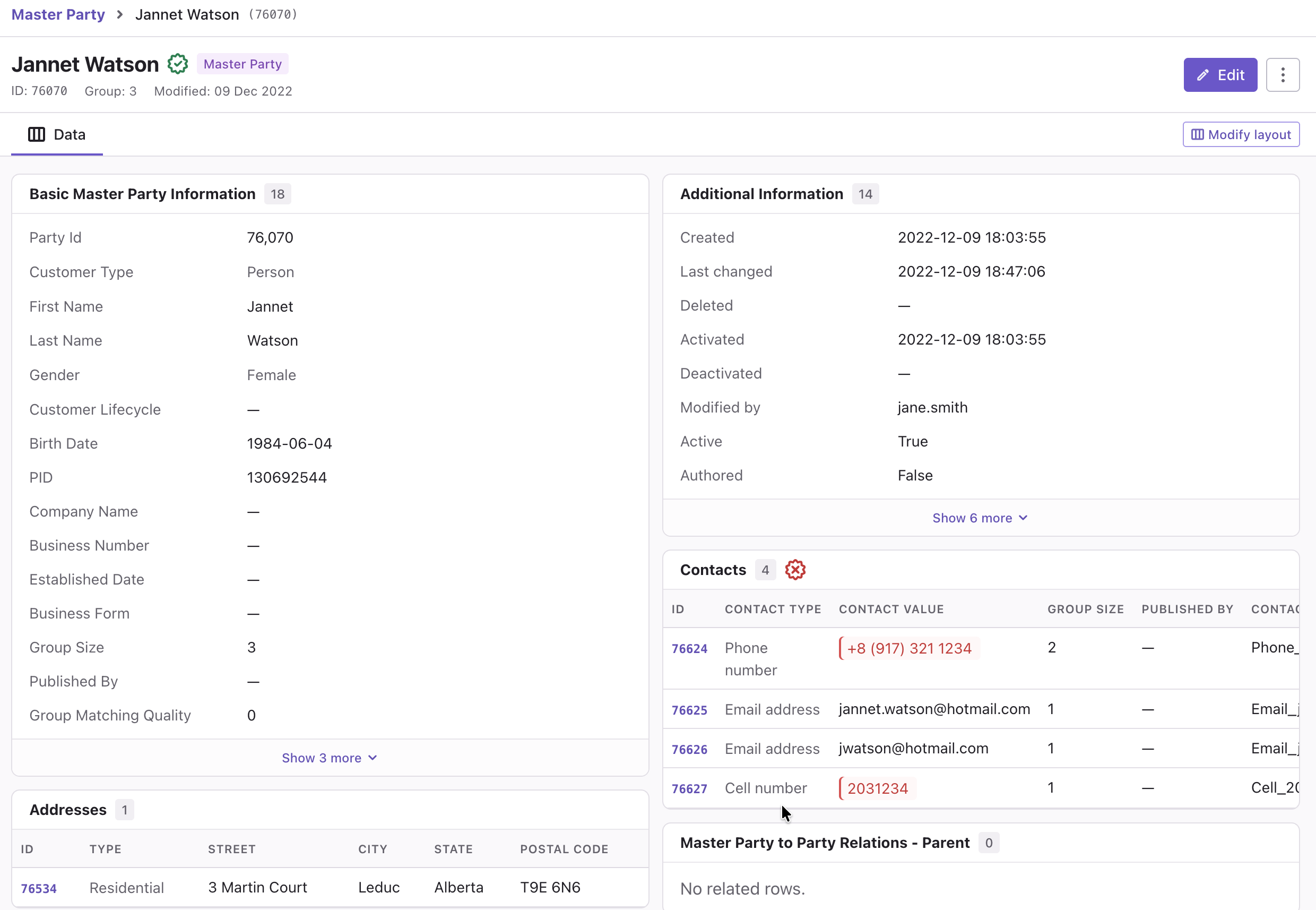
The record detail shows the values of the main record attributes and the related records. Which attributes are shown and how they are laid out depends on how the entity is configured in your project.
Related records
Related records are records from other entities that are linked to the record you’re viewing, for example, the addresses, contacts, and ID documents of a party.
The record detail shows them in one section per related entity, with the number of records in the section header. Select a related record to open it in the side panel. To open it in the full view, select its ID or double-click the record.
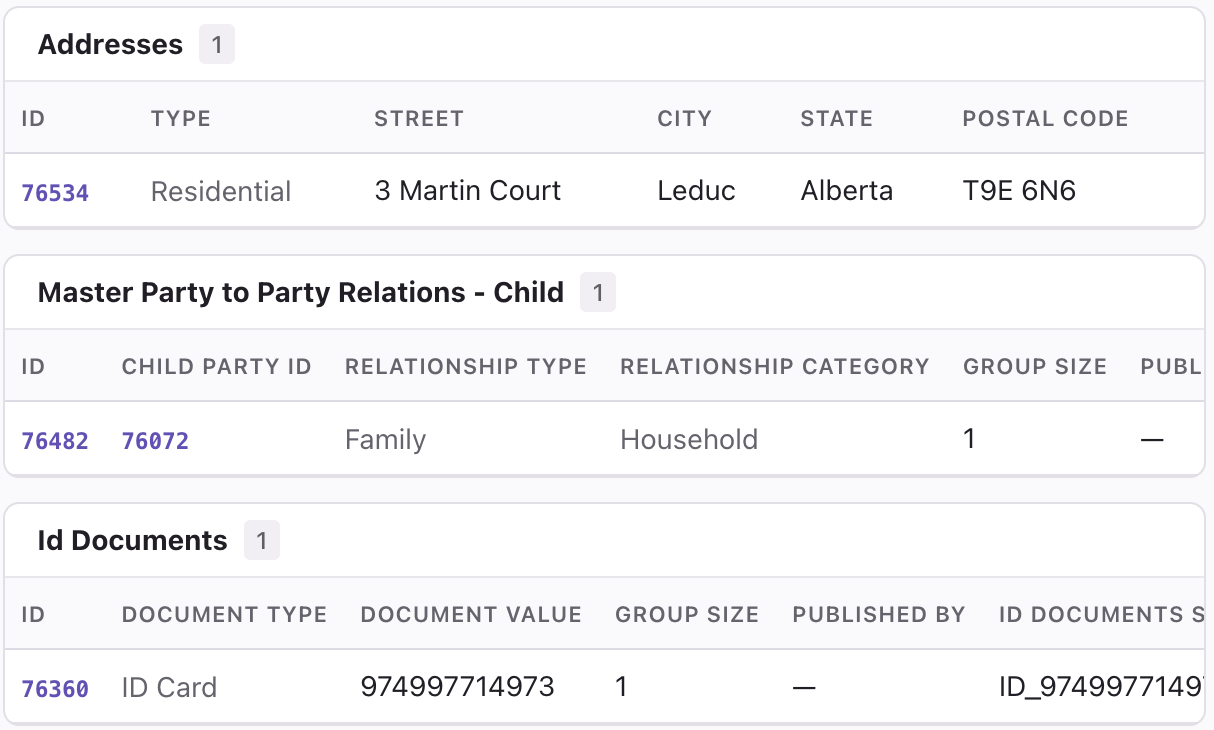
The side panel preview of a record shows its related records as groups instead. Selecting a group opens the listing of that entity, filtered to the records linked to the previewed record.
To compare related records, see Compare Records.
Instances
Instance records are the records from the source systems that were matched and merged into the master record. See Instance data. In a master record, the Instances section lists them, together with the source system, the matching rule that matched each of them, and the matching quality.

Data quality indicators
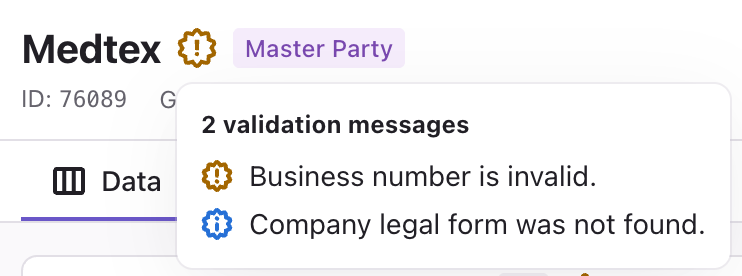
If data quality validations are configured in your project, the MDM Web App shows how trustworthy each record and value is. A badge shows the result in the DQ column of the record listing and next to the entity name wherever it is shown, including the record detail and its related and instance sections.
-
Green with a checkmark (
✓): No issues. -
Red with a cross (
X): Errors. -
Yellow with an exclamation mark (
!): Warnings. -
Blue with an information sign (
i): Information, for example, "Company legal form was not found."
Hover over the indicator to see which records have issues and why, for example, "Phone number is too long."
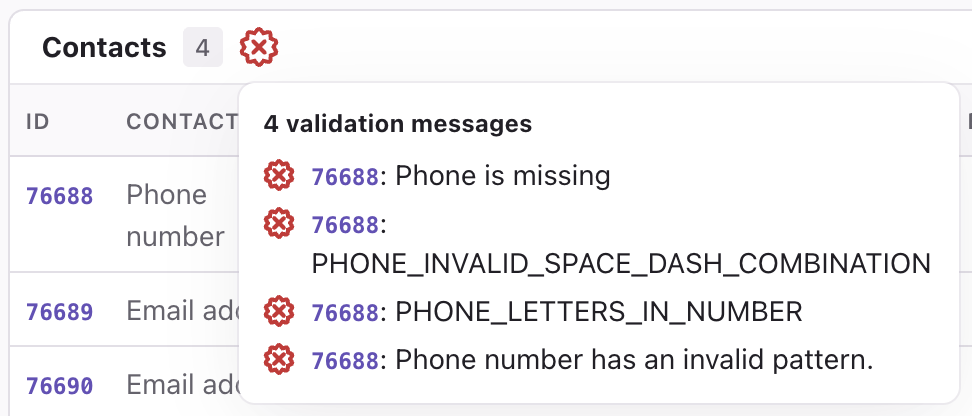
In the record detail, the values that fail a validation are highlighted in the color of the issue and the same validation message appears on hover. While you edit a record, the values are validated as you type, so you see the issues before you save.
Change the record layout
The record detail is divided into columns, with the main record information and each related entity in its own card. Modify the layout to put the cards you use most where you see them first, or to give wide related tables more room.
| The layout editor is a prototype and can change in a later release. |
Like the column layout, the record layout is kept for your browser session only.
Open the record and select Modify layout. The layout editor opens.
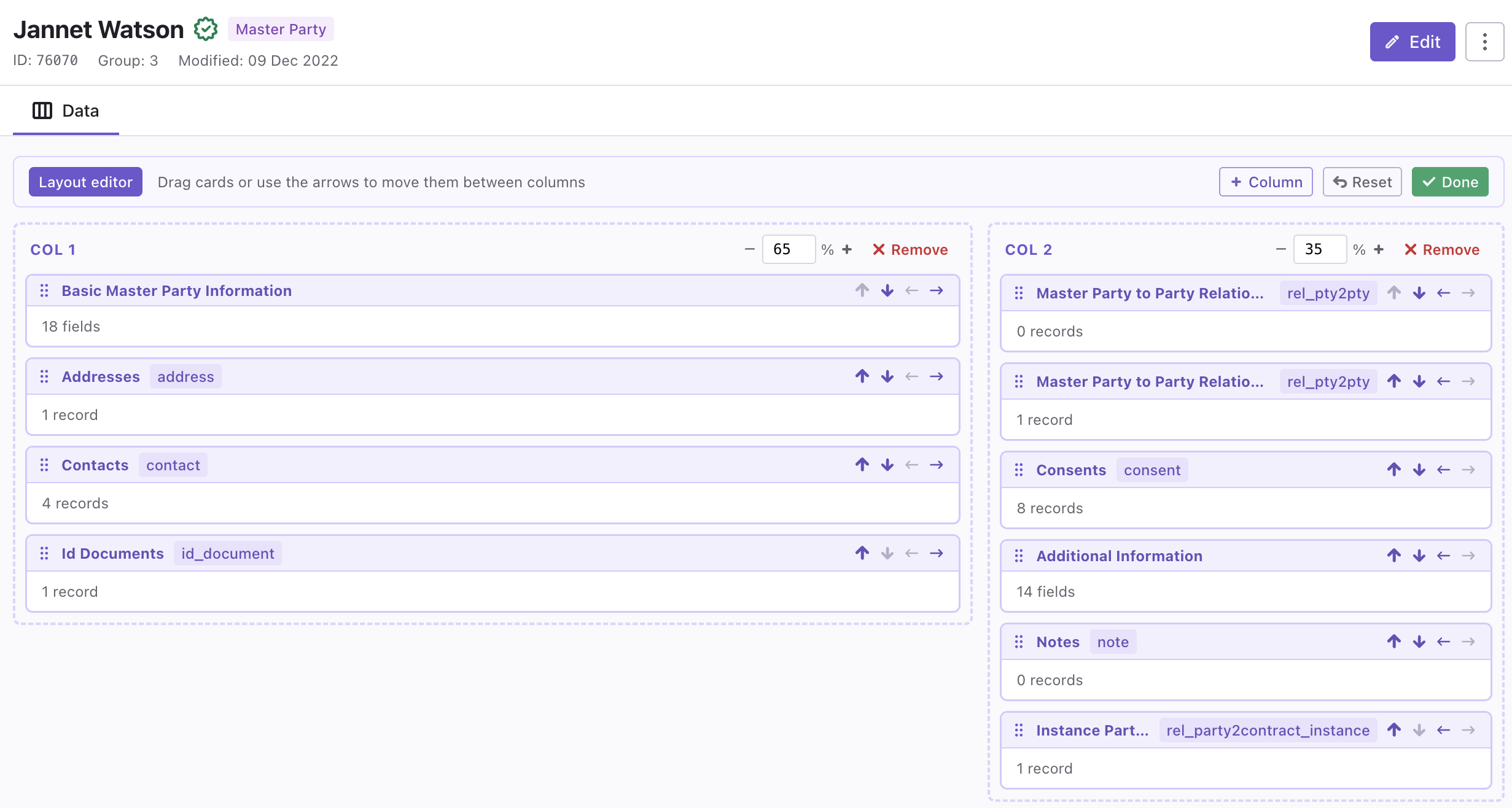
In the layout editor, you can:
-
Move a card within its column or to the next column: drag it, or use the arrows.
-
Change the width of a column: enter it as a percentage.
-
Add a third column: select + Column.
-
Remove a column: select Remove. To hide a column without removing it, set the other column to 100%.
When you’re finished, select Done. To return to the default layout, select Reset.
Was this page useful?