
Viewing Data in RDM
This article guides you through different viewing data options in RDM. For the purpose of the article, we assume the table is opened in the EDIT mode.
Columns setup
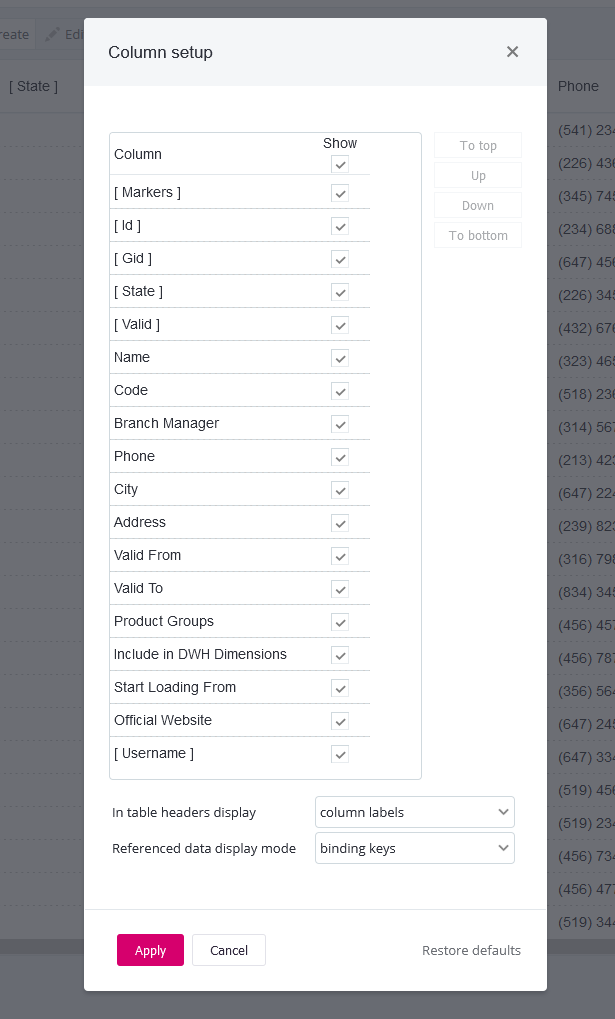
Configure which columns display for a table using Columns Setup in the toolbar. This is available in all viewing modes.
In the Columns Setup dialog:

-
Choose which columns to display.
-
Reorder columns.
-
Select header labels and referenced data display mode.
The last two options add icons next to the column name.
Column sorting and adjustment
Adjust column width and sort by column as needed.
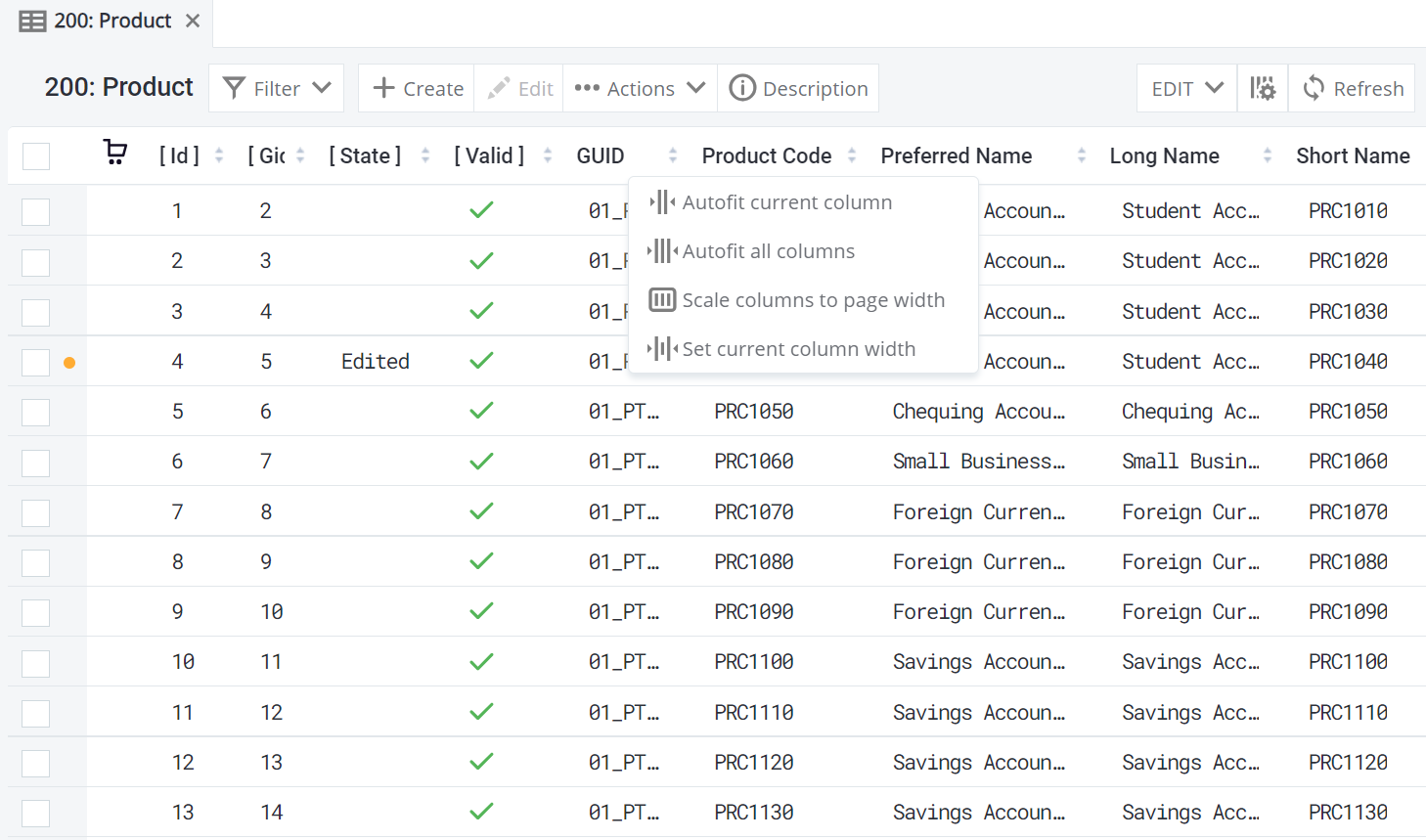
Right-click any column for additional sizing options:
-
Autofit current column - Set width based on the longest value.
-
Autofit all columns - Set all columns widths based on the longest value.
-
Scale columns to page width - Resize all columns to fit the browser window.
-
Set current column width - Set width in pixels.
Filters
When viewing an entity, you can narrow down which records are shown using filters.
-
Select Filter to open the filtering pane.
-
Select Add condition to add an attribute to your search. Alternatively, right-click the attribute and select Add value to filter.
-
Select the search operator, such as equals to (
=),contains, and so on. -
Change case sensitivity if necessary.
-
Add Add condition again to search by another attribute.
-
Change the AND/OR operator between conditions.
-
Select Filter.
Filter options depend on the attribute data type.
For example, contains is available for City but not for Valid To.
|
| The filter icon is highlighted when the filter is active. |

Advanced filter
Use the advanced filter when basic filtering isn’t enough, or combine them. The advanced filter functions like a WHERE SQL clause and uses SQL-like syntax.
-
Select Filter to open the filtering pane.
-
Switch to the Advanced filter tab.
-
Type your query.
-
Select Apply.
To construct your query:
-
Press Ctrl+Space for a list of all columns. Column names are case sensitive and must be in double quotes if they contain spaces.
-
Set filtering rules using operators and functions. Operators are not case sensitive, but functions are. Operators appear in purple.
Supported operators and functions-
Operators:
LIKE,ESCAPE,FALSE,TRUE,NULL,CASE,IS,IN,=,<>,>,>=,<,⇐,IS NOT NULL,ISNULL,NOTLIKE,LIKEESCAPE,NOTLIKEESCAPE,LIST,FUNC. -
Logical operators:
AND,OR,NOT. -
Functions:
upper,lower,length,concat,now,toDate,toDateTime,substring.
-
-
Define criteria values in single quotes. These are case sensitive and appear in red.
Examples
The following examples show some advanced filtering use cases
- Combining AND/OR operators
-
Find Diana, who changed her last name from Jones to Smith, but you’re unsure which name is current.
"First Name" = 'Diana' AND ("Last Name" = 'Jones' OR "Last Name" = 'Smith') - IN operator
-
Find all clients in Toronto and Vancouver.
City IN ('Toronto', 'Vancouver') - to_date function
-
Find records of people born before January 1, 1980.
"Birth Date" < toDate('1.1.1980', 'd.M.yyyy') - Now function
-
Find products past their expiration date.
"Expiration Date" < now() - Substring function
-
Find people whose names contain 'mi' as the second and third letters. Substring is defined as
substring("Column Name", start index, length).'mi' = substring("First Name", 1, 2) - Like operator
-
Find a person when you’re unsure of spelling.
Use underscore (
) to substitute one symbol:'Jo'returnsJon. Use percentage sign (%) for multiple symbols:'Jo%'returnsJon,Joan,Jonathan."First Name" LIKE 'Jo%' - Additional examples
-
-
"First Name" IN ('John','Smith') AND "Last Name" IN ('John','Smith') -
"First Name" LIKE 'Jo__' -
"Postal Code" NOT LIKE 'M _' AND City = 'Toronto' -
"Postal Code" >= 'M4%' AND "Postal Code" ⇐'M6%'
-
Advanced filter syntax
Column names with spaces require double quotes, for example, "First Name" but City.
Press Ctrl+Space for a list of columns.
The following wildcard expressions are supported:
-
Underscore (
_): Matches exactly one symbol.Example:
Jo_matchesJoebut notJohn. -
Percentage sign (
%): Matches one or more symbols.Example:
Jo%matchesJon,Joan, andJonathan.
Save filters
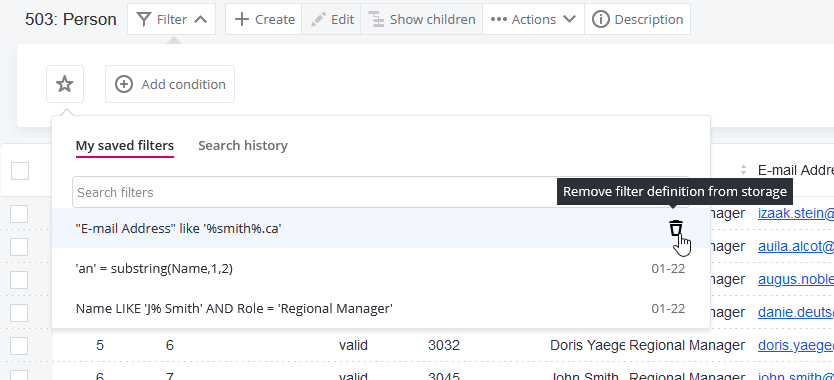
Save filters and create a library of the 100 most recently applied filters using the star icon and the My Saved Filters and Search History options. Saved filters are displayed alphabetically while search history is displayed chronologically.
To save a filter:
-
Enter the filter parameters.
-
Select Save.
-
Optionally, enter a filter name. Saved filters cannot be renamed.
-
Select OK.
To delete a saved filter:
-
Hover over the saved entry.
-
Select the bin icon.
View changes in data
In views
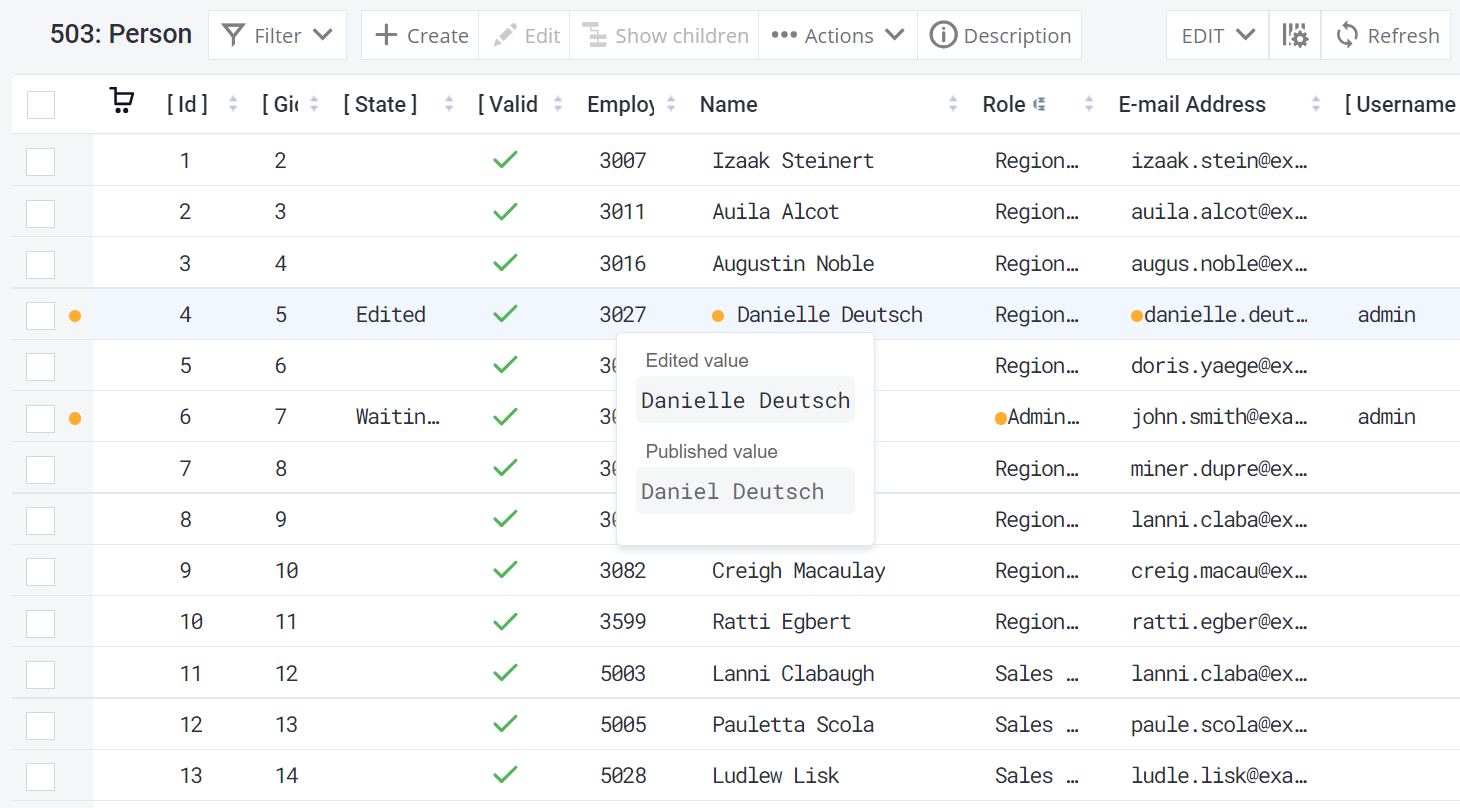
Views combine data from multiple tables, so orange dots only appear for changes in the view record itself: They are used for:
-
Direct value changes, similarly to tables (for example, changing "Prague" to "Brno").
-
Switching to a different parent record (for example, changing a city’s country from Czech Republic to Poland).
Orange dots do not appear when a referenced parent record is edited elsewhere. Using the same example, editing "Czech Republic" to "Czechia" in the Country table doesn’t show an orange dot in CityView if the city still references the same country record.
| Hover tooltips showing published values are available only in Create or Edit dialogs and record detail screens, not on the view listing. |
View record details
Double-click any record for full information about changes and other details.
The Record detail dialog opens in a separate tab and shows:
-
[ Id ] - Record ID.
-
[ State ] - Record edit state: new (a green dot), edited (orange dot), or deleted (red dot). See Record edit states.
-
[ Workflow state ] - Record workflow state (depends on the configuration). See Moving Records Through RDM Workflows.
-
[ User ] - User who made the latest change.
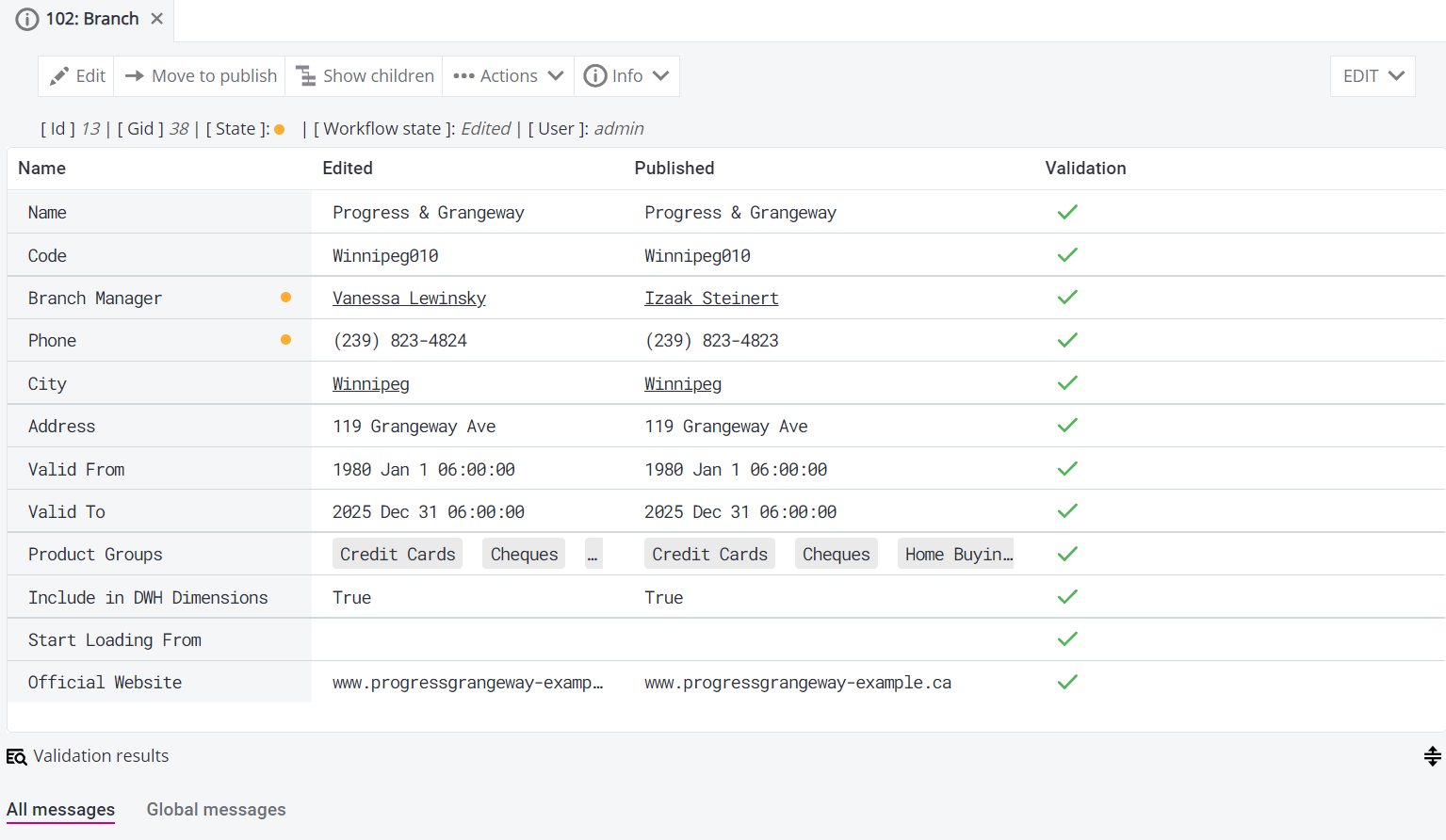
Table attributes are displayed in a table with Edited and Published values.
The Validation column shows validation errors. Details appear in the panel following the table.
An orange dot next to an attribute name indicates that the value was edited.
Click link-like attribute values (like Izaak Steinert and Winnipeg in the previous example) to see corresponding parent record details in a new tab.
Show children
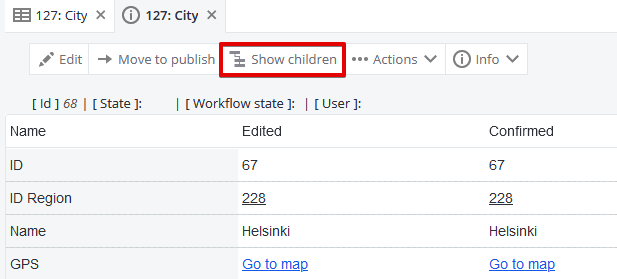
To view child records of a record, select Show children from the record detail toolbar. Alternatively, navigate to Hierarchies in the left-hand toolbar (for details, see Hierarchies).
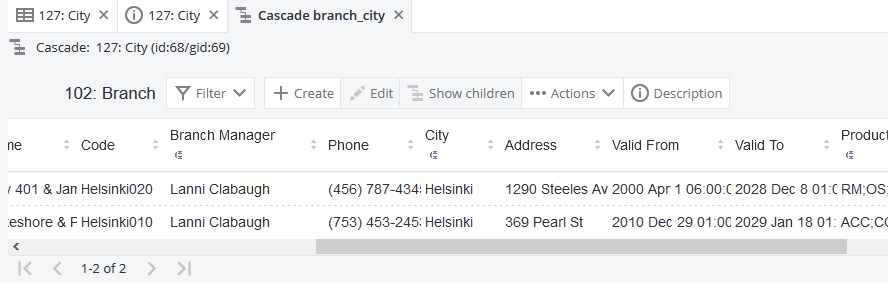
This opens a cascade dialog. In the following example, the child table 102: Branch takes the value of the city (Helsinki) from the parent table 127: City.
Hierarchies
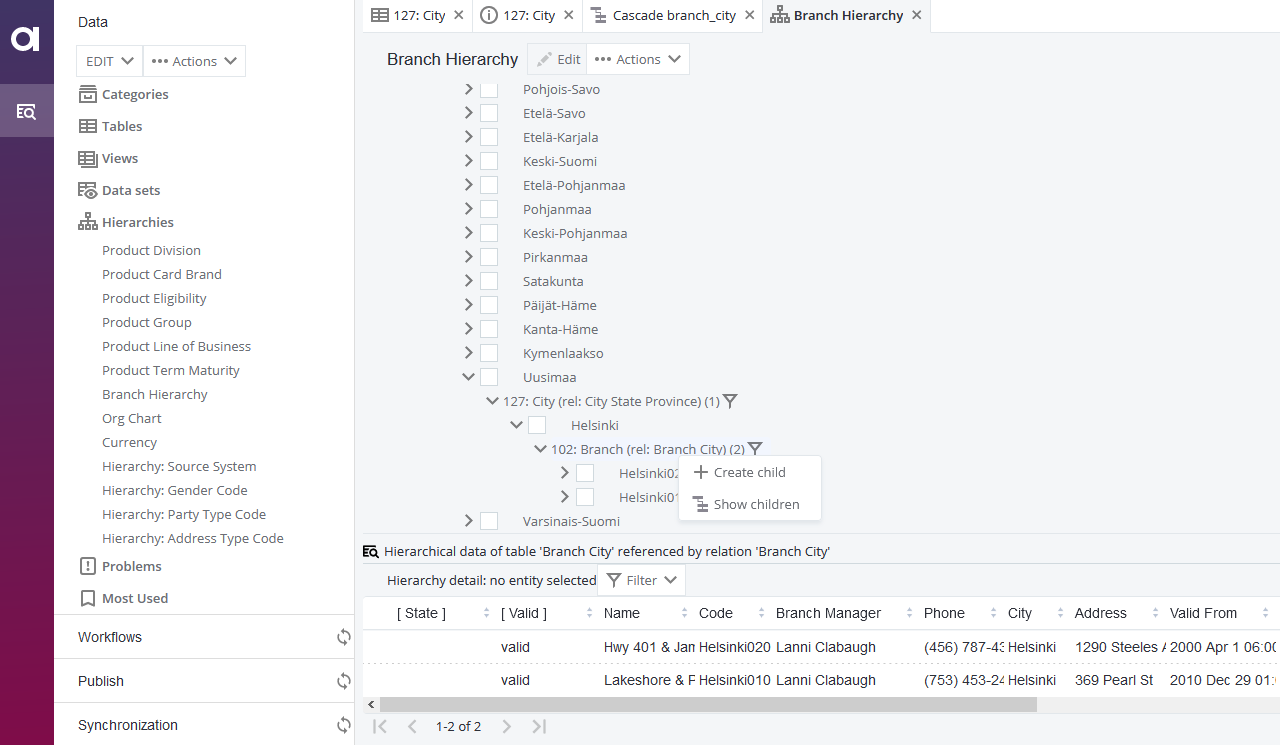
To view parent-child relationships, navigate to Hierarchies in the left-hand toolbar.
Expand each entity to display child records, or right-click and select Show children.
To create new child records, right-click and select Create child.
History
To view record history, select Info > History from the record detail toolbar.
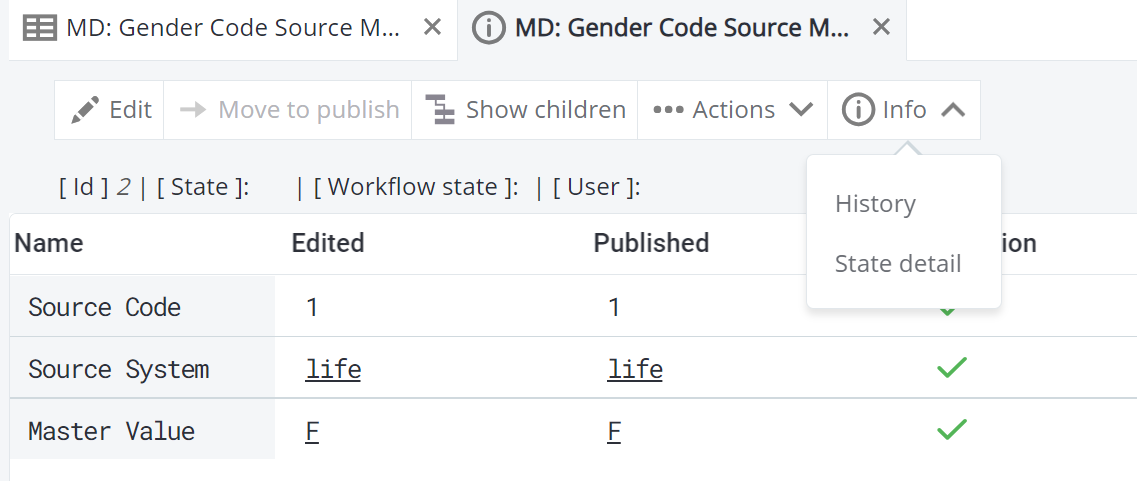
The table shows a different record version per line, with validity periods (Date from and Date to) and attribute values for each version.
State detail
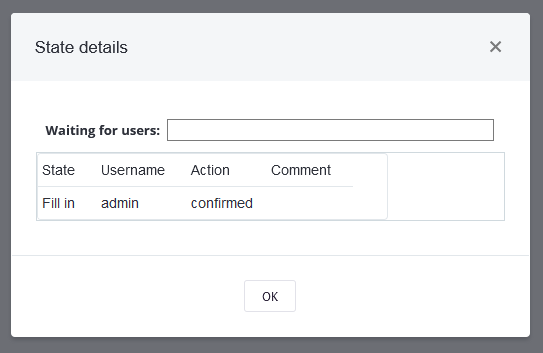
To view the record workflow state history, select Info > State detail from the record detail toolbar.
If a workflow for the table and action (Create, Edit, Delete) is configured (see Moving Records Through RDM Workflows) and the record is edited, State details show the history of workflow actions and the current pending action.
In this example, the user admin moved the record in the workflow, and no additional action is required before sending the record to publishing.
View table details
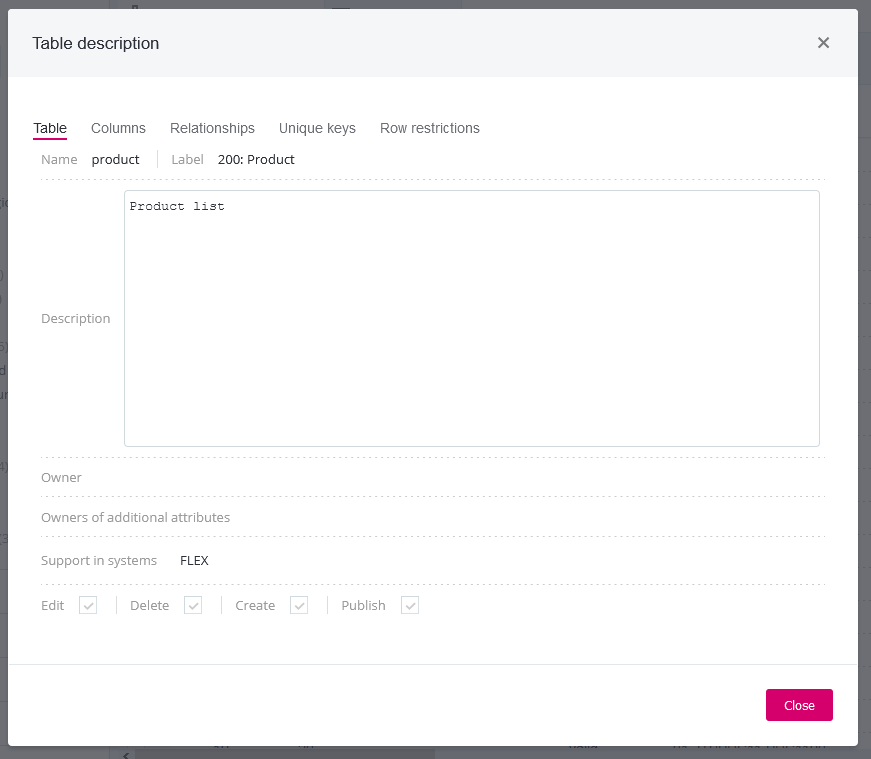
To see detailed information about a table, select Description from the toolbar.

The Table description dialog contains the following tabs:
- Table
-
Shows the Name, Label, Description, Owner, Owner of additional attributes, Support in (connected) systems, as well as your permissions for the table (Edit, Delete, Create, Publish).
- Columns
-
Lists column metadata including Label, Name, data type, Required and Read Only flags, Validator parameters, and Description. Default columns (such as State, Valid, Username) are not displayed.
- Relationships
-
Lists relationships between tables in the data model, including the relationship Name, Parent table, Child table, child Columns, and parent Columns.
- Unique keys
-
Lists table unique keys and their constituent columns.
- Row restrictions
-
Displays applied user-defined SQL restrictions. See Setting Permissions in RDM.
- Business Dates
-
Displays business dates columns and infinity settings (minimum and maximum values). See Versioning Records in RDM.
Was this page useful?