
Import Lineage
After you have scanned your lineage, you need to import the lineage metadata to ONE and map it to the relevant catalog items.
Upload lineage file
To do this, go to Knowledge Catalog > Lineage Import. The following import options are available depending on where your lineage metadata originates from:
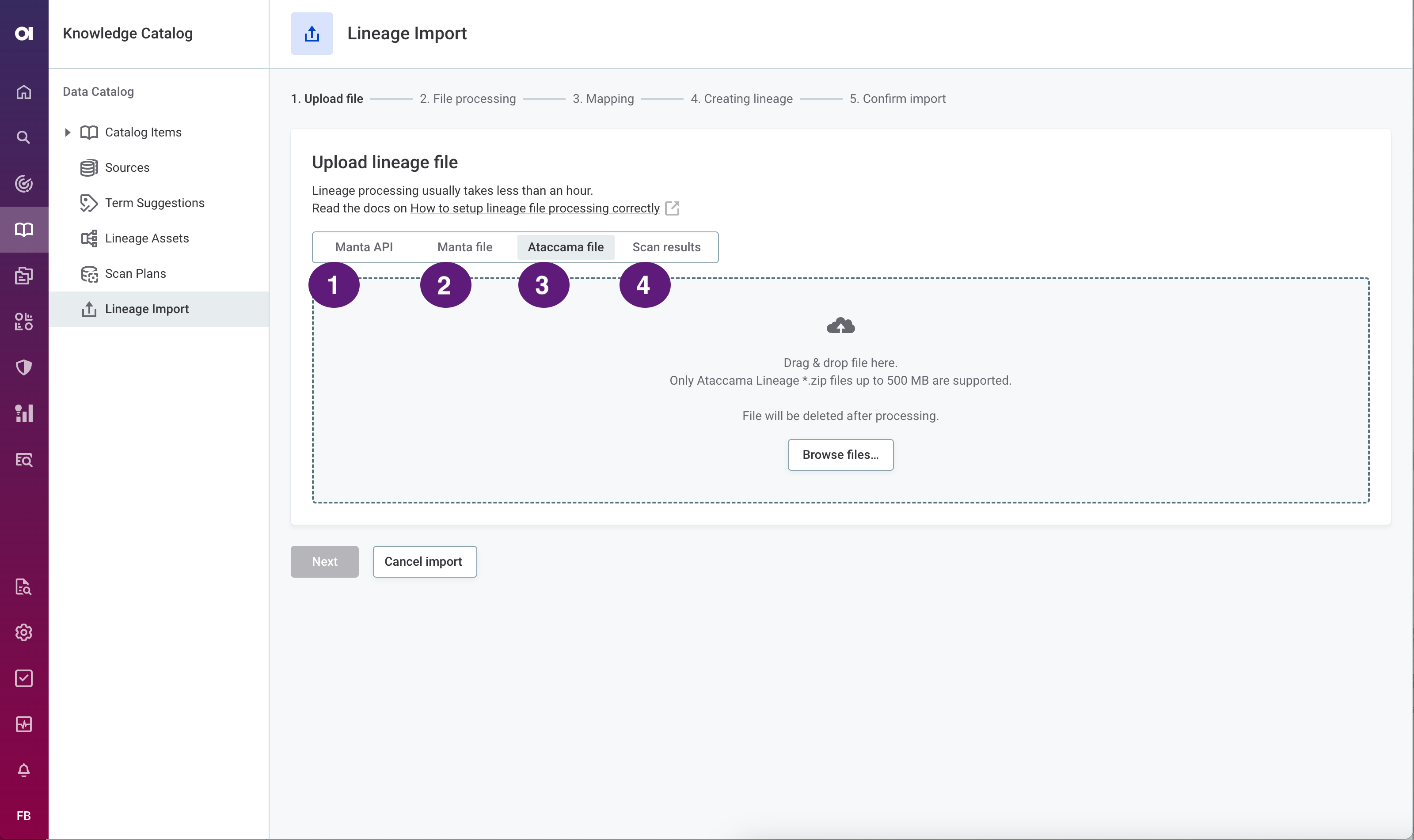
-
Ataccama file: Upload an Ataccama lineage file directly to ONE. This can either be custom content or a file generated by the standalone lineage scanner.
-
Scan results: Upload an Ataccama lineage file from the built-in scanner internal storage.
Upload Ataccama file
To use a local Ataccama lineage file, select Ataccama file and drag and drop your lineage ZIP file into the file uploader. Alternatively, select Browse files and choose the file from your local drive.
Continue with step Map connections.
Load scan results
If you’re running a built-in lineage scanner, select Scan results. Choose a scan result from the list of built-in lineage scanner successful executions and select Upload the selected lineage extraction.
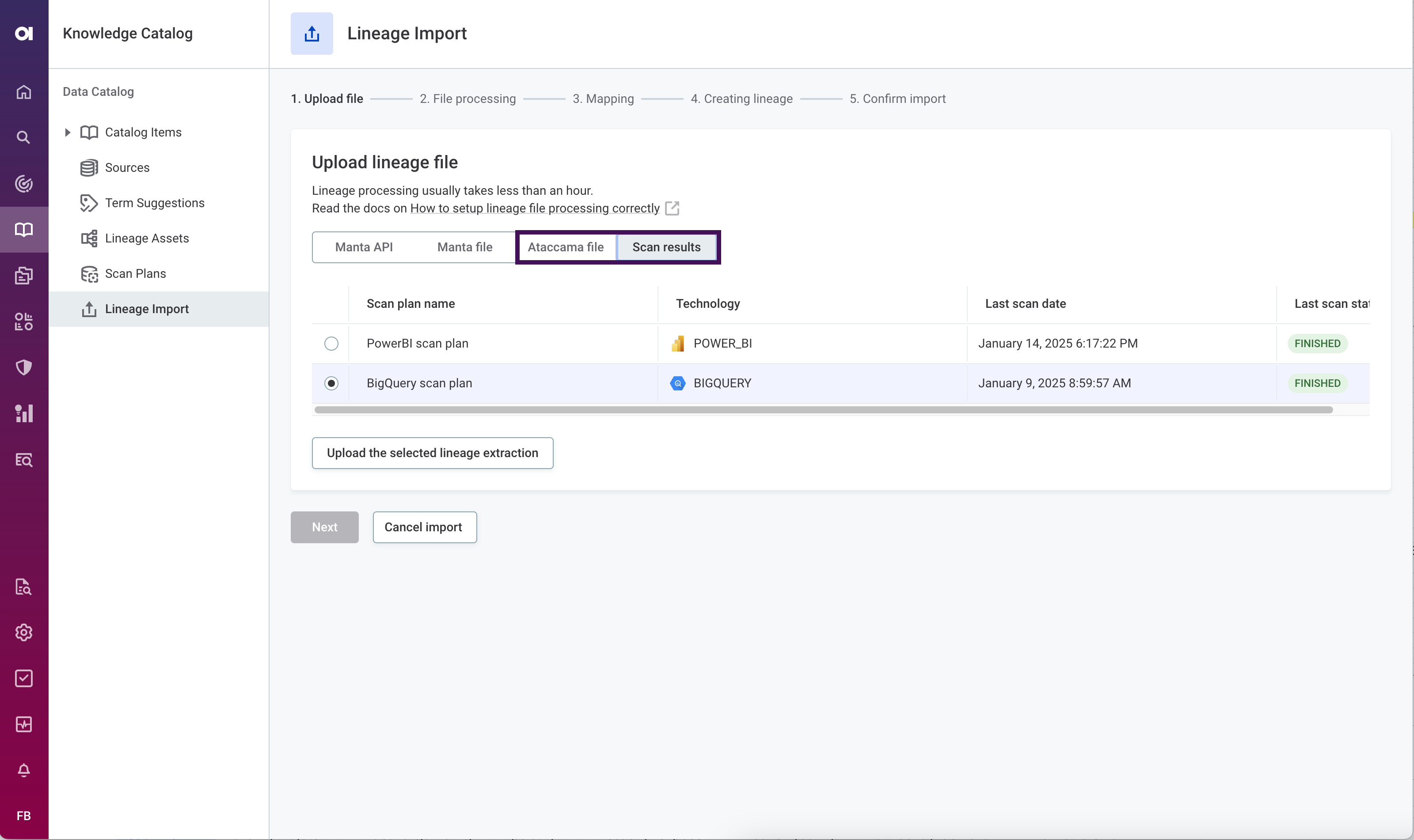
| If you have configured a schedule for your scan plan with automatic import enabled, the scan results are automatically imported at the scheduled time. You can still manually import scan results at any time. See Schedule scan plan. |
Continue with step Map connections.
Map connections
Once your lineage extraction finishes uploading, select Next and wait for the processing to finish. This might take some time, especially if you’re importing a large amount of data.
You can continue using the platform and return to the Lineage Import tab later once the processing is finished. Your progress is saved automatically.
Map the connection names from the import file to the corresponding data source connections in ONE. You can also map individual connection names to multiple connections (select Add to include additional connections).
If you don’t want to import every connection name, clear the Import field as needed.
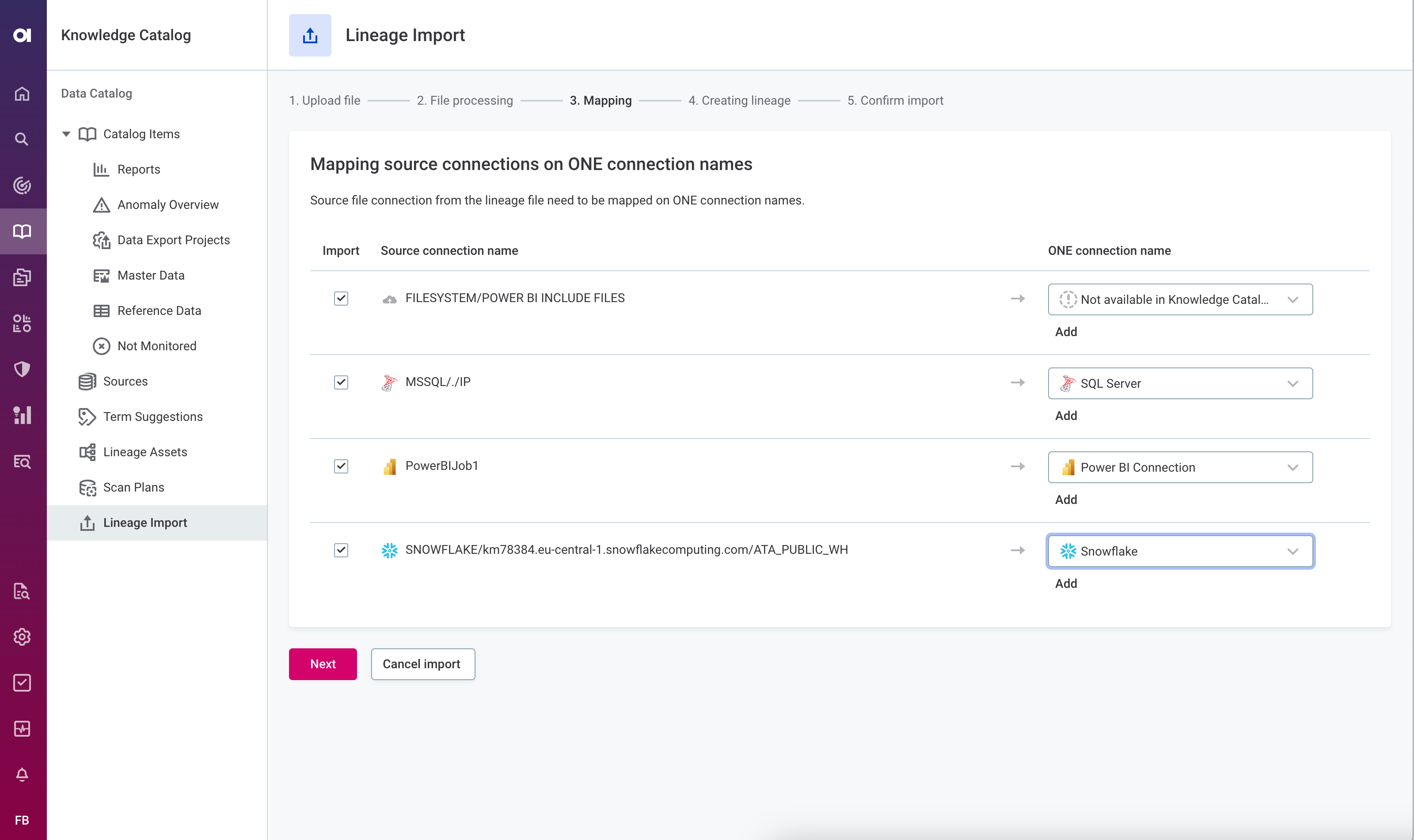
| Connections are prefiltered based on the identified connection type (technology). If the connection you are looking for is configured but not displayed, select Load more items. |
|
If ONE doesn’t have a corresponding connector for one of your dictionaries and you still want to import the metadata, map this dictionary to Not available in Knowledge Catalog. In this case, the imported metadata will be shown in your lineage but the nodes cannot be reached or enriched in Knowledge Catalog or Data Quality. However, the nodes will be listed in Lineage Assets. You can also use this mapping if the connection is not yet configured in Ataccama. Keep in mind that, once you set up the connection, you need to re-import the metadata and map it again. |
Once you’re happy with your configuration, select Next. Continue with step Publish new lineage metadata.
Publish new lineage metadata
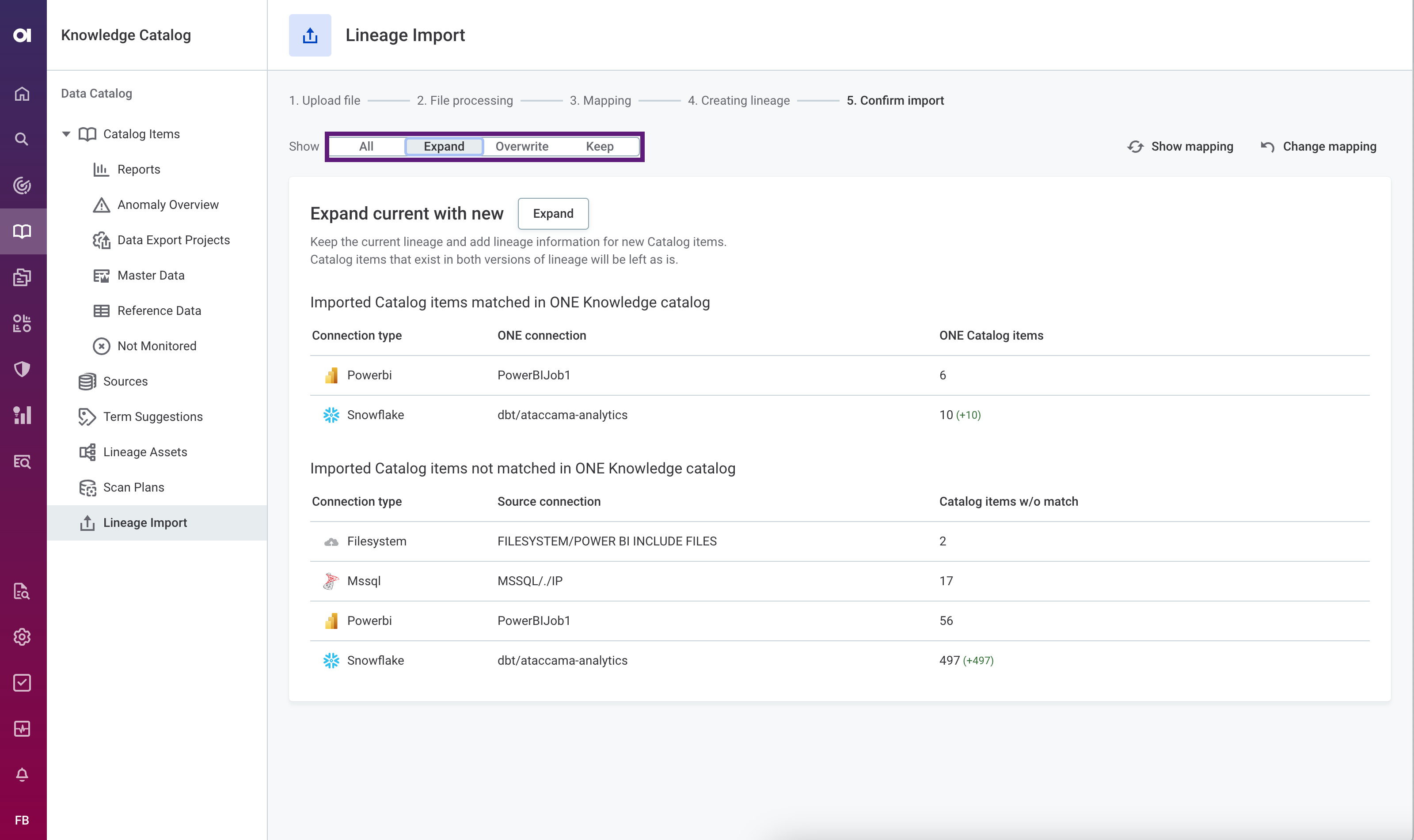
As the final step in the import process, you need to make the new metadata from the import file visible to other users. To do this, choose between Overwrite and Expand modes.
Publish in overwrite mode
If you publish in Overwrite mode, your lineage repository is cleared and any content is replaced with the new metadata. Switch to the Overwrite tab and select Overwrite.
Continue with step View import overview.
Publish in expand mode
If you publish in Expand mode, your lineage repository is enriched with the new metadata instead. Switch to the Expand tab and select Expand.
Continue with step View import overview.
View import overview
After you publish the import, you can view a summary of the latest lineage import and mapping on the Lineage Import screen.
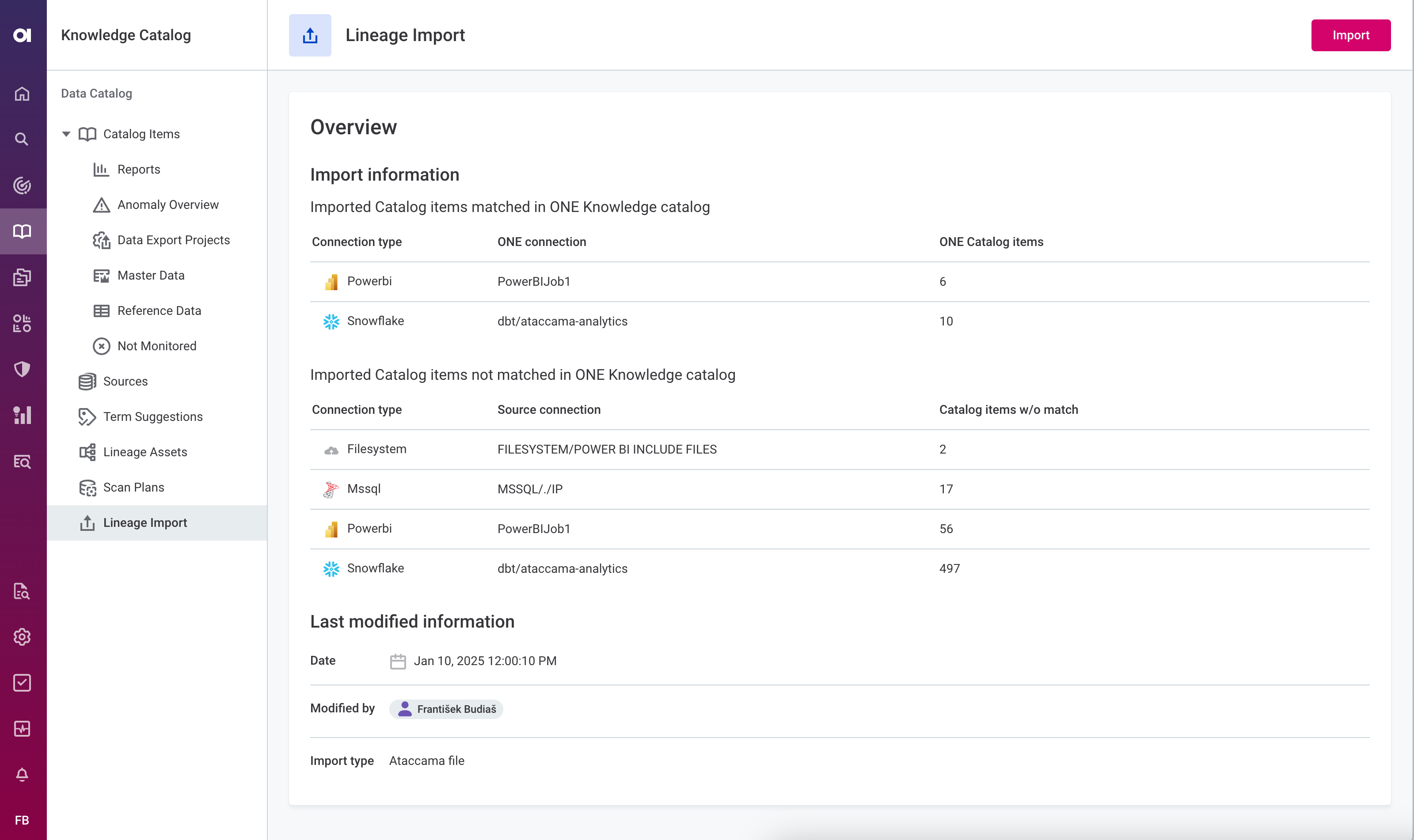
This shows:
-
Last modification information: An overview of when the lineage was imported, who imported it, and the last import type.
-
Connection type: The type of connection (technology).
-
ONE connection name: The name of the connection in ONE to where the source was mapped.
-
Source connection name: The name of the connection in the source in case it was not mapped to a connection in ONE.
-
Number of catalog items: The number of catalog items contained in the imported lineage with and without a match.
|
Ideally, all catalog items from the import should be match to catalog items in ONE. If this is not the case, there are several reasons why it can happen:
|
To view the lineage, you need to choose a specific catalog item from the Lineage Assets list or open the Lineage tab for a specific catalog item.
Was this page useful?