
Publish Changes
When you change data assets like terms, catalog items, or rules, your changes remain in draft state until published.
You need to publish changes when you:
-
Create a new asset.
-
Edit an existing asset.
-
Apply terms or classifications to assets.
-
Delete an asset.
Depending on your permissions, you can either publish changes immediately or submit them for review.
When you submit a review request, an admin or user with Full access level to the asset reviews and approves your changes before they’re published.
| By default, review workflows are required for terms and policies. Your application admin can configure review workflows for other asset types. See Configure Workflows for details. |
Who can publish changes
Publishing permissions depend on your role and access level:
-
Admins, stewardship owners, and users with
Full accesslevel can publish changes themselves or approve review requests from other users. -
All other users must submit a review request for assets with review workflows configured (by default, terms and policies) but can publish changes immediately on other asset types.
Review request workflow
If you don’t have permission to publish changes directly, your edits must be approved by an admin or user with Full access level before they become visible to others.
A typical review request follows this workflow:
-
A user makes a change and requests its review and publishing.
-
A task for reviewing changes is created based on the request.
-
The task assignee reviews the changes and either approves them or reassigns the task. Once approved, the changes are published.
Request review
When to request review
- Creating new assets
-
After you create a new term or rule, the asset remains visible only to you and any groups or users you’ve shared it with until it’s published. At this point, you can either request a review or delete the draft.

- Editing published assets
-
After you make changes to a published asset, you can submit the changes for review, view the published version, compare changes, or revert to the previous version.

- Deleting published assets
-
After selecting to delete a published asset, you can restore the published version or request its removal.

Compare changes
When you select Request review and publish, you can compare your draft with the published version to review what’s changed.
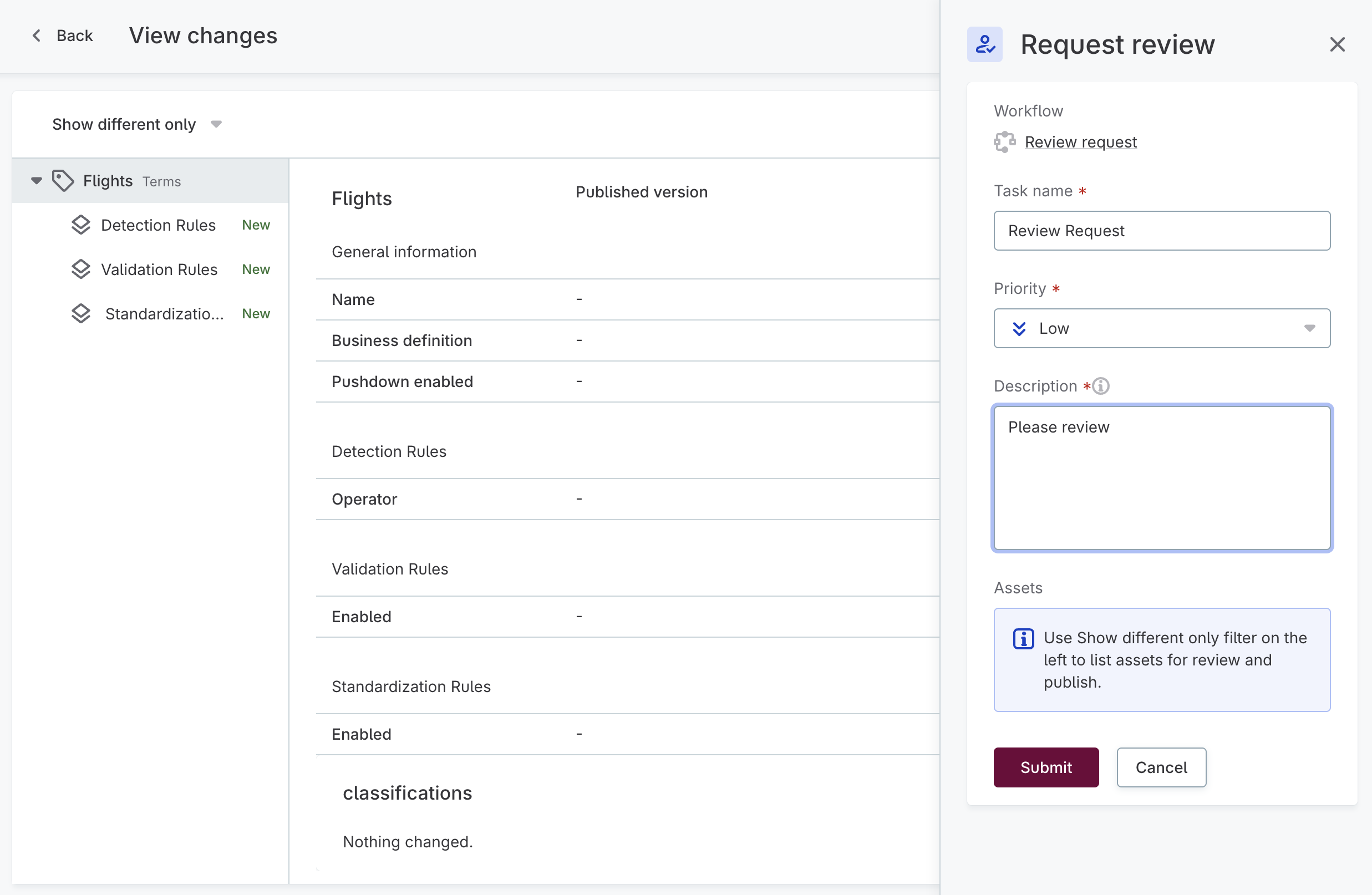
You can filter to see:
-
All changes, only differences, or only unchanged values.
-
Added or removed fields and values.
Request review to publish changes
To submit a request for publishing your changes:
-
In the request task form, provide the following:
-
Priority: Choose the priority of the review request task from Low, Medium, or High.
-
Description: Add task description and any additional information. The admin or users with
Full accesslevel on the asset are then notified of the pending request.
-
-
Select Submit.
While waiting for the request to be resolved, you can see changes, view the publishing task, and cancel the request. To view the publishing task or cancel the request, use the three dots menu in the review request ribbon.
In case you are responsible for the request review, you can also review and publish the changes.
Once your request is resolved, you receive a notification.
Approve request
Only admins or users with Full access level can approve requests.
For details, see Who can publish changes.
|
When reviewing a request, you can:
-
Approve the request: If you approve the requested changes, a new version of the asset is published.
-
Reject the request: If you reject the changes, the asset remains in the draft version. To revert it to the previously published version, cancel the request.
-
Reassign the request: If you receive a review request but aren’t the right person to approve it, you can reassign the task to another user with
Full accesslevel on the asset.
The user who requested the change is notified about your decision.
To approve or reject a request:
-
Open the review request using either method:
-
From the asset: Open the asset and select Review and publish.
-
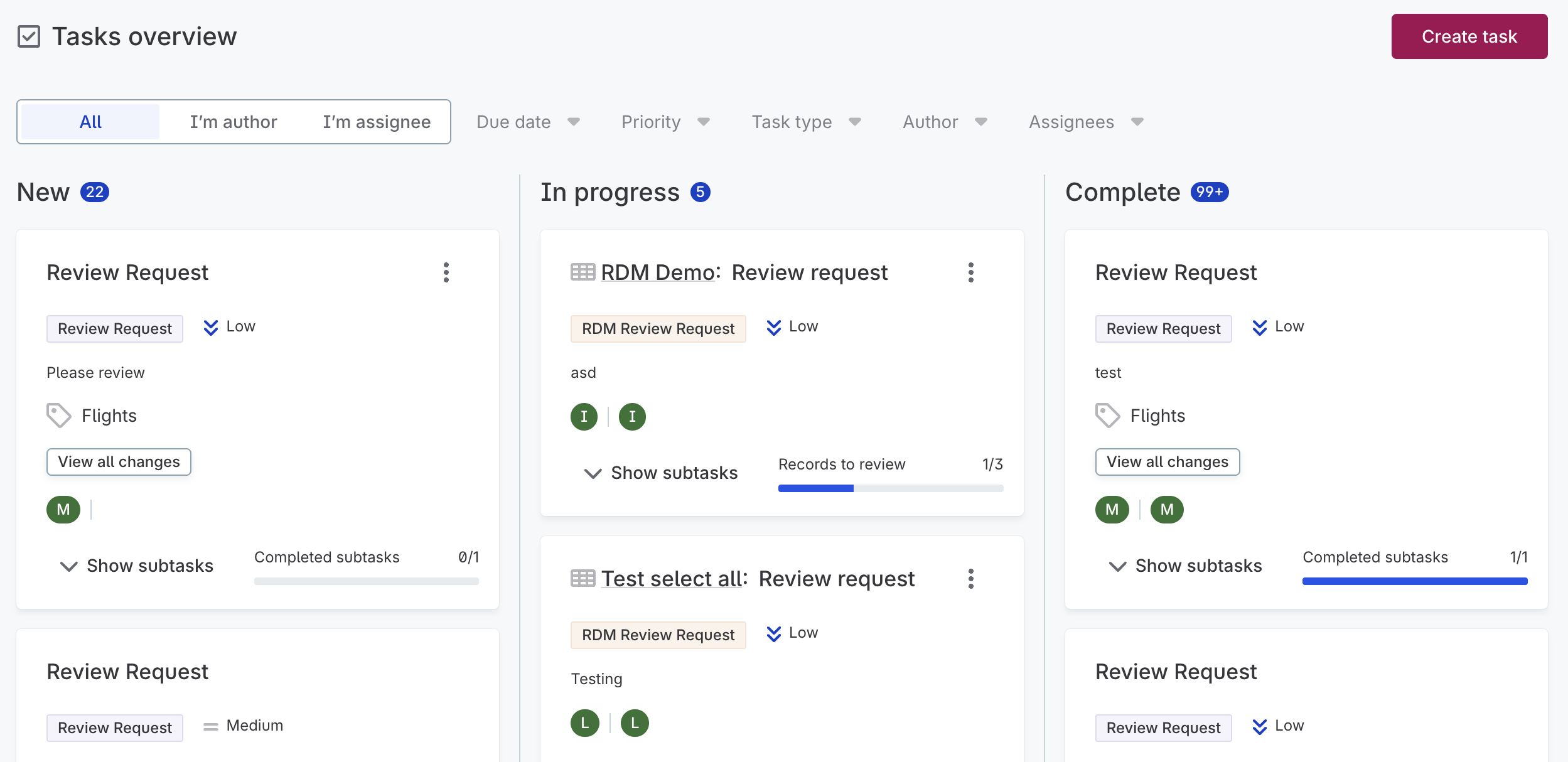
From tasks: Go to Tasks and workflows > Tasks and search for the task, or select View publishing task from the tasks overview.
Filter by task type to see review request tasks only. For more information about filtering, see Tasks.
-
-
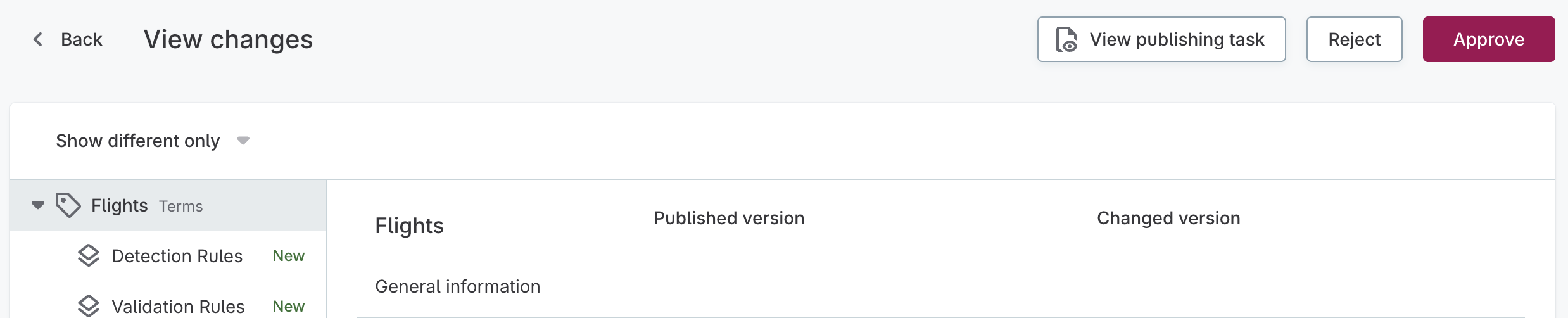
Review the changes by selecting View all changes from the task card. Filter the changes as needed: All, Only different, Only same, Only added, or Only removed.
Alternatively, if you’re in the task detail view, you can select Approve or reject from here.
-
Once you’re done, select Approve or Reject accordingly.
Was this page useful?