
Test Expressions
Expression testing allows you to quickly validate transformation expressions with sample data, without running a full plan preview. This feature is designed for data engineers, analysts, and anyone building transformation logic who needs confidence in their expressions before deployment.
Key benefits
-
Fast validation: Test expressions in seconds instead of waiting for full plan previews.
-
Immediate feedback: See exactly how your expressions handle specific input values.
-
Iterative development: Make changes and re-test quickly without losing your test data.
-
Risk reduction: Catch expression errors before deploying plans to production.
Common testing scenarios
- Validate AI-generated expressions
-
When AI generates complex expressions (like date parsing or string manipulation), test if the logic handles your expected input formats correctly.
- Test custom attribute logic
-
When creating new attributes with conditional logic, mathematical calculations, or data type conversions, test expressions with representative sample values to ensure they produce expected results for all scenarios.
- Edge case validation
-
Quickly verify how your expressions handle unusual inputs like empty values, special characters, or boundary conditions.
- Business rule verification
-
Test conditional expressions that implement business rules, scoring algorithms, or data categorization logic.
Quick start
Prerequisites
-
An open transformation plan in edit mode.
-
A transformation step containing expressions.
Testing workflow
-
Open any transformation step containing expressions (such as an Add attributes step).
-
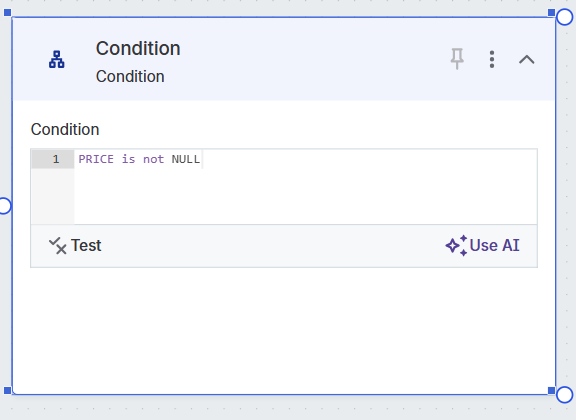
Locate the expression field you want to test and select the Test button that appears when you select the expression field.
-
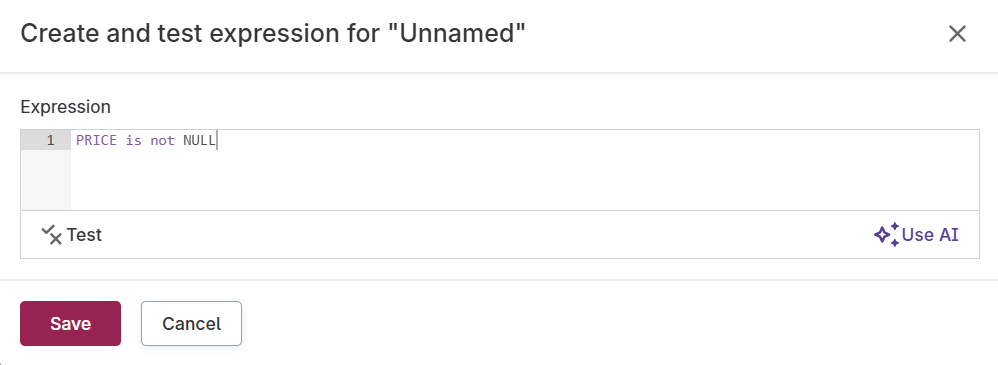
The "Create and test expression" dialog opens with:
-
An AI prompt field for generating or refining expressions
-
The current expression in an editable code field
-
Test and Use AI buttons for validation and AI assistance
-
-
Test your expression:
-
Click Test to open the testing interface.
-
The interface displays "Test data" and "Result" sections side by side.
-
Add test data manually by clicking Add row or use the Generate button for AI-generated sample data.
-
Enter values for all columns referenced in your expression.
-
Results appear automatically, showing how your expression processes each input row.
-
-
Refine the expression:
-
Edit the expression directly or use AI assistance to generate alternatives.
-
Test immediately to validate changes without losing your test data.
-
Iterate until the expression produces expected results for all test cases.
-
-
Click Save to apply the tested expression or Cancel to discard changes.
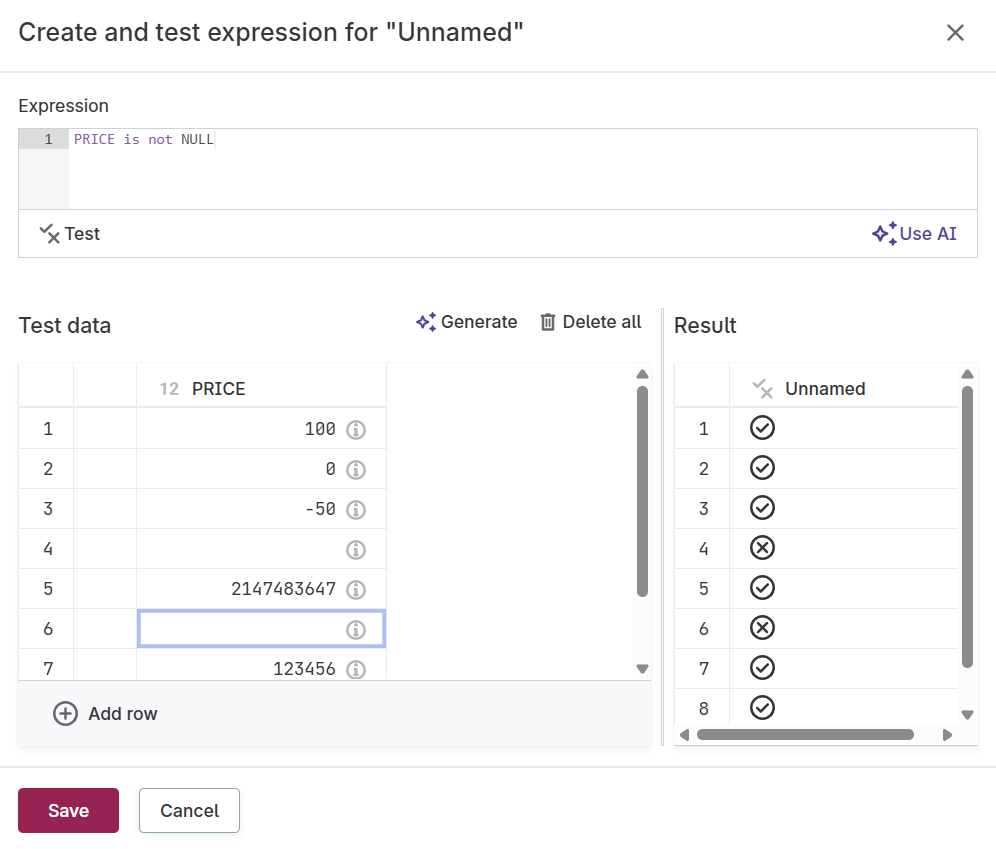
The test interface allows you to validate expression logic with sample data before applying it to your full dataset. You can test various types of expressions including Boolean conditions, mathematical calculations, string operations, and date manipulations.
Work with test data
AI expression generation
The testing interface includes AI assistance for creating and refining expressions:
-
Generate expressions: Describe the logic you want in natural language (e.g., "create a Boolean flag for high-value customers").
-
Iterative refinement: Request modifications or alternatives based on your testing results.
-
Context-aware suggestions: AI considers your attribute names, data types, and transformation context.
-
Expression examples: AI provides expressions using appropriate functions, operators, and syntax for your use case.
AI-generated expressions appear in the Expression field where you can review, modify, and test them before implementation.
Manual data entry
Type values directly into input fields or add multiple rows using the interface controls.
Paste from external sources
Copy data from spreadsheets, CSV files, or other applications and paste directly into the test interface. ONE automatically detects column structure.
AI-generated test data
Click Generate in the test data section to have AI create sample values that exercise your logic:
-
AI analyzes your expression configuration to generate relevant test cases.
-
Includes both typical cases and edge cases to thoroughly test your expression logic.
-
Generated datasets are capped at reasonable sizes for responsive performance.
-
Review AI-generated data before use to ensure it matches your testing needs.
Read results
Input-to-output alignment
The test interface displays input and output data side-by-side, making it easy to trace how each input record produces specific output values.
Visual cues
-
Successful transformations: Clear output values displayed in the Result column.
-
Expression errors: Red error icons appear in the Result column when expressions fail to evaluate.
-
Validation warnings: Orange warning messages appear when expressions contain syntax errors or invalid references.
-
Empty results: Indicates potential logic errors or missing data handling.
-
Real-time feedback: Results update automatically as you modify test data or expressions.
Next steps for issues
When testing reveals problems (see Expressions Handbook for guidance):
-
Modify your expression configuration.
-
Re-run the test without losing your test data.
-
Iterate until the expression produces expected results.
Performance recommendations
For optimal responsiveness, expression testing is designed for:
-
Test records: 5-50 records per test session.
-
Expression complexity: Moderate complexity expressions with reasonable computation requirements.
-
Input columns: Up to 10-15 input columns referenced in a single expression.
Testing beyond these limits may experience slower response times.
Privacy and data persistence
Test data persists during your active session and remains available while you work within the test interface. Input values are retained when switching between test and configuration views.
Test data is automatically cleared when you close the test interface. No test data is saved permanently with your transformation plan, and test sessions don’t affect your plan’s published configuration.
Limitations and considerations
Expressions must have valid syntax before testing can begin. All referenced columns must be properly defined in your transformation context. Complex nested expressions may require breaking into smaller testable components.
Expected error states:
-
"Cannot generate test data": Expression contains syntax errors or invalid column references.
-
"Expression validation failed": Syntax errors in expressions must be corrected before testing.
-
Performance warnings: Appear when test data exceeds recommended limits.
Resolution steps:
-
For syntax errors: Check expression syntax and referenced column names.
-
For invalid references: Ensure all referenced columns exist in your transformation context.
-
For performance issues: Reduce test data size or simplify expressions.
FAQ
Can I export test results?
Test results are not exportable. The feature is designed for interactive validation rather than data extraction.
How does expression testing relate to data preview?
Expression testing uses a lightweight execution engine for fast testing with small datasets focused on individual expressions, while data preview executes complete plans against real source data using the full processing engine.
What types of expressions can I test?
You can test any expression supported by the transformation engine, including:
-
Boolean conditions and comparisons
-
Mathematical calculations and functions
-
String operations and text manipulation
-
Date functions and time-based logic
-
Type conversions and data formatting
-
Custom business rule implementations
Was this page useful?