
Configure Workflows
Customize workflow settings to control approval processes for request data access and review workflows:
-
Request data access workflow: Change default assignee and set up approval routing.
-
Review workflow: Apply it to specific entities and define multi-step approval processes.
You need MMM_admin identity provider role to configure workflows.
|
For information about using workflows, see Workflows.
View workflow configuration
To view a workflow configuration, go to Tasks and workflows > Workflows tab.
Here you can:
-
View default workflow settings.
-
Edit assignees for request data access workflows.
-
Configure multi-step approval processes for review workflows.
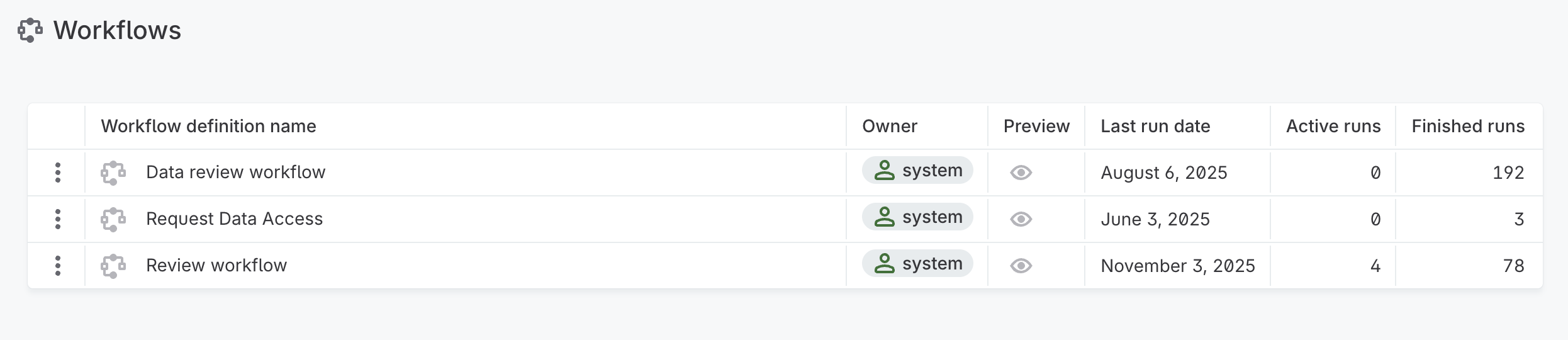
On the Workflows listing, you can see:
-
Workflow name: Data review workflow, Request Data Access, and Review workflow.
-
Owner:
System. This indicates it is a default workflow that you cannot delete. -
Preview: Hover over the eye icon to see all possible task states.
-
Last run date: When the workflow was most recently triggered.
-
Active run: Number of pending requests.
-
Archive run: Number of completed requests.
For details about editing a workflow, refer to the following sections.
Configure request data access workflow
Apply workflow
To let users request access to an asset, add the workflows:ableToStartRequestDataAccess trait to the entity.
-
Go to Metadata Model > [your entity] > Traits.
-
Add the
workflows:ableToStartRequestDataAccesstrait and publish your changes.
This trait can be added to the following entities:
-
catalogItem -
source -
location -
connection
Edit default assignee
The default assignee can either handle the request themselves or reassign the task to another user.
To change the default assignee of all request data access workflows:
-
Go to Tasks and workflows > Workflows.
-
In the three dots menu for the Request Data Access workflow, select Edit.
-
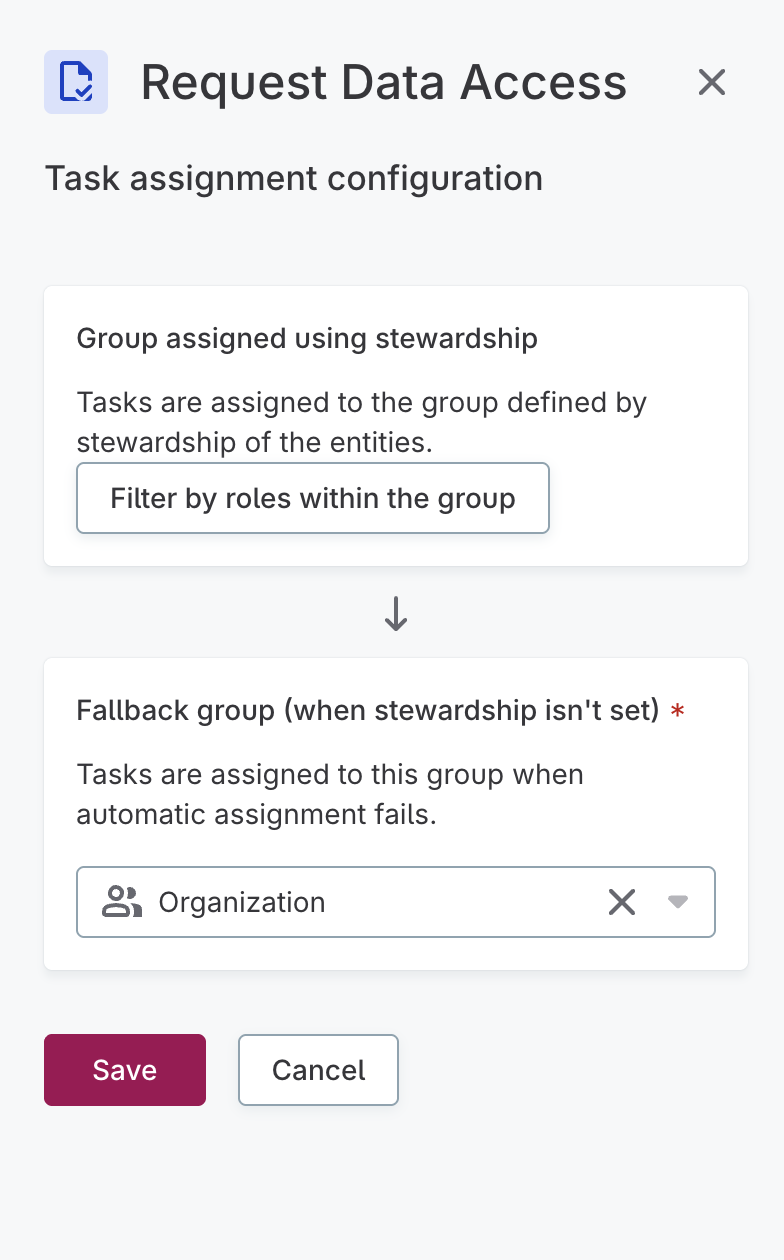
Specify the default assignee:
-
Group assigned using stewardship: Tasks are automatically assigned to the group defined by the asset stewardship. Anyone from the group can resolve the task.
To assign the task to a specific role within the group, select Filter by roles within the group. Choose one or multiple roles and define the order in which they are assigned the task if the stewardship group has no relevant role.
-
Fallback group (when stewardship isn’t set): If stewardship isn’t assigned on the asset, tasks are assigned to the fallback group that you select here.
-
Configure review workflow
Apply workflow
To require approval before publishing changes to an asset type, remove the hasNoWorkflow trait from the entity.
-
Go to Metadata Model > [your entity] > Traits.
-
Remove the
hasNoWorkflowtrait and publish your changes.
The following entities have this trait by default:
-
connection -
location -
source -
credential -
connectionWithCredentials -
relationshipType -
catalogItemRelationship -
termRelationship -
globalRole -
group
Edit workflow steps
In the review workflow, you can define one or multiple workflow steps.
Each step definition consists of three parts: approver, conditions, and businessState.
By combining these parts, you can create workflow steps to adjust the default workflow to your needs (for example, to specify different workflow steps on different entities, or to specify that the step should apply only to a specific subset of an entity).
The order in which the steps are defined in the configuration determines the order of the approval steps in the workflow.
To change the default review workflow configuration:
-
Go to Tasks and Workflows > Workflows tab.
-
In the three dots menu for the Review workflow, select Edit.
-
Edit the configuration as needed. See Configuration properties.
To view sample workflow configurations, see Configuration examples.
-
In Backup workflow settings, specify a group that can manage the task in case the configured approver is not available.
-
Select Save.
Configuration properties
Approver
The approver defines who will be assigned to the task.
The assignee can handle the request on their own or reassign the task to another user.
You can choose from two approver types:
-
stewardship: The tasks are assigned to the group according to the asset stewardship. You can further specify the assignee role using theglobalRolesIdsproperty. This option is used in the default review workflow.All users within the stewardship group (or role, if specified) have access to the task and can resolve or reassign it.
All tasks are also visible to admins and users who created the task. Properties used with the
stewardshipapprover type:-
globalRolesIds(optional): In Global Settings > User Management > Governance Roles, select a role, and copy the role ID from the URL:…/userManagement/globalRole/<globalRoleId>/.To open Global Settings, select the name of your organization in the upper-left corner and then Global Settings. Configuration options of the
approverelement:Assign tasks to thestewardshipgroup with no roles defined"approver": { "type": "stewardship", "globalRoleIds": [] },Assign tasks to a specific role (Data Stewards) within thestewardshipgroup"approver": { "type": "stewardship", "globalRoleIds": ["36ed325c-0000-7000-0000-00000008a894"] },For full workflow configuration examples, see Configuration examples.
-
-
group: The tasks are assigned to the group specified bygroupId. You can further narrow down the assignees to users with a specific role within the group using the optionalglobalRoleIdproperty.All users within the group (or role, if specified) have access to the task and can resolve or reassign it.
To assign tasks to a specific user, use the optional
userIdproperty. The specified user can access the task regardless of their role. In addition, the user sees the task as a direct assignee in the I’m assignee tab on the Tasks Overview screen.All tasks are also visible to admins and users who created the task. Properties used with the
groupapprover type:-
groupId(mandatory): In Global Settings > User Management > Groups, select a group, and copy the ID from the URL…/userManagement/group/<groupId>/. -
globalRoleId(optional): In Global Settings > User Management > Governance Roles, select a role, and copy the role ID from the URL:…/userManagement/globalRole/<globalRoleId>/. -
userId(optional): In Global Settings > User Management > Users, select a user, and copy the value of the User Id property.Configuration options of the
approverelement:Assign tasks to a group usinggroupId"approver": { "type": "group", "groupId": "15bbce34-0000-7000-0000-00000047025b" },Assign tasks to a role within the group usinggroupIdandglobalRoleId"approver": { "type": "group", "groupId": "15bbce34-0000-7000-0000-00000047025b", "globalRoleId": "36ed325c-0000-7000-0000-00000008a87d" },Assign tasks to a user usinggroupIdanduserId"approver": { "type": "group", "groupId": "15bbce34-0000-7000-0000-00000047025b", "userId": "a24b2b3a-6abf-4324-9103-c7f888099857" },Assign tasks to a user within the group with a specific role usinggroupId,globalRoleId, anduserId"approver": { "type": "group", "groupId": "15bbce34-0000-7000-0000-00000047025b", "globalRoleId": "36ed325c-0000-7000-0000-00000008a87d", "userId": "a24b2b3a-6abf-4324-9103-c7f888099857" },
-
| For full workflow configuration examples, see Configuration examples. |
Conditions
The conditions define entities (entityType) on which the workflow will be used.
If the workflow should only apply to a subset of entities, use a filter to select these entities.
By default, review workflow is enabled only on policies and terms.
-
entityType: Specify any entity on which you want to configure the workflow. -
filter: Specify the conditions under which the workflow is triggered using AQL expressions.To find the list of properties you can use in the AQL expression, open the entity details in Metadata Model and see its properties. For example, go to Metadata Model > term >
validationRulesproperty > objecttermValidationRulesto see the properties you can use in the filter (booleanenabledand arrayruleInstances).
Configuration examples
The following examples show the most common use cases of the review workflow configuration.
Example 1: Default workflow definition
This workflow has one approval step (Waiting for review) for term and policy entities without filters.
Tasks are assigned to the asset’s stewardship group.
View configuration
[
{
    "approver": {
      "type": "stewardship",
      "globalRoleIds": []
      },
"conditions": [
{
"filter": null,
"entityType": "term"
},
{
"filter": null,
"entityType": "policy"
}
],
"businessState": "Waiting for review"
}
]Example 2: Use AQL filter to define a specific step for a subset of assets
This workflow has two approval steps:
-
Waiting for reviewapplies to alltermandpolicyentities. Tasks are assigned to the asset’s stewardship group. -
Waiting for data officeapplies only totermentities with DQ validation rules. Tasks are assigned to theData Officegroup (specified bygroupId).
This workflow has two approval steps defined:
View configuration
[
{
"approver": {
"type": "stewardship",
"globalRoleIds": []
},
"conditions": [
{
"filter": null,
"entityType": "term"
},
{
"filter": null,
"entityType": "policy"
}
],
"businessState": "Waiting for review"
},
{
"approver": {
"type": "group",
"groupId": "15bbce34-0000-7000-0000-00000047025b"
},
"conditions": [
{
"filter": "validationRules.enabled = true and validationRules.ruleInstances.count() > 0",
"entityType": "term"
}
],
"businessState": "Waiting for data office"
}
]Example 3: Assign a workflow step to a specific role within stewardship definition and to the selected user group
This workflow has four approval steps:
-
Waiting for reviewapplies topolicyentities. Tasks are assigned to the policy’s stewardship group.
For term entities, there are three sequential steps:
-
Data steward review- assigned to Data Stewards within the term’s stewardship group (specified byglobalRoleIds). -
Marketing review- assigned to theMarketinggovernance group. -
Data owner review- assigned to Data Owners within the term’s stewardship group.
View configuration
[
{
"approver": {
"type": "stewardship",
"globalRoleIds": []
},
"conditions": [
{
"filter": null,
"entityType": "policy"
}
],
"businessState": "Waiting for review"
},
{
    "approver": {
      "type": "stewardship",
      "globalRoleIds": ["36ed325c-0000-7000-0000-00000008a894"]
      },
"conditions": [
{
"filter": null,
"entityType": "term"
}
],
"businessState": "Data steward review"
},
{
"approver": {
"type": "group",
"groupId": "15bbce34-0000-7000-0000-00000047025d"
},
"conditions": [
{
"filter": null,
"entityType": "term"
}
],
"businessState": "Marketing review"
},
{
"approver": {
"type": "stewardship",
"globalRoleIds": ["36ed325c-0000-7000-0000-00000008a87d"]
},
"conditions": [
{
"filter": null,
"entityType": "term"
}
],
"businessState": "Data owner review"
}
]Example 4: Assign a workflow step to a specific user within the governance group
This workflow has one approval step (Abbreviation review) for term entities where the abbreviation field is empty.
Tasks are assigned to user jane.smith (specified by userId) within the Data Office group (specified by groupId).
Other users in the Data Office group can also access these tasks.
View configuration
[
  {
    "approver": {
      "type": "group",
      "userId": "a24b2b3a-6abf-4324-9103-c7f888099857",
      "groupId": "15bbce34-0000-7000-0000-00000047025b"
    },
    "conditions": [
      {
        "filter": "abbreviation is null",
        "entityType": "term"
      }
    ],
    "businessState": "Abbreviation review"
  }
]
If you need the assignee to have a specific role within the group (such as Data Owner), add globalRoleId to the step definition:
View configuration
[
  {
    "approver": {
      "type": "group",
      "groupId": "15bbce34-0000-7000-0000-00000047025b",
      "globalRoleId": "36ed325c-0000-7000-0000-00000008a87d",
			"userId" : "a24b2b3a-6abf-4324-9103-c7f888099857"

    },
    "conditions": [
      {
        "filter": "abbreviation is null",
        "entityType": "term"
      }
    ],
    "businessState": "Abbreviation review"
  }
]
Was this page useful?