
Tasks
What are tasks?
Tasks help you track work and collaborate with coworkers across the platform.
Create tasks to request help from other team members or departments and resolve tasks assigned to you.
All tasks are managed from a centralized kanban board on the Tasks screen, where you can visualize and track your workload from creation to completion.
Tasks can be platform-wide (such as adding a new data source) or asset-specific, where they reference a particular asset (such as reviewing the quality of a specific term).
| Workflow tasks (access request and review request) are created automatically when you submit an access or review request. As such, certain actions are restricted. See Workflow tasks. |
When to use tasks
Here are common scenarios and how tasks can help:
- You need to add a new data source but lack permissions
-
Create a task from Tasks and assign it to users with the necessary access.
- You want someone to review a term’s quality
-
Create a task directly from that term and assign it to the relevant person or group.
- You need access to a specific asset data, such as sample of live data
-
Start the Request access workflow. See Workflows > Request access to data.
- You’ve changed an asset but can’t publish it
-
Start the Review request workflow. See Publish Changes.
Where to find tasks?
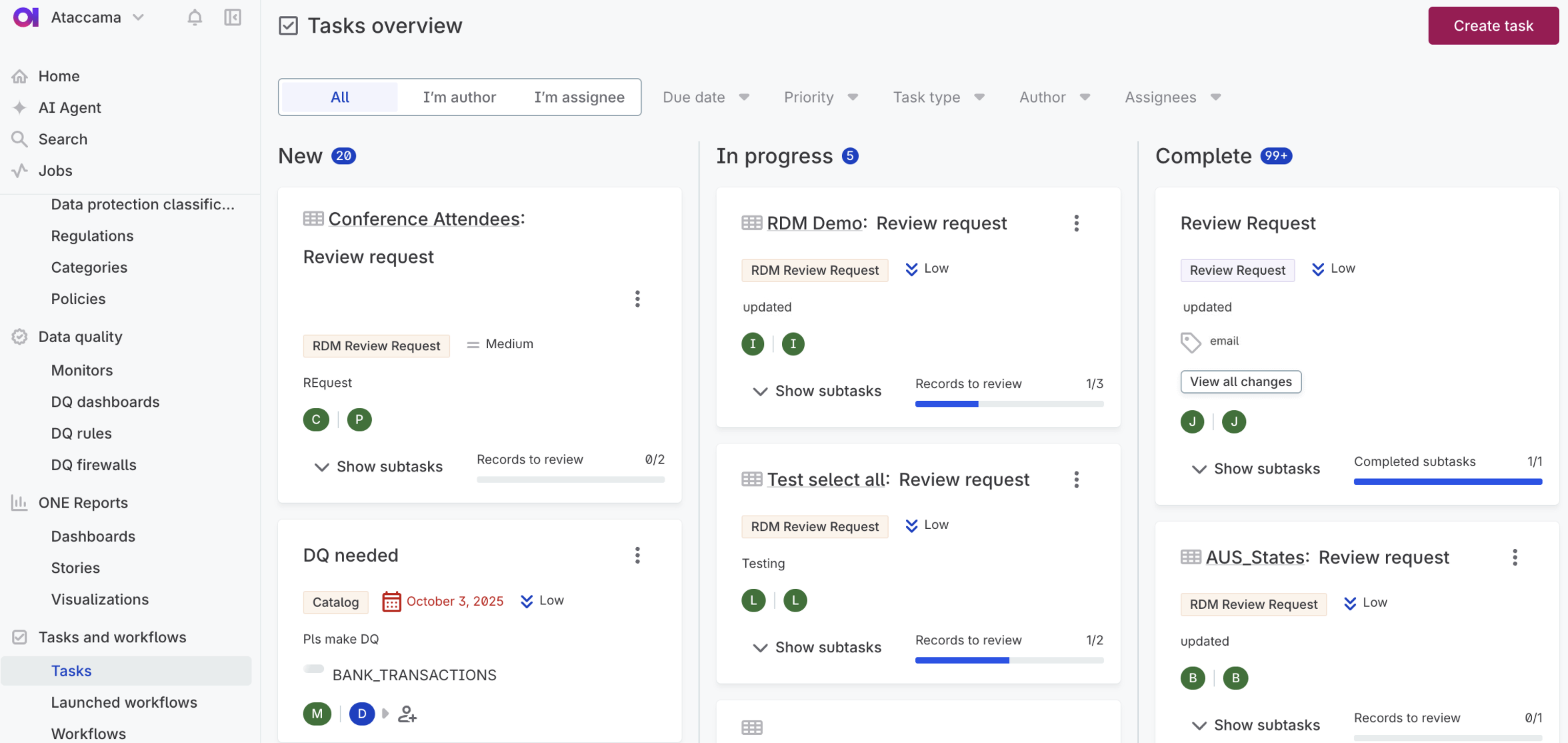
From the main navigation, go to Tasks and workflows > Tasks. Select any task to view its details in the sidebar.
Understanding the board
Tasks are organized into columns by status:
-
New: Newly created tasks.
-
In progress: Tasks currently being worked on.
-
Complete: Finished tasks.
Each column header shows the total number of tasks in that status. Tasks in all columns are sorted by creation date, with the most recent first.
Task details
Each task shows its status (New, In progress, or Complete), priority (Low, Medium, or High), author and assignees, due date, and related data asset.
For workflow tasks (access request and review request task types), the Workflow step indicates where the task is in the workflow process.
If a task has subtasks, a progress line shows completed subtasks (for example, "2/5 complete"). If there are no subtasks, the progress line is not shown.
Filter and search for tasks
Use filters to narrow down what you see on the board. Filters use AND logic when multiple filters are selected.
| Select Clear filters to remove all filters. |
- Filter by owner
-
-
All: Shows all tasks you can access.
-
I’m owner: Shows tasks you created.
-
I’m assignee: Shows tasks assigned to you.

-
- Filter by task details
-
-
Due date: Filter by completion deadline.
-
Priority: Filter by priority level.
-
Task type: Filter by type.
-
Author: Filter by who created the task.
-
Assignee: Filter by who is assigned.

-
Work with tasks
Before you start
Tasks can be created for the following asset types:
-
Catalog items
-
Attributes
-
Catalog item profiles
-
Terms
-
Rules
To be able to create tasks from custom asset types, add the tasks:ableToCreateTask trait to those entities in the metadata model.
Create task
You can create tasks from the tasks board or directly from an asset.
| Workflow tasks (access request and review request) are created only automatically. See Workflow tasks. |
-
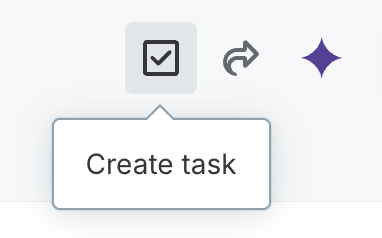
Select Create task.
-
From a specific asset.
-
From the tasks board (Tasks and workflows > Tasks).

-
-
Fill in the task details.
-
Task name: Give your task a clear name.
-
Task type:
-
General: A standard task (default).
-
Your custom task type. See Create task type.
-
-
Priority: Choose Low, Medium, or High.
-
Description: Explain what needs to be done or provide other useful information.
-
Assignee: Choose User for a specific person, or Group and Role to assign this task to a specific governance role within a group. Then select from the list.
If no assignee is selected, only you (the task author) can see it.
-
Due date: Optionally, set a deadline using the calendar.
-
Entity type: Optionally, select the asset type (entity) this task relates to.
-
Instance: Select the specific asset. For example, if you have selected
termin Entity type, you see a list of terms in the instances list.
-
-
To break the task into smaller tasks or assign it to multiple people, create subtasks.
-
Select Create. Your task appears on the tasks board in the New column.
Task assignees are also notified and will see the new task on their board. If the task is assigned to a group or a specific role within a group, all users belonging to that group or role will see the task on their board.
Currently, there can be only one assignee per task. If you want to assign more people to one task at the same time, you can create subtasks for each required assignee.
The task assignee can edit both the main task and subtasks (update the task status, assignee, or task details). The subtask assignees can view all related tasks but edit only the subtask.
To be able to submit the main task, all subtasks must be submitted first.
Edit task
You can edit the main task or subtasks (change the status, assignee, or task details) if you’re the task author or assignee. Subtask assignees can only edit the relevant subtask.
To edit task details:
-
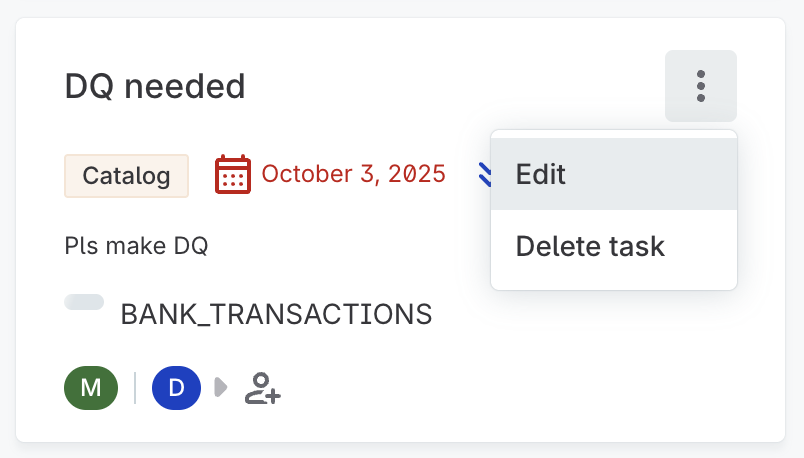
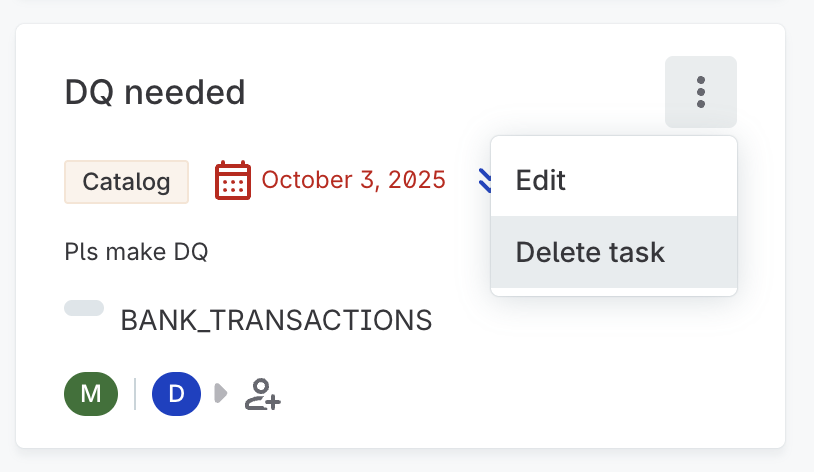
In the three dots menu of the task, select Edit.
-
Make your changes. See Create task for details.
-
Select Save.
Change assignee
You can update who’s responsible for a task directly from the board, with two exceptions:
-
The assignee is a group or role. In this case, you need to edit the task.
-
A subtask has no assignees yet. To assign one, edit the subtask details.
To manage the task assignee, you need the same permissions as for editing the task.
-
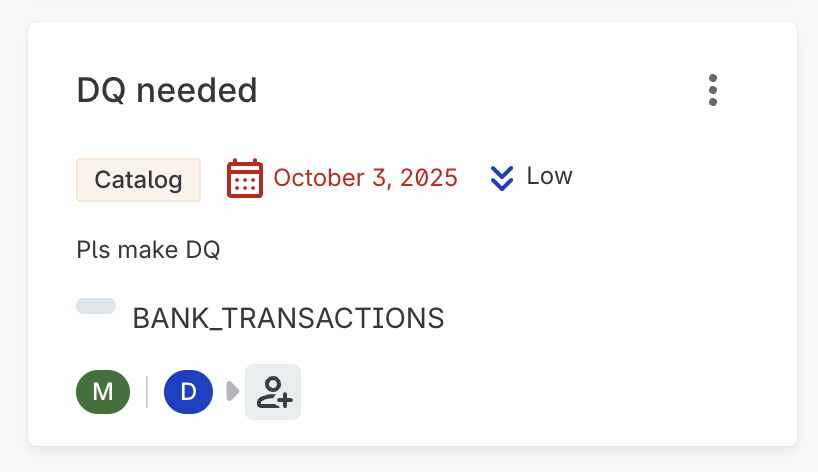
To add an assignee, select the assignee icon and start typing a user name, then select from the list. New assignees are notified about the change.
-
To remove an assignee, select the X icon next to the assignee name. You can then add a new task assignee or leave the task unassigned.
To change the assignee of a subtask:
-
Select Reassign from the task detail view.
-
Choose a Group, Role, and/or User to whom you want to reassign the subtask, then select Submit.
Change task status
Move tasks through your workflow by updating their status. For this, you need the same permissions as for editing the task.
The status of access request and review request tasks cannot be changed manually.
Drag and drop tasks to another column, or select a task and change the status in the sidebar.
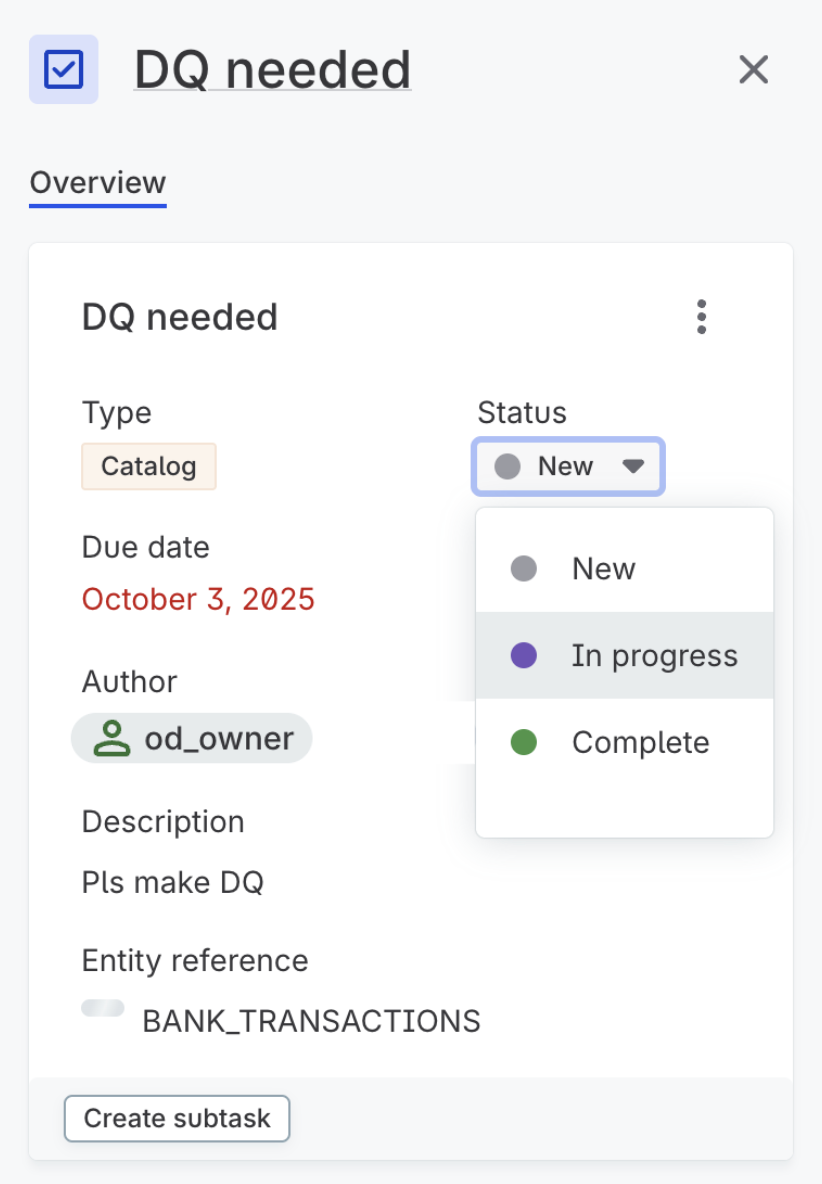
For subtasks, open subtask details (either in the sidebar or from the expanded view on the board) and select a new status in the dropdown.
Create subtask
Break down complex tasks or assign work to multiple people by creating subtasks.
To add a subtask:
-
Select a task from the board and then select Create subtask in the sidebar. Alternatively, use the Edit option from the task three dots menu.
-
Fill in the subtask information. Refer to Create task for details.
-
Select Create subtask.
Workflow tasks
Workflow tasks (access request and review request task types) are created automatically when you submit an access or review request. As such, some actions available for user-created tasks are not available or are automated:
-
New workflow tasks and subtasks are created only automatically when you submit a request to review or access data.
-
The status of workflow tasks is always updated automatically, as the task progresses through the workflow. The task is finished once all subtasks are resolved (approved or rejected).
-
You cannot edit the task details or assignees from the board nor delete the task or its subtasks.
-
You cannot edit or delete these task types nor set them as inactive.
An access request task can be in one of the following states:
-
Started
-
Waiting for approval
-
Approved
-
Permission Granted
-
Permission Declined.
A review request task has one of these states:
-
Started
-
In Progress:
-
Waiting for complete configuration
-
Approved
-
Waiting for review
-
-
Resolved:
-
Published
-
Publish rejected
-
Canceled.
-
For details about workflows, see Request Access to Data and Publish Changes respectively.
Task types
If required, your admin can create a new task type for your organization.
Access request and review request task types are related to workflows and cannot be edited, deleted, or set as inactive. The remaining task types can be managed manually as described in the following sections.
Create task type
To create a new task type:
-
Navigate to Tasks and workflows > Task types.

-
Select Create.
-
Fill in the following information:
-
Task type name: A clear name for this category.
-
Description: What this task type is used for.
-
Color of tag: Choose a color to help identify this type on the board.
-
-
Check the preview and select Save. The task type is added as active and can now be used.
Edit task type
|
Deleting a task type also removes all tasks of that type. Instead, consider making the task type inactive, which makes the task type unavailable for new tasks. |
To edit a task type:
-
Navigate to Tasks and workflows > Task types.
-
In the three dots menu of the task type, select one of the following:
-
Edit to change the task type information.
-
Delete to instantly delete a task type.
-
-
To make the task type active or inactive, select or clear the Active column as needed.
Was this page useful?